
Support Center
Watch our brand product setup videos, read troubleshooting articles, and download PDF manuals.
Video Guides
Video Library
0 GuidesTechnical Articles
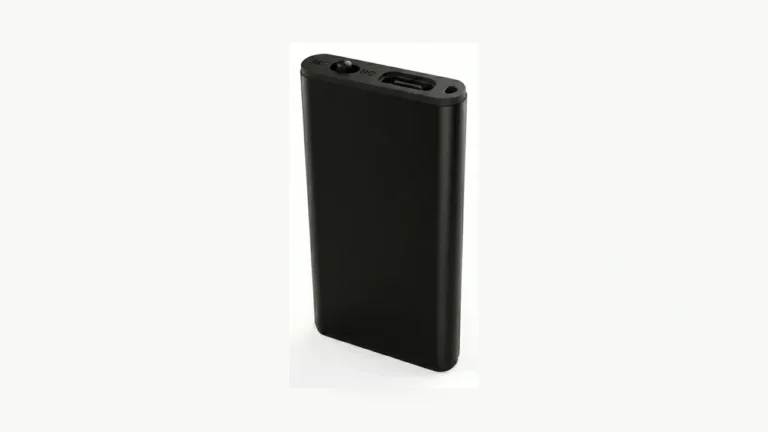
Cómo configurar la fecha y la hora de una grabadora de voz
Set a digital voice recorder's date and time through the clock menu,...
Read Details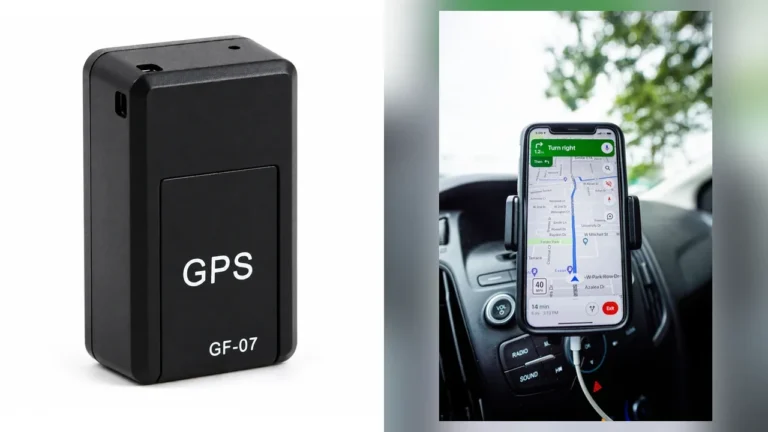
¿Ubicación del GF-07 incorrecta? LBS vs GPS y comprobaciones de precisión
If a GF-07 map point looks wrong, first check what location method...
Read Details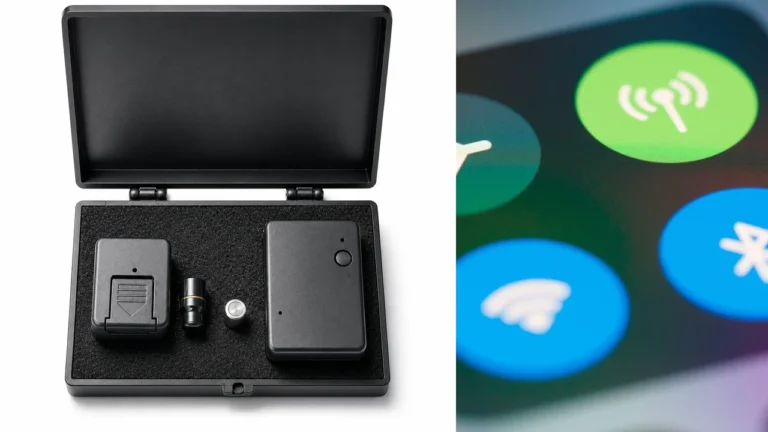
¿El auricular Bluetooth no se conecta? Revise el teléfono y el transmisor
A Bluetooth earpiece kit can fail before audio ever reaches the earpiece....
Read Details
¿Grabadora de voz con memoria llena tras eliminar archivos? Compruebe el almacenamiento
A voice recorder can remain full after deletion because you cleared the...
Read Details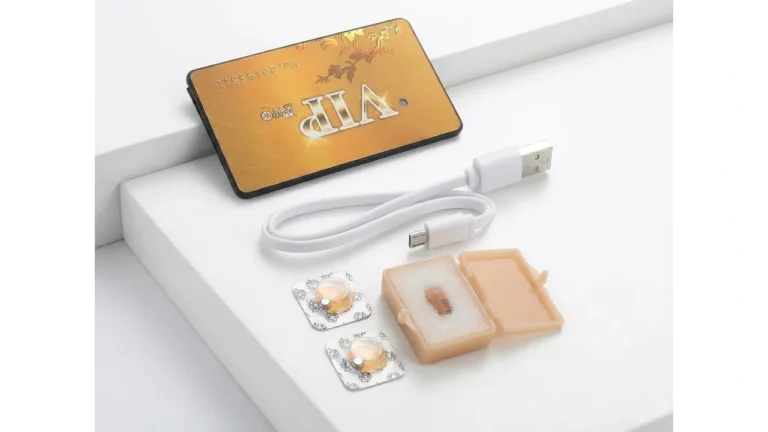
¿Auricular GSM conectado pero sin sonido? Compruebe la llamada y el enlace de audio
A silent GSM earpiece can have a failed phone call, an unpowered...
Read Details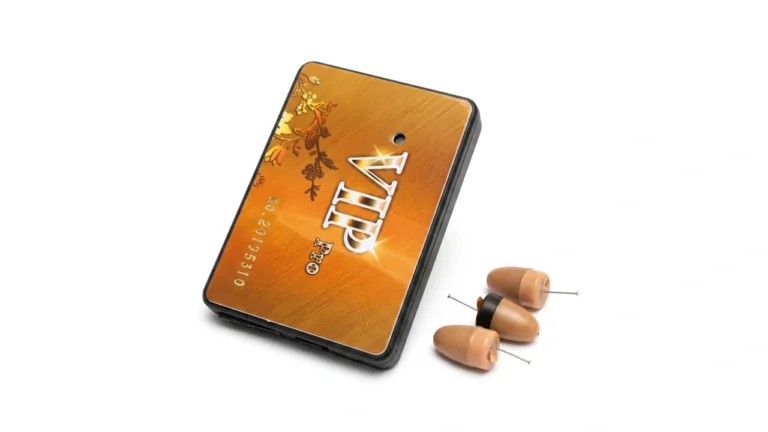
¿Funciona una SIM 4G en un dispositivo GSM 2G?
A SIM sold as “4G” may work in a 2G GSM device...
Read Details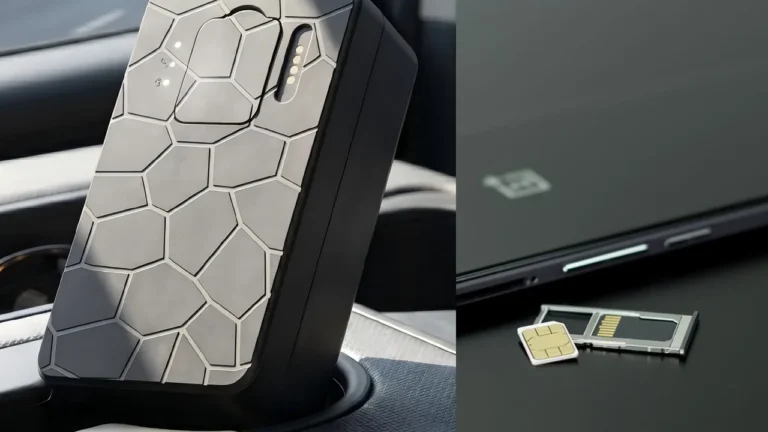
¿Localizador GPS sin conexión? Comprueba alimentación, SIM, red y ruta al servidor
When a GPS tracker shows offline, separate location reception from data transmission....
Read Details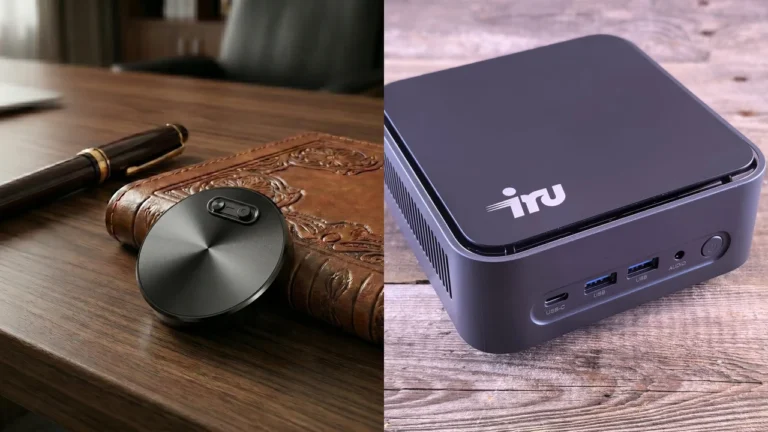
¿Grabadora de voz no carga? 5 comprobaciones antes de reemplazarla
When a voice recorder does not appear to charge, start with the...
Read Details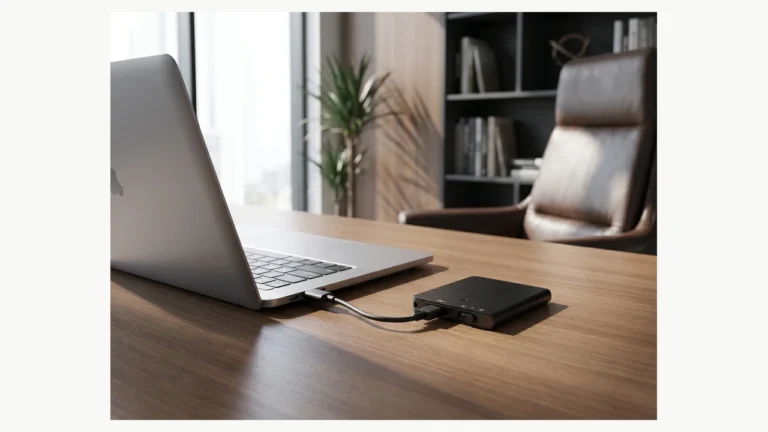
¿Reproducción de grabadora de voz demasiado rápida o lenta? Compruebe antes de editar
When a voice recorder plays speech too fast or too slowly, check...
Read Details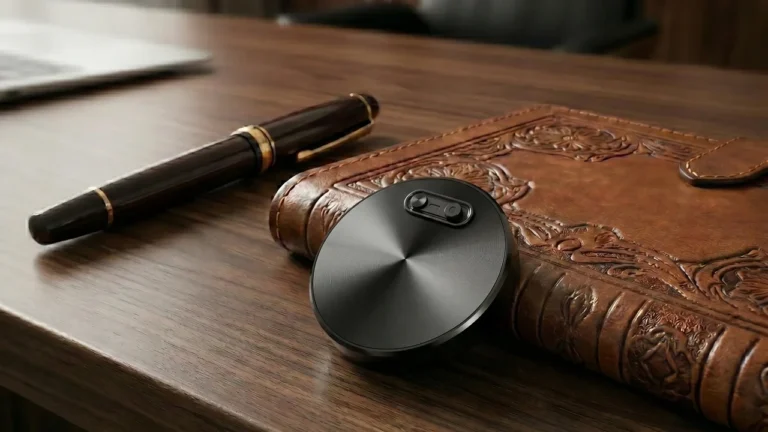
¿La grabación de voz solo se reproduce en un oído? Compruebe los canales
When a voice recording plays in only one ear, first find out...
Read Details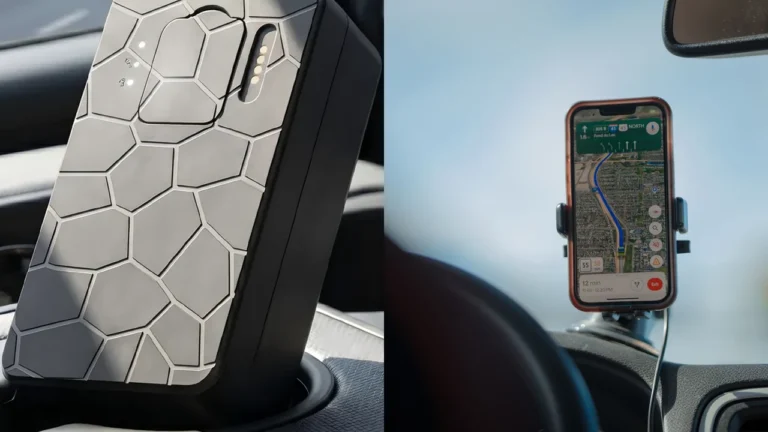
¿La alerta de geocerca del localizador GPS no funciona? Revise la ruta del evento
A GPS tracker geofence alert can fail at four different stages: the...
Read Details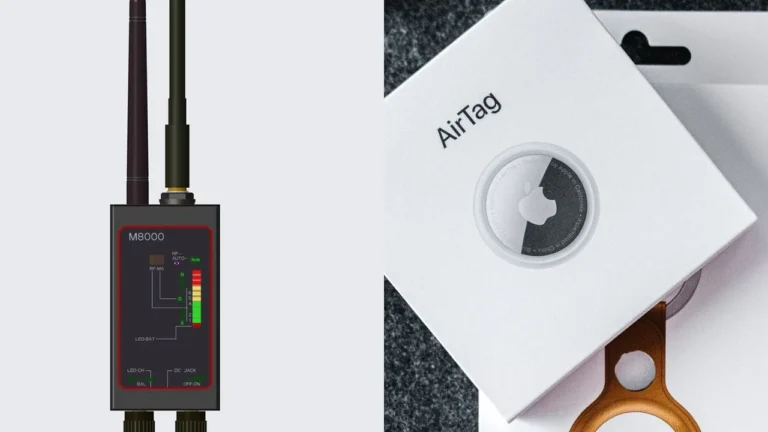
¿Puede un detector RF encontrar un AirTag o un rastreador Bluetooth?
A wideband RF detector can react to radio energy from an AirTag...
Read Details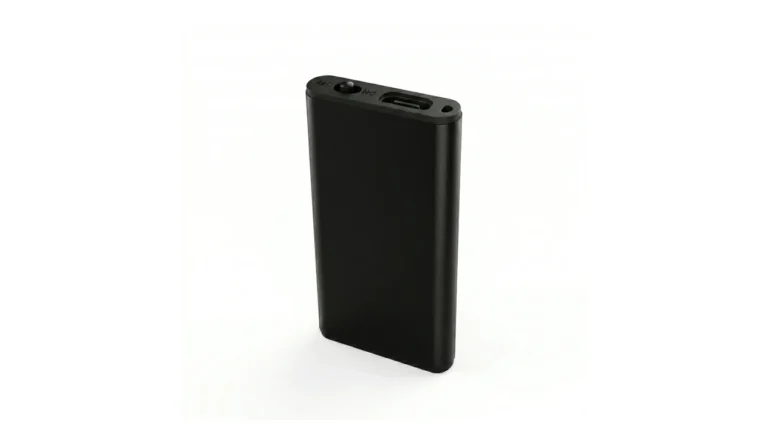
¿Por qué mi grabadora de voz divide las grabaciones?
A voice recorder may divide one session into several files because it...
Read Details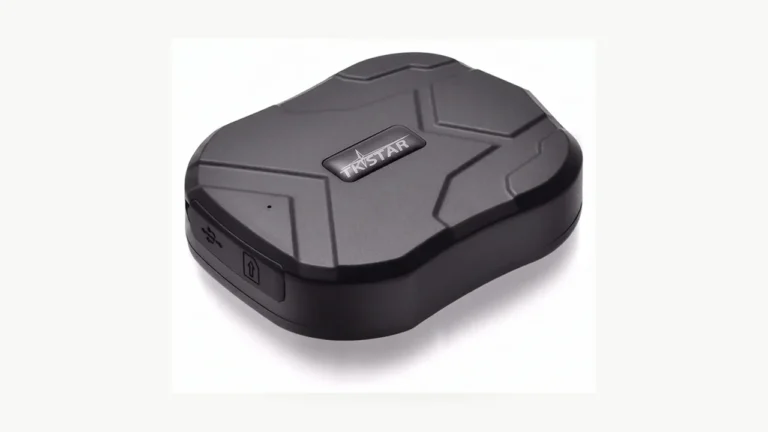
¿Por qué mi localizador GPS muestra la ubicación equivocada?
A GPS tracker can show the wrong place because the displayed report...
Read Details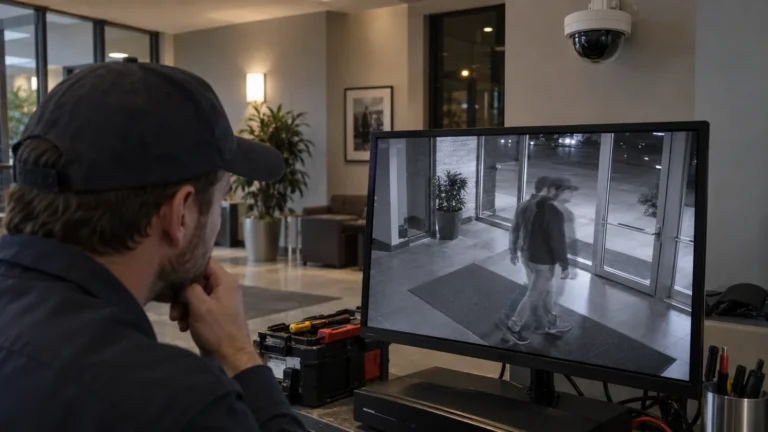
¿Cámara de seguridad muestra doble imagen? 6 comprobaciones
A security camera can show a double image for several unrelated reasons....
Read Details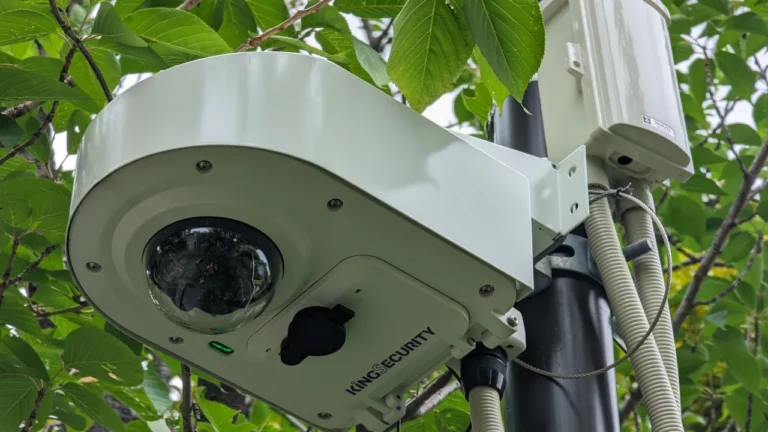
¿Por qué se reinicia mi cámara PoE por la noche? Comprobaciones de alimentación
When a PoE security camera restarts as its infrared lights turn on,...
Read Details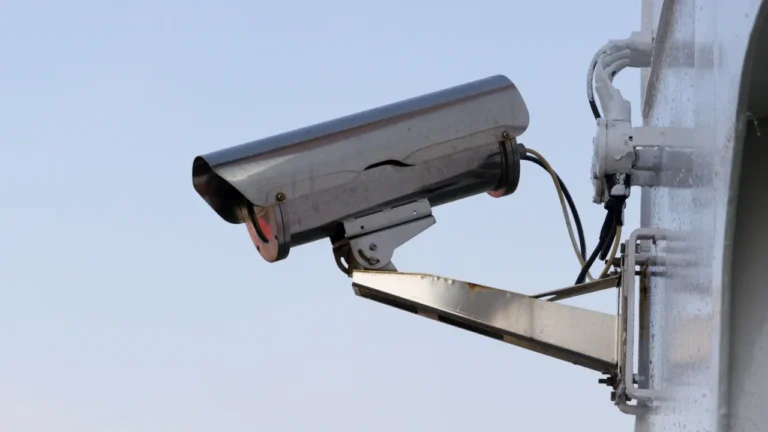
Máscaras de privacidad en cámaras de seguridad: vista en vivo, grabaciones y PTZ
A security camera privacy mask hides a selected part of the picture,...
Read Details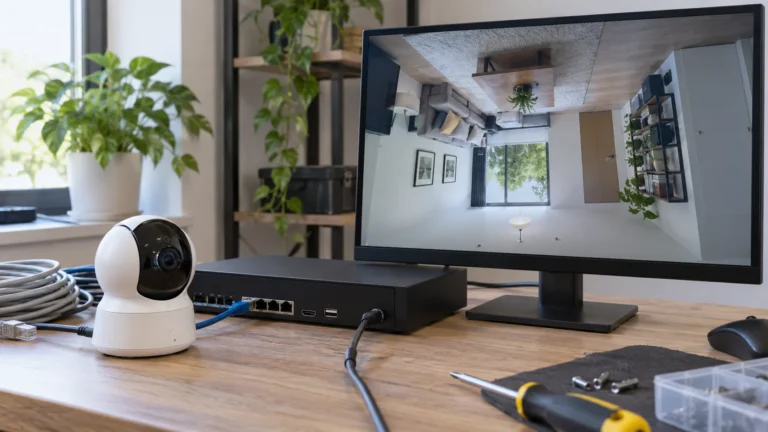
¿Por qué la imagen de mi cámara de seguridad está al revés? 6 comprobaciones
When a security camera image is upside down, first compare the physical...
Read Details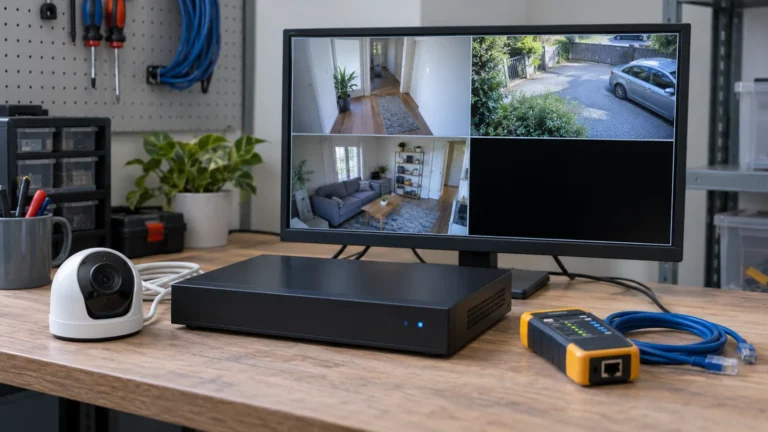
¿Por qué mi cámara de seguridad muestra una pantalla negra? 6 comprobaciones
When a security camera displays a black screen, first find out what...
Read Details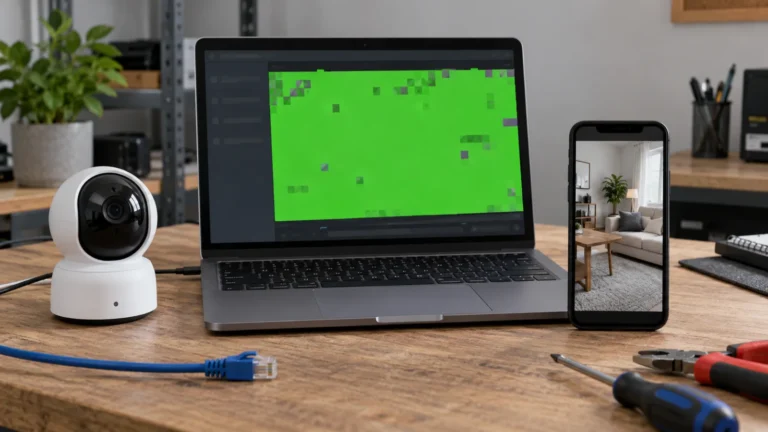
¿Pantalla verde en cámara de seguridad? 6 comprobaciones para aislar el problema
A security camera green screen usually belongs to one of four layers:...
Read Details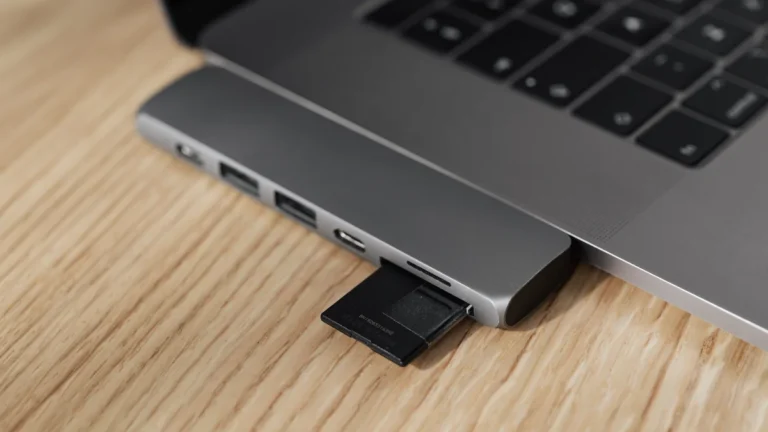
¿Por qué mi cámara dice que no se detecta la tarjeta SD? 6 comprobaciones
If your security camera says “No SD card,” check the card’s seating...
Read Details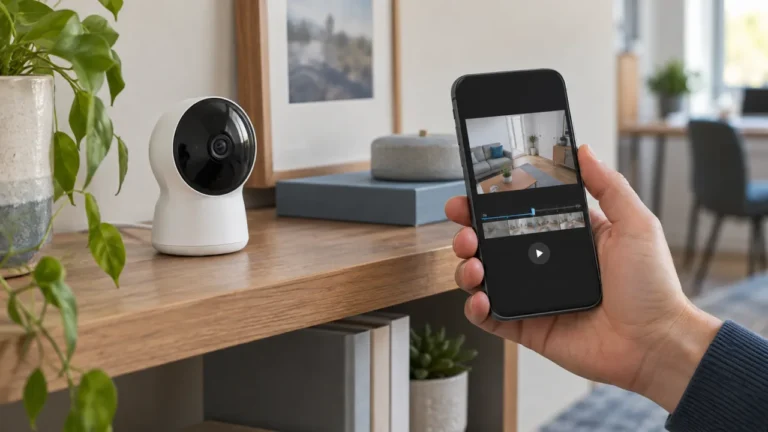
Cómo saber si una cámara de seguridad está grabando: 6 comprobaciones
You can tell a security camera is recording only when it creates...
Read Details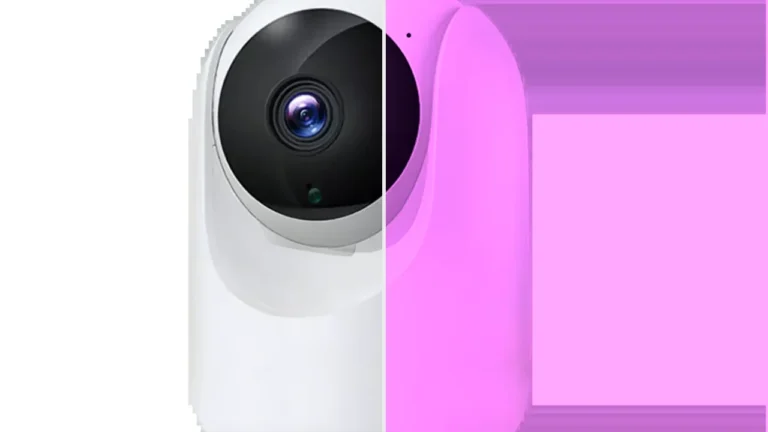
¿Por qué la imagen de mi cámara de seguridad es púrpura? Comprobaciones del filtro IR-cut
A pink or purple picture in daylight often means the camera is...
Read Details
Cómo solucionar el parpadeo de una cámara de seguridad: comprobaciones de 50/60 Hz y LED
.qzt-flicker-new{max-width:780px;margin:0 auto;font-size:18px;line-height:1.75}.qzt-flicker-new,.qzt-flicker-new *{box-sizing:border-box;min-width:0}.qzt-flicker-new p,.qzt-flicker-new li{overflow-wrap:anywhere}.qzt-flicker-new h2{margin:2.2em 0 .7em;line-height:1.3;scroll-margin-top:90px}.qzt-flicker-new h3{line-height:1.4;margin:1.6em 0 .5em}.qzt-flicker-new figure{margin:28px...
Read Details
¿Se puede ver una cámara Tuya en un PC? Comprueba primero la compatibilidad del modelo
Yes, Tuya currently provides web-based computer viewing for supported camera devices. Its...
Read Details
Cómo conectar una cámara Tuya a una nueva red WiFi
If you changed the router, WiFi name, WiFi password or internet provider,...
Read Details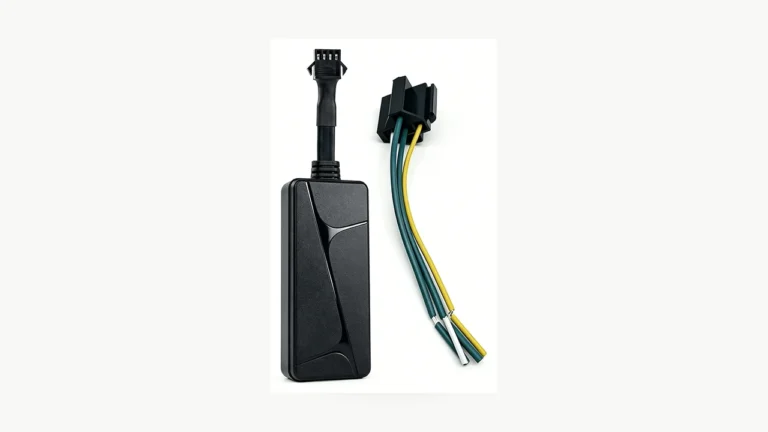
¿Qué necesita antes de instalar un localizador GPS con cable en un coche?
A wired GPS tracker should not be installed from a generic “red...
Read Details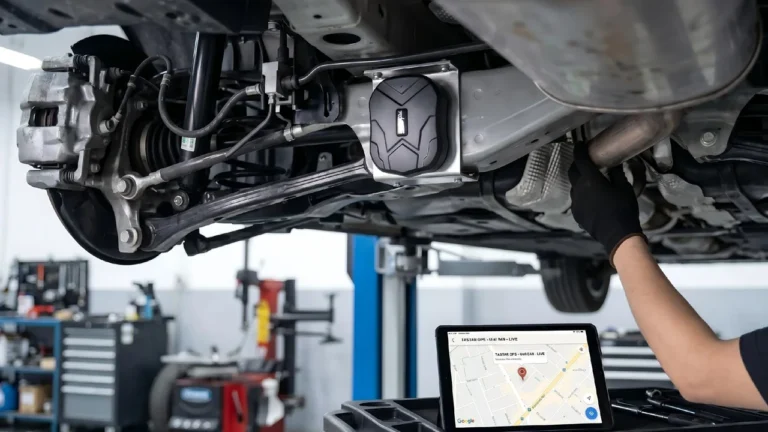
Localizadores GPS sin cuota mensual: ¿qué costes siguen aplicándose?
.qzt-k06,.qzt-k06 *{min-width:0;box-sizing:border-box}.qzt-k06 p,.qzt-k06 li,.qzt-k06 a{overflow-wrap:anywhere;word-break:break-word}.qzt-k06 ol,.qzt-k06 ul{max-width:100%}.qzt-k06 .qzt-table-scroll{display:block;max-width:100%;overflow-x:auto;-webkit-overflow-scrolling:touch}.qzt-k06 .qzt-table-scroll table{width:max-content;min-width:100%;max-width:none}.qzt-k06 img{max-width:100%;height:auto}A GPS...
Read Details
¿Puede una cámara Tuya conectarse a un NVR? Compruebe ONVIF modelo por modelo
.qzt-k04,.qzt-k04 *{min-width:0;box-sizing:border-box}.qzt-k04 p,.qzt-k04 li,.qzt-k04 a{overflow-wrap:anywhere;word-break:break-word}.qzt-k04 ol,.qzt-k04 ul{max-width:100%}.qzt-k04 .qzt-table-scroll{display:block;max-width:100%;overflow-x:auto;-webkit-overflow-scrolling:touch}.qzt-k04 .qzt-table-scroll table{width:max-content;min-width:100%;max-width:none}.qzt-k04 img{max-width:100%;height:auto}Some Tuya...
Read Details
¿Se puede poner una cámara de seguridad en una ventana? ¿Qué cambia de noche?
Yes, a security camera can often show a usable outdoor picture through...
Read Details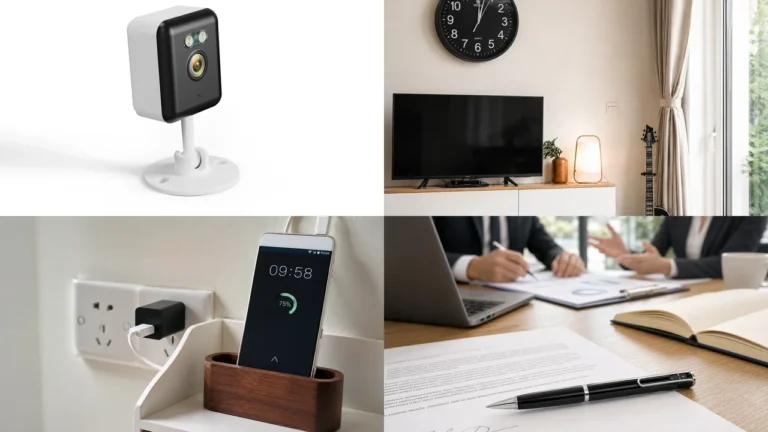
Home Office Camera 2026: ¿qué tipo encaja en tu espacio de trabajo?
A home-office camera should be chosen by the job it needs to...
Read Details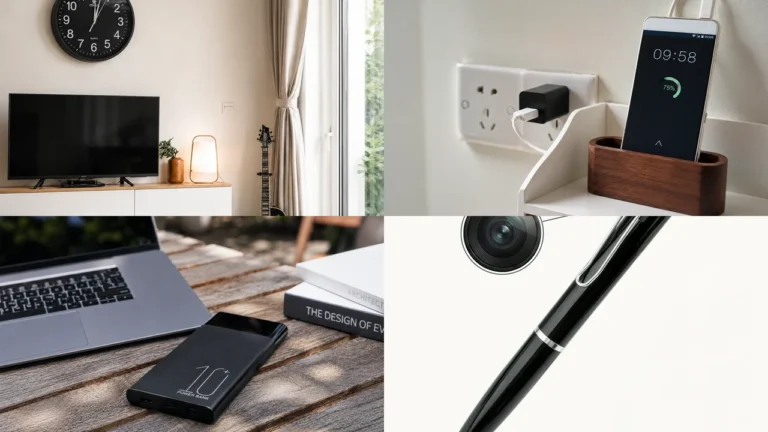
Mejores cámaras ocultas de 2026: compara 7 tipos según su uso
There is no single hidden camera that is best for every room...
Read Details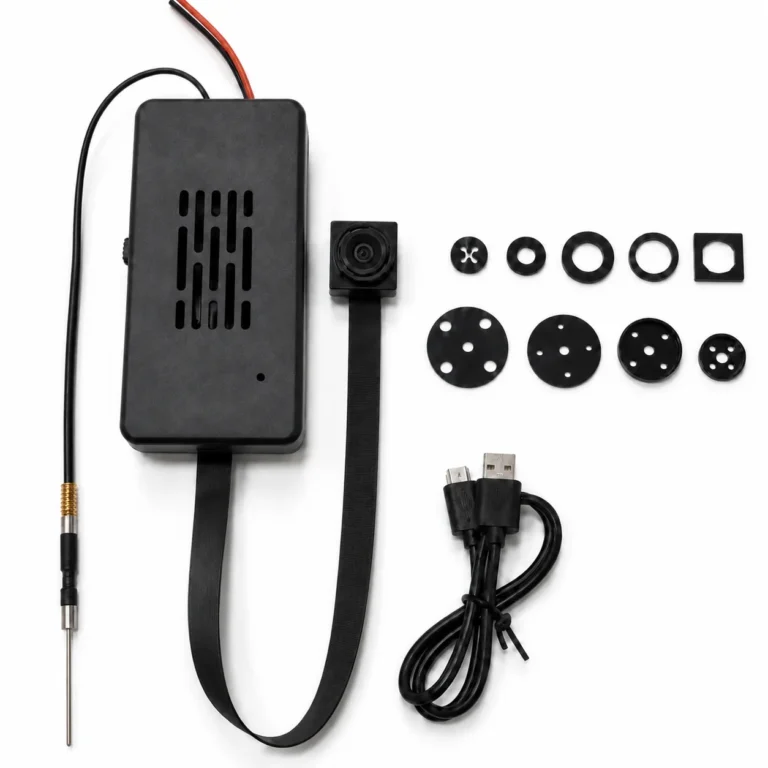
App LookCam: riesgos de seguridad y qué sucede si los servidores se apagan
LookCam App: Security Risks and What Happens If the Servers Shut Down...
Read Details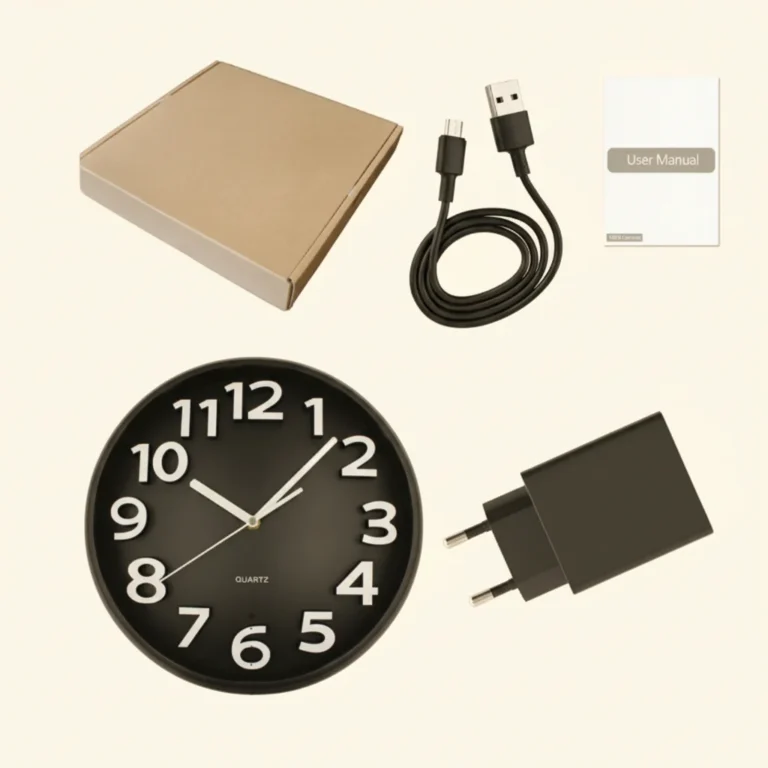
What's the Best Spy Camera Glasses for Covert Recording
What's the Best Spy Camera Glasses for Covert Recording Imagine you're in...
Read Details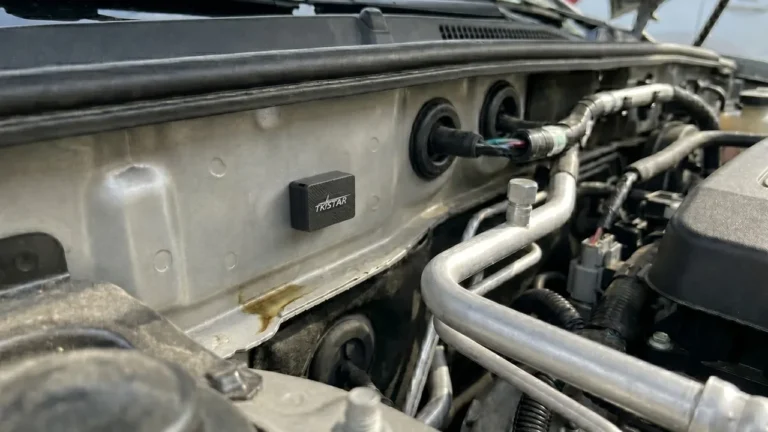
¿Cuánto dura la batería de un localizador GPS según su intervalo de reporte?
.qzt-k07,.qzt-k07 *{min-width:0;box-sizing:border-box}.qzt-k07 p,.qzt-k07 li,.qzt-k07 a{overflow-wrap:anywhere;word-break:break-word}.qzt-k07 ol,.qzt-k07 ul{max-width:100%}.qzt-k07 .qzt-table-scroll{display:block;max-width:100%;overflow-x:auto;-webkit-overflow-scrolling:touch}.qzt-k07 .qzt-table-scroll table{width:max-content;min-width:100%;max-width:none}.qzt-k07 img{max-width:100%;height:auto}There is...
Read Details
Gafas espía con cámara oculta: ¿Qué debe comprobar antes de comprar?
Spy glasses can record hands-free video from an eye-level wearable position, but...
Read Details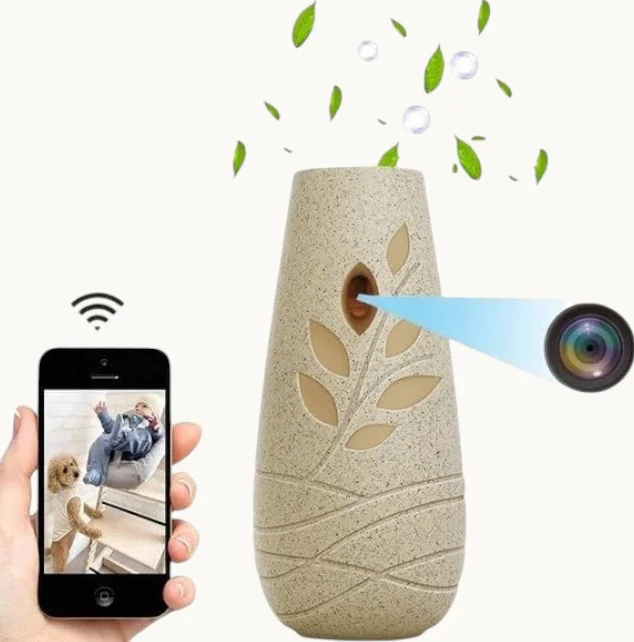
Cámara espía de ambientador: ¿Vale la pena la cámara jarrón WiFi 4K?
Air Freshener Spy Camera: Is the 4K WiFi Vase Cam Worth It?...
Read Details
How to Tell If a Smoke Detector Has a Hidden Camera
A smoke-detector-shaped object can contain a camera, but one extra hole, one...
Read Details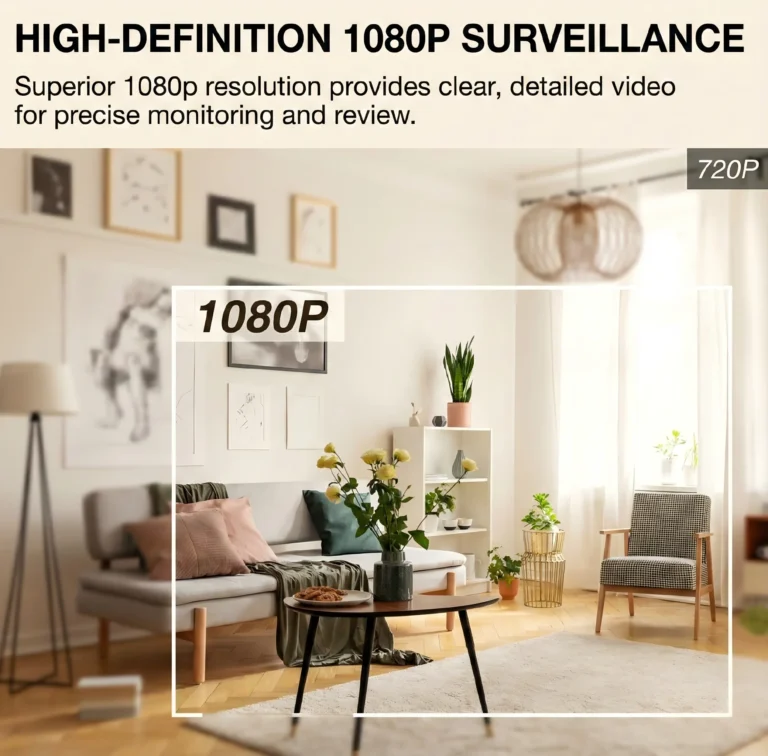
Mejor cámara oculta para seguridad en la oficina: Guía de vigilancia en el lugar de trabajo 2026
Guía para distribuidores sobre selección, despliegue y configuración legal de cámaras ocultas para...
Read Details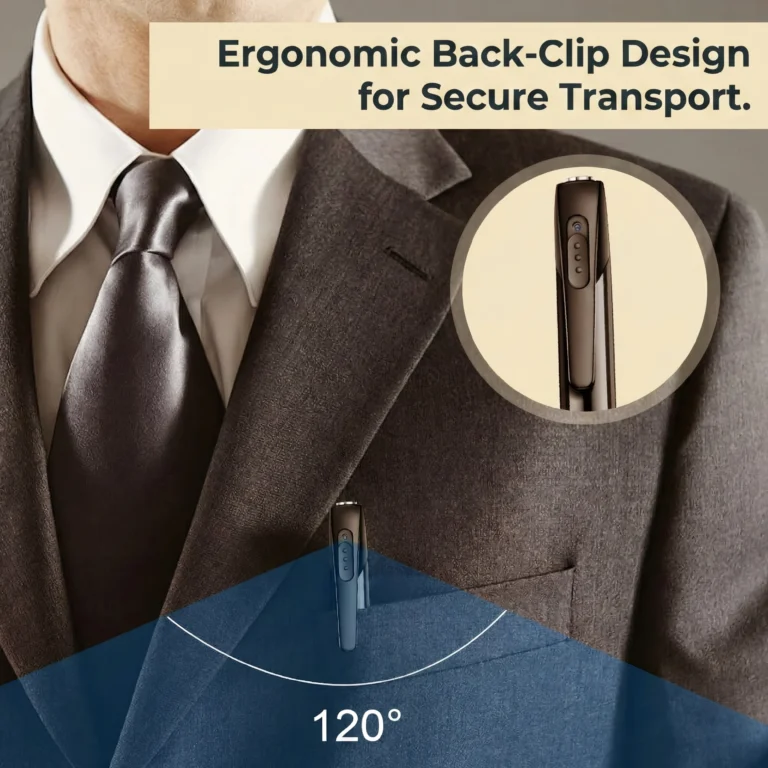
Cómo usar una cámara oculta: Guía de colocación discreta para profesionales del Reino Unido/UE
Una guía práctica para profesionales de seguridad, investigadores y usuarios empresariales que cubre cámaras corporales...
Read Details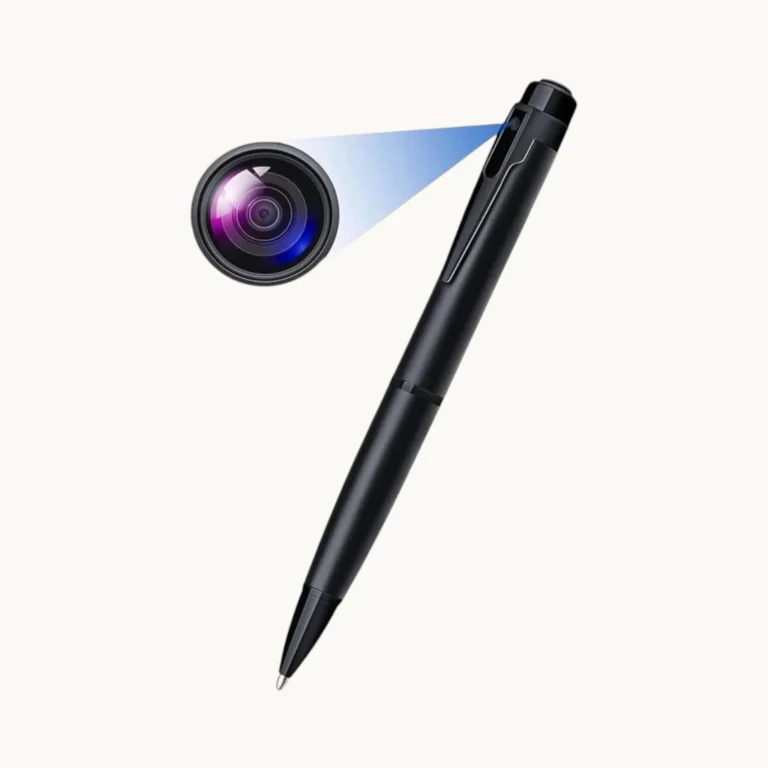
Cómo usar una cámara espía de bolígrafo: Guía completa de configuración y operación para Reino Unido/UE
Una guía práctica para distribuidores y usuarios finales que cubre configuración, modos de grabación, almacenamiento...
Read Details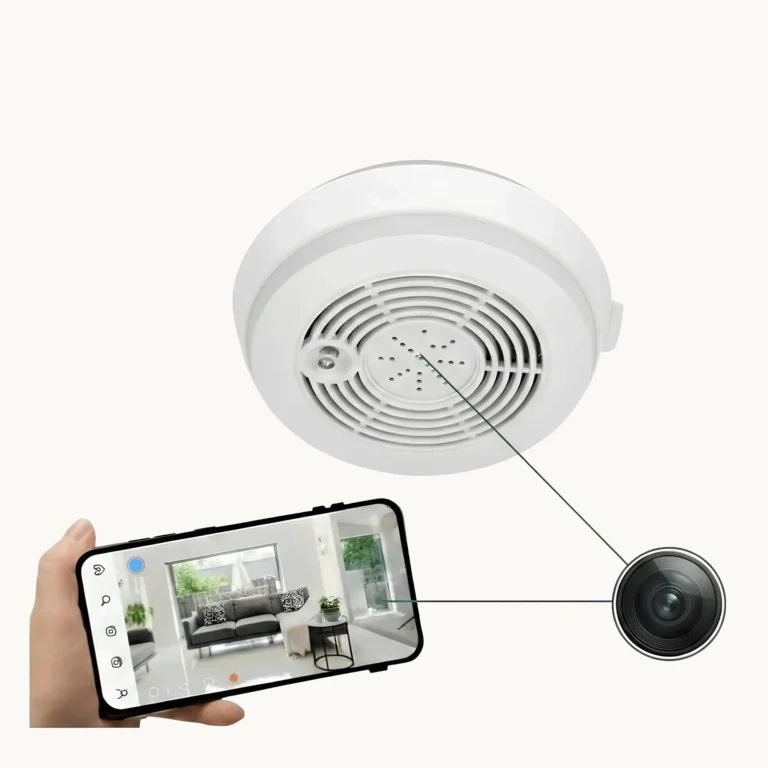
Cámaras ocultas en detectores de humo: Guía completa de cumplimiento y despliegue en Reino Unido/UE
Una cámara en detector de humo parece un dispositivo de seguridad contra incendios montado en el techo perfectamente ordinario...
Read Details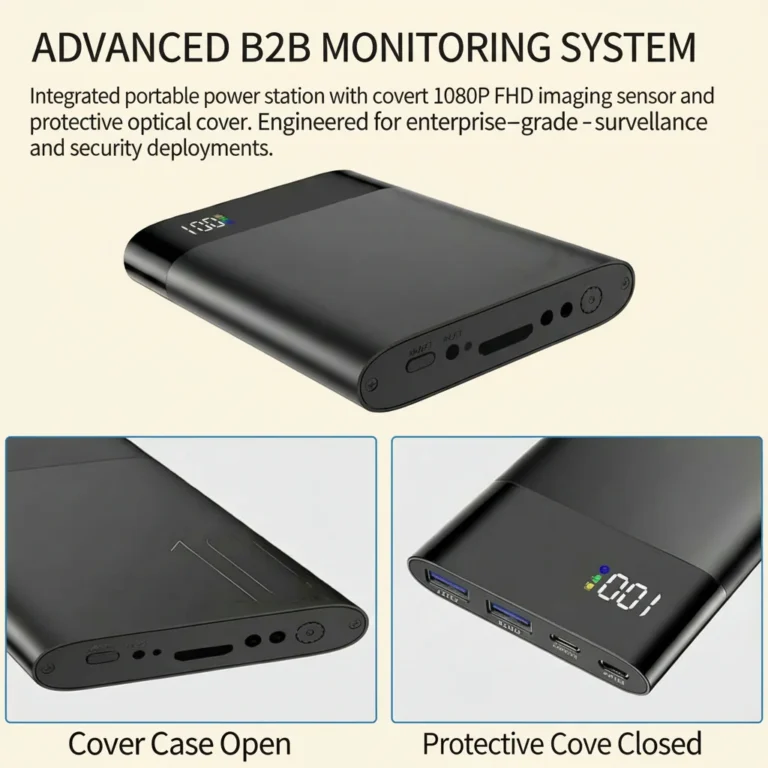
¿Puede una empresa instalar cámaras ocultas? Ley de vigilancia en el lugar de trabajo del Reino Unido y la UE 2026
¿Puede una empresa instalar cámaras ocultas? Ley de vigilancia en el lugar de trabajo en Reino Unido y UE...
Read Details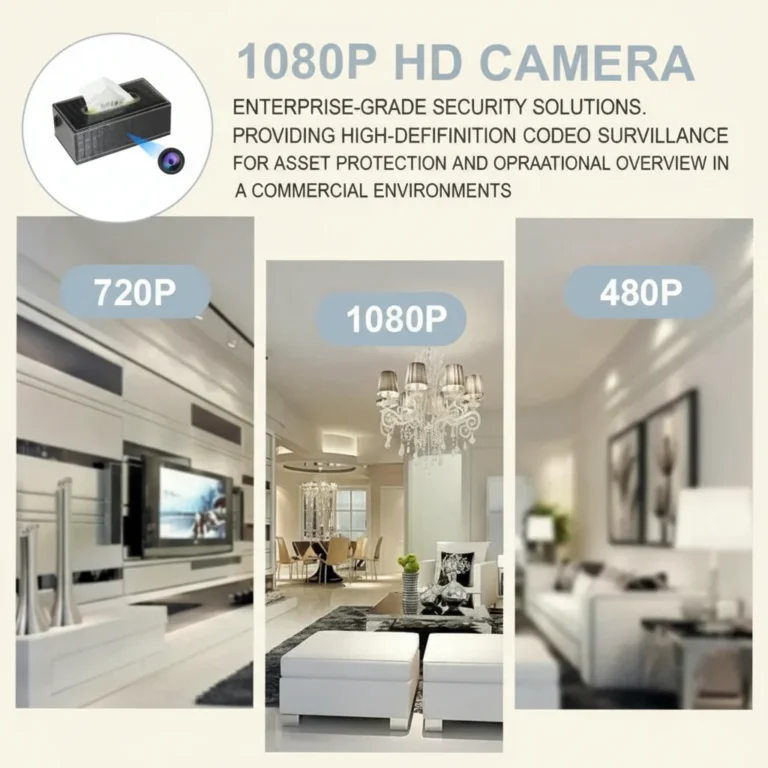
¿Son Ilegales las Cámaras Ocultas en el Reino Unido? Una Guía Legal Completa 2026
¿Son ilegales las cámaras ocultas en el Reino Unido? Guía legal completa 2026...
Read Details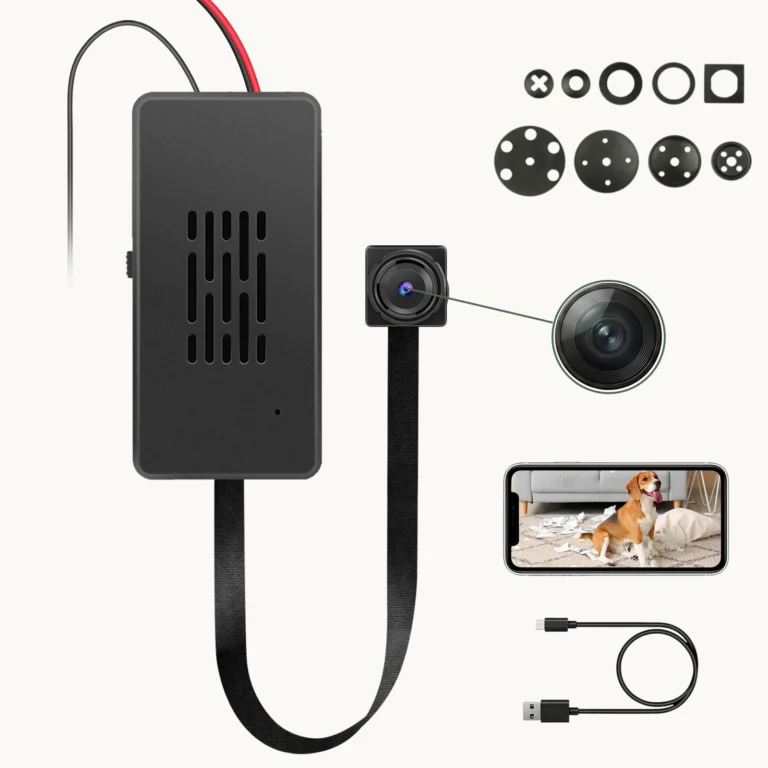
¿Cuánto dura la batería de una mini cámara espía? Datos reales 2026
¿Cuánto dura la batería de una mini cámara espía? Datos reales 2026...
Read Details
¿Pueden funcionar las cámaras espía sin WiFi? Guía completa 2026
Can Spy Cameras Work Without WiFi? Complete Guide 2026 Yes — some...
Read Details
Cómo elegir la mejor cámara espía: Guía completa de compra 2026
Cómo elegir la mejor cámara espía: Guía completa de compra 2026 La mayoría...
Read Details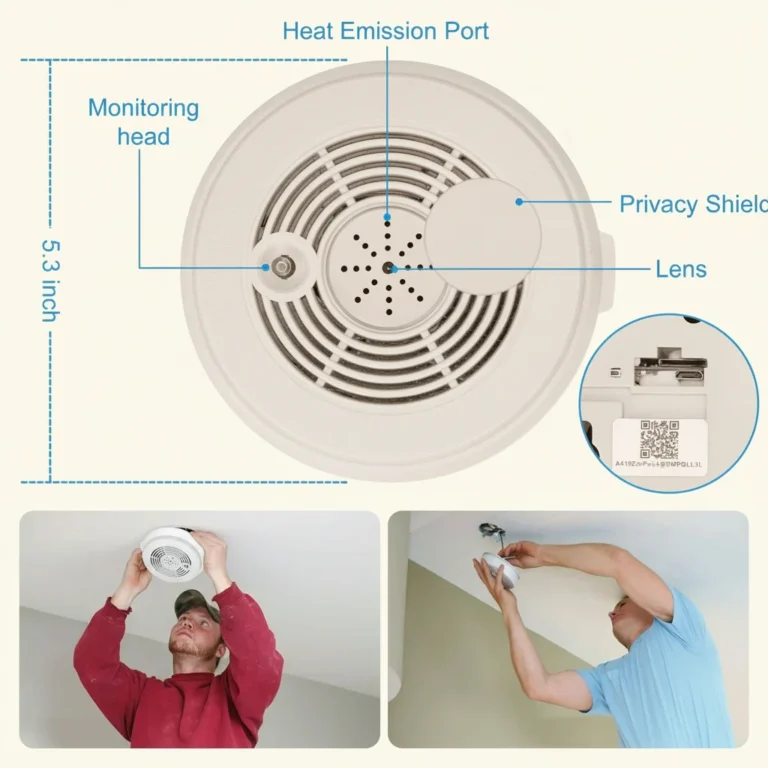
Cómo instalar una cámara espía: Guía profesional paso a paso
Cómo instalar una cámara espía: Guía profesional paso a paso Instalar una cámara...
Read Details
Cómo ocultar una cámara espía: Guía profesional de ocultación
Cómo ocultar una cámara espía: Guía profesional de ocultación Ocultar una cámara espía...
Read Details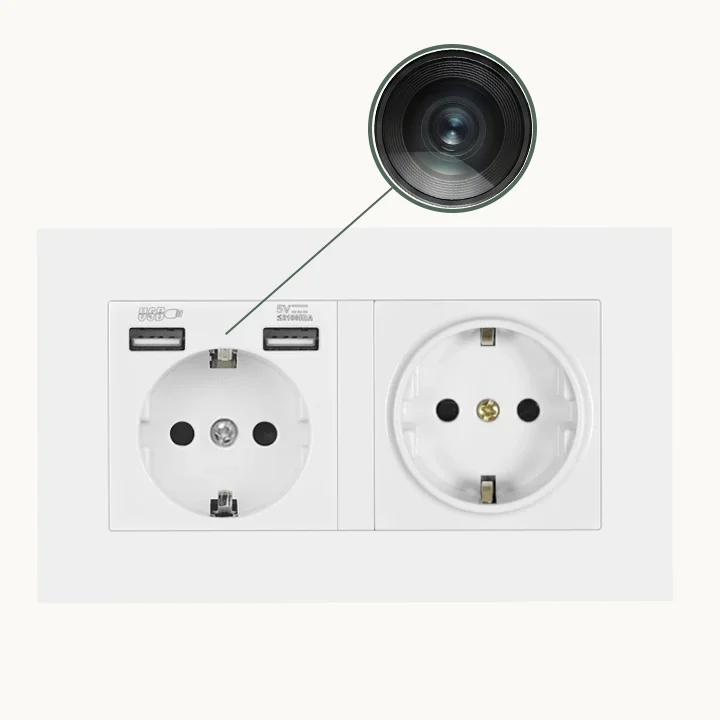
Cómo conectar una mini cámara espía: Guía de configuración WiFi
How to Connect a Mini Spy Camera: WiFi Setup Guide A WiFi...
Read Details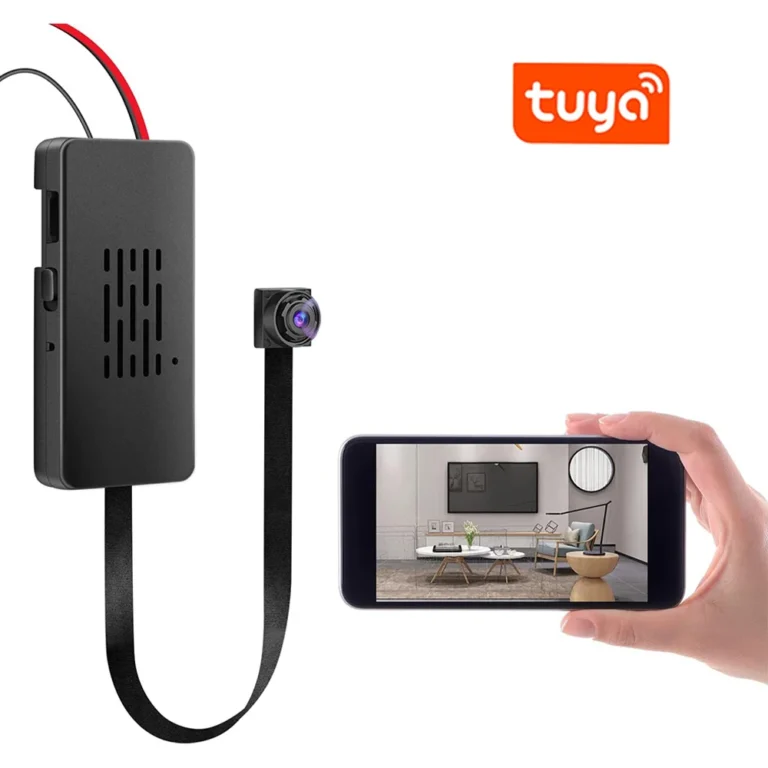
Cómo hacer una cámara espía: Guía completa de construcción DIY
Cómo hacer una cámara espía: Guía completa de construcción DIY Puedes...
Read Details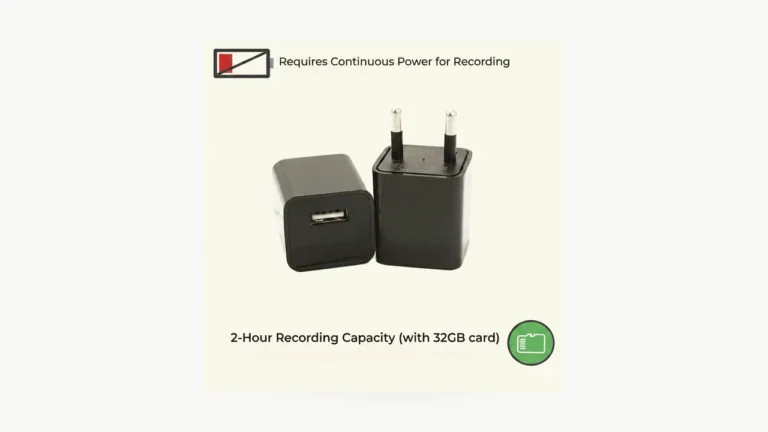
¿Puede una cámara de interior grabar sin WiFi ni Internet?
.qzt-k09,.qzt-k09 *{min-width:0;box-sizing:border-box}.qzt-k09 p,.qzt-k09 li,.qzt-k09 a{overflow-wrap:anywhere;word-break:break-word}.qzt-k09 ol,.qzt-k09 ul{max-width:100%}.qzt-k09 .qzt-table-scroll{display:block;max-width:100%;overflow-x:auto;-webkit-overflow-scrolling:touch}.qzt-k09 .qzt-table-scroll table{width:max-content;min-width:100%;max-width:none}.qzt-k09 img{max-width:100%;height:auto}Yes —...
Read Details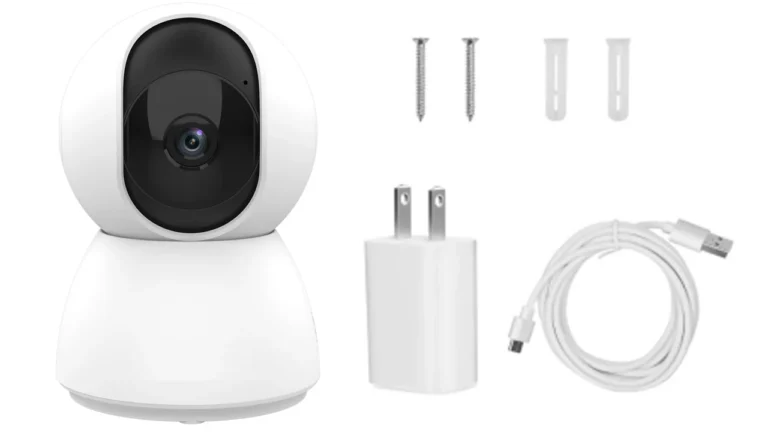
Grabación de cámara interior activada por movimiento o continua: ¿qué se guarda?
.qzt-k10,.qzt-k10 *{min-width:0;box-sizing:border-box}.qzt-k10 p,.qzt-k10 li,.qzt-k10 a{overflow-wrap:anywhere;word-break:break-word}.qzt-k10 ol,.qzt-k10 ul{max-width:100%}.qzt-k10 .qzt-table-scroll{display:block;max-width:100%;overflow-x:auto;-webkit-overflow-scrolling:touch}.qzt-k10 .qzt-table-scroll table{width:max-content;min-width:100%;max-width:none}.qzt-k10 img{max-width:100%;height:auto}A camera...
Read Details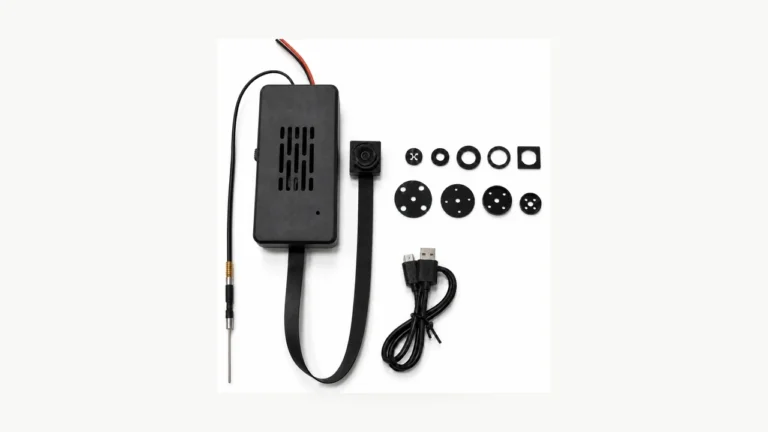
Cómo restablecer una cámara Tuya sin adivinar el tiempo del botón
Do not start by memorizing a universal reset time. Tuya's own support...
Read Details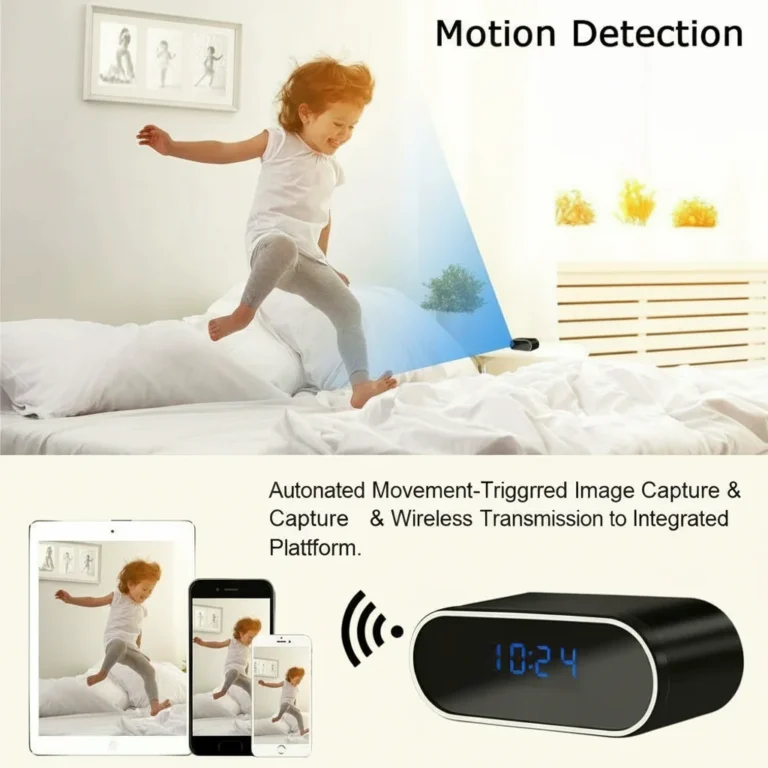
How to Fix FAT32 Errors on Voice Recorders and Spy Cameras
How to Fix FAT32 Errors on Voice Recorders and Spy Cameras If...
Read Details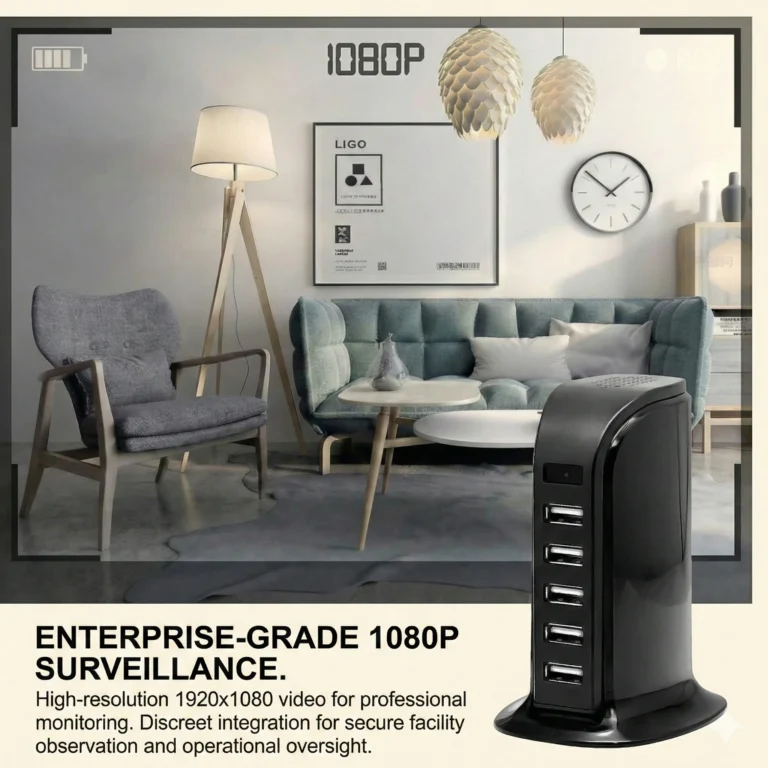
¿Cámara Espía WiFi No Se Conecta? 8 Soluciones a Probar
La conectividad WiFi es lo que hace que las cámaras ocultas modernas sean realmente útiles: visualización remota, notificaciones push...
Read Details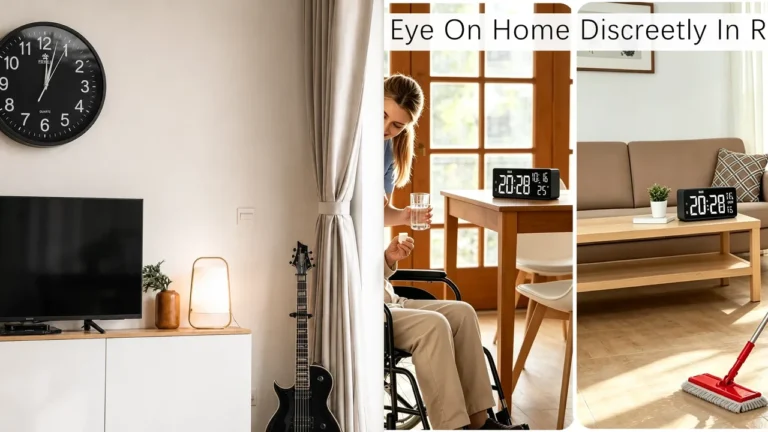
¿Qué es una cámara reloj? Cómo graba y se conecta
A clock camera is a camera built into a clock-style housing. The...
Read Details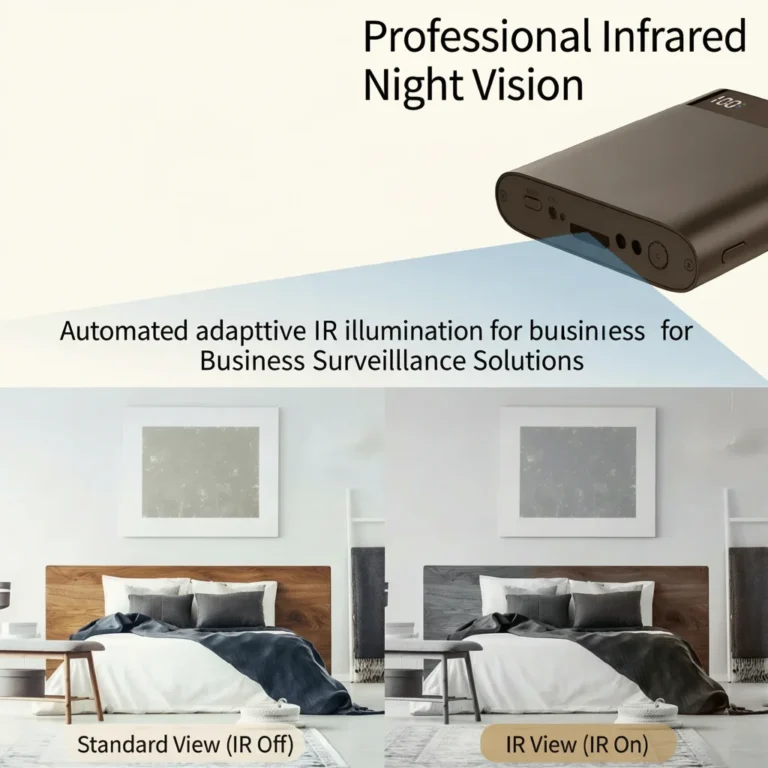
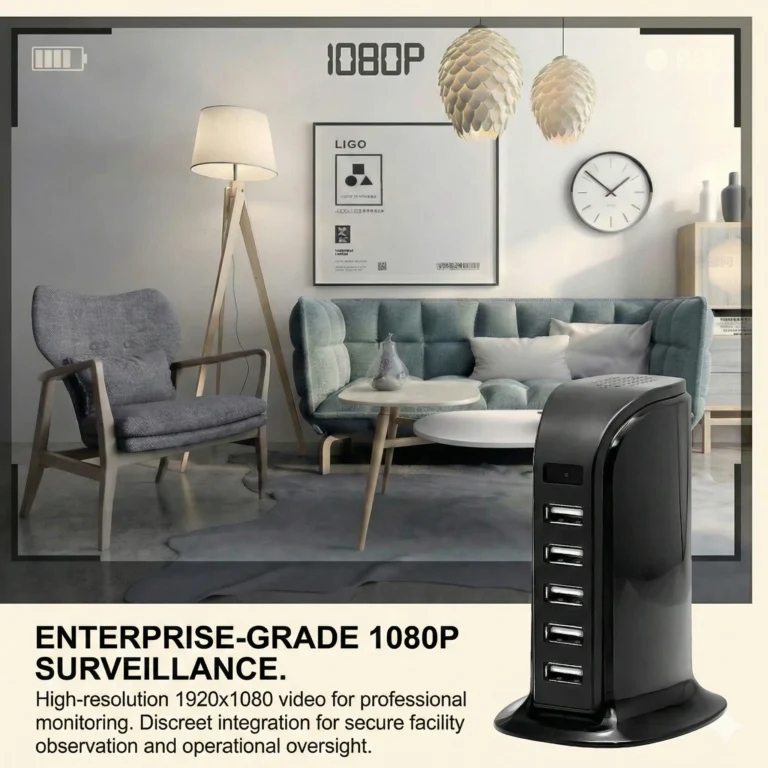
Cómo solucionar problemas de retardo, demora y congelación de cámaras espía
How to Fix Spy Camera Lag, Delay, and Freezing Issues Lag, buffering,...
Read Details Cómo elegir la mejor cámara oculta en 2026
How to Choose the Best Hidden Camera in 2026 When you need...
Read Details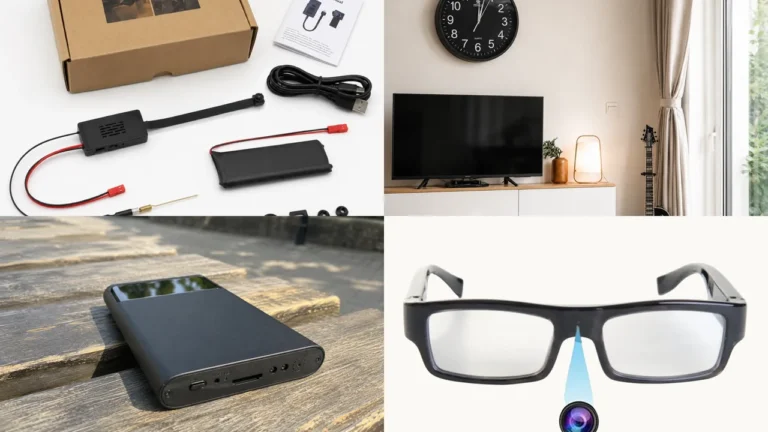
Hidden Camera Technology Trends in 2026: What Is Actually Shipping?
The most useful hidden-camera trends in 2026 are not one magic sensor...
Read Details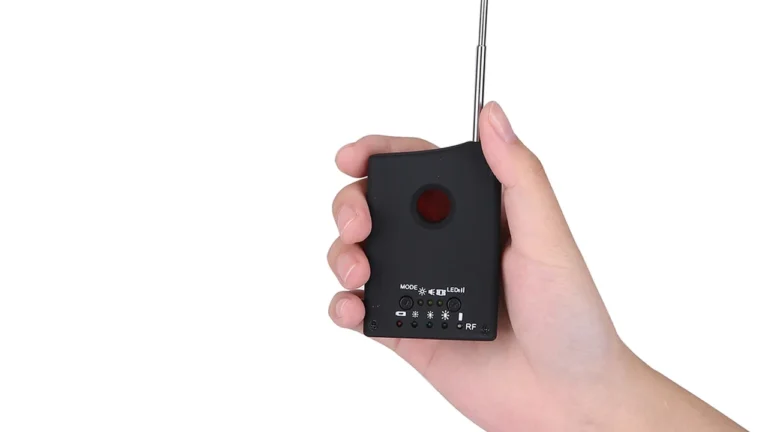
¿Funcionan los detectores de cámaras ocultas? Límites de RF, ópticos y magnéticos
Yes, hidden camera detectors work when the detection mode matches the target....
Read DetailsPDF Manuals & Downloads
Download official product user manuals and certification documents.
WiFi Cameras
Non-WiFi Covert Cameras
Grabadoras de voz digitales
Preguntas frecuentes
Why is my device not turning on or not charging?
Why does my recording sound choppy or cut out during quiet moments?
Why can't my computer play the audio, or why do I see garbled files?
If you see garbled/undeletable files: This occurs if the device was unplugged without using "Safely Eject". To fix this permanently, connect it to a Windows PC, right-click the USB drive, select Formato, choose FAT32 file system, and click Start.
 English
  Italiano
  Deutsch
  Français
  Español
  Polski