
A security camera green screen usually belongs to one of four layers: the viewing app, the network stream, the saved recording, or the camera output. Compare the same scene on another authorized device and in an exported clip before resetting anything. If only one viewer is green, start with decoding. If every viewer and the saved file are green, move closer to the camera.
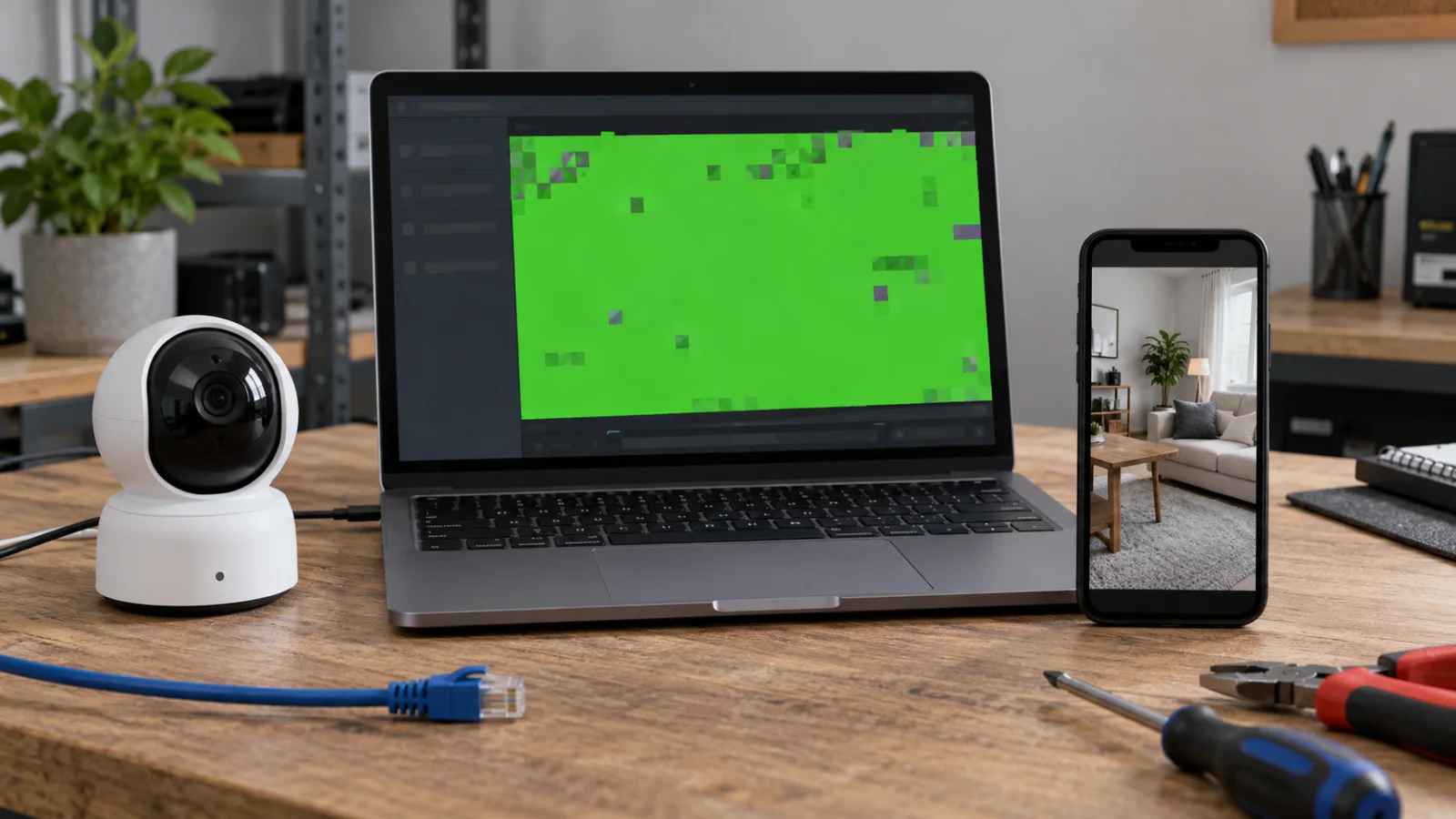
Is the security camera green screen limited to one viewer?
Check the same camera and the same moment in at least two places. A normal picture on one device proves that the camera can still produce usable video, while a green picture on only one phone, browser, or client points toward that viewer.
Write down where the fault appears before changing settings:
– One phone or computer only: suspect the app version, browser, graphics driver, or hardware decoding on that device.
– Live view is green but playback is normal: suspect the live stream, available bandwidth, or live-view decoder.
– Live view is normal but one saved clip is green: suspect the recording, storage, download, or player.
– One NVR channel is green: compare that camera, cable, port, and stream profile with a working channel.
– Every live viewer and every saved clip are green: investigate the camera configuration, firmware, image pipeline, or hardware.
Use the camera’s own timestamp to compare the same 30-second interval. A clip recorded at 14:05 is not a valid comparison with a live view checked after a restart at 14:20. Also separate a green video frame from a green status LED on the camera body; status-light meanings are model-specific and require the exact manual.
This location test is more useful than a factory reset because it preserves the evidence that identifies the failing layer. Capture the green frame, note the app or client version, and record whether audio continues. Do not change resolution, codec, firmware, storage, and network settings in one attempt, or the result will not show which change mattered.
Does software decoding clear the live view?
If the green screen appears on one phone or computer but not another, update the affected client and test its software-decoding option. A normal result with software decoding points to a client-side compatibility problem, not automatically to a failed camera.
TP-Link’s VIGI support guide says a green or pixelated live view can occur when the client device does not decode the stream correctly. Its model-specific remedy is to enable Soft Decode in the VIGI app; TP-Link also notes that software decoding can use more device power. Other brands may use a different label or may not expose this control, so use the instructions for the installed app rather than copying a VIGI menu path into another system.
Try these changes one at a time on the affected viewer:
1. Close and reopen the live view, then install the current supported app or client release.
2. Test the manufacturer’s web, desktop, or mobile viewer on a second authorized device.
3. If the client offers hardware and software decoding, switch modes and reload the same stream.
4. On a computer, install the supported graphics driver from the computer or GPU manufacturer.
5. Temporarily select the lower-resolution substream. If that works, record the stream profile and network conditions before changing the permanent configuration.
Bandwidth can also affect high-resolution live viewing. Arlo’s current guidance says its green, purple, or gray live-stream fault may appear when several 4K streams compete for network resources. Arlo lists average upload requirements of 3 Mbps per Arlo Ultra camera, 2 Mbps for newer Pro cameras and video doorbells, and 1 Mbps for its other listed cameras. Those figures apply to the named Arlo families, not to every security camera.
Is the downloaded recording green in another player?
Download one short affected recording and one known-good recording, then open both with a supported second player on another authorized device. If the green frame exists inside the downloaded file, the fault is upstream of the original app’s display.
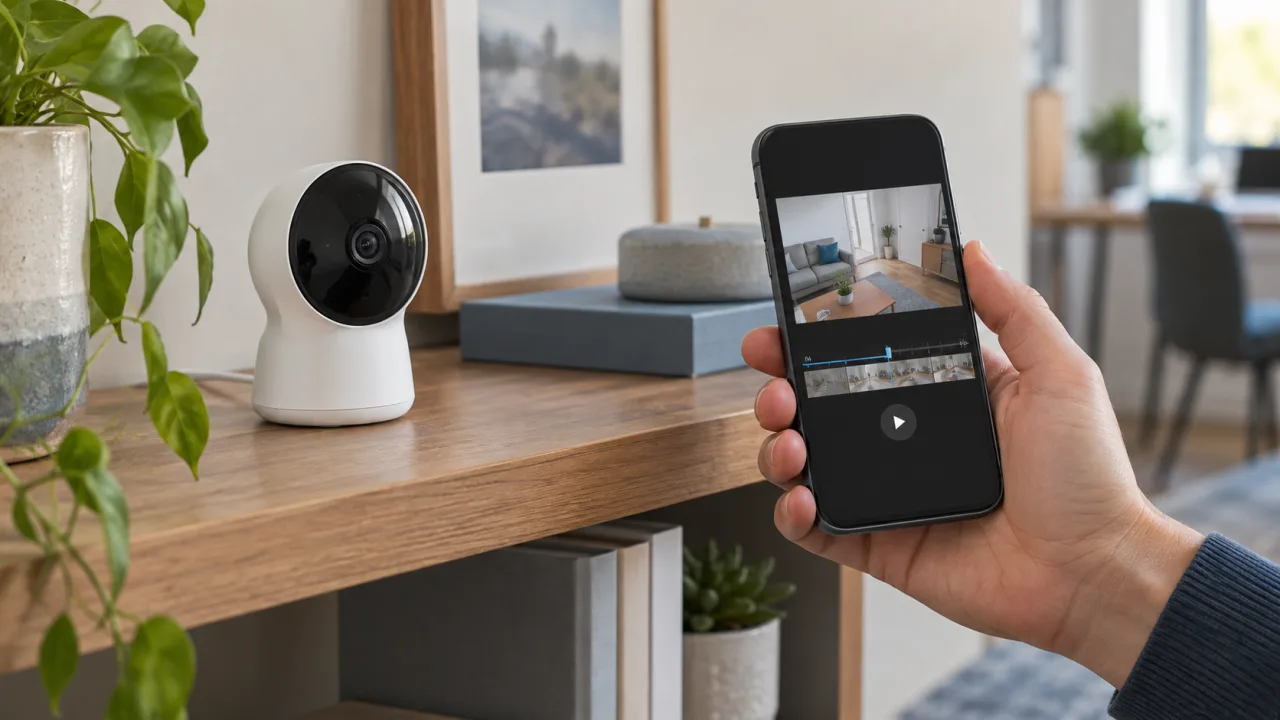
Reolink’s playback troubleshooting guide uses this same separation: check the problem across the app, desktop client, and browser, then download the recording and test it with another player. Reolink treats damaged storage, the network path, firmware, and a client graphics driver as different branches. Its separate download guide also recommends a shorter download or another player when the original playback is normal but the downloaded copy is green.
Preserve the original file before repair work. Keep its filename, timestamp, duration, file size, camera ID, and export method. If a short clip opens while a longer export fails, do not overwrite the original recording or format the storage card. Export a second short interval and compare the hashes or file sizes if the footage matters.
A green file from the SD card on two different players can indicate damaged recording data, but it does not prove that every clip on the card is lost. Follow the security camera SD-card recording checks before formatting or replacing storage. If live view remains clean while only older playback fails, the camera’s image sensor is a poor first suspect.
Does the NVR show one green channel or every channel?
One green NVR channel usually calls for a channel-by-channel comparison. A green mosaic across many channels points instead toward the recorder’s display, decoding load, output path, or shared network conditions.

Begin at the recorder’s local monitor before opening the remote app. Reolink’s NVR guidance asks whether the problem appears on the monitor and whether all cameras show the same fault. It then separates HDD, network, firmware, camera, and NVR causes according to those results. Apply the same comparison to other systems, but use the menus, codec limits, and firmware procedure for the installed model.
For a single affected channel, record its camera model, firmware, IP address, codec, resolution, frame rate, bitrate mode, and stream selection. Compare those values with one working channel. If the manual permits a controlled swap, connect the affected camera to a known-good compatible port or add a known-good camera to the affected channel. Change only one part at a time and restore the original layout after the test.
For several affected channels, reduce the test to one live stream and disconnect unnecessary display paths. Confirm whether the local NVR monitor, remote client, and exported recording fail in the same way. A normal exported file with a green local monitor points toward display or decoder output. A green exported file from only one camera points back toward that camera or its incoming stream.
Do not lower every camera’s quality as a permanent fix without checking the recorder’s documented decoding capacity. A lower substream is a diagnostic comparison. The purchasing question is whether the NVR supports the required codec, resolution, frame rate, and number of simultaneous channels at the same time.
Is the camera output green on every device?
When live view and newly recorded clips are green on every viewer, restart the camera once by the documented method, verify the exact firmware and image settings, and inspect the scene. A persistent fault across independent viewers belongs closer to the camera.
Check the simple external causes first. Zosi’s support guidance for green or pink images recommends removing colored or interfering light sources, checking colored glass, changing the lens angle, and power-cycling the camera. That does not mean every green frame comes from lighting; it is a quick scene test when the camera still produces recognizable shapes with an abnormal tint.
Next, compare day and night behavior. If the picture is normal in infrared mode but green in daylight, or changes color during every day/night transition, the symptom may involve the camera’s day/night image path. A purple or pink picture has its own diagnostic path in the IR-cut filter checks. Keep that adjacent issue separate from a solid green decoded frame.
Use only firmware listed for the exact model and hardware revision. Save the existing configuration, confirm stable power, and follow the manufacturer’s order for upgrade, restart, and reset. Do not open a sealed or warranty-covered camera to reseat an internal cable. If a factory reset is required, export settings and note the account, network, recording, and time configuration needed to restore service.
When the green output survives a documented restart, supported firmware, a clean scene, and tests on independent viewers, send the supplier the original screenshots, an affected file, a normal comparison if available, and the configuration details. That evidence is enough to discuss repair or replacement without claiming a sensor failure from color alone.
How do you prove the security camera green screen is fixed?
The repair is complete only when live view and a new saved clip remain normal on the required viewers. Repeat the same test after a standard restart so a temporary decoder refresh is not mistaken for a stable result.
Use a short acceptance record:
1. Write down the camera, NVR, app or client, phone or computer, firmware, stream profile, and local time.
2. Open live view on the primary viewer and a second authorized viewer for five minutes.
3. Walk through the scene so the test includes movement as well as a still view.
4. Save or trigger a recording, then play the full clip in the normal system.
5. Export that clip and open it on a second authorized device.
6. Restart the camera and recorder normally, then repeat live view and playback.
7. If the fault appeared only at night or under load, repeat under that same condition.
Keep the before-and-after screenshots and the successful sample file with the support record. Note exactly which single change removed the green screen. If the result depends on a lower substream or software decoding, record the tradeoff instead of calling the underlying capacity issue solved.
For a new installation or replacement sample, include this test in receiving inspection. Confirm the required codec, app, NVR, resolution, simultaneous stream count, storage method, and night mode before approving a larger order. A sample that looks normal on one salesperson’s phone has not yet passed a multi-device recording test.
Frequently Asked Questions
Can weak Wi-Fi cause a security camera green screen?
A security camera green screen can appear during a network-heavy live view even when saved recordings remain normal. Arlo lists average upload needs from 1 to 3 Mbps per camera for its named product families. Test one stream, a lower supported profile and a local recording before blaming the camera hardware.
Why does a security camera green screen appear only on my phone?
A security camera green screen limited to one phone usually points to that app, device or decoding mode. TP-Link documents a VIGI case where software decoding corrects green or pixelated live view, with higher device power use as a tradeoff. Update the app and compare another authorized device first.
Can a bad SD card cause a security camera green screen?
A security camera green screen in recorded playback can come from damaged storage data, but the card is not proven faulty until the downloaded file is checked elsewhere. Reolink recommends comparing live view, downloaded playback and direct card playback before formatting or replacing the SD card. Preserve needed footage first.
Is a security camera green screen always an IR-cut filter problem?
A security camera green screen is not always an IR-cut filter fault. A solid or pixelated green frame on one client can be a decoding problem, while a day/night color shift may sit in the camera’s image path. Compare multiple viewers, a saved clip, daylight and infrared mode before choosing the repair.
When should a security camera with a green screen be replaced?
A security camera with a green screen should be considered for repair or replacement after the fault survives independent viewers, new saved clips, stable power, the exact supported firmware and the manufacturer’s reset procedure. Send the supplier one affected file plus model, hardware revision, firmware and test results before authorizing replacement.
Use the green frame to locate the failure. Find the first point where normal video becomes green, change one variable, and keep a playable after-test clip. When selecting replacement equipment, compare QZT security cameras and confirm codec, client, NVR, storage, stream count, and night-mode requirements before ordering.

 English
  Italiano
  Deutsch
  Français
  Español
  Polski