
When a voice recorder plays speech too fast or too slowly, check the playback-speed control before editing the audio. Compare the unchanged file on another supported player at normal speed. If the problem follows the file, inspect its duration and sample-rate interpretation. Keep the original: a listening-speed adjustment, a rate error and missing audio need different responses.
The first comparison should tell you whether the saved recording needs attention at all. For a meeting or interview, preserve the complete session folder and note which device, player and settings produce the wrong speed. Avoid formatting or resetting the recorder during that investigation.
Check playback controls before altering the recording
Set the player to its normal speed, usually shown as 1.0x or 100%. Check both the recorder and any computer or phone app used for playback. A file may sound normal on one device and wrong on another because the two players use different listening settings.
Sony gives a specific example in its ICD-PX440 troubleshooting guide: an enabled DPC speed control can cause fast or slow playback. Sony directs that model’s user to switch DPC off or restore normal speed. That instruction applies to the ICD-PX440; it does not establish that a QZT recorder has the same switch or menu.
I would compare the exact same source file on two supported players before converting anything. Test a known-good reference file as well. If every file sounds rushed in one app but normal elsewhere, inspect that app’s speed setting first. If only the suspect file sounds wrong across both players, move to the file checks below.
Audacity adds another distinction. Its Play-at-Speed toolbar has a separate playback button and can vary listening speed and pitch. The manual says that setting alone does not change the speed of an exported file. Do not assume a slower audition means you have saved a slower recording.
| Comparison | Next action |
|---|---|
| Reference and suspect files both sound wrong in one player | Restore that player’s normal-speed setting and test again |
| The unchanged suspect file is normal on another player | Investigate playback settings or format support before modifying audio |
| The suspect file is consistently fast or slow across players | Check duration, pitch and rate interpretation on a working copy |
| The file stops, skips sections or cannot be opened reliably | Investigate missing content or file integrity rather than applying a global speed change |
If the symptom is missing words after quiet intervals, use the separate voice-activation checks. A shorter recording is not automatically a faster recording: omitted intervals can shorten a file while the remaining speech plays at its normal pace.
Compare duration and pitch before blaming the file
Record two observations: how long the audio takes to play at normal speed, and whether voices also sound higher or lower in pitch. Compare against a known reference interval when available. Do not use the scheduled length of a meeting as an exact measurement of recorded audio; pauses, stopping and voice activation can change what was saved.
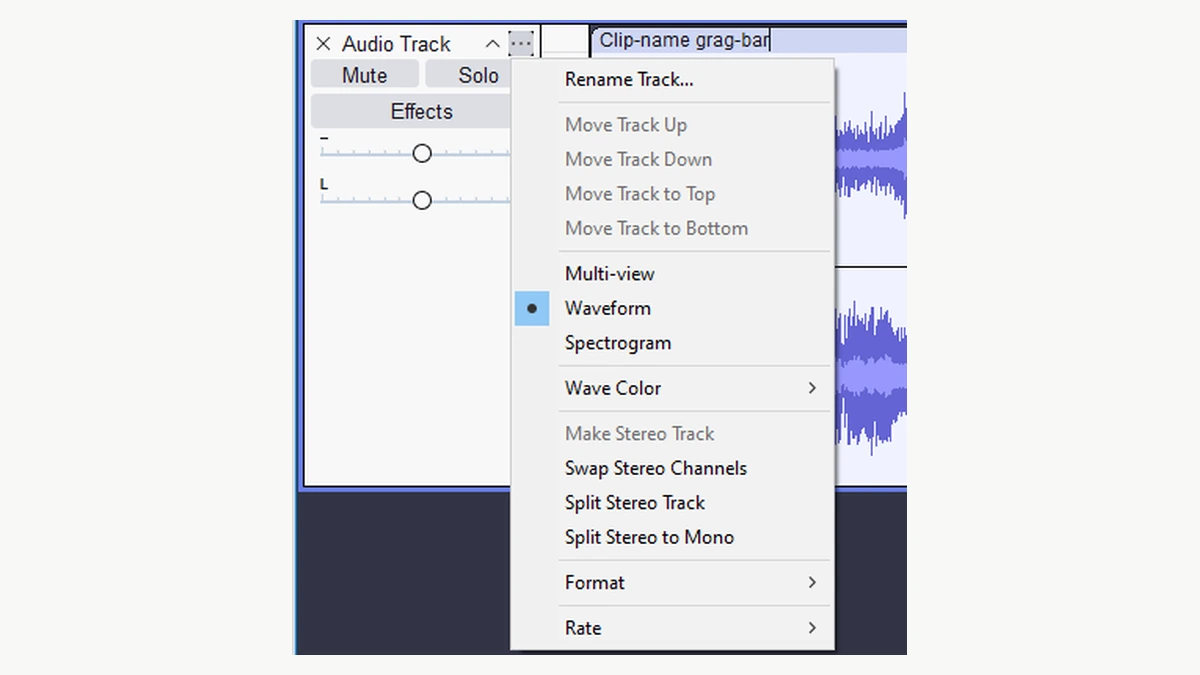
Sample rate describes how many audio samples represent one second. Audacity’s digital-audio explanation distinguishes this from bit depth and compressed-file bitrate. A value in kbit/s on a product listing is not the sample rate in Hz, so copying that number into an editor’s rate control would be a mistake.
The Audacity track-menu manual explains that reinterpreting a track at a higher rate shortens it and raises its pitch. It also distinguishes that operation from resampling, which changes the number of samples while keeping the track’s timing. Proper conversion between 44.1 kHz and 48 kHz does not, by itself, require faster speech.
A calculation illustrates the difference. Suppose audio containing exactly 60 seconds at 44,100 samples per second is incorrectly interpreted as 48,000 samples per second, without resampling. The same samples occupy:
60 × 44,100 ÷ 48,000 = 55.125 seconds.
That is about 1.088 times the intended speed, with pitch raised as well. These are calculated consequences of the stated rate mismatch, not measurements of a QZT recorder. Many other faults can change timing; hearing a high voice alone does not prove that these two rates are involved.
I would inspect the original file’s format information and compare it with a fresh sample from the same recorder and mode. Ask the supplier to confirm the expected format when the stored rate appears inconsistent. Do not overwrite a file header or repeatedly try arbitrary rates on the only copy.
If speed varies within the recording, a single percentage is unlikely to describe the whole problem. Save the locations where timing changes and investigate those sections separately. A fixed-duration correction cannot restore audio that was never captured.
Make a corrected copy only when the timing is known
An audio effect should follow the diagnosis. If resetting the player solves the problem, keep the original recording unchanged. If a rate was misinterpreted and the intended rate is confirmed, correct that interpretation on a working copy using the editor’s documented method before making unrelated edits.
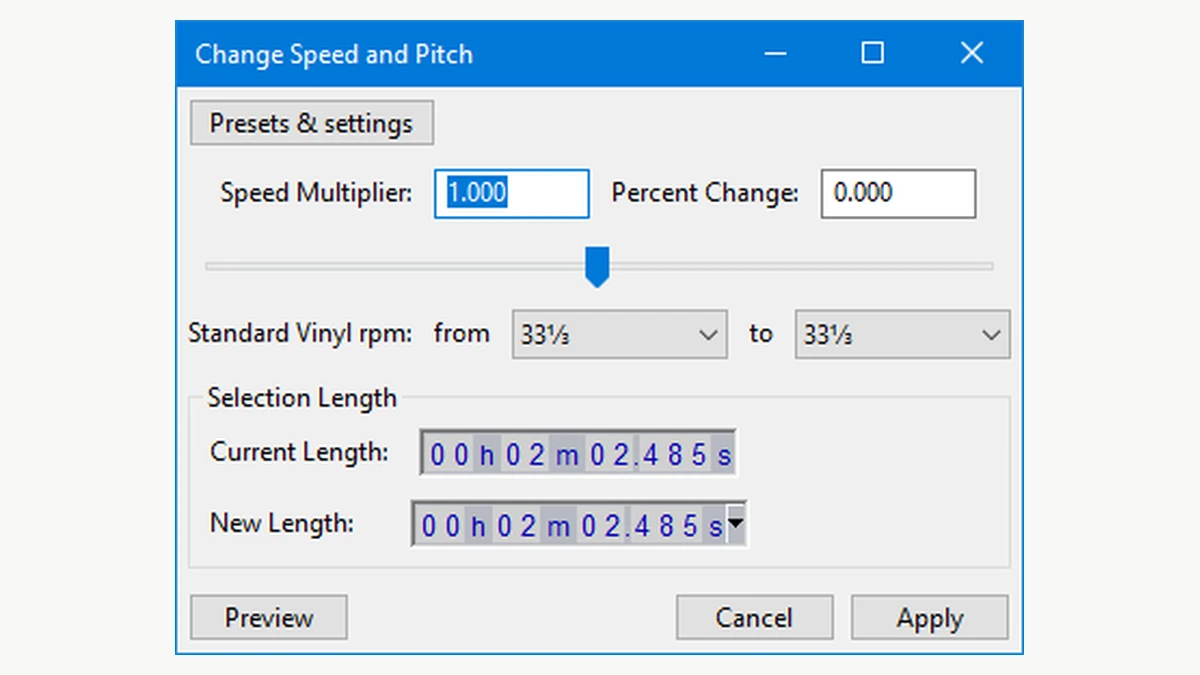
When an actual speed correction is justified, Audacity offers two different effects. Change Speed and Pitch changes timing and pitch together. Change Tempo changes duration while preserving pitch. Choose according to the error you have established, not whichever result makes an unfamiliar voice sound pleasant.
For a confirmed constant-rate error, the multiplier can be calculated from the same interval before and after correction:
Speed multiplier = current duration ÷ intended duration.
In the earlier hypothetical example, 55.125 ÷ 60 = 0.91875. A speed-and-pitch adjustment by that factor would lengthen the interval to 60 seconds and lower the pitch accordingly. This is an example, not a preset to apply to all fast recordings. Do not both correct the track-rate interpretation and apply the same compensating speed effect; that would compensate twice.
For Audacity versions matching the linked manual, work on a duplicate and use Effect > Pitch and Tempo > Change Speed and Pitch when both timing and pitch require correction. Select the intended audio, preview the result and check the new length. The manual screenshot is an interface example; its displayed values are not readings from your recorder.
If pitch is already correct, investigate a tempo-only adjustment instead. Audacity warns that time-stretching can introduce artifacts and that its default Change Tempo processing has limitations at selection boundaries. Review the start and end as well as the middle; do not approve a speech recording solely because the duration now matches.
Export the result under a new filename and reopen it in the intended player at normal speed. Keep the original, editor settings and reason for the change together. The Audacity export guide distinguishes saving an editing project from exporting a playable audio file.
For private meetings, use an approved local or organizational workflow rather than uploading the audio to an unknown online converter. A corrected listening copy should remain distinguishable from the untouched source.
Test a fresh recording before returning the recorder
A fresh, authorized test helps separate a repeatable recording fault from a playback preference or an earlier conversion. Use the normal supported recording mode, note the settings and record a recognizable spoken sequence. Include two audible markers separated by an independently measured interval, rather than relying on how quickly someone seems to speak.
For example, use a stopwatch to separate two spoken markers by approximately 60 seconds, keep sound present between them, and record the measured interval. This is a proposed check, not a QZT laboratory test. Human timing has uncertainty; small differences should not be treated as a calibrated clock measurement.
Save normally, copy the original file and compare the marker-to-marker interval in two supported players at normal speed. Measure between the markers, not from the moment the record button was pressed. Note whether the voices sound different and whether the problem follows the file or only the recorder’s playback output.
| Sample record | What to retain |
|---|---|
| Recorder identity | Model, supplied revision and firmware if available |
| Recording mode | Format, voice activation and documented processing settings |
| Reference interval | Marker method and independently measured elapsed time |
| Source file | Original filename, duration, sample rate and channel count |
| Playback comparison | Player/device, speed setting and observed marker interval |
| Result | Playback-only issue, repeatable file timing error, missing audio or unresolved |
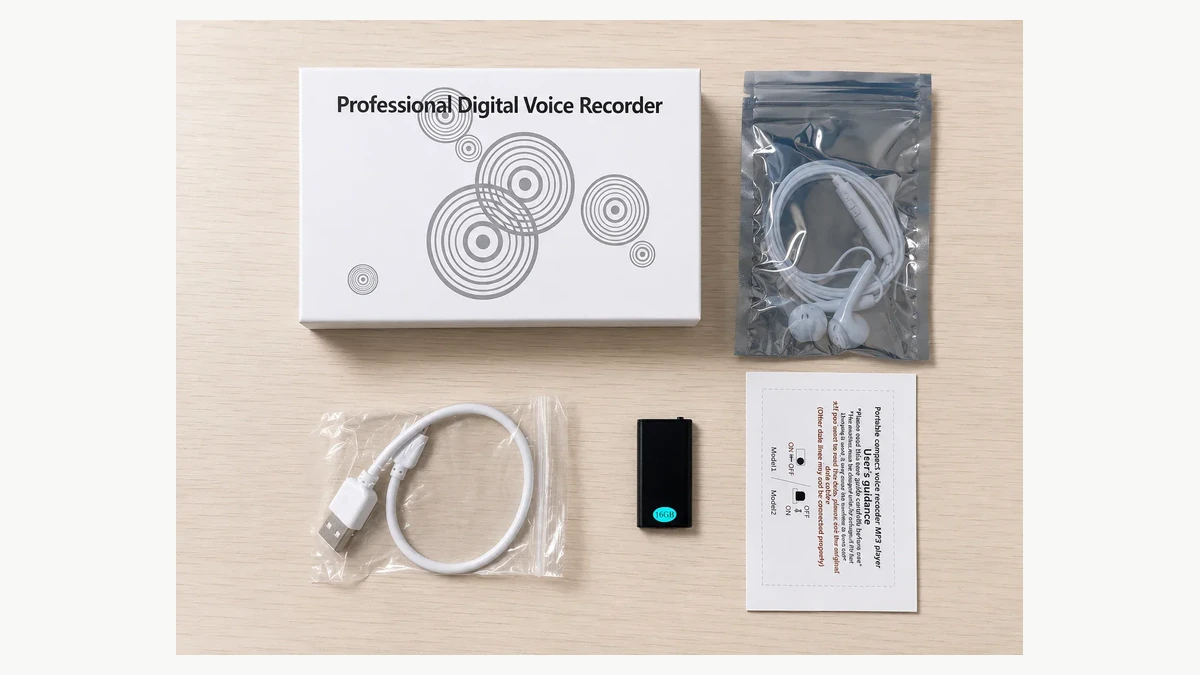
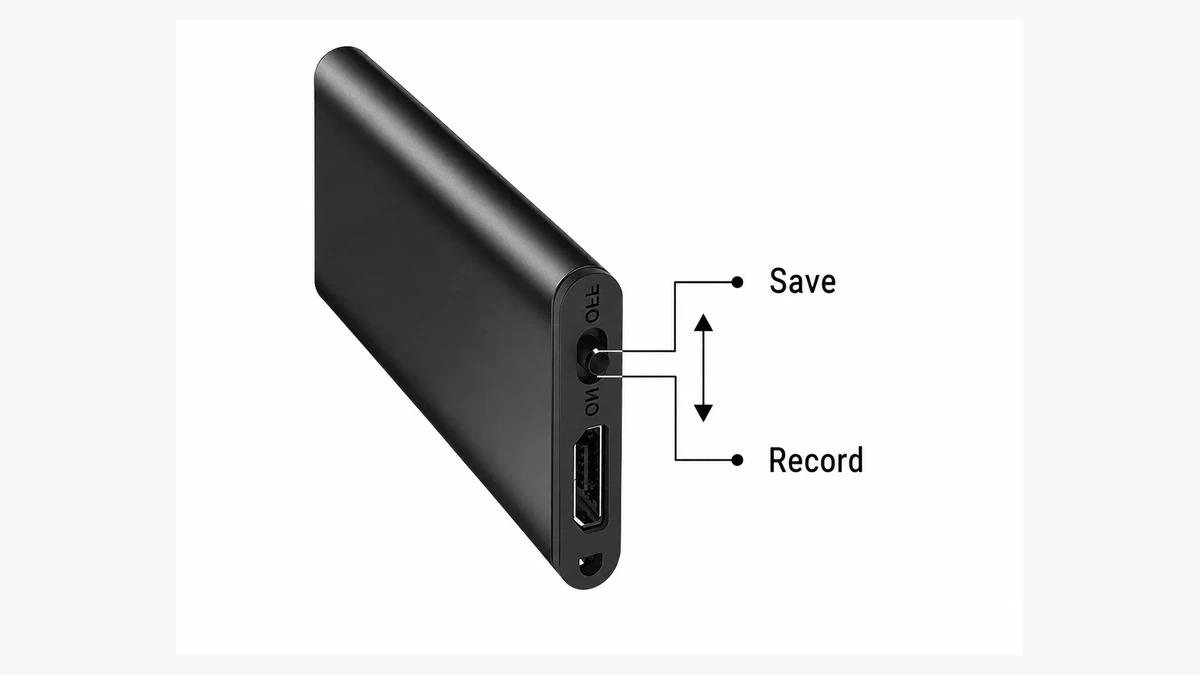
For a QZT Q1 or Q61 recorder, use the documentation supplied with the exact version. Neither a product photograph nor another brand’s DPC instructions establish QZT speed-control features. Request an original sample file when approving a recorder for resale or meeting use.
If new recordings repeatedly have the wrong timing across supported playback systems, send the original sample, configuration and reference interval through the supplier’s private support channel. If only the recorder’s own playback is wrong, include the relevant playback setting and accessory details. A dealer can then investigate the affected path instead of replacing hardware based on one app’s behavior.
Where the issue is an unplayable or damaged file, preserve it and move to the file-integrity investigation. Changing playback speed cannot reconstruct missing samples or a recording that was not saved.
Frequently Asked Questions
Why is my voice recording fast on the recorder but normal on a computer?
A voice recording that sounds normal on a computer may be affected by the recorder’s playback-speed setting. Sony documents this behavior for the ICD-PX440 when DPC is enabled. Check the matching model instructions and compare the unchanged file at normal speed before converting audio or assuming the recording hardware failed.
Does changing playback speed also change the saved recording?
A voice recording’s listening speed and saved audio are separate settings in some software. Audacity’s Play-at-Speed toolbar changes audition speed but does not make the exported file follow that setting. Check the application’s documentation, preserve the original and reopen any exported copy at normal speed to verify the actual result.
Should every fast voice recording be converted to 44.1 kHz?
No. A fast voice recording does not establish its intended sample rate. Correct resampling can change sample rate without changing duration, while interpreting existing samples at a different rate changes speed and pitch. Confirm the original format and compare a timed sample before changing rate information on a working copy.
Can slowing down a recording bring back missing words?
Slowing a voice recording cannot reconstruct words that were never captured or samples missing from the file. It may make existing speech easier to review. Check for omitted intervals, voice activation or file damage separately, keep the originals and avoid presenting a slower listening copy as recovered missing audio.
What should a reseller ask for before replacing a recorder?
For a voice recorder speed complaint, request the original sample, exact model and recording mode, player settings and a timed reference where available. Compare the same file across supported playback systems. A repeatable source-file error needs a different response from a speed preference in one player or missing recorded intervals.
Before approving a recorder for regular use
For a QZT voice recorder sample, specify the intended recording mode and playback workflow. Retain an unchanged timed sample and confirm normal playback on the customer’s equipment before a larger order. That provides a reproducible reference for later speed complaints without relying on edited demonstration audio.

 English
  Italiano
  Deutsch
  Français
  Español
  Polski