
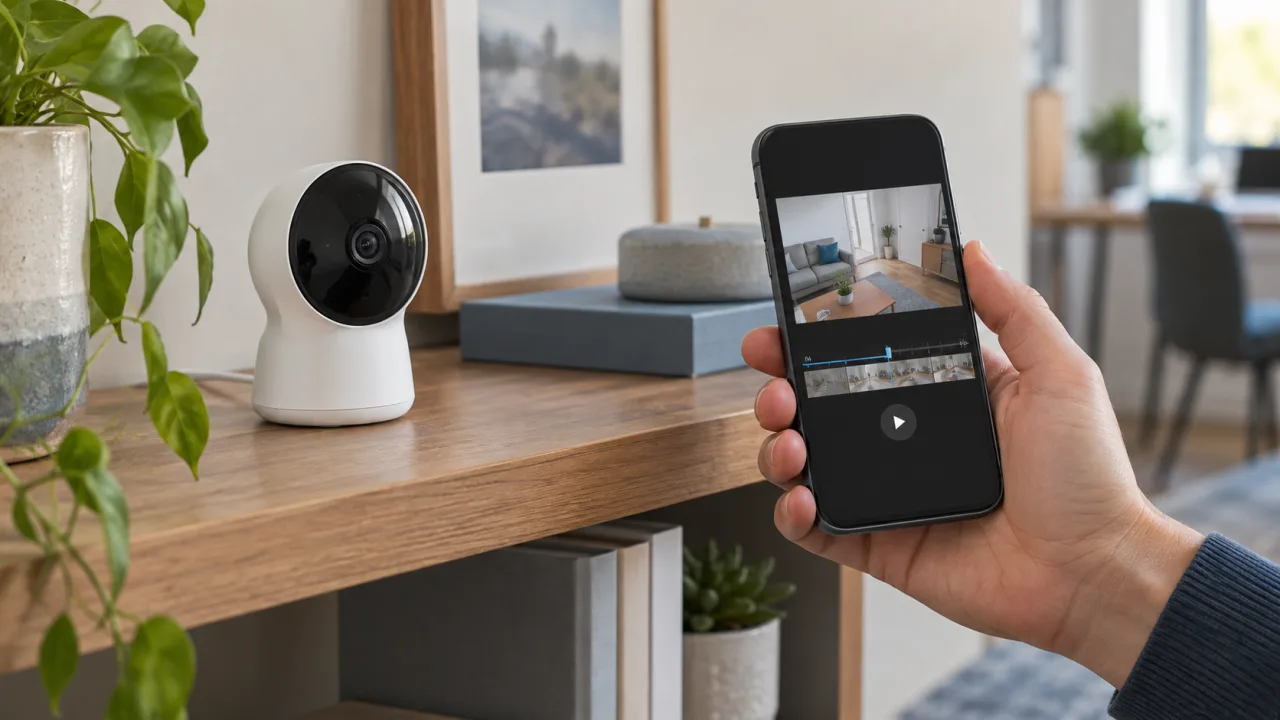
You can tell a security camera is recording only when it creates footage you can find and play back. A power light, live view, motion alert, moving lens, or glowing IR LED proves that one part of the system is active; none proves that video was saved. The quickest check is to trigger a controlled event, note the time, open the history, and play the new clip.
Use the checks below on a camera or recorder you own or manage. Run them after installation and repeat them after any change to the storage card, network, subscription, recording schedule, app, or firmware.
What proves that a security camera is recording?
The strongest proof is a new clip from a known test event that opens, plays, and carries the expected timestamp. Everything before playback is only a clue about one stage of the system.
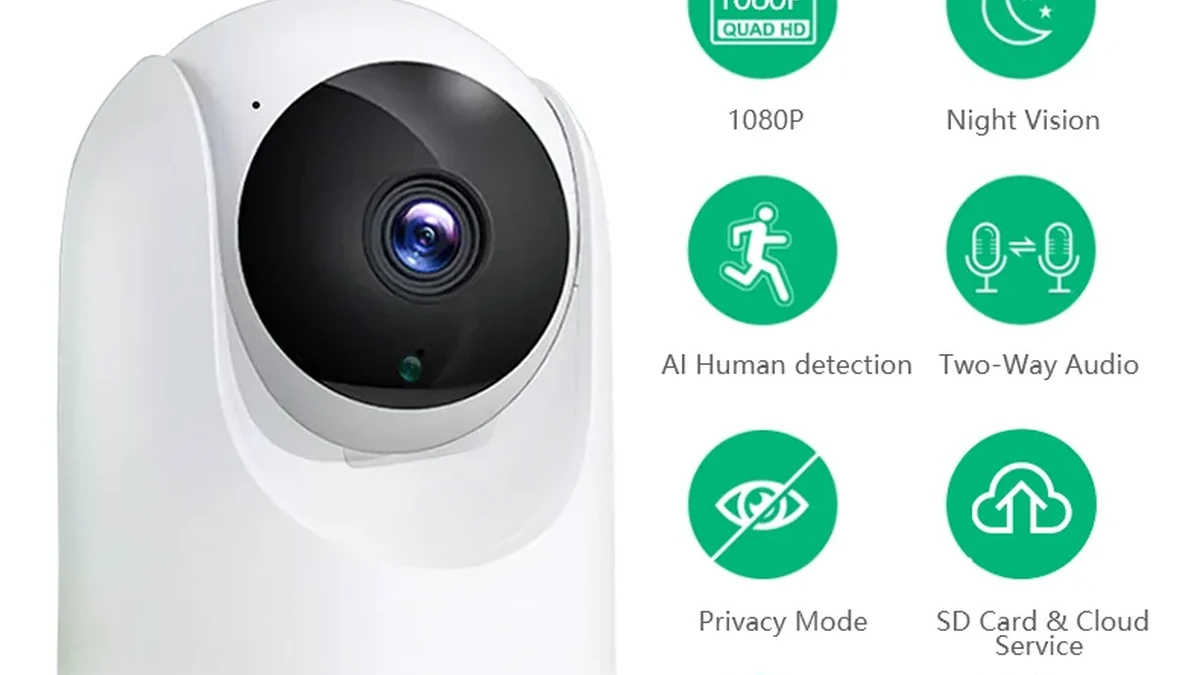
A camera can be powered, connected, and available for live view while recording is disabled or storage is unavailable. Google makes this separation explicit for Nest cameras: live video remains available regardless of the video-history option, while saved event or continuous history depends on the camera, power arrangement, and service. See Google’s event and 24/7 video history documentation.
Use this evidence ladder when checking a system:
| What you observe | What it proves | What it does not prove |
|---|---|---|
| Power or status light | Some hardware has power | A clip is being saved |
| Camera appears online | The app or recorder can reach it | Storage is healthy |
| Live view opens | A current stream is available | Past video exists |
| Motion is detected | The detection path reacted | The event was recorded |
| Push alert arrives | The notification path worked | A playable clip was retained |
| New timeline item appears | An event or snapshot was logged | The full clip will play |
| New clip plays from start to finish | Video was saved for that interval | Every scheduled period is covered |
| Exported file opens elsewhere | Retrieval and export worked | Future recordings will continue |
A successful clip is proof for that test interval, not a lifetime guarantee. Storage can fill, cards can fail, schedules can change, and cloud access can lapse. Keep the test short enough to repeat whenever the system changes.
Can the status light or IR LEDs confirm recording?
No universal LED color proves that every security camera is recording. Read the status table for the exact camera or recorder model before using a light as evidence.
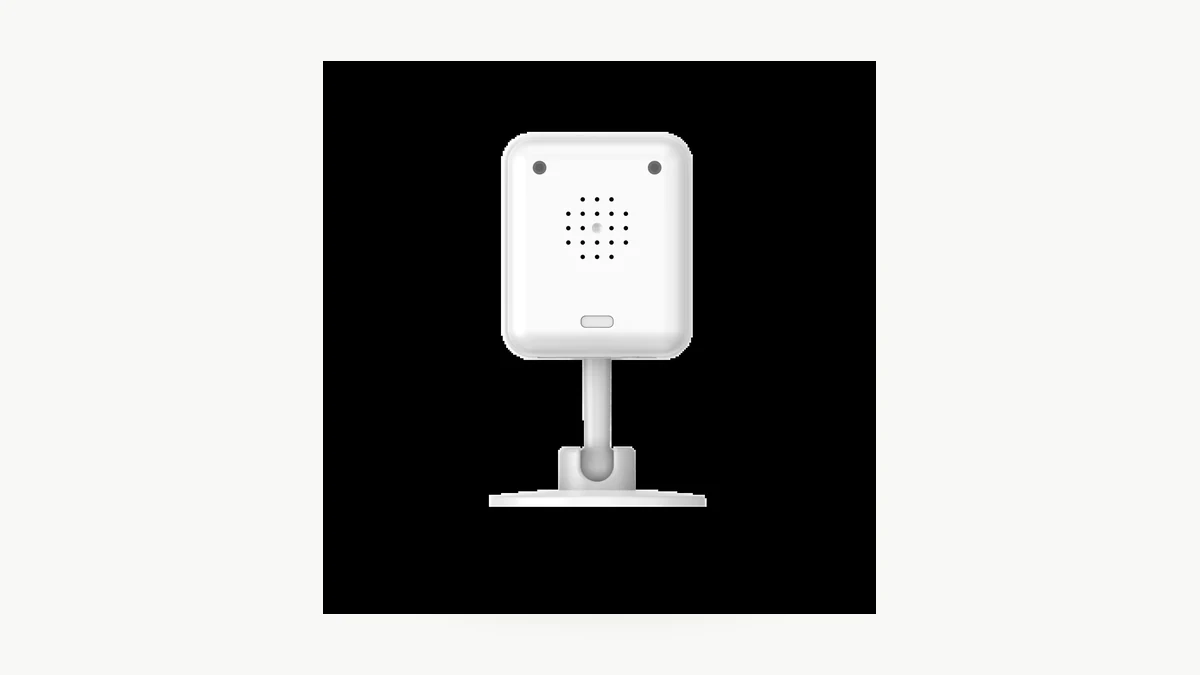
The meaning can differ even within one manufacturer’s product range. In the Reolink wireless battery camera manual, red and blue indicate WiFi failure or success, while blinking and solid states distinguish standby from working. The same manual says working mode can begin because someone is viewing the camera or because the PIR sensor detected movement. That light still does not confirm that a clip reached storage.
A recorder light can be more specific, but only when the manual says so. The Reolink PoE NVR manual maps a blinking red HDD LED to recording on the hard drive and a solid red HDD LED to a detected drive that is not recording. That is a model-specific definition, not a color code for all NVRs.
Infrared illumination is another weak clue. A faint red glow or IR visible through some phone cameras means night illumination is active. It does not tell you whether event recording is enabled, whether the storage destination is writable, or whether the footage survived long enough to review.
How do you run a five-minute playback test?
Create one event that is easy to identify, then follow it all the way from the scene to stored playback. Do not leave live view open and mistake the current stream for a saved recording.
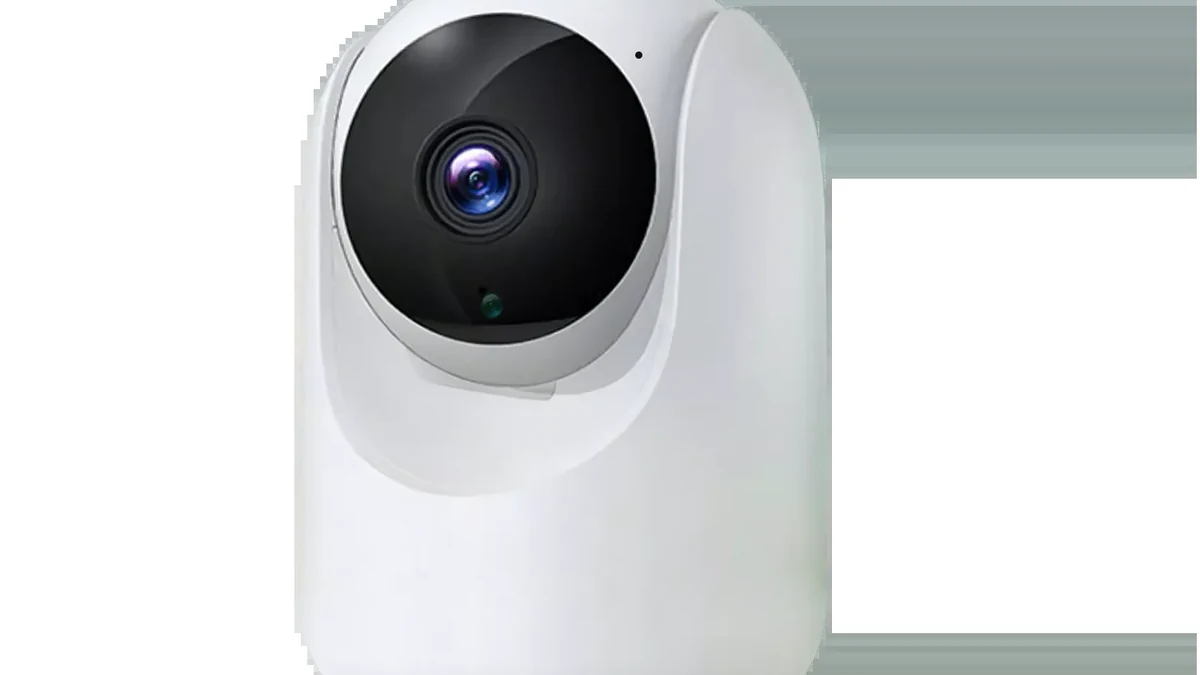
1. Confirm that the app or recorder shows the correct camera, date, time zone, recording mode, and storage destination.
2. Stand inside the intended field of view and note the time shown on your phone.
3. Walk across the frame, stop, and make one clear hand gesture. Keep the event going long enough for the configured detector to react.
4. Wait for the model’s stated post-event period and for any required local write or cloud upload to finish.
5. Leave live view. Open the recording history, timeline, card playback, DVR, or NVR playback screen for that camera.
6. Find the new item at the noted time. Play it from the beginning through the gesture and confirm that the clip does not freeze or end before the event finishes.
7. Repeat the test at the lighting level that matters for the installation. Daylight success does not prove that a night event will be exposed or detected correctly.
If the clip appears under the wrong date, correct the time zone or time-sync problem before treating the test as a pass. The spy camera date and time guide explains why a working camera can still create files that are difficult to locate or sequence.
For a deployment with several cameras, record the camera name, test time, mode, storage destination, playback result, and reviewer. A short acceptance log is more useful than a photograph of a green light.
How do you test event recording and 24/7 recording?
Test the mode that was ordered. Event recording and continuous recording produce different timelines, so a gap can be normal in one mode and a failure in another.
| Recording mode | Where to test | Pass condition |
|---|---|---|
| Motion or event recording | Trigger a clear event inside the active zone and schedule | A new playable clip covers the event |
| 24/7 continuous recording | Choose a quiet minute inside the active schedule | Playback covers that minute without an unexplained gap |
| Scheduled recording | Test once inside and once outside the scheduled window | Footage follows the configured boundary |
| Local card recording | If the manual supports offline recording, repeat a test during a controlled internet outage | The local clip remains available by the documented retrieval method |
| Cloud recording | Trigger an event while the camera is online | A new cloud clip appears and plays under the correct account |
Google’s documentation gives a useful example of why mode labels matter: event history saves enabled events, while eligible 24/7 history saves a continuous stream. It also notes that a battery Nest camera needs external power for 24/7 history. Do not transfer that exact rule to another brand; use it as a reminder to verify mode, power, and service for the model in front of you.
If you are still deciding which mode is appropriate, compare the capture and storage trade-offs in Motion-Activated or Continuous Indoor Camera Recording: What Gets Saved?. Then return to this acceptance test and verify the chosen mode instead of assuming the menu setting worked.
Why can a motion alert arrive with no playable clip?
Detection, notification, recording, storage, and playback are separate paths. An alert proves that one path reached your phone. It does not prove that the video file was completed or retained.
Check the system in this order:
1. History: Look at the correct camera, account, date, and event filter. Try to open the item rather than relying on its thumbnail.
2. Mode and schedule: Confirm that the detected event type is enabled for recording during the test window, not only for notifications.
3. Storage: Check that the card, NVR, DVR, NAS, or cloud destination is present, initialized, writable, and not reporting an error.
4. Retention: Confirm that the clip was not removed by a rolling history limit or overwritten by new footage.
5. Time: Check the camera time zone and timestamp if the clip appears under the wrong hour or day.
6. Network and power: For cloud recording, confirm that the camera stayed online long enough to upload the event. Then repeat the controlled test.
Storage errors can stop recording while other parts of a system still appear normal. Synology’s Surveillance Station recording documentation states that recording functions stop when the configured recording storage becomes unavailable. Google likewise notes that an offline Nest camera cannot save video to the cloud and may leave gaps in video history.
Before a factory reset, export any footage you still need and read the model’s reset instructions. A reset can remove settings, pairing, or history; Google specifically warns that a Nest factory reset permanently deletes that camera’s video history.
What belongs in a camera recording acceptance test?
A buyer should be able to reproduce the result on one sample before approving a larger deployment. The test record should identify the exact system and the evidence instead of saying only “camera works.”
| Buyer check | What to record | Practical pass condition |
|---|---|---|
| Exact version | Model, hardware revision, firmware, app or recorder version | The tested version matches the proposed order |
| Recording policy | Event types, continuous or scheduled mode, active hours | The setting matches the intended use |
| Storage path | Card, NVR, DVR, NAS, or cloud account | The destination reports healthy and writable |
| Controlled event | Test time, lighting, distance, route across the frame | The expected event is detected and saved |
| Playback | Start time, end time, picture, and required audio if authorized | The complete clip plays without an unexplained gap |
| Export | File format and playback on a second authorized device | The exported file opens and contains the test event |
| Retention | Overwrite rule, cloud-history limit, or archive policy | The required review period is supported |
| Recovery | Power restart and, where supported, network-loss behavior | Recording resumes or local footage remains available as documented |
Do not infer these results from resolution, WiFi, battery, or storage-capacity labels. Ask for the manual and sample configuration for the exact version. A 256 GB card tells you available capacity; it does not prove that the camera is writing files or that the app can retrieve them. The microSD storage guide can help size storage after recording itself has passed the test.
For indoor and outdoor projects, keep the completed acceptance record with the unit or batch. Repeat the short test after a card replacement, firmware update, router change, recorder migration, subscription change, or recording-schedule edit.
Frequently Asked Questions
Does a red light mean a security camera is recording?
A red light does not universally mean a security camera is recording. On one model it may indicate power, infrared night vision, a WiFi fault, pairing, or active writing. Check the exact manual, then confirm recording by triggering a known event and playing the new time-stamped clip from storage.
Can a security camera be on but not recording?
Yes. A security camera can be powered, online, and available for live view while recording is disabled, outside its schedule, or blocked by unavailable storage. The reliable check is not the live image. Create a controlled event, open the correct history, and play the resulting clip from beginning to end.
Does live view prove that a security camera is saving video?
No. Live view proves that a security camera can deliver a current stream to the app or recorder. Saved history uses a separate recording and storage path. Leave live view, trigger an event, then locate and play a new clip. For continuous recording, also inspect a quiet minute inside the schedule.
How can I confirm motion-activated security camera recording?
To confirm motion-activated security camera recording, note the time, cross the active detection zone, pause, and make one clear gesture. After the configured post-event period, open the event history and play the new clip. Verify that the clip starts early enough and continues through the complete gesture.
How often should security camera recording be tested?
Security camera recording should be tested after installation and after any change to firmware, storage, networking, subscription, app, recorder, power, or schedule. A short periodic test is also sensible where footage is operationally important. Record the test time and playback result so a later failure is easier to isolate.
Conclusion
Treat a playable, correctly timed clip—not a light, alert, or live view—as proof that recording worked. Run the same short acceptance test before choosing or deploying any model from the QZT camera range.

 English
  Italiano
  Deutsch
  Français
  Español
  Polski