
If a USB voice recorder charges but your computer cannot find its files, check the data connection before formatting. Use the correct data cable, follow the recorder’s file-transfer mode, and check whether Windows or macOS sees the device at all. A charging light is not proof that a working data connection exists.
This guide is for recorders documented to transfer files over USB. It separates a missing USB connection from an unreadable storage volume and a file that simply will not play. Those problems need different next steps.
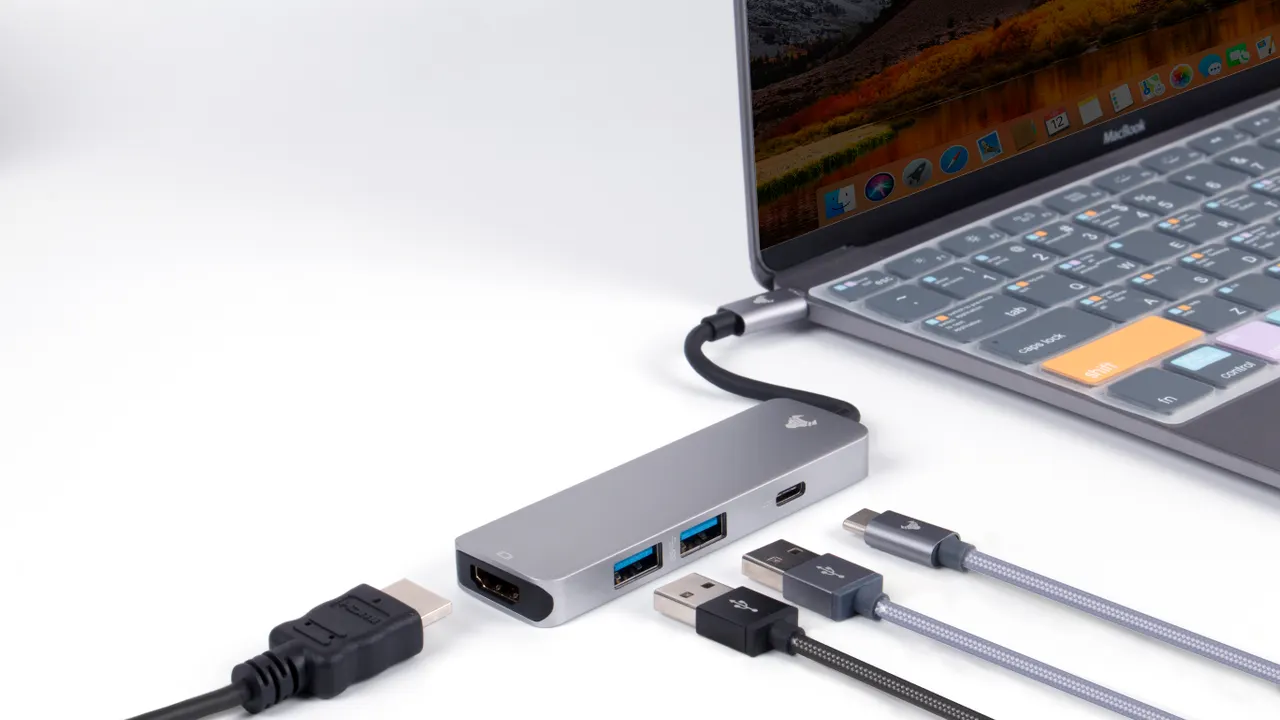
Protect the recordings first. Do not accept a Format, Initialize or Erase prompt while needed files remain unbacked-up. Microsoft’s disk-initialization guidance warns that initialization destroys existing data. A previously used recorder is not a new, empty disk just because the computer cannot open it.
| What you observe | Where to look next |
|---|---|
| Charging light, but no readable drive | Cable, direct connection, recorder mode and computer access permission. |
| Device appears, but its storage will not open | Identify the volume status. Do not format an unreadable recording store. |
| Files copy, but an audio player rejects them | Work on a copy and investigate playback or file integrity, not just USB detection. |
| Connection repeatedly drops during copying | Stop repeated transfers; record the error and check the connection before risking more files. |
1. Check the cable and the recorder’s transfer mode
Use the cable supplied for that recorder, or a replacement explicitly approved for both its connector and data transfer. A cable that powers a device is not necessarily a data cable. Sony’s ICD-TX660 troubleshooting guide, for example, specifically excludes charging-only USB cables.
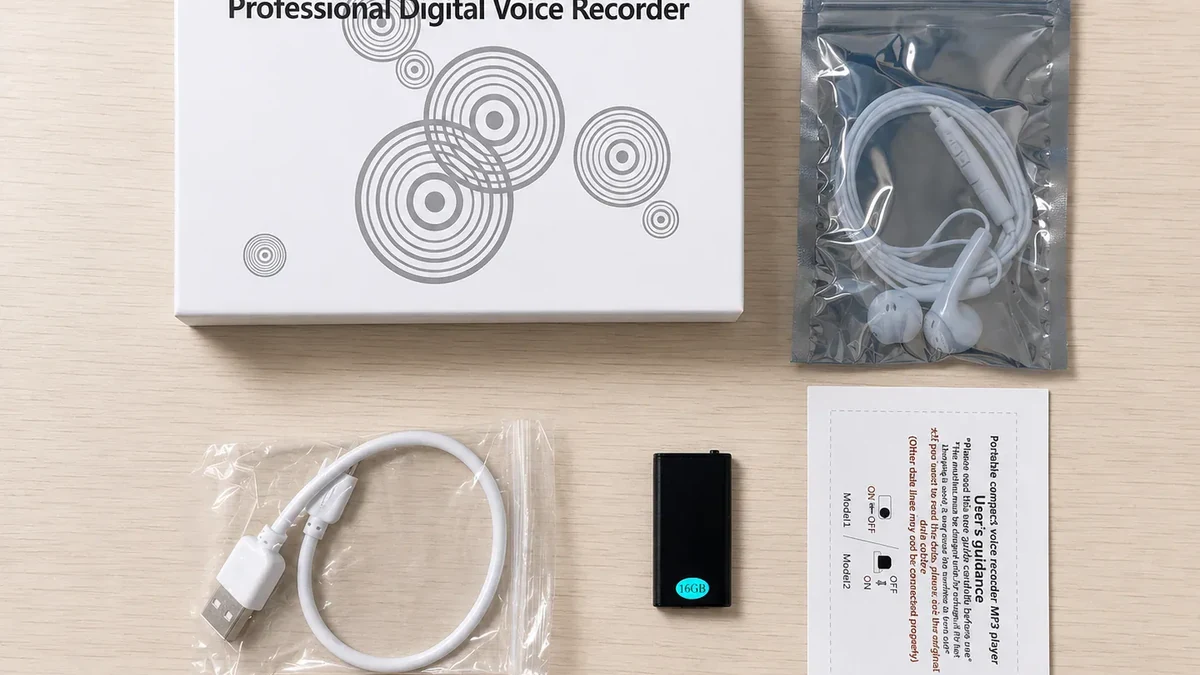
Next, simplify the connection: remove an optional hub or extension, seat the connector correctly and try another computer port. Sony’s guide recommends reconnecting directly and trying another port for its recorder. Use that as a diagnostic comparison, not proof that every QZT model supports every adapter.
Q1 has a documented starting state. The linked Q1 user manual says OFF saves the recording and shuts the unit down. For file management, connect with the switch OFF, then open the recorder disk and RECORD folder. It describes a shared headphone/USB/charging socket: use the supplied cable, not an arbitrary similar-looking plug.
Follow those steps only for the Q1 revision covered by that manual. Another recorder may need a different connection state or its own transfer software. Do not guess a button-hold time, copy a reset sequence from another model, or install an unrelated recorder’s driver.
For Q1’s separate voice-activation settings, use the voice-activated recording guide. Changing VOR is not a substitute for establishing the USB connection.
2. On Windows, distinguish USB detection from a usable drive
Begin in File Explorer. If the recorder is absent, search Windows for Device Manager and inspect the device list while connecting the recorder once. Note any newly appearing device or warning. Then open Disk Management from Windows search and look for the recorder’s storage.
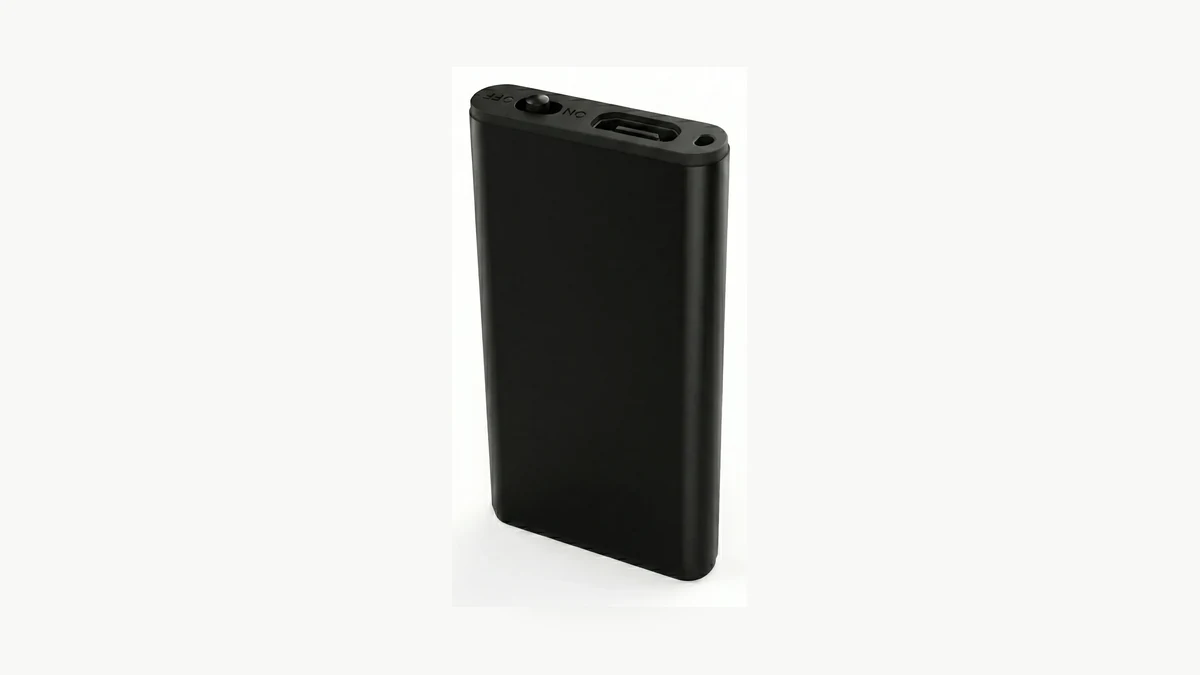
A device entry and an accessible file volume are different observations. Sony’s computer-recognition troubleshooting includes Device Manager and model-specific driver checks. Microsoft’s Disk Management guidance explains that a missing or uninitialized disk can reflect formatting damage, hardware trouble or other issues; the status alone does not establish one cause.
For this check, inspect rather than repair. Confirm the disk by its identity, expected capacity and appearance when connected. Do not select your system disk or an unrelated backup drive. On a managed work computer, ask the administrator rather than bypassing USB or storage restrictions.
If the recorder has a healthy, accessible data volume but no drive letter, Microsoft’s drive-letter procedure provides a way to assign one: right-click that confirmed volume, choose Change Drive Letter and Paths, then Add and an available letter. This requires appropriate permissions and does not apply to a RAW, unallocated or unreadable volume.
If Windows instead offers to initialize or format a recorder containing recordings, cancel the prompt. Save a screenshot of the status. Do not create a new volume, run a disk-cleaning command or download a generic “USB repair” utility.
3. On a Mac, check accessory approval and disk visibility
On a Mac laptop with Apple silicon, unlock the Mac and reconnect your trusted recorder. Approve the accessory when prompted. Apple explains that choosing Don’t Allow can block data access while the accessory still charges. This is a specific Mac behavior, not a claim about every Mac or every USB failure.
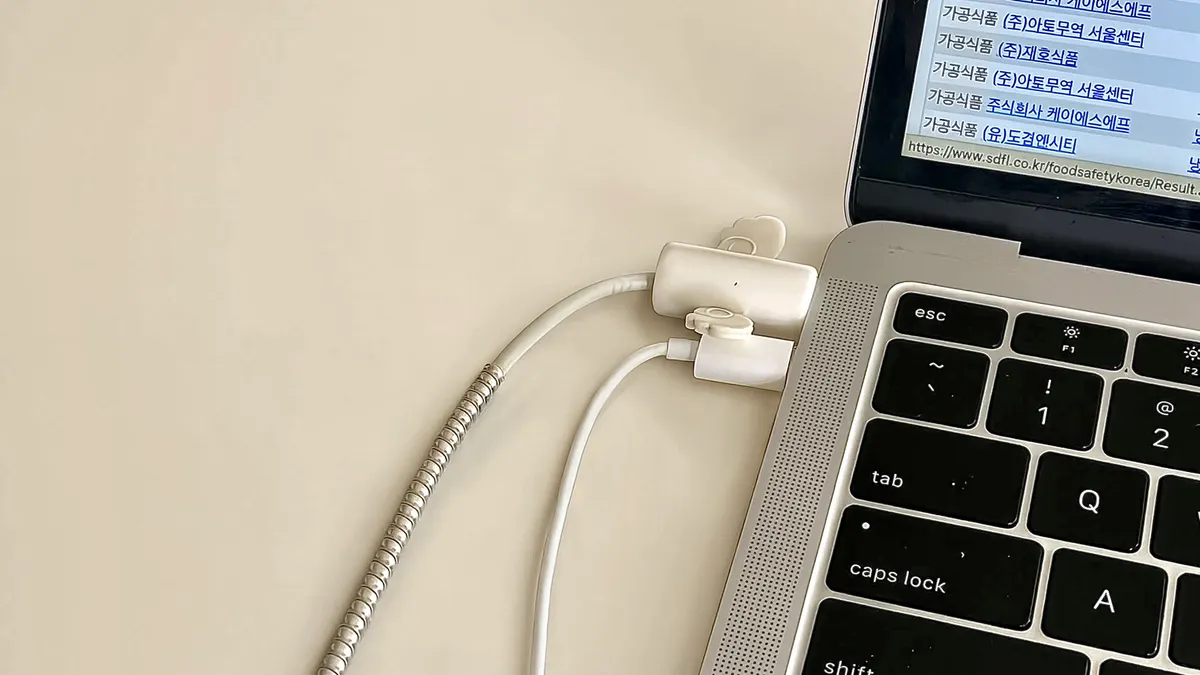
Use Apple’s accessory-connection instructions for your macOS version. There is no need to permanently allow every unknown accessory just to test a recorder you own. Administrators can control this setting on supervised machines.
Next, check Finder’s sidebar under Locations. Apple’s connected-device guide explains how Finder Settings controls which devices appear on the desktop and in the sidebar. A missing desktop icon alone is not enough to conclude that USB detection failed.
Open Disk Utility and choose View > Show All Devices. Apple’s Disk Utility guide explains that this shows the storage device as well as its volumes. Look for the recorder and record whether a volume appears beneath it. Do not select Erase as part of this inspection.
If the recorder appears at the hardware level but no readable volume is available, report those two observations separately. If it never appears, return to the cable, approved adapter and model-specific transfer procedure. Avoid turning a missing Finder icon into a formatting decision.
4. Copy readable files before attempting a repair
When the drive becomes readable, copy the recordings to a separate, authorized storage location. Keep the originals on the recorder until you have checked the copies. If the recorder repeatedly disconnects or copying produces errors, stop trial-and-error repairs and ask for recovery advice when the audio matters.
The Q1 manual also tells users to back up recordings and the Recording Parameter tool before formatting. That warning does not make formatting the right response to an undetected USB connection. A drive must first be accessible enough to preserve its contents.
If a copied audio file will not play, preserve that copy and try the playback method documented for the recorder. File transfer and playback are separate checks. If the complete file copied successfully, changing cables cannot by itself establish why an audio player rejected it.
Do not rename a file extension as a substitute for converting its contents, overwrite the original with an edited version, or upload confidential recordings to an unknown repair service. Share device information and error messages first; provide audio only when necessary through an agreed private support channel.
Finish file transfers before disconnecting. Apple’s storage-device instructions explain how to eject a connected drive. Follow the corresponding operating-system and recorder instructions rather than pulling the cable during an active transfer.
5. Compare one variable at a time before requesting service
Keep the recorder and its documented transfer mode unchanged while you compare the cable, port or host. Changing everything together may restore access, but leaves you unable to say which part of the connection was responsible.
| Record | What makes the result useful |
|---|---|
| Recorder and manual | Exact model, supplied revision, switch state and transfer procedure. |
| Computer | Operating-system version and any work-device restrictions. |
| Cable and adapter | Supplied or approved replacement; direct connection or named adapter. |
| Observed result | Charging, device detection, readable volume and file copying, recorded separately. |
| Comparison | Which single cable, port or computer changed and what happened afterward. |
| Data priority | Whether needed recordings are backed up; exact error text, with private details removed. |
For example, if an approved replacement cable restores file copying on the same port, the original cable or its seating deserves investigation. If the same recorder and cable work on a second compatible computer, investigate the first host’s ports, permissions and supported configuration. These comparisons narrow the next check; they do not prove that every other component is fault-free.
The Q1 manual’s no-response advice follows a limited sequence: check the connection, try another computer, then contact support if recognition still fails. It does not name a universal driver download for every operating system.
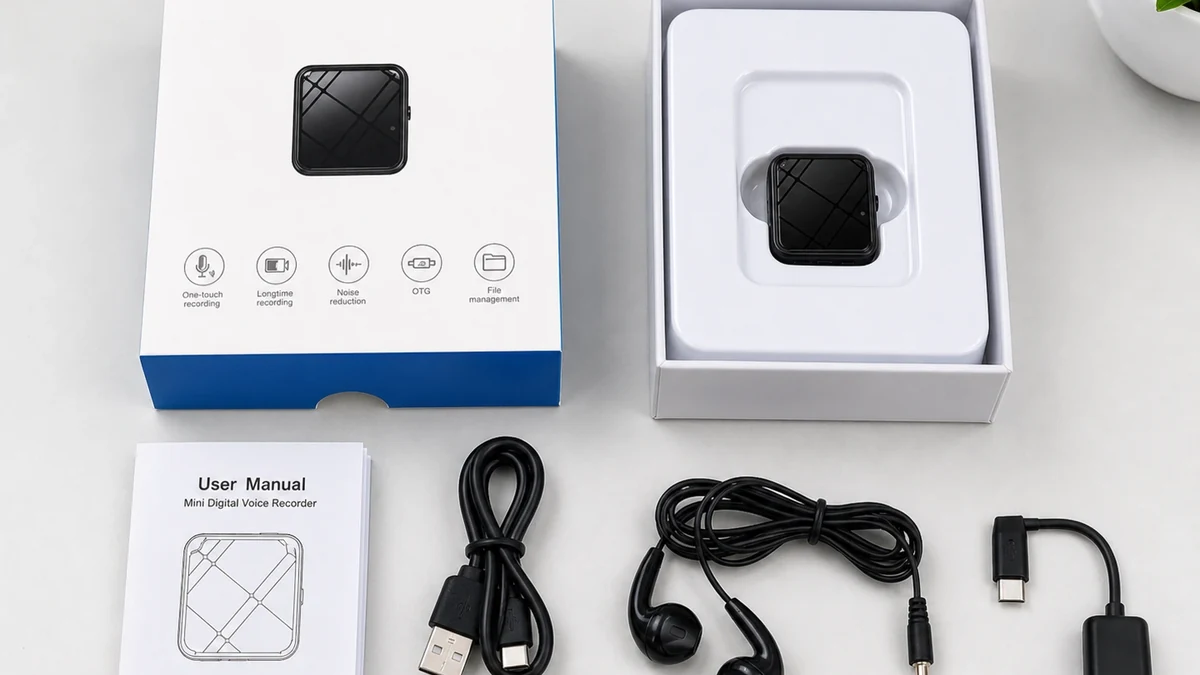
For distributor samples, confirm file access before ordering replacement cables in quantity. The ZD46 product page lists Type-C/OTG file access and a charging-and-data cable in the reference bundle; the Q1 uses its own documented connection arrangement. Do not transfer a cable or switch instruction from one model to the other without confirmation.
Frequently asked questions
Why does my voice recorder charge but not appear on my computer?
A voice recorder can receive power without an available data connection. Check a data-capable cable, the correct transfer mode and computer permission. On Apple-silicon Mac laptops, Apple explicitly says an accessory can charge even after data access is refused. Charging alone does not confirm that files are accessible.
Should the QZT Q1 be on or off for USB file transfer?
The linked Q1 manual instructs users to put the switch in OFF before connecting for file management. OFF also saves the recording and shuts the recorder down. Apply that sequence to the Q1 revision covered by the manual, not automatically to another recorder with a similar body.
Should I format a voice recorder that the computer cannot recognize?
Not as the first step. A voice recorder with needed audio should not be formatted or initialized before its recordings are safely backed up. First distinguish a missing USB connection from an unreadable volume. If existing files cannot be recovered through normal access, seek advice before destructive operations.
Does a voice recorder need a special driver?
Driver requirements depend on the voice recorder and operating system. Follow the exact model’s official instructions and check the reported device status. A missing drive is not proof that a third-party driver is needed. Do not install another recorder model’s software or an unknown automatic driver-repair package.
Can I use any USB cable that fits my voice recorder?
No. A voice recorder needs the correct electrical connection and a cable that supports its documented data-transfer method. Matching the plug shape is not enough, especially with model-specific combined sockets. Start with the supplied cable or a supplier-approved replacement and confirm file copying on a compatible computer.
Start with the connection; protect the recordings; repair only the problem you have identified. For a QZT voice-recorder enquiry, include the model, cable, operating system and exact detection result. That gives support a useful next step without putting the original audio at unnecessary risk.

 English
  Italiano
  Deutsch
  Français
  Español
  Polski