
If you changed the router, WiFi name, WiFi password or internet provider, do not assume a Tuya camera will keep using the old network profile.
Tuya’s current support guidance for a router or carrier change says WiFi devices need to be removed and reconnected to the new network, and that the network and password should be selected again even if the new router uses the same visible SSID and password.
That is different from a temporary outage. If the same router and credentials return after a short interruption, a previously configured camera can try to reconnect without being treated as a brand-new installation.
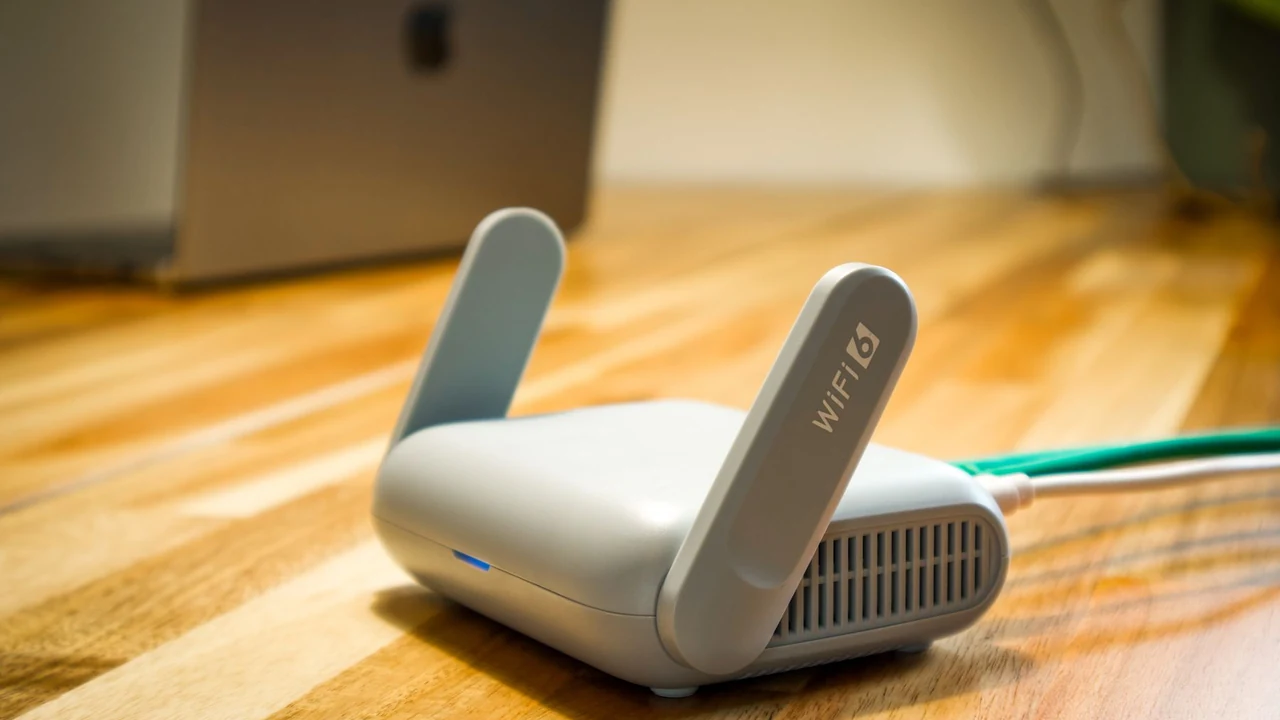
Licensed Pexels router photograph. It illustrates the network-change task; the image does not establish camera compatibility or pairing behavior.
First decide whether the network actually changed
Do not reset the camera before you know which problem you are solving.
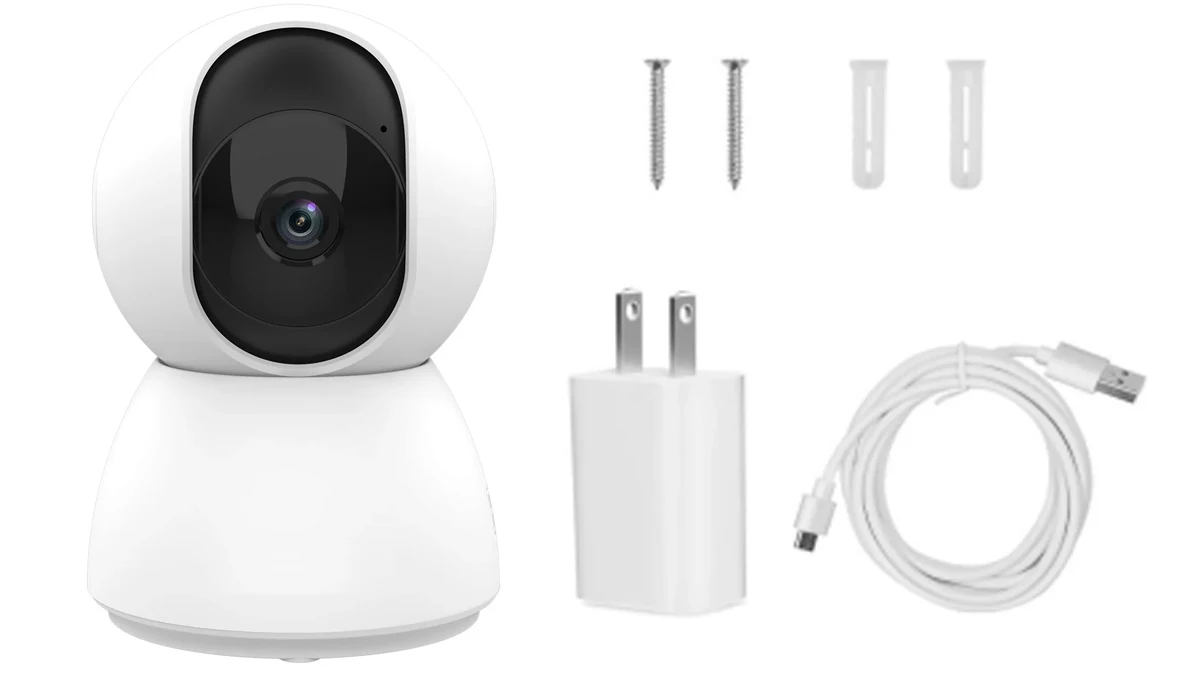
Real QZT C23B product scene. A temporary internet outage and a replacement router are different troubleshooting cases.
Use this split:
| Situation | First action |
|---|---|
| Same router, same SSID/password, brief power/internet outage | Restore router/network, power the camera normally and allow it to reconnect |
| New router | Treat as a network change; follow current re-add/re-pair guidance |
| WiFi name changed | Reconfigure the WiFi device for the new network |
| WiFi password changed | Reconnect/re-pair with the new credentials |
| Internet provider changed but router/network configuration also changed | Reconfigure the WiFi device |
| Device moved to a different Tuya account | Confirm account removal/unbinding before trying to bind it elsewhere |
Tuya’s current smart-camera offline guidance says a camera can recover after the router/network returns, but if the router was replaced or the WiFi name/password changed, the device should be removed and added to the network again.
Tuya also has a separate power-outage reconnection article stating that a camera can reconnect after the original network is restored.
The practical rule is:
> Temporary outage: wait for recovery. Network credentials/topology changed: reconfigure the camera.
Check the exact camera before you change settings
“Tuya camera” describes an ecosystem, not one radio or pairing method.
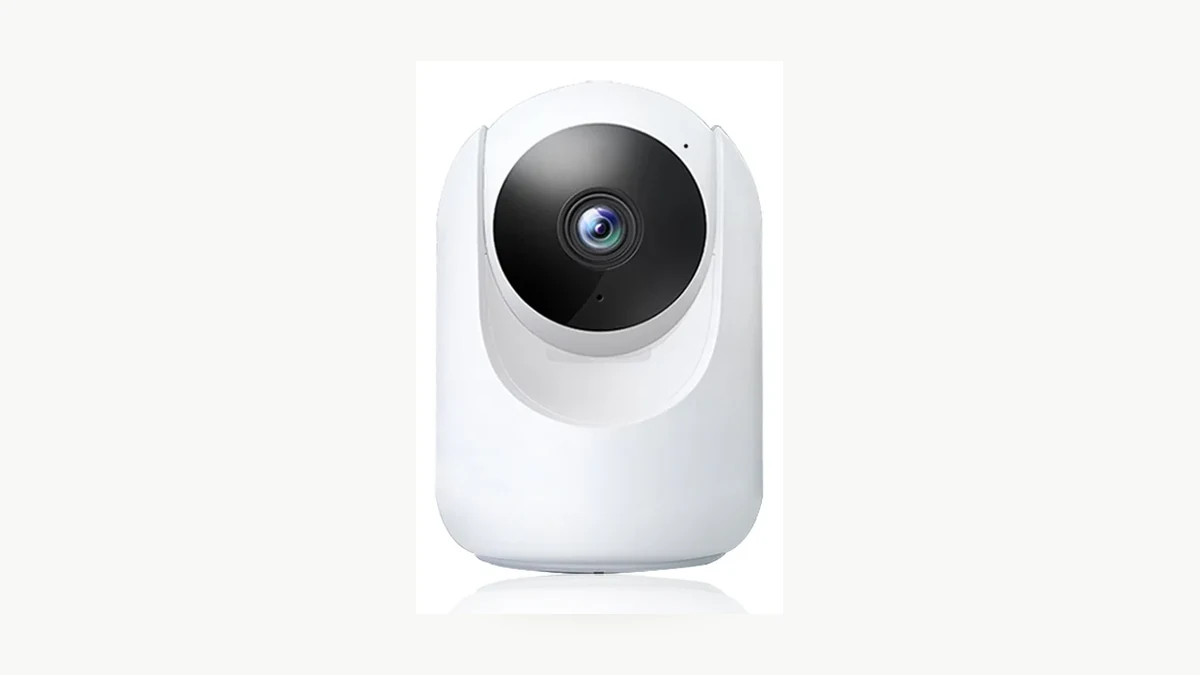
Real QZT C26 product photograph. Current QZT models can list different WiFi bands and onboarding features.
Current QZT examples already differ:
– C10 currently lists 2.4GHz WiFi and Bluetooth-assisted setup.
– C12 currently lists Tuya Smart / Smart Life, 2.4GHz / 5GHz WiFi, Bluetooth-assisted setup and ONVIF.
– C23B currently lists Tuya Smart, 2.4GHz / 5GHz WiFi and Bluetooth-assisted setup.
– C26 currently lists Tuya Smart / Smart Life, 2.4GHz / 5GHz WiFi and Bluetooth-assisted setup.
– C40 currently lists Tuya Smart / Smart Life, 2.4GHz / 5GHz WiFi and Bluetooth-assisted setup.
Tuya’s generic consumer setup pages often tell users to select a 2.4GHz network. That is useful generic guidance, but it should not erase a current product page that lists a different radio capability.
Before pairing, record:
– exact QZT SKU;
– hardware revision if available;
– firmware/app version;
– app named by the manual;
– WiFi band listed for that build;
– documented pairing indication;
– reset/re-pair control;
– whether Bluetooth-assisted discovery is listed.
After a router change, remove and re-add the camera using the current flow
Tuya’s July 15, 2026 router-change guidance says WiFi devices need to be reconnected after the router or network changes. It also says that setting the new router to the old SSID and password does not remove the need to select the network and enter credentials again during reconfiguration.
Real QZT C40 scene. Re-pair using the exact camera’s documented pairing indication and the current app flow.
For a camera you are authorized to manage:
1. confirm you can still access the Tuya/Smart Life account that owns the device;
2. note automations or scenes that depend on the camera;
3. remove the camera through the app when the current Tuya guidance requires removal for reconnection;
4. put the exact camera into its documented pairing state;
5. use Add Device / Auto Scan / the camera-specific method shown by the current app;
6. select the network supported by that exact camera;
7. enter the current WiFi password;
8. wait for the device to finish registration/initialization;
9. confirm live view and device status;
10. rebuild or verify any scenes/automations affected by removal.
Tuya’s current remove/reconnect guidance notes that removing a device can invalidate related Automation and Tap-to-Run scenes.
Do not guess a universal reset-button hold time. For reset/pairing-state details, use the separate QZT Tuya reset guide, which keeps exact-model timing separate from generic Tuya references.
What should you check if the camera will not join the new WiFi?
Work from the simplest mismatch outward instead of repeatedly factory-resetting the camera.
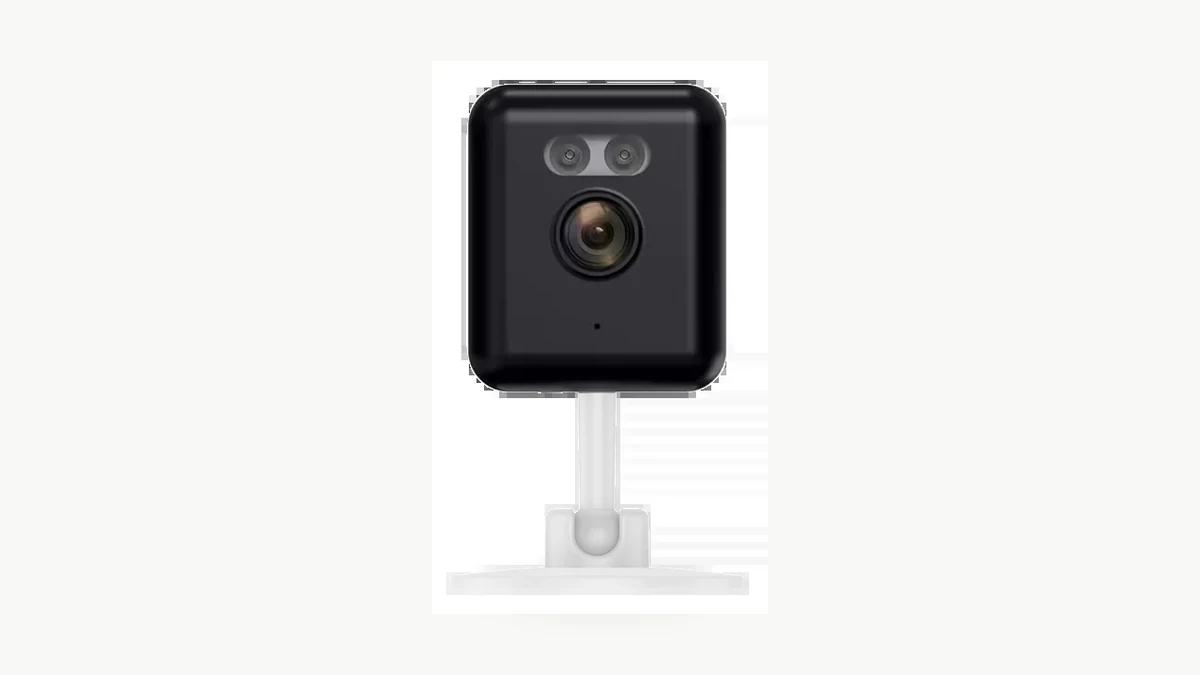
Real QZT C12 product photograph. Troubleshooting should start from the exact model’s documented network requirements.
Current Tuya support recommends checking:
– the correct app for the product;
– the camera is powered and in the correct pairing state;
– the WiFi password is correct;
– the network band matches what the device supports;
– the camera is close enough to the router during pairing;
– router configuration is not blocking the device.
Tuya’s current WiFi-device configuration guide uses a 2.4GHz network in its generic flow and tells users to check whether the device/network frequency bands match if pairing fails.
Its current WiFi troubleshooting guide also suggests testing with another smartphone hotspot to separate a router problem from a device/setup problem.
For cameras, Tuya’s camera connection guidance adds checks such as QR-code scanning distance and camera focus when QR provisioning is being used.
Do not turn any one of those generic paths into a universal QZT camera requirement. If the QZT product page/manual says the build supports another band or Bluetooth-assisted setup, use the exact product flow.
What happens to the account, scenes and local storage?
Network setup, account ownership and storage are separate layers.
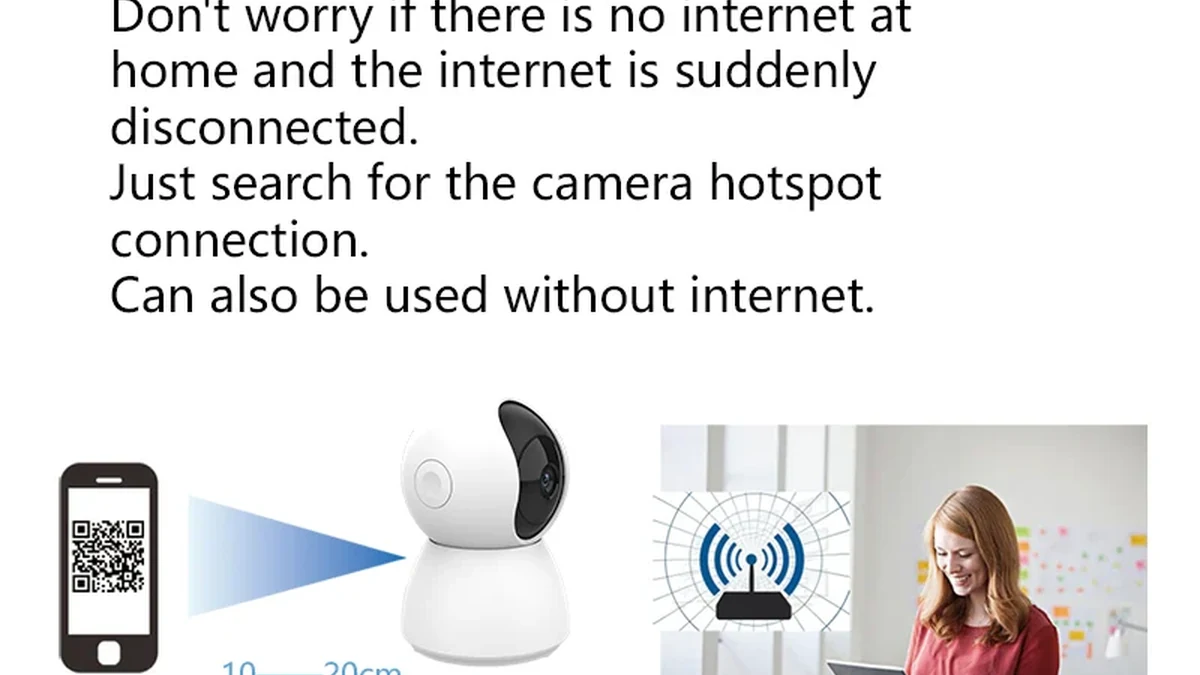
Real QZT C23B package image. Record account, network and storage behavior separately during reconfiguration.
Tuya’s current remove/reconnect support says scenes linked to a removed device can become invalid. It also says smart cameras and similar security devices must be removed from the original account before they can be bound to a different account.
That does not automatically answer what happens to local MicroSD files.
For a QZT sample, record separately:
| Layer | What to verify |
|---|---|
| Account binding | Original account / new account / sharing |
| WiFi network | SSID / supported band / successful registration |
| Scene / automation | Still valid / must rebuild |
| Cloud service | Account/service term for the exact product |
| MicroSD files | Existing files retained / not retained / Not tested |
| Recording after re-pair | Event / continuous / exact supported mode |
| Time zone / clock | Correct after network change |
| Notifications | Working after re-pair |
A successful live view after re-pairing does not prove that every automation, local recording or cloud setting survived unchanged.
How should you verify the new network before you leave the site?
Do a short acceptance test while the old network details are no longer available.
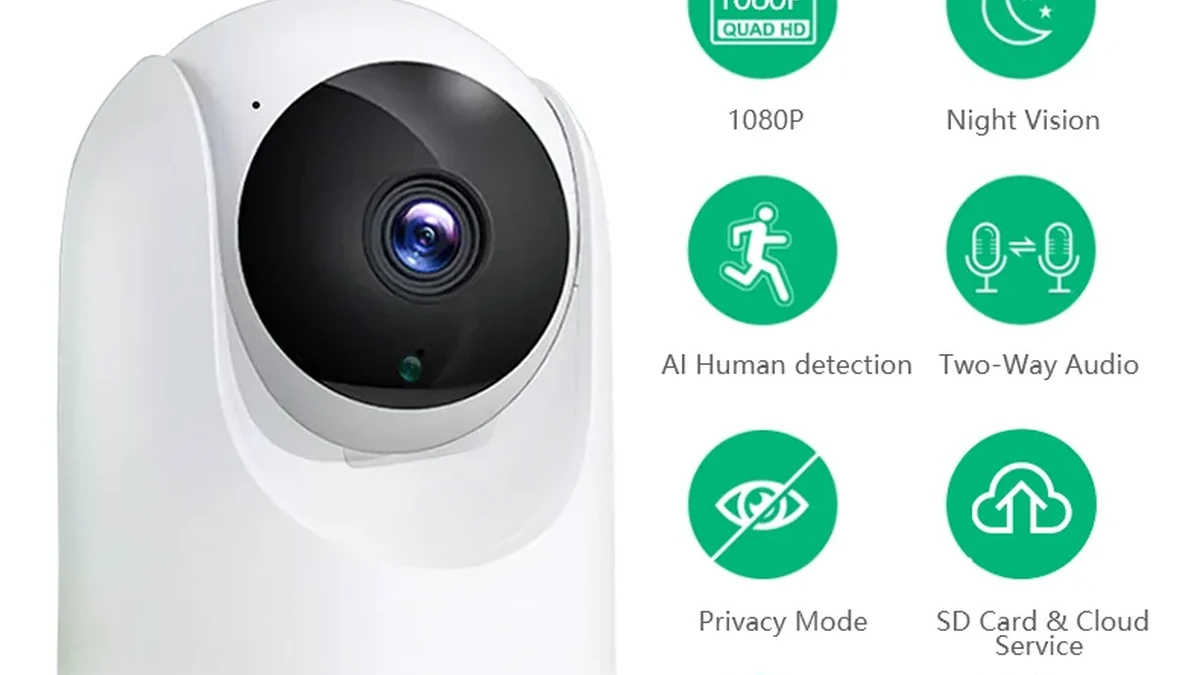
Real QZT C26 package image. Record the exact model and evidence after re-pairing.
Check:
1. app shows the correct camera online;
2. live view opens on the local WiFi;
3. live view works from mobile data if remote access is required;
4. camera reconnects after one normal power cycle;
5. alerts arrive if they are part of the requirement;
6. local recording behaves as documented for that model;
7. time/date/time-zone behavior is correct;
8. required scenes or automations are rebuilt and tested;
9. another authorized account can access only if intended;
10. the old network credentials are no longer required for operation.
Keep a simple record:
| Field | Result |
|---|---|
| Camera SKU / firmware | |
| App / version | |
| New router / SSID | |
| Band used | |
| Re-pair method | |
| Live view local | Pass / Fail |
| Remote view | Pass / Fail / N/A |
| Notification | Pass / Fail / N/A |
| Storage / recording | Pass / Fail / Not tested |
| Power-cycle reconnect | Pass / Fail |
| Scene / automation | Pass / Fail / N/A |
| Evidence | Screenshot / clip / app record |
That gives support staff something more useful than “it worked once.”
Frequently asked questions
Do I have to reset a Tuya camera after changing the router?
Tuya’s current guidance says WiFi devices need to be removed/reconnected after the router or network changes. The exact hardware action used to reach pairing state still depends on the camera manual. Use the QZT reset owner for model-specific reset boundaries.
What if the new router has the same WiFi name and password?
Tuya’s current router-change article says to select the network and enter the password again during reconfiguration even if the visible SSID and password were set to the old values.
Does a short internet outage require removing the camera?
Not necessarily. If the original router/network returns with the same configuration, Tuya says a camera can reconnect after network recovery. A router replacement or credential change is a different case.
Do all Tuya cameras require 2.4GHz?
Do not assume that from the ecosystem name alone. Tuya’s generic consumer guidance commonly uses 2.4GHz, while some current QZT Tuya-family camera pages list 2.4GHz / 5GHz capability. Use the exact product manual/page and current app flow.
Will removing the camera delete MicroSD recordings?
Do not infer that from the account-removal step. Account binding, network configuration and local storage are separate behaviors. Verify the exact camera/firmware and preserve important footage before making configuration changes.
Can I bind the camera to a new Tuya account without removing the old one?
Tuya’s current support specifically says smart cameras and other security devices must be removed from the original account before they can be bound to another account.
The practical rule is: if only the internet went down, restore the same network first; if the router, SSID or WiFi credentials changed, treat the camera as a reconfiguration job and verify account, network and storage separately.
 English
  Italiano
  Deutsch
  Français
  Español
  Polski