
Do not start by memorizing a universal reset time.
Tuya’s own support guidance repeatedly tells users to put the device into pairing mode according to the product manual. Its generic WiFi guidance often uses a reset-button hold of about five seconds as a reference, but the exact reset method, LED or sound prompt, and pairing mode can vary by product design and firmware.
For a QZT camera, first identify the exact hardware. In particular, the older DIY C10 Tuya module is not the same product as the newer C10 compact indoor camera.
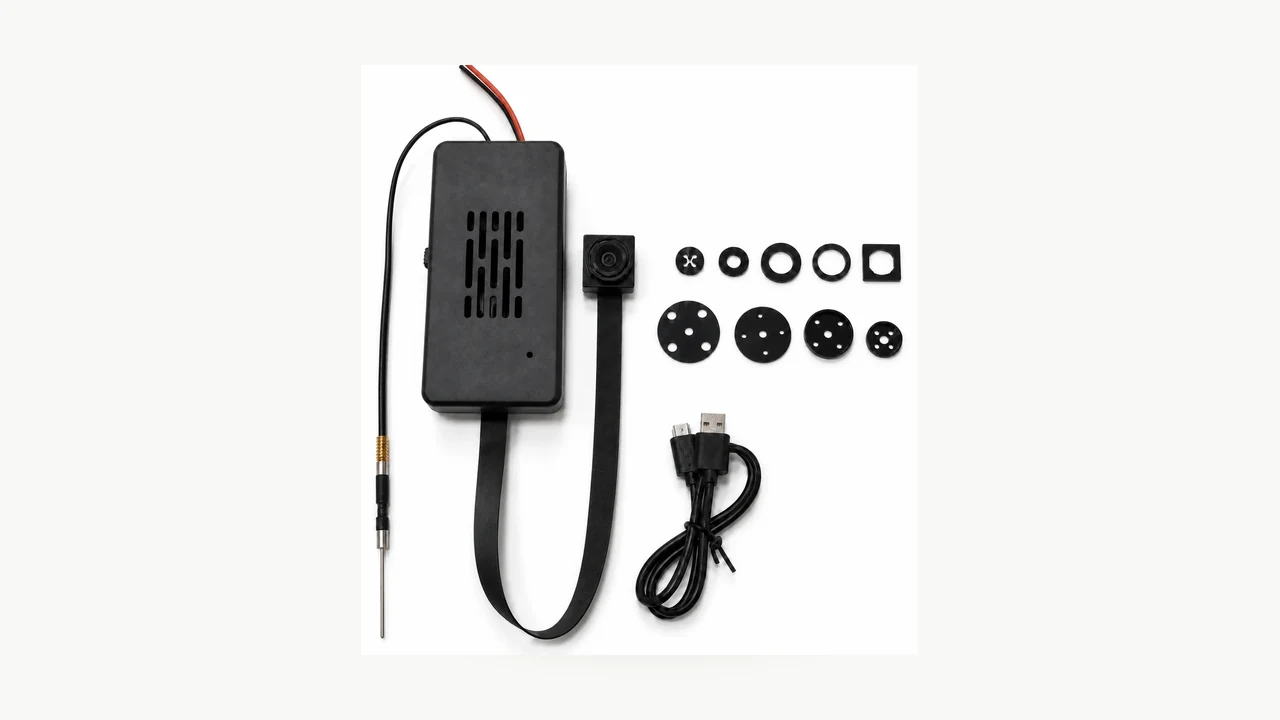
Real QZT DIY C10 Tuya module image. This article does not apply one reset timing to every camera using the Tuya or Smart Life ecosystem.
First identify which “C10” you actually have
QZT currently has two different product families that can be confused because they both use the name C10.
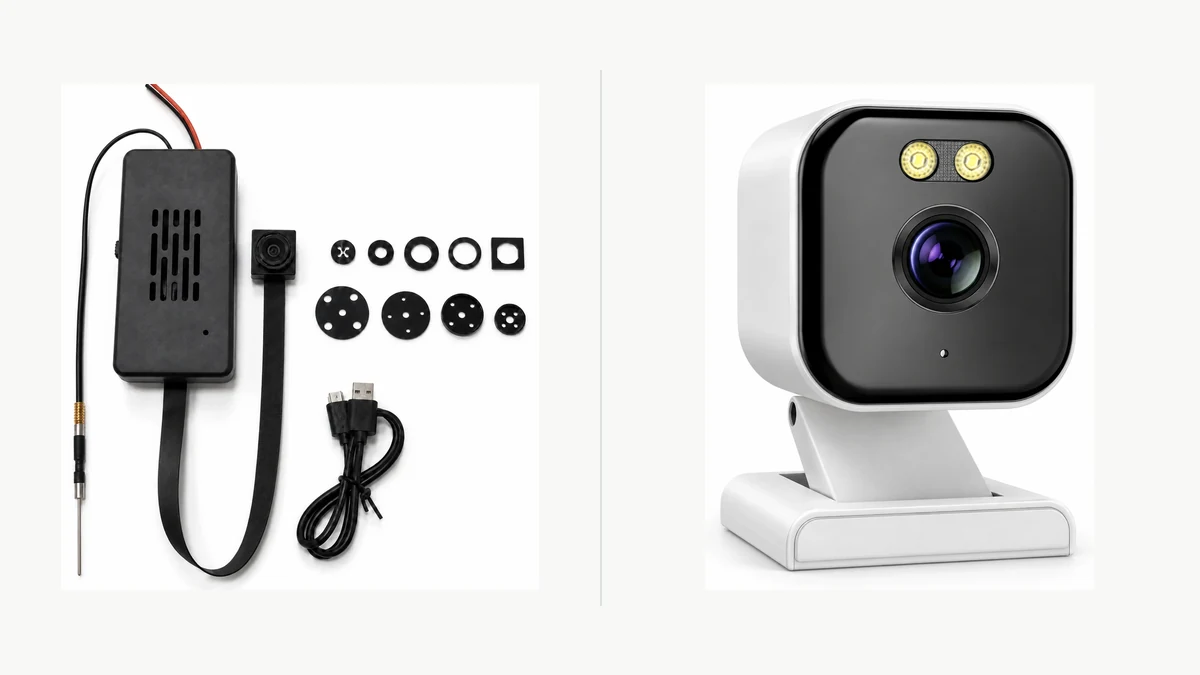
Composite made from two real QZT product images. The older DIY Tuya module and the newer indoor C10 camera are different hardware families.
The older DIY Hidden Spy Camera Kit with Tuya WiFi Module is a module used inside products such as clocks, sockets and decorative housings. Its current page lists:
– Tuya app viewing;
– 2.4GHz WiFi;
– 1080p / 4K product options;
– USB power / battery configurations;
– MicroSD storage.
The newer C10 4MP Compact Indoor WiFi Camera is a complete visible indoor camera. Its current page lists:
– 4MP;
– 5V DC power;
– 2.4GHz WiFi;
– Bluetooth-assisted setup;
– ONVIF listed;
– MicroSD up to 256GB.
The current indoor C10 page does not establish that it uses the same DIY module firmware, reset button behavior, LED pattern or Tuya pairing flow as the older hidden-camera module.
So record at least:
| Field | What to record |
|---|---|
| Product family | Old DIY C10 module / newer indoor C10 / another Tuya camera |
| Exact SKU / housing | |
| Hardware revision | |
| Firmware / app version | |
| App named in the manual | Tuya Smart / Smart Life / another app |
| Reset control | Button / pinhole / other documented method |
| Pairing indication | LED / sound / screen / app prompt |
| WiFi band listed for this build | |
| Storage behavior | Exact manual / test evidence |
A model name alone is not enough when multiple hardware families share it.
Know what a hardware reset does — and what it may not do
Resetting the camera hardware and removing a device from your Tuya account are not always the same action.
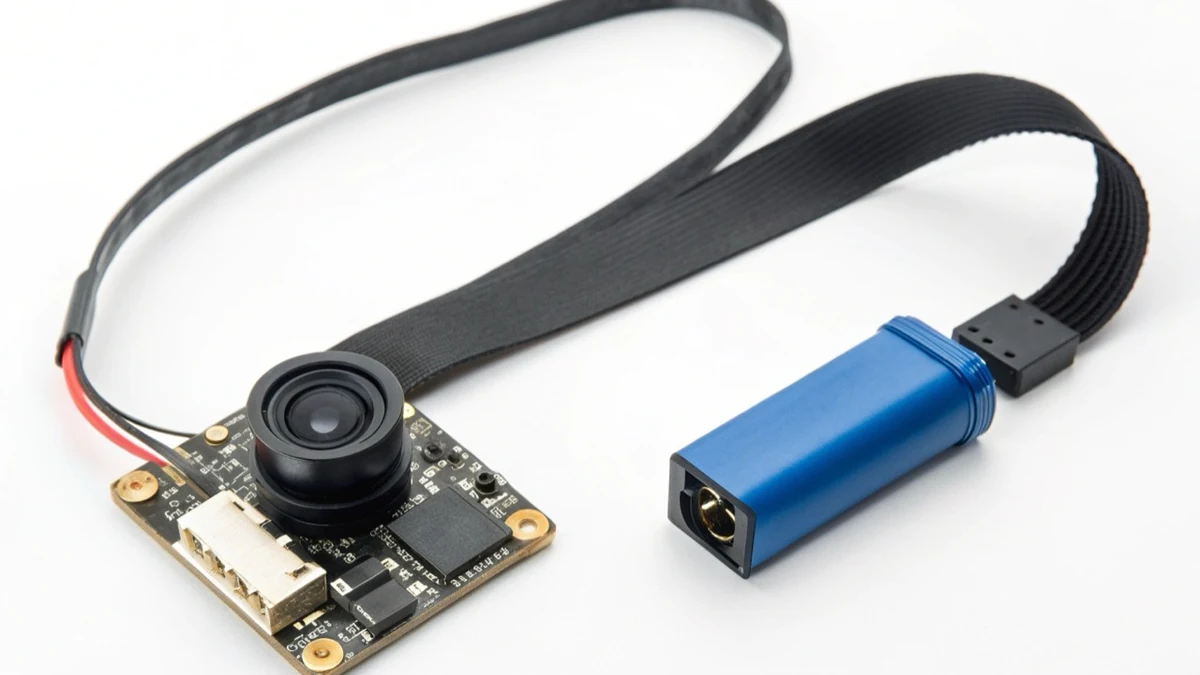
Real QZT DIY C10 product image. Use the actual reset control documented for the supplied build rather than copying a button location from another housing.
Tuya’s current support article “Why long press the camera/lock/doorbell device reset button…?” says a previously bound camera cannot necessarily be removed from the account through hardware reset alone; for security, the device may need to be removed from Tuya Smart.
That creates two separate tasks:
Task A — put the hardware into pairing mode
This is the local device action: power the exact camera correctly and use the documented reset/pairing control until the device shows its pairing-ready state.
Task B — remove or transfer account binding
This is an app/account action. If the device is still bound to the old account, follow the Tuya/Smart Life removal or transfer procedure for that product.
Do not promise that a long button hold will automatically:
– erase every cloud-side account record;
– transfer ownership;
– delete cloud recordings;
– format the microSD card;
– remove the device from another user’s account.
Those are separate states.
If the camera is being transferred to another owner, verify both the local reset state and the account-binding state before handover.
Reset by the pairing state, not a guessed number of seconds
For generic Tuya WiFi devices, current Tuya support commonly uses “about five seconds” as a reference reset-button hold. But the same support pages tell users to refer to the product manual for the exact method.
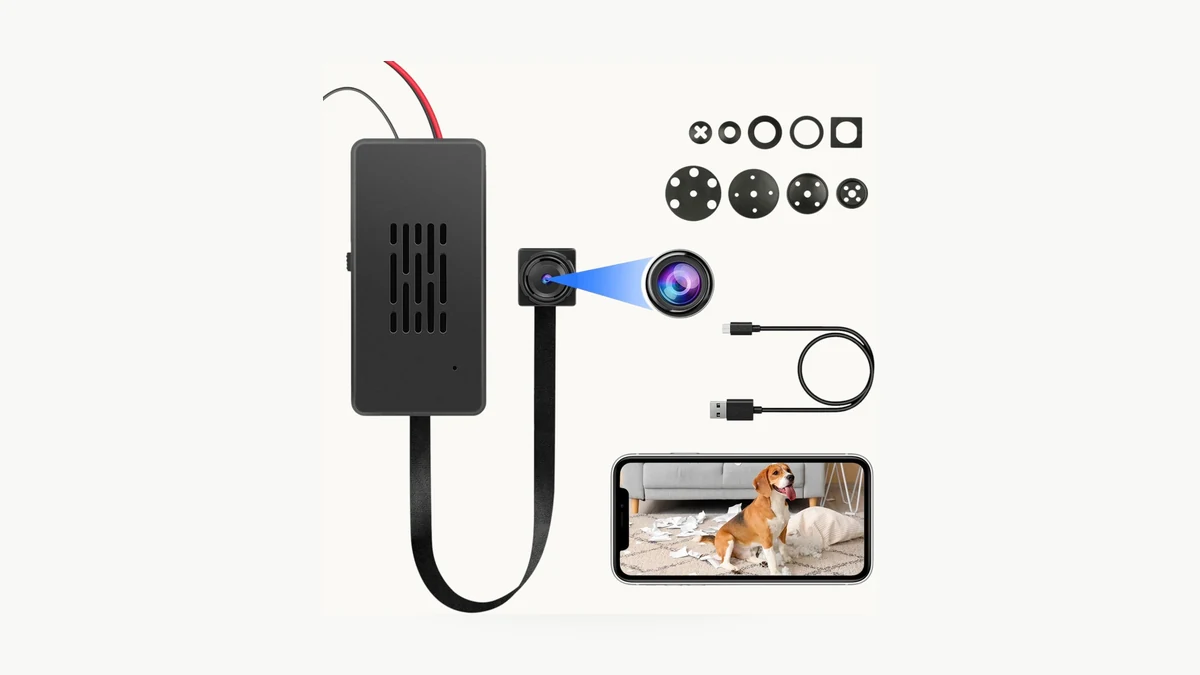
Real QZT DIY C10 image. The current product page does not publish a verified 6–7 second reset time, 2Hz LED rate or three-minute pairing window.
Useful current Tuya references include:
– How do I configure a Wi-Fi device? — puts the product manual first and uses about five seconds as a generic reset-button reference.
– What to do if the device cannot be reset or cannot enter pairing mode? — recommends checking power, the reset control and the device’s own pairing indication; it notes that methods vary.
– How does the camera use the scanning QR code to configure the network? — gives a generic camera flow using a restart hold of about five seconds until the device indicates pairing mode.
For the older QZT DIY C10 page reviewed for this article, the public product specification does not provide evidence for the old article’s previous claims of:
– exactly 6–7 seconds;
– exactly 0.5Hz → 2Hz LED behavior;
– exactly two flashes per second;
– exactly a three-minute pairing window.
Those values are therefore removed from this owner page unless a matching hardware manual or controlled sample record is later added.
Use this acceptance rule instead:
1. power the exact camera using the documented input;
2. find the reset/pair control for that exact housing;
3. follow the product manual’s hold or button sequence;
4. stop relying on the clock once the device gives its documented pairing-ready indication;
5. confirm the app recognizes the pairing mode before proceeding.
If there is no LED, the device may use a sound, screen or app prompt. If the reset button produces no change at all, check power and button operation before repeating increasingly long presses.
Check the WiFi band for the exact camera
Do not generalize “Tuya camera = 2.4GHz only” to the entire ecosystem.
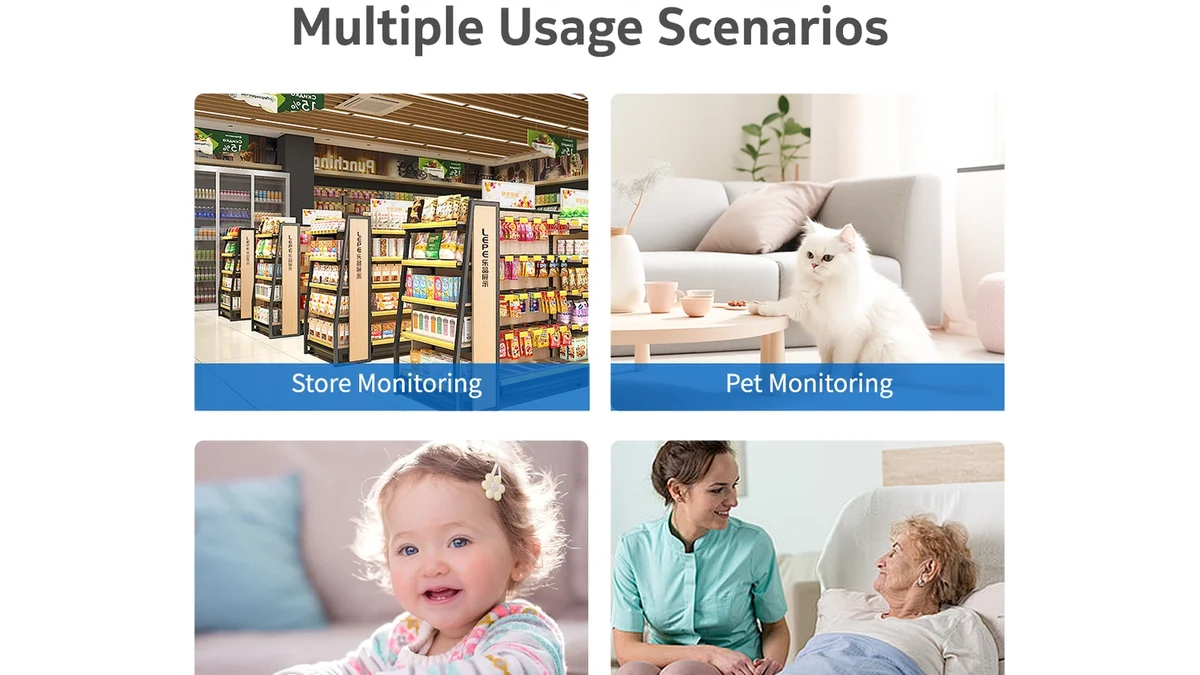
Real QZT newer indoor C10 camera scene. It is a different hardware family from the older DIY C10 Tuya module.
The older QZT DIY C10 module page currently lists 2.4GHz WiFi. The newer indoor C10 page also currently lists 2.4GHz WiFi, but that does not make the two products the same module.
Tuya’s broader platform documentation shows why ecosystem-wide claims are risky. Its current support article on Tuya WiFi protocol product lines includes IP-camera product lines that can use Wi-Fi 4 configurations covering 2.4GHz/5GHz as well as other configurations that are 2.4GHz only.
For camera pairing, Tuya’s consumer support commonly instructs users to use a 2.4GHz network, and its camera connection troubleshooting currently tells users to confirm 2.4GHz when a camera will not connect.
The safe rule is:
> Use the band documented for the exact camera build.
If a router combines 2.4GHz and 5GHz under one SSID and pairing fails, Tuya support suggests separating bands or using the pairing mode recommended by the app. That is a troubleshooting step — not proof that “Smart Connect always breaks Tuya cameras.”
The previous article’s claims about PCB antenna VSWR, 6–10dB loss, a five-metre wall threshold and 5GHz being physically impossible on every future C10 build are not retained without matching RF test evidence.
Match the pairing mode shown by the app and device
Tuya supports more than one onboarding flow.
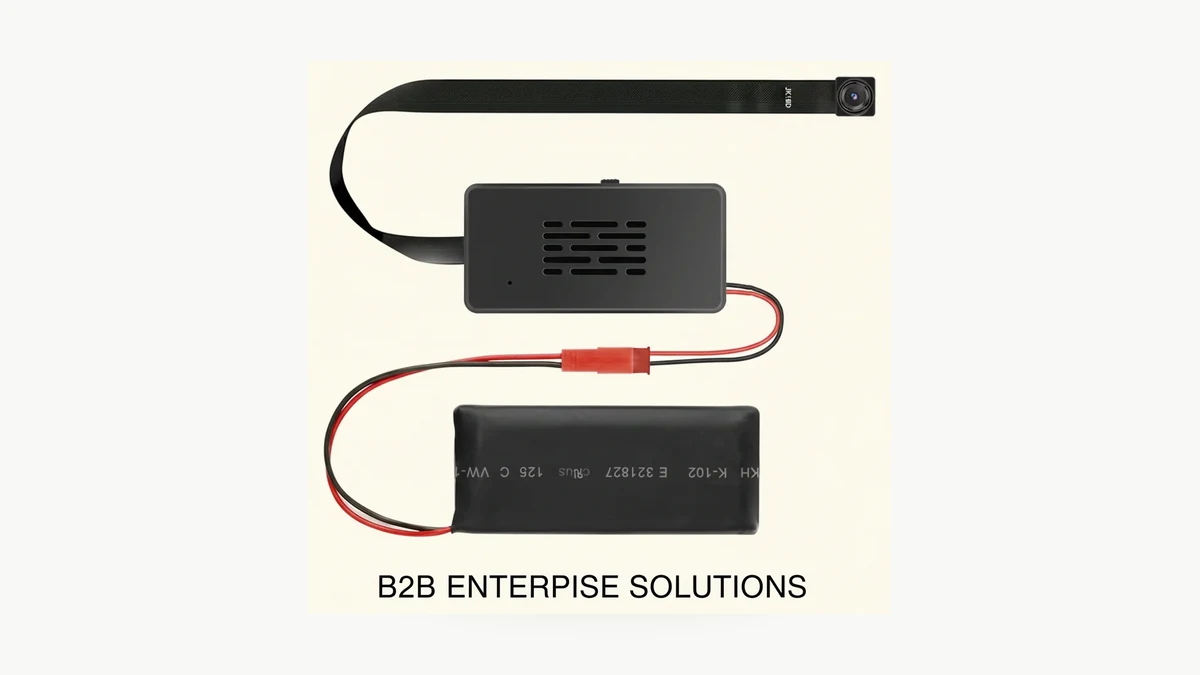
Real QZT DIY C10 product image. Pairing mode should be identified from the exact app/device indication, not inferred from the housing.
Tuya’s current device-addition guide describes a generic WiFi flow where:
– fast flashing can represent EZ / quick pairing;
– slow flashing can represent AP / hotspot pairing;
– if the indicator is not flashing, the device has not yet entered the expected pairing state.
A different camera may use QR-code pairing or another indicator. The app category and exact product manual take precedence.
A safer pairing checklist is:
1. confirm the app named for the exact model;
2. confirm the camera is powered and reset into its documented pairing-ready state;
3. connect the phone to the WiFi band documented for that camera;
4. enter the correct WiFi credentials;
5. choose the pairing mode that matches the actual device indication;
6. keep the camera near the router during first setup;
7. if pairing fails, verify the band, password, pairing state and router settings before resetting again;
8. record the hardware/firmware/app version that finally succeeded.
The old QZT C10 owner page no longer tells users that mobile data must be disabled or that pairing universally uses UDP port 8883. Current Tuya support reviewed for this update does not establish those as universal camera requirements.
Likewise, Bluetooth/location permission should only be requested when the exact product/app onboarding flow needs it. The newer indoor C10 page lists Bluetooth-assisted setup; that does not prove the older DIY C10 module uses the same path.
Resetting a camera does not prove offline recording or “physical cloud disconnection”
Reset and storage are separate topics.
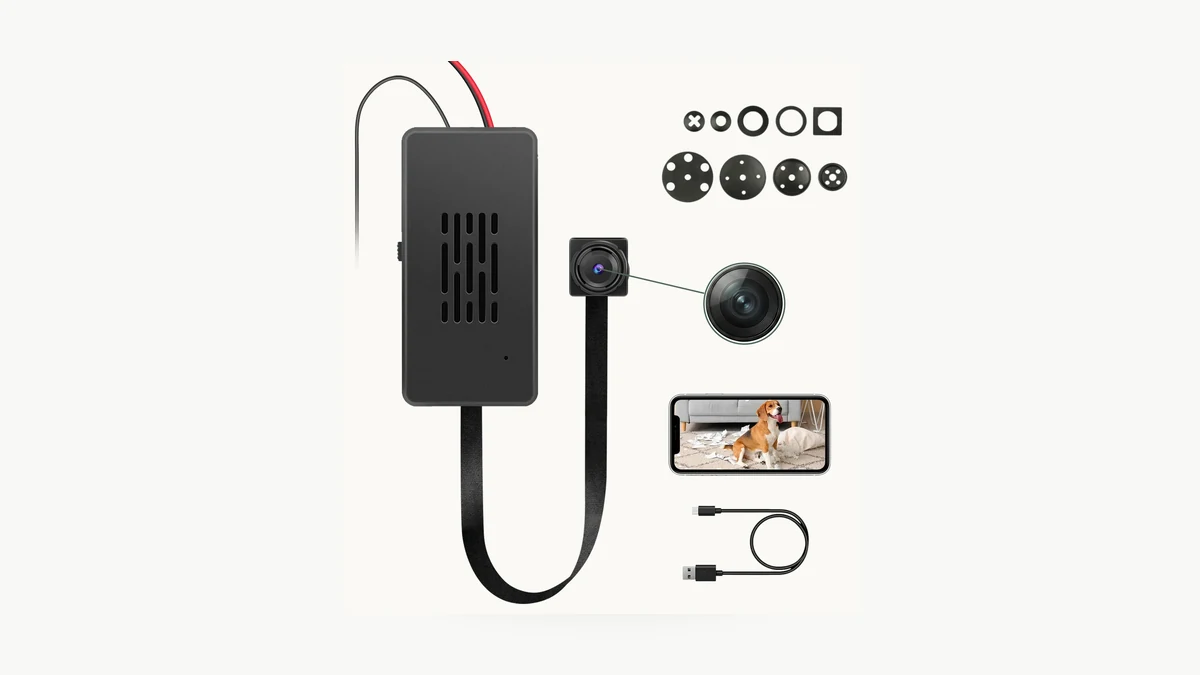
Real QZT DIY C10 product image. A MicroSD slot does not, by itself, prove offline startup, recording-after-router-loss or permanent cloud disconnection.
The older version of this article claimed that inserting a FAT32 card and avoiding stored WiFi credentials could create a hardware-enforced local-only mode that made cloud connection physically impossible. The current public DIY C10 product page reviewed for this update does not document that mechanism.
That claim is therefore removed.
A reset also does not automatically prove:
– the camera boots and records with no router;
– recording continues after WiFi disappears;
– clips remain accessible locally with no internet;
– cloud association has been deleted;
– cloud files have been erased;
– the installation is GDPR-compliant.
For those questions, use the dedicated QZT owner:
Can an Indoor Camera Record Without WiFi or Internet?
That guide separates standalone DVR operation, internet-down/router-up, router/WiFi loss, and never-paired local recording.
For the exact Tuya camera, record:
| Offline / reset check | Result |
|---|---|
| Camera starts with no router available | Pass / Fail / Not tested |
| Local recording starts with no internet | Pass / Fail / Not tested |
| Recording continues after router loss | Pass / Fail / Not tested |
| Local playback works without cloud | Pass / Fail / Not tested |
| Hardware reset removes WiFi credentials | Pass / Fail / Not tested |
| Hardware reset removes app binding | Pass / Fail / Not tested |
| App removal deletes cloud data | Confirm from current service terms |
| MicroSD is preserved after reset | Pass / Fail / Not tested |
Do not turn a blank cell into “Yes.”
Frequently asked questions
How long should I hold the reset button on a Tuya camera?
Use the exact product manual. Tuya’s generic support often uses about five seconds as a reference for devices with a reset button, but the method and pairing indication can vary. Do not replace the device’s LED/sound/app indication with a universal stopwatch value.
Does factory reset remove a Tuya camera from my account?
Not necessarily. Tuya support specifically notes that a bound camera may need to be removed from Tuya Smart rather than relying on hardware reset alone.
Do all Tuya cameras use 2.4GHz only?
No ecosystem-wide claim should be made. Many Tuya camera pairing guides use 2.4GHz, and the older QZT DIY C10 module is currently listed as 2.4GHz. Tuya’s product-line documentation also includes IP-camera configurations capable of Wi-Fi 4 2.4/5GHz. Check the exact product.
Is fast blinking always EZ mode and slow blinking always AP mode?
That is the convention in Tuya’s generic WiFi device-addition guidance, but the exact camera may use another indicator or QR-code flow. Use the app and product manual for the supplied build.
Do I need to turn off mobile data before pairing?
Do not make that a universal rule. The current Tuya support pages reviewed here focus on pairing state, correct app, 2.4GHz where required, WiFi credentials, router compatibility and proximity. Follow the exact app/manual flow for your device.
Does inserting a MicroSD card make a Tuya camera fully offline?
No. A card slot does not establish offline startup, recording-after-router-loss, account removal or permanent cloud disconnection. Test those states separately.
What should I do after changing the router?
Tuya’s current router-change guidance tells users to reconnect WiFi devices to the new network and re-enter the network credentials. Use the current app flow and exact camera manual rather than assuming the old WiFi profile will continue to work.
The practical rule is: identify the exact camera, reset until that camera shows its documented pairing state, and verify account, WiFi and storage behavior as separate things.

 English
  Italiano
  Deutsch
  Français
  Español
  Polski