
A voice recorder can remain full after deletion because you cleared the wrong storage, files still occupy Trash, or a file-count limit has been reached. Read the exact warning before formatting. “Memory Full” and “File Full” can require different fixes. Copy needed recordings to another drive, verify the copies, then check the selected recording memory and retained files.
An empty playback list does not prove that the recorder’s storage is empty. The checks below distinguish a capacity problem from a file-management limit without deleting the only copy of an important session.
Check the target memory before deleting anything
Identify where the next recording will be saved. On a recorder with internal memory and a card slot, clearing the card does not free internal memory. Likewise, removing a backup from the computer does not remove its source file from the recorder.
For a documented example, Sony’s ICD-PX470 folder guide distinguishes the computer-visible IC RECORDER memory from MEMORY CARD. It also separates recorded files from transferred music and identifies folder levels the recorder cannot display. A screen listing only playable recordings can therefore omit files that a computer still sees.
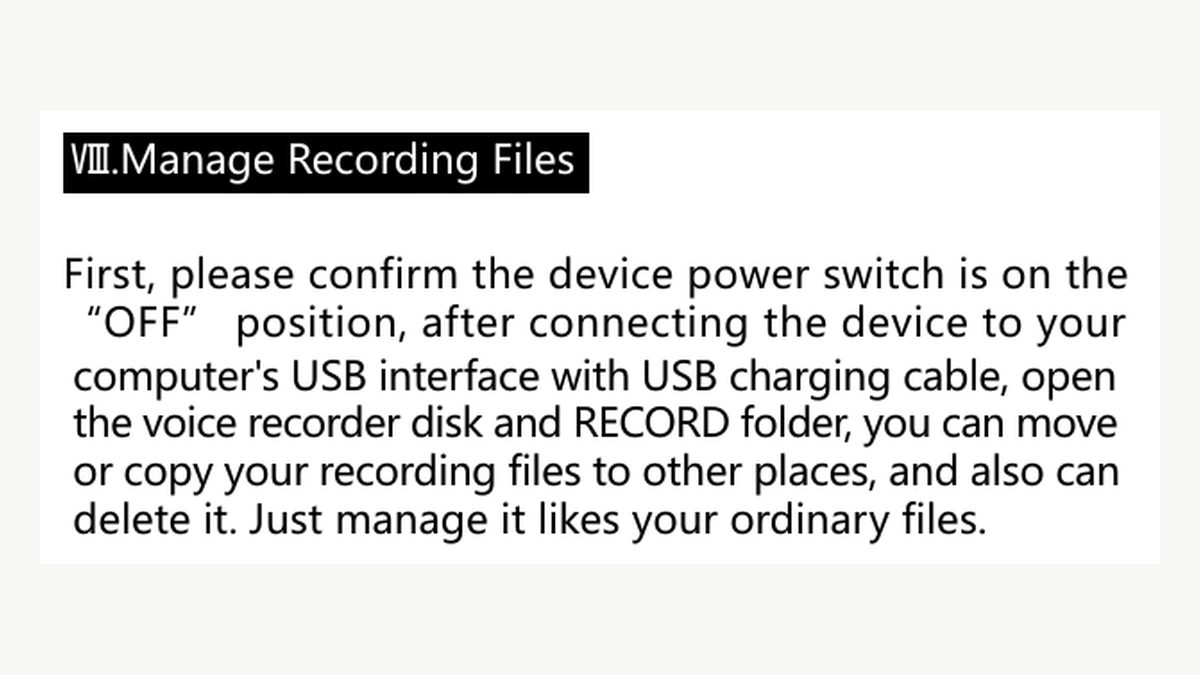
The QZT Q1 manual gives a different, model-specific workflow. In its file-management section, the Q1 is switched OFF before connecting to the computer; recordings are accessed in the recorder’s RECORD folder. Use those instructions only for the matching Q1 revision. Do not assume every recorder uses the same folder name or supports removable storage.
Before clearing anything, copy the required audio to a location outside the recorder. Open the copies from that destination and check the sessions you need, including their duration and the beginning and end. A shortcut, a transcript or a folder that still points at the recorder is not a verified audio backup.
| What you observe | What to check before another deletion |
|---|---|
| The card is empty, but recording still reports full | Whether internal memory is selected |
| The computer has free space, but the recorder does not | The free space on the recorder’s own mounted volume |
| The recorder lists no playable files, but the volume is occupied | Other folders, transferred files and retained deleted items |
| “File Full” appears despite free bytes | The model’s folder and file-count limits |
| The computer cannot reliably open the recorder | Connection or storage access before cleanup |
If the recorder cannot be mounted at all, start with the separate USB recognition checks. A storage cleanup should not begin with an unreliable file transfer. Keep the existing folder structure intact while collecting evidence.
A deleted file may still occupy space
Check what the delete operation did. Moving an item out of the visible recording list can leave its contents on the same storage. The next step depends on whether the computer or the recorder manages that retained copy.
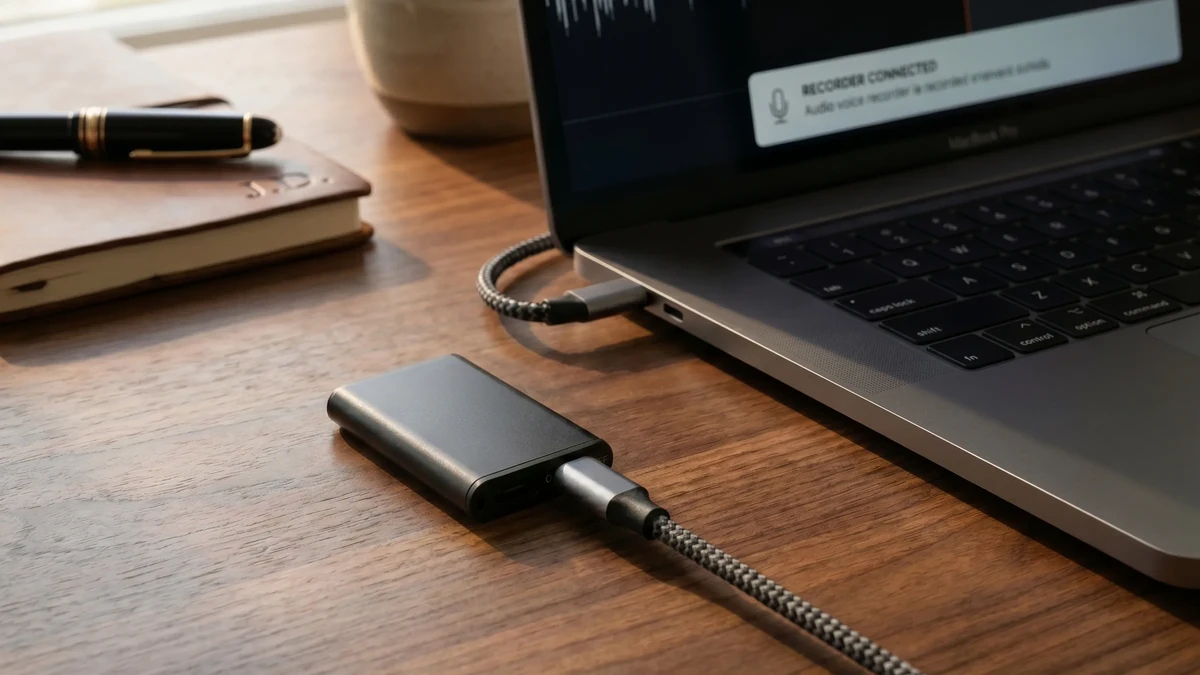
On a Mac, Apple’s deletion guide explains that moving an item to Trash does not finish deletion. After checking the backup, keep the recorder or card connected and inspect Trash for the specific recordings you intended to remove. Apple provides a targeted option: Control-click a selected item in Trash, choose Delete Immediately and confirm. This avoids emptying unrelated items along with the recorder files. Permanent deletion cannot be undone through Trash.
TASCAM documents the removable-media case in the CD-200SB manual, page 44: after deleting from an SD card or USB flash drive on a Mac, empty Trash before ejecting the media. That is a host-file-management example, not a QZT recorder menu instruction.
Some recorders also have their own retained-files folder. The ZOOM H4essential manual says files moved to its TRASH folder remain saved there even though the recorder cannot play them from that folder. Its separate deletion function removes those retained files. Do not assume a QZT model has a ZOOM-style TRASH menu; check the supplied manual.
After removing only the backed-up items you intended to erase, recheck free space on the same volume. Eject it normally and let the recorder finish reading its memory before testing again. A decrease in the playback-list count alone is weaker evidence than a change in available storage.
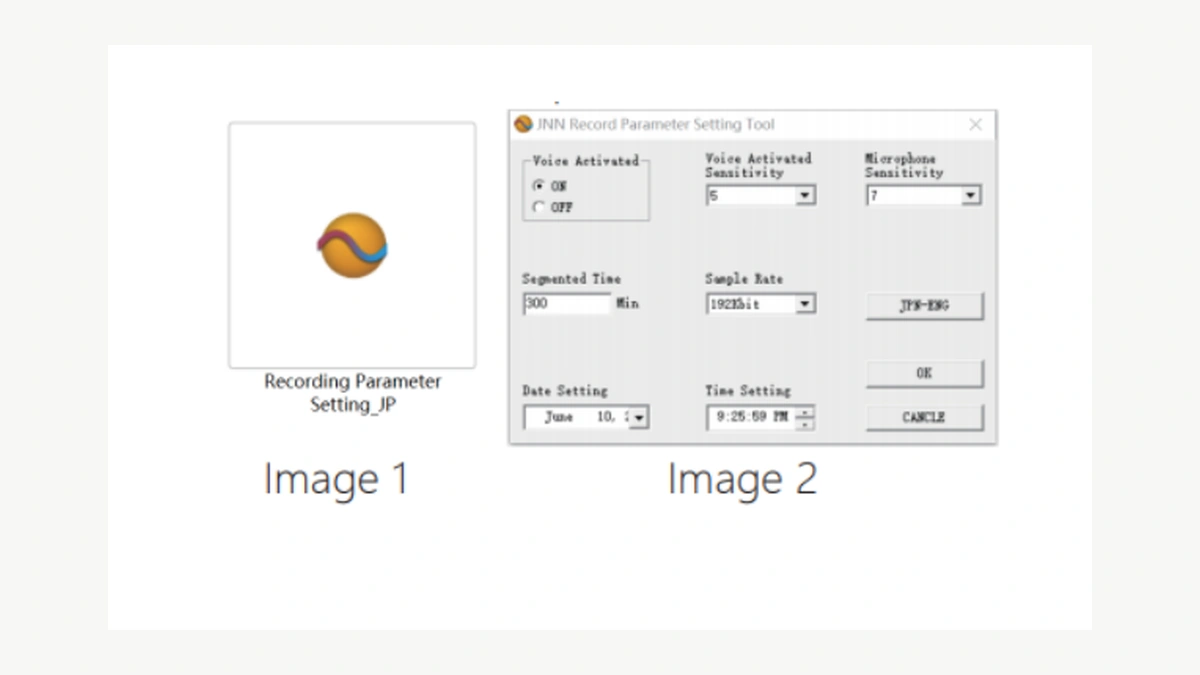
Avoid deleting every hidden folder or unfamiliar file. The Q1 manual warns that its Recording Parameter utility can be lost during formatting. Other recorders may also carry configuration or management files. Keep a copy of supplied utilities and ask support about an unknown folder before removing it.
Count files as well as free space
A recorder can run out of file entries while plenty of bytes remain. This is particularly relevant when a workflow creates many short recordings or divides sessions into separate files. Check the exact message and the model’s limits rather than buying a larger card immediately.
Sony lists two limits for the ICD-PX470: up to 199 recorded files in a folder and 5,000 files including folders. Its computer-transfer instructions also describe the combined limit per memory. These are Sony model limits, not QZT specifications.
A small calculation shows why file count deserves its own check. Suppose each of 199 recordings contains one minute of constant 64 kbit/s audio. The audio payload is approximately:
64,000 ÷ 8 × 60 = 480,000 bytes per file.
Across 199 files, that is 95.52 MB in decimal units, before headers and filesystem overhead. A folder with a 199-file ceiling can reach its entry limit after that modest amount of data, leaving no room for a 200th entry even though the storage medium has spare capacity. This is a hypothetical calculation, not a QZT test result or a claim about the customer’s encoding.
After verifying backups, use the recorder’s supported file-management method to remove unnecessary entries. A different supported recording folder may help with a per-folder limit; it will not solve a total-device limit. Do not create arbitrary folder structures that the firmware cannot recognize.
Q1 uses a different configuration system. The manual’s Recording Parameter screen includes Segmented Time; its text describes a 001–999 setting and gives 300 minutes as an example. That explains how one long session can become multiple files, but it does not establish Q1’s maximum file count. The recording-file splitting guide covers the splitting task separately. For a recurring full-memory complaint, retain the number of files, selected folder and available bytes before changing segmentation.
Ask the supplier to confirm both per-folder and total limits for the delivered firmware. Storage capacity and file-count capacity should be separate fields in a reseller’s acceptance record.
Keep formatting as the last storage step
Formatting can remove stored audio, utilities and folder structures. Do not use it while valuable recordings remain unverified or unreadable. When files are missing and recovery matters, stop writing new data and seek qualified recovery help before conducting a fresh recording test.
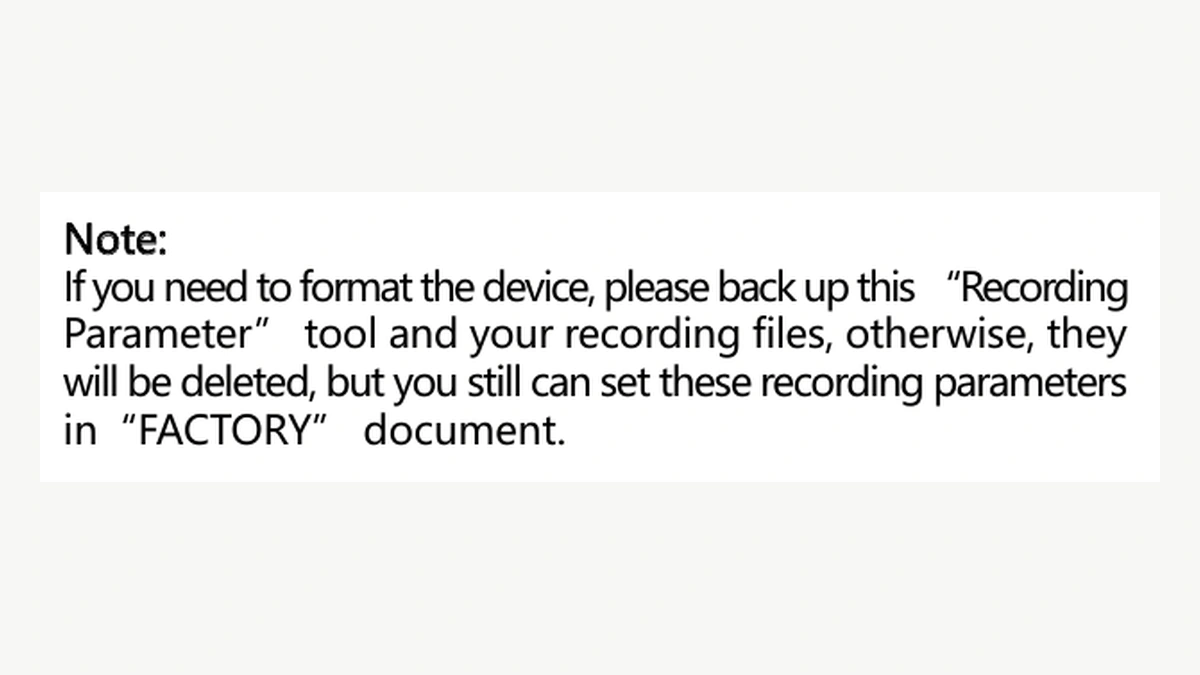
Once required files and utilities are safely copied, consult the exact recorder manual. Sony’s ICD-PX470 formatting instructions provide separate choices for built-in memory and the SD card, warn that stored data will be deleted, and direct users to format the card in the recorder. That is not permission to apply Sony’s menu path to QZT.
The Q1 manual’s warning is narrower: back up the Recording Parameter tool and audio before formatting. It does not establish a universal filesystem, allocation-unit size or computer-formatting procedure for every QZT recorder. For the supplied Q1 version, request the approved method rather than selecting FAT32, exFAT or another filesystem by guesswork.
After an approved cleanup or format, test storage reuse. Make a short authorized recording, stop and save normally, then play it on the recorder where supported. Reconnect, copy the new file and verify that copy too. Use the intended recording mode; a silent voice-activated test may produce no useful file and confuse the result.
Keep this compact support record:
| Field | Evidence to retain |
|---|---|
| Supplied unit | Model, revision, firmware and storage version |
| Warning | Exact wording or a photograph of the indicator state |
| Recording destination | Internal memory or the identified card |
| Before cleanup | Free space, recording-folder file count and selected folder |
| Retained files | Mac Trash, device TRASH or neither, as confirmed |
| Backup | Destination and playback verification completed |
| Action | Specific items removed or documented format method used |
| After cleanup | Free space, file count, new recording saved and copied |
When a unit still refuses a new file after these checks, send the record through the supplier’s private support channel. An unreadable volume or a repeatable write failure needs a different investigation from a folder full of small recordings. Repeatedly formatting the same device without preserving the result will not help the supplier distinguish them.
Frequently Asked Questions
Why does my voice recorder still say memory full after I delete recordings on a Mac?
A voice recorder may still hold files moved to Mac Trash. Check the recorder’s volume, verify backups, then permanently remove only the intended items while the storage remains connected. Recheck free space before ejecting. If space is available but recording still fails, inspect file-count limits and the selected recording memory.
Is File Full the same as Memory Full on a voice recorder?
A voice recorder can have separate limits for stored bytes and file entries. Sony lists 199 recorded files per folder and 5,000 files including folders for the ICD-PX470. Those numbers do not apply automatically to QZT models. Read the exact warning and confirm the delivered recorder’s limits before changing storage.
Will a larger memory card fix a full voice recorder?
A larger card will not necessarily fix a voice recorder that is still recording to internal memory, retaining deleted items or reaching a file-count limit. First confirm the destination, available bytes and file count. Use only card capacities and formatting methods supported by the exact model and supplied firmware revision.
Should I format a voice recorder that looks empty?
Do not format a voice recorder until needed audio and supplied utilities are backed up and verified. An empty playback list can omit other stored files. Check the selected memory, retained deleted items and file-count limits first. Formatting is appropriate only when the exact model’s instructions and your data-retention needs permit it.
What should a reseller request before replacing a recorder for a memory-full complaint?
For a voice recorder memory-full complaint, request the exact warning, model and storage version, selected memory, free bytes and file count. Record whether deletion used the recorder, Windows or Mac. Ask for a verified-backup confirmation and the result of a fresh recording test before concluding that the memory hardware failed.
Before the next sample order
For a QZT voice recorder order, request the supported deletion and formatting workflow, file-count limits and copies of any supplied setup utilities. Include a save–copy–delete–record test in sample acceptance so customers can reuse the storage without losing their recordings or configuration tools.

 English
  Italiano
  Deutsch
  Français
  Español
  Polski