
A voice recorder may divide one session into several files because it has reached a file-size limit or a timed segmentation setting. Several files do not automatically mean the recorder stopped capturing audio. They also do not prove that every word survived the transition. Preserve the complete sequence, compare file sizes and durations, and listen across each boundary before changing settings.
Start with the original recordings, not an exported transcript. The useful question is whether the next file continues the session or whether audio is missing between files. Those results need different responses.
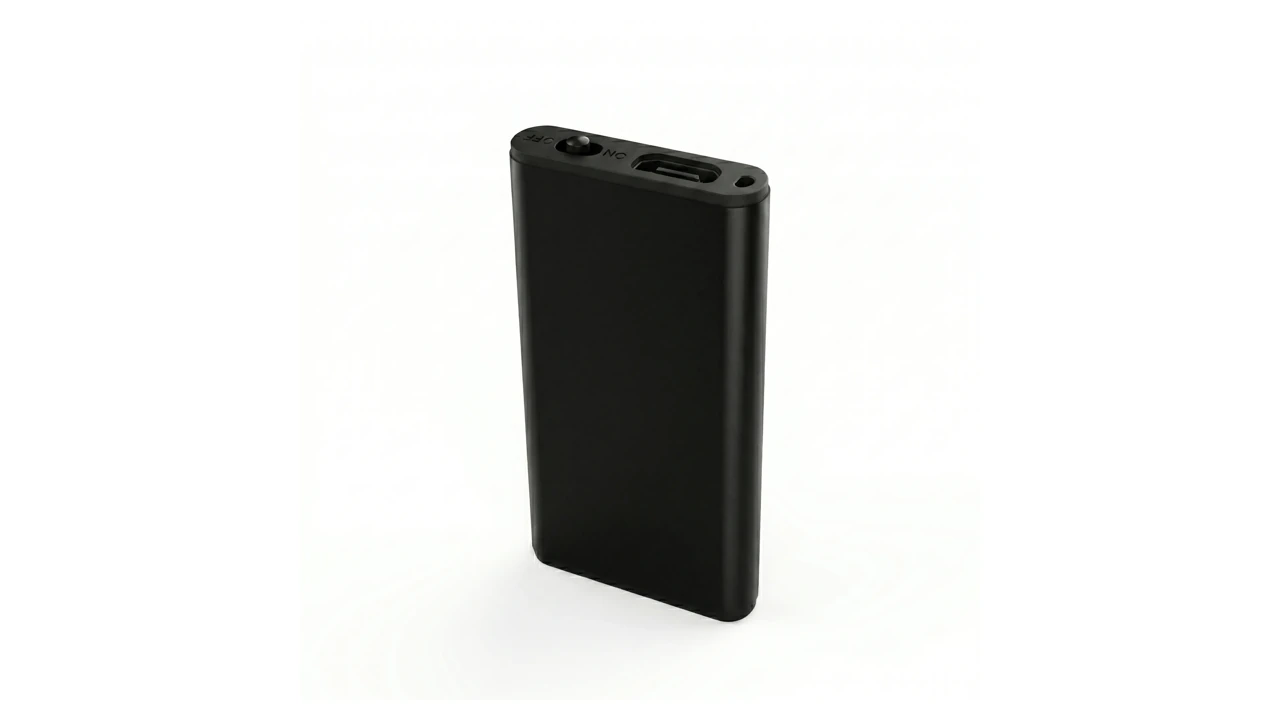
Are the files reaching a size limit or a time limit?
Compare the file sizes in bytes and the playable durations. Repeatedly similar sizes suggest a size threshold; repeatedly similar durations suggest a timer. Neither pattern is conclusive by itself. A constant recording bitrate can make both the size and duration repeat, so check the exact recorder manual too.
For example, the Sony ICD-UX570/UX570F system limitations specify automatic division at 4 GB for LPCM and 1 GB for MP3. Those are model-specific limits, not universal WAV or MP3 rules. Sony also warns that some audio may be lost around the division point. Do not describe automatic splitting as gapless without checking the particular recorder and recording mode.
| Pattern in the saved session | Possible explanation | Check before changing anything |
|---|---|---|
| Files repeatedly end near the same byte size | Maximum file size | Model, format and documented file-size limit |
| Files repeatedly end after the same duration | Segmentation timer | The recorder’s time-based file setting |
| A new file follows a quiet interval | A sound-triggered mode may be involved | The model’s documented voice-activation behavior |
| One part is missing, empty or unplayable | More than ordinary file division | Preserve the folder and investigate saving or file integrity |
A larger memory card need not increase the limit of one file. Tascam’s remaining-recording-time guidance, which covers models including the DR-05X and DR-40X, says the displayed time is based on a maximum file size initially set to 2G. It also caps a single file at 24 hours, so that display does not exceed 23:59:59. Read the display’s definition before treating it as the card’s total capacity.
Recording settings affect how quickly a size threshold is reached. As a calculation example, a constant 192 kbit/s audio stream produces about 86.4 MB of payload per hour. Uncompressed 44.1 kHz, 16-bit stereo produces about 635 MB per hour. Both use decimal MB and exclude headers and metadata. These examples explain file growth; they are not measured QZT performance or universal recording-mode specifications.
If the symptom is lost quiet words rather than a regular file boundary, follow the voice-activation troubleshooting guide. Do not assume every recorder creates a new file whenever voice activation pauses.
Q1 owners: check Segmented Time in the matching manual
The QZT Q1 user manual documents a Segmented Time setting from 001 to 999. Its illustrated Recording Parameter tool shows 300 Min, or five hours. That is a file-segmentation setting, separate from microphone gain and voice activation.
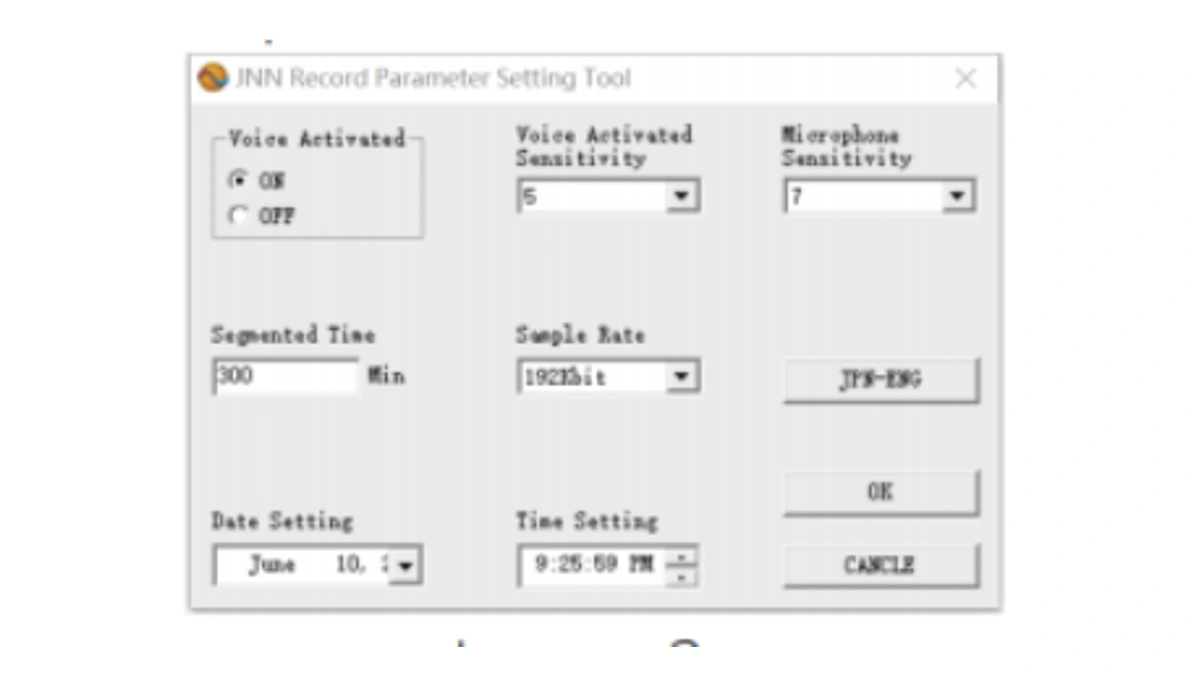
The same manual describes a SEG: entry in the Q1 FACTORY document. Use these instructions only for a Q1 supplied with the matching documentation and configuration method. A similar enclosure or a shared product name is not enough to establish that another recorder accepts the same syntax.
Before editing a parameter, save the current configuration and copy the recordings. Follow the manual’s stop-and-save sequence and switch the Q1 off before connecting it to the computer. Use the supplied configuration method; do not download an executable from an unverified third-party guide. Change only the segmentation setting for a segmentation test, leaving the audio mode and other controls unchanged.
The documented range does not establish that 000 means unlimited recording. Nor does selecting 300 minutes establish five hours of battery runtime, enough free memory, or lossless transitions. Ask support when the supplied tool or manual differs, rather than inventing an undocumented value.
The screenshot above is an excerpt from the manual, not a capture of your recorder’s current settings. Check the value on the actual unit and record it with the test result. The Q1 product page helps identify the model; the matching manual governs its configuration.
Check the audio at each boundary before calling it complete
Play the end of one original file and the start of the next in the correct sequence. File names and durations help organize the recording, but a matching sequence of names cannot establish that every word was captured.
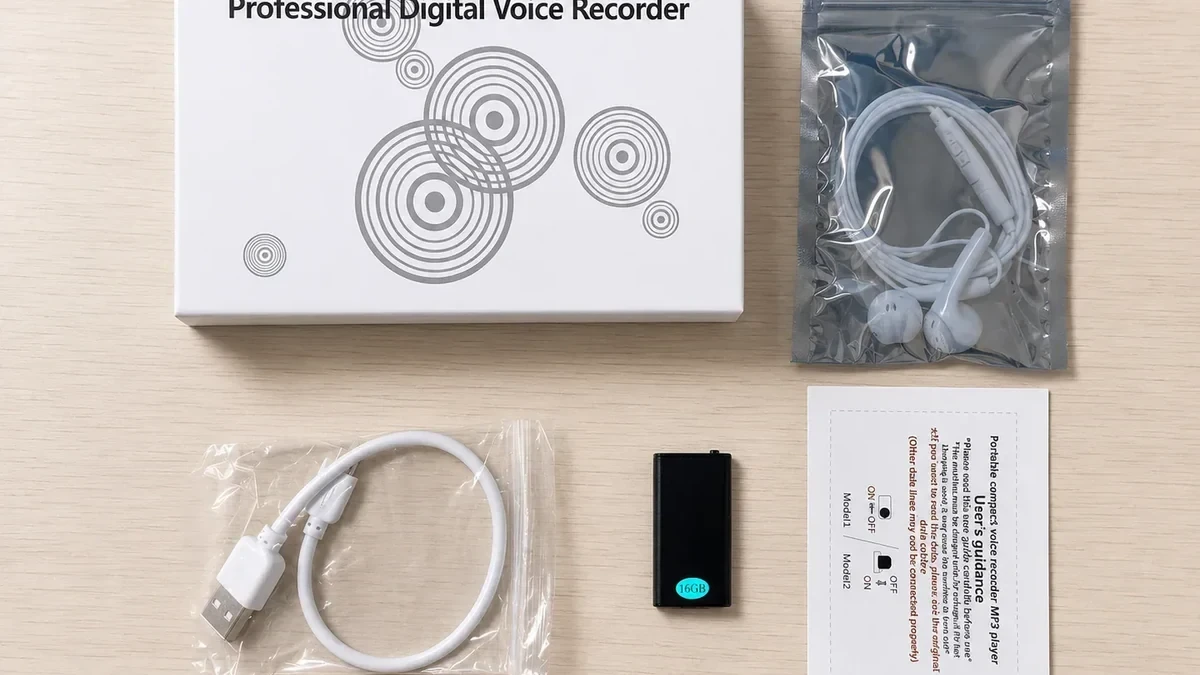
A player may pause while it loads another file. To distinguish that playback delay from missing recorded audio, inspect working copies next to each other in an audio editor without adding fades, silence or other processing. Keep the original files untouched. A waveform can help find the join, but listen to the speech on both sides before deciding what happened.
Run a separate, authorized test before relying on the recorder for a long session. Use continuous numbered speech or another known sequence that makes an omission recognizable. If the model offers a documented short segmentation interval, a temporary test setting can make the boundary easier to reach. Cross at least two boundaries, save normally, then restore the original setting.
| Result at the boundary | What it establishes |
|---|---|
| The expected sequence continues in adjacent files | Those tested transitions retained the sequence |
| A player pauses, but the adjacent files contain all expected audio | The pause may belong to playback rather than capture |
| Expected words are absent from both adjacent originals | Joining files cannot recover those words |
| A part cannot be opened reliably | Investigate file integrity before attempting a merge |
Treat that test as evidence for its recorded conditions, not a promise about every future session. Note the model, recording mode, segmentation value, power condition, storage and test duration. If a file is unplayable, preserve it and use the unplayable-audio troubleshooting guide instead of repeatedly recording over the same storage.
For an important session that requires uninterrupted audio, agree on the acceptable transition behavior before choosing equipment. A product description that says it records continuously does not, on its own, answer how its saved files behave at a boundary.
Keep originals before joining files or changing settings
Copy the complete session folder, including every numbered part, before renaming, joining or deleting files. Keep the configuration record with that copy. A merged file should be a separate working deliverable, not a replacement for the only originals.
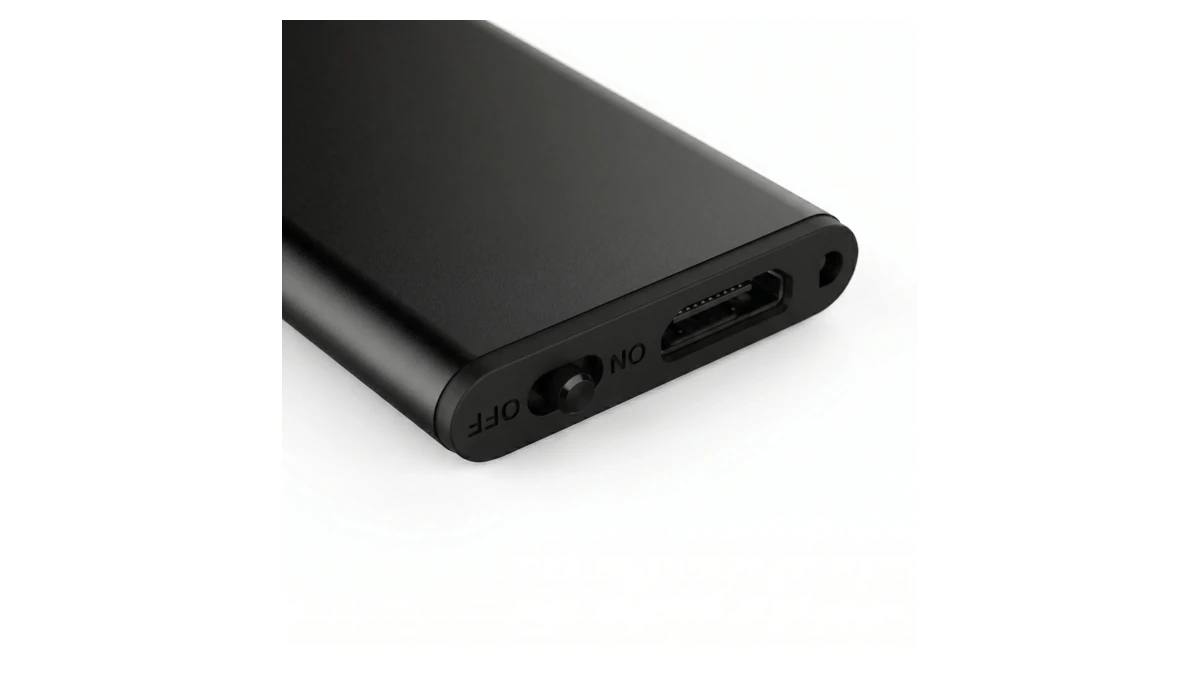
Confirm the order using the recorder’s file naming and the audio itself. A computer’s alphabetical sort may place part 10 before part 2 when names are not zero-padded. Copied-file timestamps also need context; do not use a changed timestamp as proof of when a phrase was recorded.
For an Audacity working copy, import the files and arrange the tracks from top to bottom in recording order. Select those tracks, then use Tracks > Align Tracks > Align End to End. The Audacity alignment manual explains that this places each selected track after the previous one. Align Together has a different purpose and would place recordings over one another.
Do not append the raw bytes of audio files as though they were plain text. Check the joins before exporting, then listen to the new file. A merged file that plays on a computer may exceed the recorder’s supported single-file limit, so retain the separate originals for playback on the recorder.
For private meeting recordings, use a workflow approved for the information involved rather than uploading the session to an unknown online merger. Preserve the original audio when preparing a transcript. Text may omit pauses or words, so a transcript alone is a poor record of what happened at a file boundary.
Give the supplier the relevant consecutive files through an authorized private support channel, plus the configuration and the location of the suspected gap. State whether the issue occurs at a repeated duration, a repeated size, or after silence. That evidence is more useful than resetting the recorder first and losing the settings that produced the problem.
Frequently Asked Questions
Does a split recording mean my voice recorder is faulty?
A split voice recording can be normal when a recorder reaches a documented size or time limit. Check the matching manual and the original files before deciding. A missing part, an unplayable file or lost words at the boundary needs separate investigation; the existence of multiple files alone does not establish a fault.
Will a larger memory card stop recordings from splitting?
A larger memory card can increase total storage without changing a voice recorder’s single-file limit. For example, Tascam documents a remaining-time display based on the configured maximum file size for several DR-series models. Check card compatibility and file settings separately, rather than buying more capacity as a guaranteed cure for splitting.
What does the Q1 Segmented Time setting of 300 mean?
The Q1 manual’s Recording Parameter illustration shows Segmented Time as 300 Min, equivalent to five hours. This describes the segmentation setting, not a battery-life guarantee. Confirm the actual value and matching manual for your Q1, preserve the previous configuration, and test a documented setting before relying on a long recording.
Can words be lost when the recorder creates the next file?
A voice recorder’s automatic file division is not sufficient evidence of gapless audio. Sony explicitly warns of possible recording loss at division points on the ICD-UX570/UX570F. That warning is model-specific. Check adjacent originals and run a recognizable test sequence on the exact recorder and mode you intend to use.
Should I join the files and delete the separate recordings?
Keep the voice recorder’s original files and create a separate merged copy when a single deliverable is needed. Check sequence and every join, then verify the exported copy plays correctly. A successful merge cannot reconstruct words missing from the originals, and deleting the originals removes the material needed for later investigation.
Before your next long recording
Choose a QZT voice recorder against the required session length, then confirm its file-segmentation behavior on a sample. Keep the consecutive originals and the test settings. Approve the recording workflow only after checking the transitions you will depend on.

 English
  Italiano
  Deutsch
  Français
  Español
  Polski