
When a voice recording plays in only one ear, first find out whether the problem follows the file or the headphones. A faulty connection or off-center balance can affect playback; a two-channel file with speech on only one channel can produce the same symptom. Preserve the original, test another playback setup, then inspect the channels before editing or replacing hardware.
A useful outcome is either a corrected playback setup or a separate listening copy that retains the recorded speech. Neither requires formatting the recorder. Missing speech needs a different investigation from speech that is present but routed to one side.
First find out whether the problem follows the file
Use the same short passage for each comparison. Play a known-good reference recording through the headphones, then play the suspect file through a second supported player or device. Change one part of the setup at a time and keep the volume comfortable.
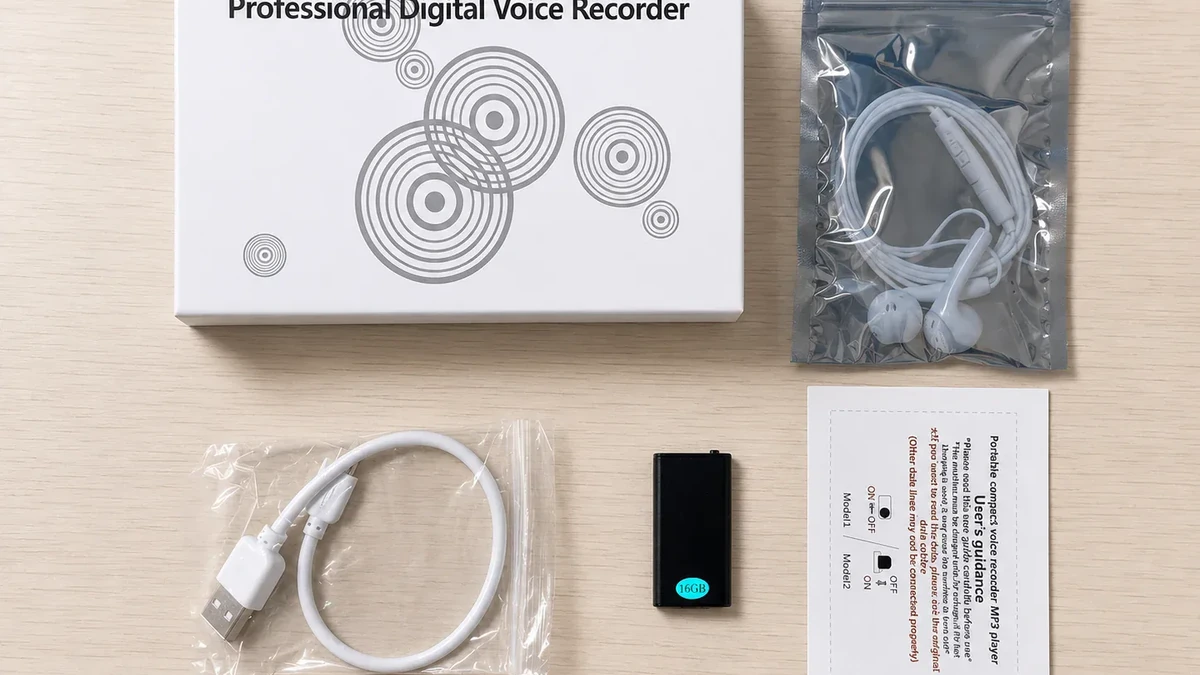
Apple’s headphone troubleshooting guidance recommends checking the connection and trying a second pair when only one side works. This is a playback check, not a diagnosis of the audio file. Inspect the cable and plug for damage, seat the connector normally, and use accessories compatible with the playback device. Do not force a connector or insert tools into a socket.
Also check left/right balance in the player and operating system. For iPhone or iPad, Apple’s audio-settings instructions place the Balance control under Settings > Accessibility > Audio & Visual. Note the existing position before adjusting it; personalized hearing settings may be intentional.
| Comparison result | Next investigation |
|---|---|
| Both the reference and suspect recording fail on the same side with one headset | Headphones, plug, adapter and playback balance |
| The reference works in both ears, but the suspect file is one-sided on two setups | The saved file’s channels and channel routing |
| The copied file plays correctly on a computer but not through the recorder | Recorder playback settings, supported format and supplied earphones |
| The original file cannot be opened reliably | File integrity or format support, not left/right routing first |
These comparisons narrow the cause; they do not certify an entire recorder as good or bad. Record which file, player and headset produced each result. If the computer cannot access the recorder at all, use the separate USB recognition checks before investigating audio channels.
A mono file is different from stereo with an empty channel
A mono file has one audio channel. In ordinary centered playback, that channel can be heard through both sides of stereo headphones. A stereo file has two channels; if speech exists only in the left channel and the right is silent, ordinary stereo playback keeps that speech on the left.
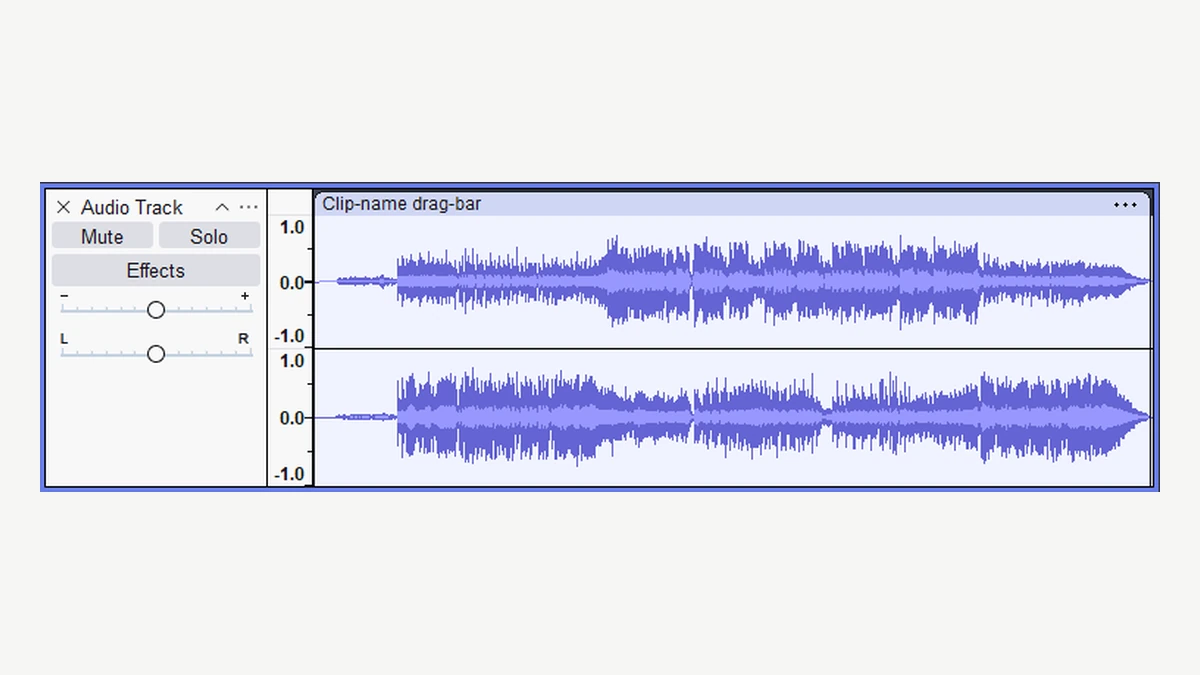
The Audacity Audio Tracks manual shows the structural difference: a stereo track contains two waveforms, while a single-channel track contains one. Use the original file’s channel information and listen to the channels separately. The screenshot above is a normal manual example with audio in both channels, not a recording with a missing right channel.
Check more than the first few seconds. A channel that looks quiet at the beginning may contain another speaker later. Zoom the waveform and use the editor’s meters where helpful, but do not equate a small waveform with useless audio. A channel can contain quiet speech that deserves preservation.
Three cases need different treatment. A single-channel file that sounds wrong only on one system points back to playback. A stereo file with one truly unused channel may be suitable for a mono listening copy. A stereo file with useful audio in both channels requires preserving both, even when one side is much quieter.
Check the editor’s pan control too. Audacity documents that Split Stereo Track retains hard-left and hard-right positioning, while Split Stereo to Mono creates centered tracks. Splitting a stereo track without changing its routing can therefore leave the one-sided listening problem unchanged.
Do not infer channel count from the recorder’s number of microphone holes, the word WAV, or a two-earbud accessory. Those describe different parts of the system. Confirm the channel count in an actual sample file and the channel behavior in the matching model documentation.
Make a centered listening copy without losing the original
Use this procedure only after checking that the other channel contains no audio you need. Keep the original file outside the editing project and work on a copy. When both channels contain speakers or meaningful sound, stop before removing either one.
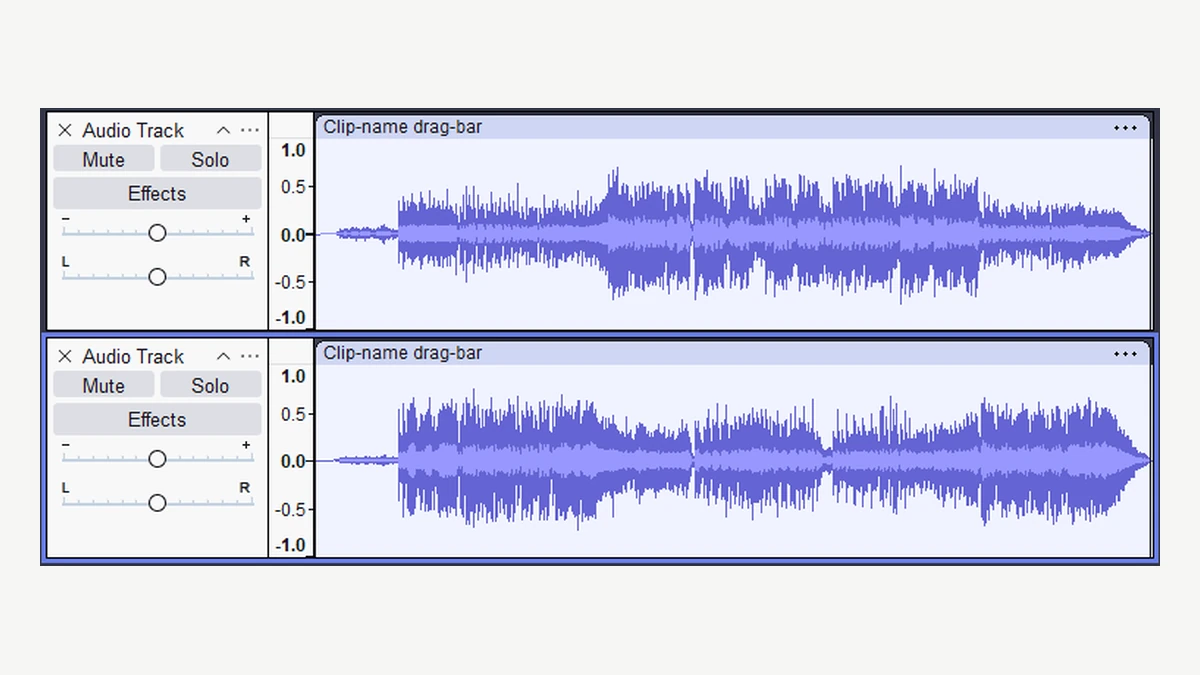
For Audacity versions with the documented Track Dropdown Menu, the stereo-splitting manual provides the relevant command:
1. Import a working copy and open the track’s dropdown menu.
2. Choose Split Stereo to Mono. Listen to each resulting track separately.
3. Remove only the confirmed unused track from the working project, not the original source file.
4. Keep the speech track centered. Review its beginning, middle and end before export.
5. Export a new mono audio file with a distinct name, then reopen it in the intended player.
Audacity’s saving and exporting guide distinguishes a saved editing project from an exported audio file. Use File > Export Audio for the listening copy. Saving the project alone does not create the WAV or MP3 file a customer expects.
A centered mono copy does not create a second microphone perspective or reconstruct anything the recorder missed. It places the surviving content in a useful playback format. If a delivery system explicitly requires two channels, confirm whether it accepts the same mono content duplicated into left and right; that is dual mono, not newly captured stereo sound.
Check the exported file with the known-good headphones used earlier. Confirm that all needed speech remains, the sequence and duration are correct, and the copy is not distorted. Avoid applying normalization, noise reduction and channel changes together during diagnosis: too many changes make it harder to identify what solved the problem.
If one part is damaged or unplayable, preserve it and follow the unplayable-audio investigation. Channel routing cannot repair missing samples or a file that was never saved correctly.
Check the recording input before the next session
Once the listening copy is usable, find out why the one-sided file was created. This step depends on the exact recorder. A unit with only a built-in microphone needs a different check from a field recorder with an external microphone input.
Roland documents a specific example on its R-07 support page: a mono external microphone can record only to the left channel. For that model, Roland instructs users to select MENU > Input > EXT Mic > MONO to record the mono microphone on both channels. That is an R-07 instruction, not a menu path for QZT recorders.
For a QZT Q1 or ZD46, request the documentation for the supplied revision. Do not assume that an earphone or USB connector also accepts an external microphone. Likewise, do not copy another brand’s input setting merely because the plugs look similar.
Use a short, authorized sample before an important meeting or interview. Speak a recognizable phrase, save normally, copy the file, and inspect the resulting channel count. Repeat with another supported playback setup. If the recorder supports both internal and external microphones, test the documented input paths separately without changing unrelated gain or voice-activation controls.
| Acceptance record | What to retain |
|---|---|
| Recorder identity | Model, supplied revision and firmware if available |
| Input used | Built-in microphone or the exact supported external microphone and connection |
| Recording configuration | Mode, format and any mono/stereo input option |
| Original file | Filename, duration, channel count and speech present in each channel |
| Playback comparison | Player/device, headset and balance settings |
| Result | Playback fault, unused recorded channel, missing expected content, or not yet determined |
A dealer’s return decision should follow those observations. If the original contains all expected speech and only one accessory fails, document the accessory path. If fresh recordings consistently omit a required channel with a supported input, send the originals and setup details through the supplier’s private support channel. A successful mono export does not prove that the recording hardware meets an advertised stereo requirement.
Frequently Asked Questions
Does mono recording mean sound should come from one ear?
No. A mono voice recording has one audio channel, which normally plays through both sides of a centered stereo playback system. A two-channel file with sound on only one side is different. Check the file’s channel count, then the player’s balance and the headphones before deciding which part needs attention.
Can I copy the left channel to the right to fix the recording?
Duplicating a voice recording’s active channel can make the same speech available on both sides when a two-channel delivery file is required. First confirm the other channel contains nothing you need and preserve the original. Duplication cannot recover missing words or create the spatial information of a genuine stereo recording.
Why does the voice recording work on a computer but not through the recorder?
A voice recording that plays correctly on a computer may expose a difference in the recorder’s playback settings, supported format, earphones or adapter. Compare the same original file rather than a converted copy. Test the supplied playback method and a known-good reference before changing the recording input or formatting storage.
Should I delete the channel with the smaller waveform?
Do not discard a voice recording channel solely because its waveform is smaller. It may contain quiet speech, a different participant or useful background sound later in the session. Listen to both channels, keep the original, and remove an unused track only from a separate working project after checking its content.
Will changing a mono input setting repair earlier recordings?
Changing a voice recorder’s input setting affects subsequent recordings, not the audio already saved. Preserve older files and inspect their channels separately. Roland’s R-07 has a documented mono external-microphone setting, but other recorders use different controls. Verify a fresh sample on the supplied model before trusting the new configuration.
Before approving a recorder sample
For a QZT voice recorder sample, specify whether the job needs centered speech playback, two independently recorded channels, or a particular external microphone. Ask for an original sample file and test it with the intended playback accessories. That gives both buyer and supplier a clear acceptance result before a larger order.

 English
  Italiano
  Deutsch
  Français
  Español
  Polski