
Nie zaczynaj od zapamiętywania uniwersalnego czasu resetowania.
Własne wytyczne pomocy technicznej Tuya wielokrotnie zalecają użytkownikom przejście urządzenia w tryb parowania zgodnie z instrukcją obsługi produktu. Jej ogólne wskazówki dotyczące WiFi często podają przytrzymanie przycisku reset przez około pięć sekund jako punkt odniesienia, ale dokładna metoda resetowania, sygnał LED lub dźwiękowy oraz tryb parowania mogą się różnić w zależności od konstrukcji produktu i firmware.
W przypadku kamery QZT najpierw zidentyfikuj dokładny model sprzętu. W szczególności starszy DIY C10 Tuya module nie jest tym samym produktem co nowszy C10 compact indoor camera.
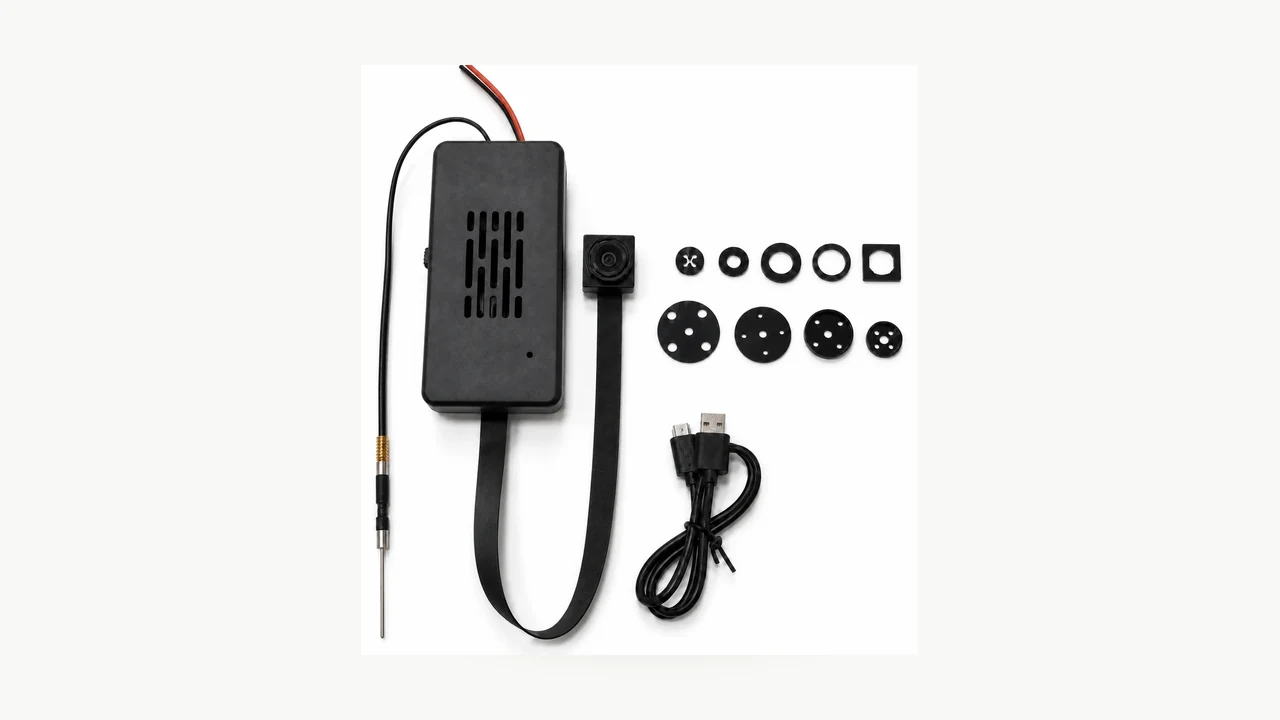
Prawdziwe zdjęcie modułu QZT DIY C10 Tuya. Ten artykuł nie stosuje jednego czasu resetowania do każdej kamery korzystającej z ekosystemu Tuya lub Smart Life.
First identify which “C10” you actually have
QZT ma obecnie dwie różne rodziny produktów, które można pomylić, ponieważ obie używają nazwy C10.
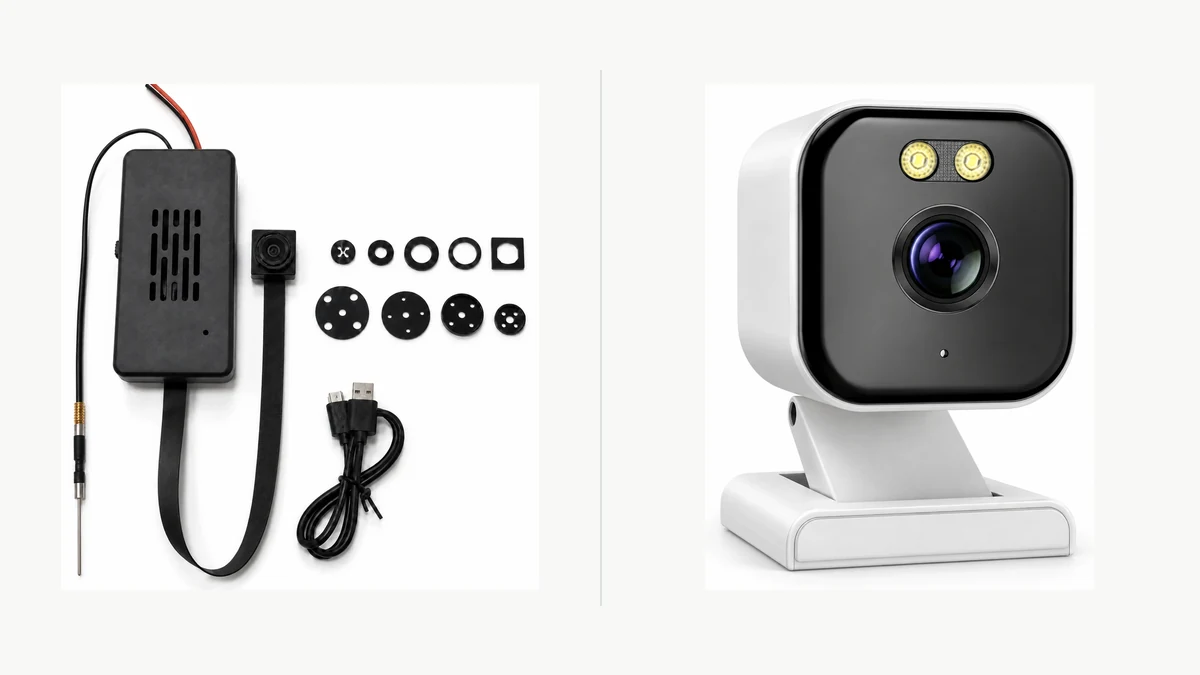
Kompozycja wykonana z dwóch prawdziwych zdjęć produktów QZT. Starszy moduł DIY Tuya i nowsza kamera wewnętrzna C10 to różne rodziny sprzętowe.
Starszy Zestaw do samodzielnego montażu ukrytej kamery szpiegowskiej z modułem WiFi Tuya to moduł używany wewnątrz produktów takich jak zegary, gniazdka i obudowy dekoracyjne. Jego aktualna strona wymienia:
– Tuya app viewing;
– 2.4GHz WiFi;
– 1080p / 4K product options;
– USB power / battery configurations;
– MicroSD storage.
Nowszy C10 4MP Compact Indoor WiFi Camera is a complete visible indoor camera. Its current page lists:
– 4MP;
– 5V DC power;
– 2.4GHz WiFi;
– Bluetooth-assisted setup;
– ONVIF listed;
– MicroSD up to 256GB.
Obecna strona kamery wewnętrznej C10 nie nie potwierdza, że używa tego samego firmware modułu DIY, zachowania przycisku reset, wzoru LED lub procesu parowania Tuya co starszy moduł ukrytej kamery.
Więc zapisz co najmniej:
| Pole | Co nagrywać |
|---|---|
| Product family | Old DIY C10 module / newer indoor C10 / another Tuya camera |
| Exact SKU / housing | |
| Wersja sprzętowa | |
| Firmware / app version | |
| Aplikacja wymieniona w instrukcji | Tuya Smart / Smart Life / another app |
| Reset control | Button / pinhole / other documented method |
| Pairing indication | LED / sound / screen / app prompt |
| Pasmo WiFi podane dla tej wersji | |
| Storage behavior | Dokładna instrukcja / dowód z testu |
Sama nazwa modelu nie wystarcza, gdy wiele rodzin sprzętowych ją dzieli.
Wiedz, co robi reset sprzętowy — a czego może nie zrobić
Resetowanie sprzętu kamery i usunięcie urządzenia z konta Tuya to nie zawsze ta sama czynność.
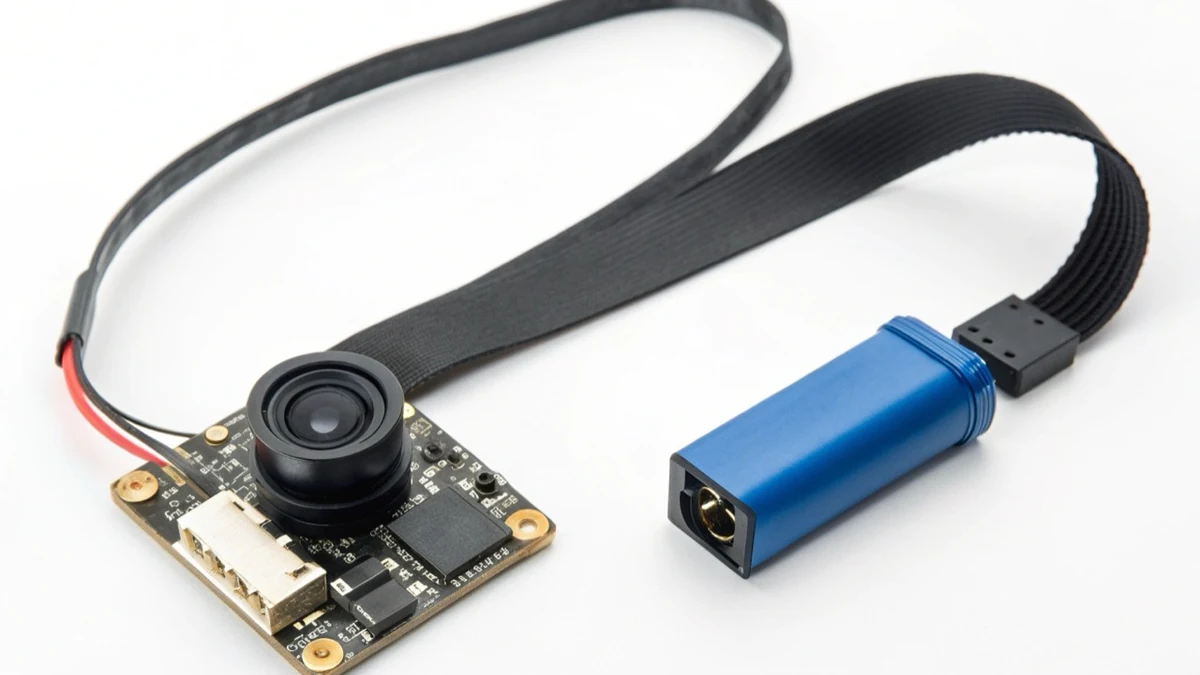
Prawdziwe zdjęcie produktu QZT DIY C10. Użyj faktycznego elementu resetowania udokumentowanego dla dostarczonej wersji, zamiast kopiować położenie przycisku z innej obudowy.
Tuya’s current support article „Dlaczego długo przytrzymać przycisk resetowania kamery/zamka/dzwonka…?” mówi, że wcześniej powiązanej kamery nie można zawsze usunąć z konta wyłącznie przez reset sprzętowy; ze względów bezpieczeństwa urządzenie może wymagać usunięcia z Tuya Smart.
To tworzy dwa osobne zadania:
Zadanie A — wprowadź sprzęt w tryb parowania
To lokalna czynność na urządzeniu: prawidłowo zasil dokładnie tę kamerę i użyj udokumentowanego elementu resetowania/parowania, aż urządzenie pokaże stan gotowości do parowania.
Task B — remove or transfer account binding
To czynność w aplikacji/na koncie. Jeśli urządzenie jest nadal powiązane ze starym kontem, postępuj zgodnie z procedurą usunięcia lub przeniesienia w Tuya/Smart Life dla tego produktu.
Nie obiecuj, że długie przytrzymanie przycisku automatycznie:
– usuń każdy zapis konta po stronie chmury;
– transfer ownership;
– delete cloud recordings;
– sformatuje karty microSD;
– usunie urządzenia z konta innego użytkownika.
To są odrębne stany.
Jeśli kamera jest przekazywana innemu właścicielowi, zweryfikuj zarówno local reset state i account-binding state before handover.
Resetuj według stanu parowania, a nie zgadywanej liczby sekund
W przypadku ogólnych urządzeń Tuya WiFi obecne wsparcie Tuya często podaje „około pięciu sekund” jako orientacyjny czas przytrzymania przycisku resetowania. Jednak te same strony pomocy każą użytkownikom zapoznać się z instrukcją produktu, aby poznać dokładną metodę.
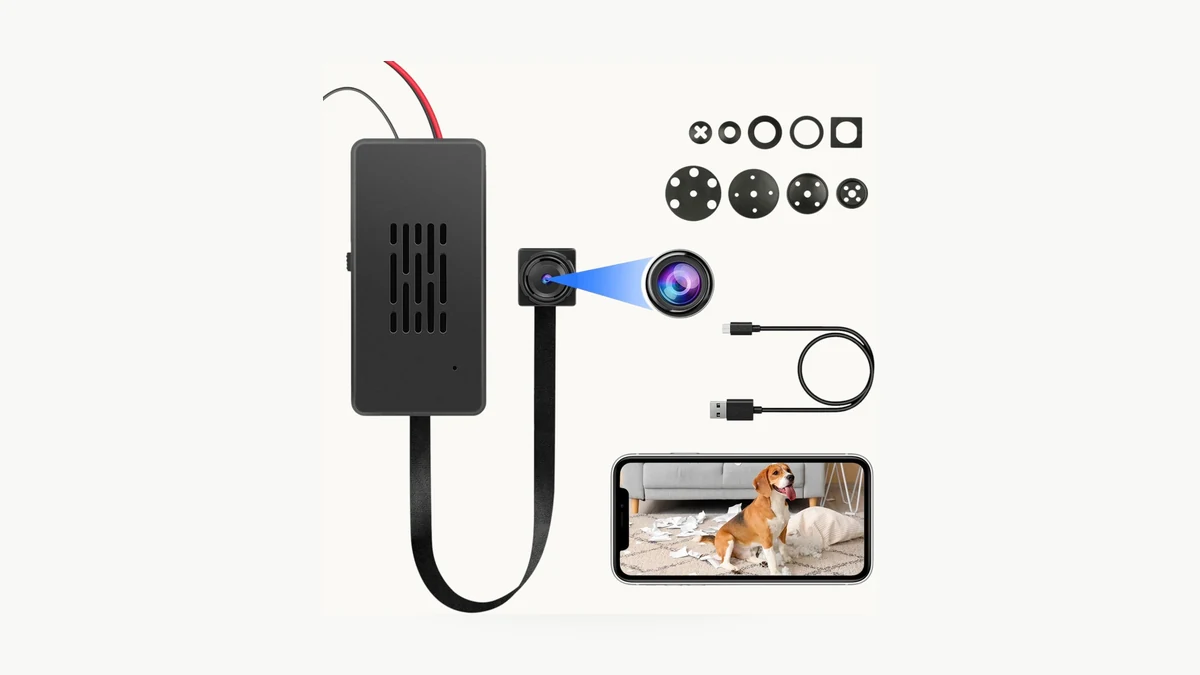
Prawdziwy obraz QZT DIY C10. Aktualna strona produktu nie podaje zweryfikowanego czasu resetowania 6–7 sekund, częstotliwości LED 2 Hz ani trzy minutowego okna parowania.
Useful current Tuya references include:
– How do I configure a Wi-Fi device? — stawia instrukcję produktu na pierwszym miejscu i podaje około pięciu sekund jako ogólne odniesienie dla przycisku resetowania.
– Co zrobić, jeśli urządzenia nie można zresetować lub nie można przejść w tryb parowania? — zaleca sprawdzenie zasilania, elementu resetowania i własnego wskaźnika parowania urządzenia; zauważa, że metody są różne.
– Jak kamera wykorzystuje skanowanie kodu QR do konfiguracji sieci? — przedstawia ogólny przebieg dla kamery z przytrzymaniem restartu przez około pięć sekund, aż urządzenie wskaże tryb parowania.
W przypadku starszej strony QZT DIY C10 analizowanej na potrzeby tego artykułu publiczna specyfikacja produktu nie nie dostarcza dowodów na wcześniejsze twierdzenia starego artykułu dotyczące:
– exactly 6–7 seconds;
– exactly 0.5Hz → 2Hz LED behavior;
– exactly two flashes per second;
– exactly a three-minute pairing window.
Wartości te zostały zatem usunięte z tej strony właściciela, chyba że później zostanie dodana pasująca instrukcja sprzętowa lub zapis z kontrolowanej próbki.
Zamiast tego stosuj tę zasadę akceptacji:
1. zasil dokładnie tę kamerę przy użyciu udokumentowanego wejścia;
2. znajdź przycisk reset/parowanie dla dokładnie tej obudowy;
3. postępuj zgodnie z sekwencją przytrzymania lub przycisków z instrukcji produktu;
4. przestań polegać na zegarze, gdy urządzenie da udokumentowany sygnał gotowości do parowania;
5. potwierdź, że aplikacja rozpoznaje tryb parowania, zanim przejdziesz dalej.
Jeśli nie ma diody LED, urządzenie może użyć dźwięku, ekranu lub monitu w aplikacji. Jeśli przycisk reset nie powoduje żadnej zmiany, sprawdź zasilanie i działanie przycisku, zanim zaczniesz powtarzać coraz dłuższe naciśnięcia.
Sprawdź pasmo WiFi dla dokładnie tej kamery
Nie uogólniaj stwierdzenia „kamera Tuya = tylko 2,4 GHz” na cały ekosystem.
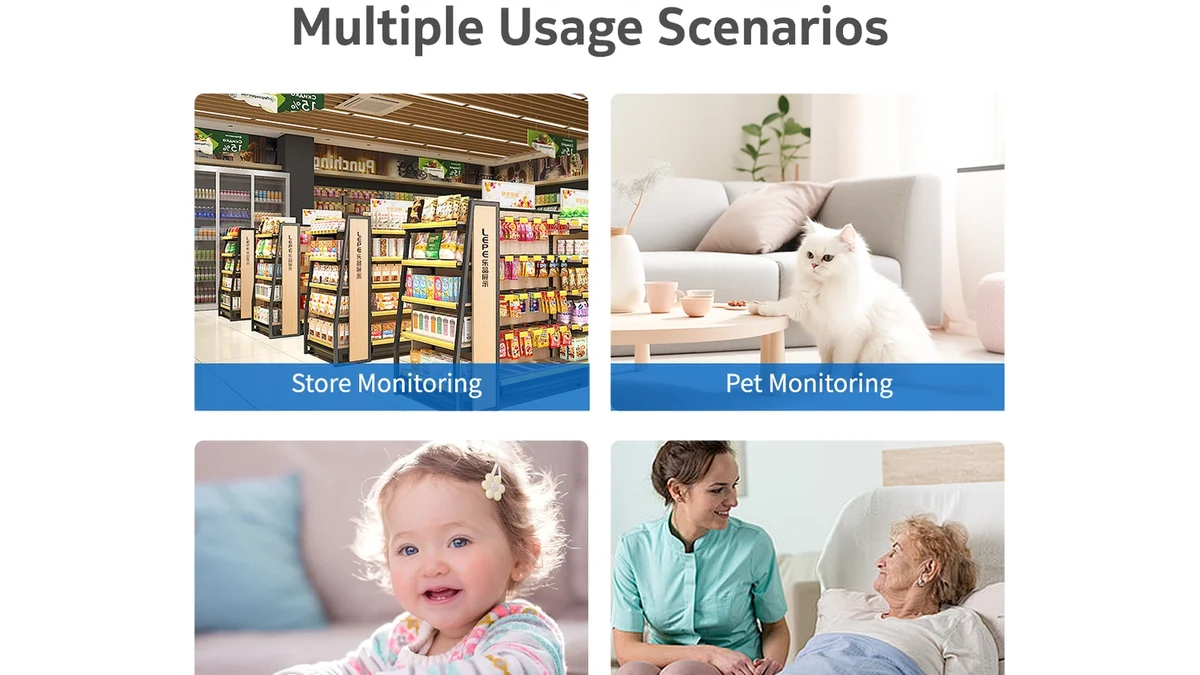
Rzeczywista scena nowszej kamery QZT indoor C10. To inna rodzina sprzętowa niż starszy moduł DIY C10 Tuya.
Starsza strona modułu QZT DIY C10 obecnie wymienia WiFi 2,4 GHz. Nowsza strona indoor C10 również obecnie wymienia WiFi 2,4 GHz, ale to nie czyni obu produktów tym samym modułem.
Tuya’s broader platform documentation shows why ecosystem-wide claims are risky. Its current support article on Tuya WiFi protocol product lines obejmuje linie produktów kamer IP, które mogą używać konfiguracji Wi-Fi 4 obejmujących 2,4GHz/5GHz, a także innych konfiguracji tylko 2,4GHz.
W przypadku parowania kamery wsparcie konsumenckie Tuya często instruuje użytkowników, aby użyli 2.4GHz network, a jego camera connection troubleshooting obecnie informuje użytkowników, aby potwierdzili 2,4 GHz, gdy kamera nie chce się połączyć.
Bezpieczna zasada jest następująca:
> Użyj pasma udokumentowanego dla dokładnej wersji kamery.
Jeśli router łączy 2,4 GHz i 5 GHz pod jednym SSID i parowanie się nie powiedzie, wsparcie Tuya sugeruje rozdzielenie pasm lub użycie trybu parowania zalecanego przez aplikację. To krok w rozwiązywaniu problemów — a nie dowód, że „Smart Connect zawsze psuje kamery Tuya”.
Twierdzenia z poprzedniego artykułu o VSWR anteny PCB, stratach 6–10 dB, pięciometrowym progu ściany i fizycznej niemożliwości 5 GHz w każdej przyszłej wersji C10 nie są podtrzymywane bez odpowiednich dowodów z testów RF.
Dopasuj tryb parowania wskazany przez aplikację i urządzenie
Tuya obsługuje więcej niż jedną procedurę konfiguracji.
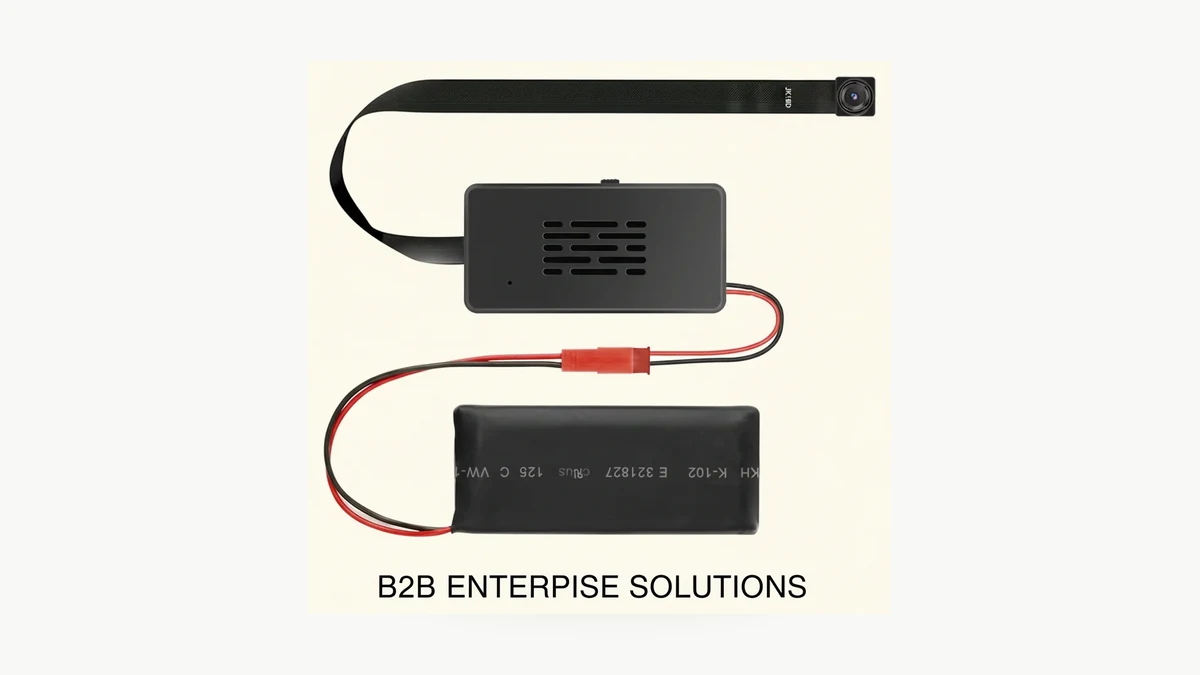
Prawdziwe zdjęcie produktu QZT DIY C10. Tryb parowania należy określić na podstawie dokładnego wskazania aplikacji/urządzenia, a nie wnioskować z obudowy.
Tuya’s current device-addition guide opisuje ogólny przepływ WiFi, w którym:
– szybkie miganie może oznaczać EZ / szybkie parowanie;
– wolne miganie może oznaczać parowanie AP / hotspot;
– jeśli wskaźnik nie miga, urządzenie nie weszło jeszcze w oczekiwany stan parowania.
Inna kamera może używać parowania za pomocą kodu QR lub innego wskaźnika. Kategoria w aplikacji i dokładna instrukcja produktu mają pierwszeństwo.
A safer pairing checklist is:
1. potwierdź aplikację wskazaną dla dokładnego modelu;
2. potwierdź, że kamera jest zasilana i zresetowana do udokumentowanego stanu gotowości do parowania;
3. połącz telefon z pasmem WiFi udokumentowanym dla tej kamery;
4. wprowadź prawidłowe dane logowania WiFi;
5. wybierz tryb parowania zgodny z rzeczywistym wskazaniem urządzenia;
6. podczas pierwszej konfiguracji trzymaj kamerę blisko routera;
7. jeśli parowanie się nie powiedzie, przed ponownym resetem sprawdź pasmo, hasło, stan parowania i ustawienia routera;
8. zapisz wersję sprzętu/oprogramowania/aplikacji, która ostatecznie zadziałała.
Stara strona właściciela QZT C10 nie informuje już użytkowników, że dane mobilne must muszą być wyłączone ani że parowanie zawsze używa portu UDP 8883. Aktualne wsparcie Tuya sprawdzone na potrzeby tej aktualizacji nie potwierdza, że są to uniwersalne wymagania dla kamer.
Podobnie uprawnienia do Bluetooth/lokalizacji powinny być wymagane tylko wtedy, gdy wymaga tego dokładny proces konfiguracji produktu/aplikacji. Nowsza strona wewnętrznej kamery C10 wymienia konfigurację z asystą Bluetooth; nie dowodzi to jednak, że starszy moduł DIY C10 korzysta z tej samej ścieżki.
Resetowanie kamery nie dowodzi nagrywania offline ani „fizycznego odłączenia od chmury”
Reset i przechowywanie danych to odrębne zagadnienia.
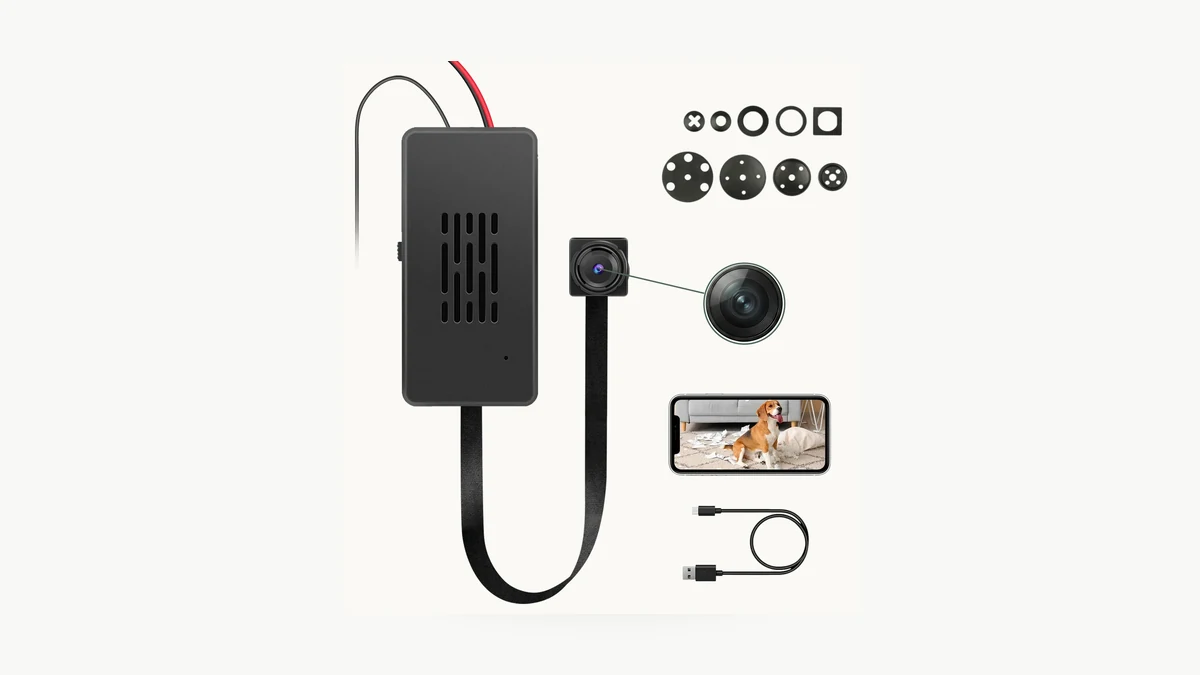
Prawdziwy obraz produktu QZT DIY C10. Gniazdo MicroSD samo w sobie nie dowodzi uruchomienia offline, nagrywania po utracie routera ani trwałego odłączenia od chmury.
Starsza wersja tego artykułu twierdziła, że włożenie karty FAT32 i unikanie zapisanych danych logowania WiFi może stworzyć wymuszony sprzętowo tryb wyłącznie lokalny, który fizycznie uniemożliwiał połączenie z chmurą. Aktualna publiczna strona produktu DIY C10 sprawdzona na potrzeby tej aktualizacji nie dokumentuje takiego mechanizmu.
W związku z tym to twierdzenie zostało usunięte.
A reset also does not automatically prove:
– kamera uruchamia się i nagrywa bez routera;
– nagrywanie jest kontynuowane po zniknięciu WiFi;
– klipy pozostają dostępne lokalnie bez internetu;
– cloud association has been deleted;
– cloud files have been erased;
– instalacja jest zgodna z RODO.
W przypadku tych pytań skorzystaj z dedykowanego przewodnika QZT:
Czy kamera wewnętrzna może nagrywać bez WiFi lub internetu?
Ten przewodnik rozdziela pracę samodzielnego rejestratora DVR, sytuację braku internetu przy działającym routerze, utratę routera/WiFi oraz nigdy niesparowane nagrywanie lokalne.
W przypadku dokładnie tej kamery Tuya zapisz:
| Test offline / resetu | Wynik |
|---|---|
| Kamera uruchamia się bez dostępnego routera | Zaliczone / Niezaliczone / Nieprzetestowane |
| Nagrywanie lokalne rozpoczyna się bez internetu | Zaliczone / Niezaliczone / Nieprzetestowane |
| Nagrywanie jest kontynuowane po utracie routera | Zaliczone / Niezaliczone / Nieprzetestowane |
| Odtwarzanie lokalne działa bez chmury | Zaliczone / Niezaliczone / Nieprzetestowane |
| Hardware reset removes WiFi credentials | Zaliczone / Niezaliczone / Nieprzetestowane |
| Hardware reset removes app binding | Zaliczone / Niezaliczone / Nieprzetestowane |
| App removal deletes cloud data | Potwierdź na podstawie aktualnych warunków świadczenia usług |
| MicroSD is preserved after reset | Zaliczone / Niezaliczone / Nieprzetestowane |
Do not turn a blank cell into “Yes.”
Często zadawane pytania
Jak długo należy przytrzymać przycisk resetowania w kamerze Tuya?
Korzystaj z dokładnej instrukcji produktu. Ogólne wsparcie Tuya często podaje około pięciu sekund jako wartość referencyjną dla urządzeń z przyciskiem resetowania, ale metoda i wskazanie parowania mogą się różnić. Nie zastępuj wskazania LED/dźwięku/aplikacji urządzenia uniwersalną wartością ze stopera.
Czy przywrócenie ustawień fabrycznych usuwa kamerę Tuya z mojego konta?
Niekoniecznie. Wsparcie Tuya wyraźnie zauważa, że sparowaną kamerę może trzeba usunąć z aplikacji Tuya Smart, zamiast polegać wyłącznie na resecie sprzętowym.
Czy wszystkie kamery Tuya działają tylko na 2,4 GHz?
Nie należy formułować twierdzeń dotyczących całego ekosystemu. Wiele przewodników parowania kamer Tuya wykorzystuje 2,4 GHz, a starszy moduł QZT DIY C10 jest obecnie wymieniany jako 2,4 GHz. Dokumentacja linii produktów Tuya obejmuje również konfiguracje kamer IP obsługujące Wi-Fi 4 2,4/5 GHz. Sprawdź dokładny produkt.
Czy szybkie miganie zawsze oznacza tryb EZ, a wolne miganie zawsze tryb AP?
To konwencja w ogólnym przewodniku Tuya dotyczącym dodawania urządzeń WiFi, ale konkretna kamera może używać innego wskaźnika lub przepływu z kodem QR. Korzystaj z aplikacji i instrukcji produktu dla dostarczonej wersji.
Do I need to turn off mobile data before pairing?
Nie traktuj tego jako uniwersalnej zasady. Aktualne strony pomocy Tuya omówione tutaj koncentrują się na stanie parowania, właściwej aplikacji, 2,4 GHz tam, gdzie jest to wymagane, danych logowania WiFi, zgodności routera i odległości. Postępuj zgodnie z dokładnym przepływem w aplikacji/instrukcji dla swojego urządzenia.
Does inserting a MicroSD card make a Tuya camera fully offline?
Nie. Gniazdo karty nie potwierdza uruchomienia offline, nagrywania po utracie routera, usunięcia konta ani trwałego odłączenia od chmury. Przetestuj te stany osobno.
Co powinienem zrobić po zmianie routera?
Tuya’s current wytyczne dotyczące zmiany routera informuje użytkowników, aby ponownie podłączyli urządzenia WiFi do nowej sieci i ponownie wprowadzili dane logowania sieci. Korzystaj z aktualnego przepływu w aplikacji i dokładnej instrukcji kamery, zamiast zakładać, że stary profil WiFi będzie nadal działać.
Praktyczna zasada jest następująca: zidentyfikuj dokładny model kamery, resetuj, aż kamera pokaże udokumentowany stan parowania, i weryfikuj konto, WiFi oraz zachowanie pamięci jako osobne kwestie.

 English
  Italiano
  Deutsch
  Français
  Español
  Polski