
Non iniziare memorizzando un tempo di reset universale.
Le stesse linee guida di supporto di Tuya dicono ripetutamente agli utenti di mettere il dispositivo in modalità di associazione secondo il manuale del prodotto. Le sue indicazioni WiFi generiche spesso usano una pressione del pulsante di reset di circa cinque secondi come riferimento, ma il metodo di reset esatto, il segnale LED o sonoro e la modalità di accoppiamento possono variare in base al design del prodotto e al firmware.
Per una telecamera QZT, identificate prima l'hardware esatto. In particolare, il più vecchio DIY C10 Tuya module non è lo stesso prodotto del più recente C10 compact indoor camera.
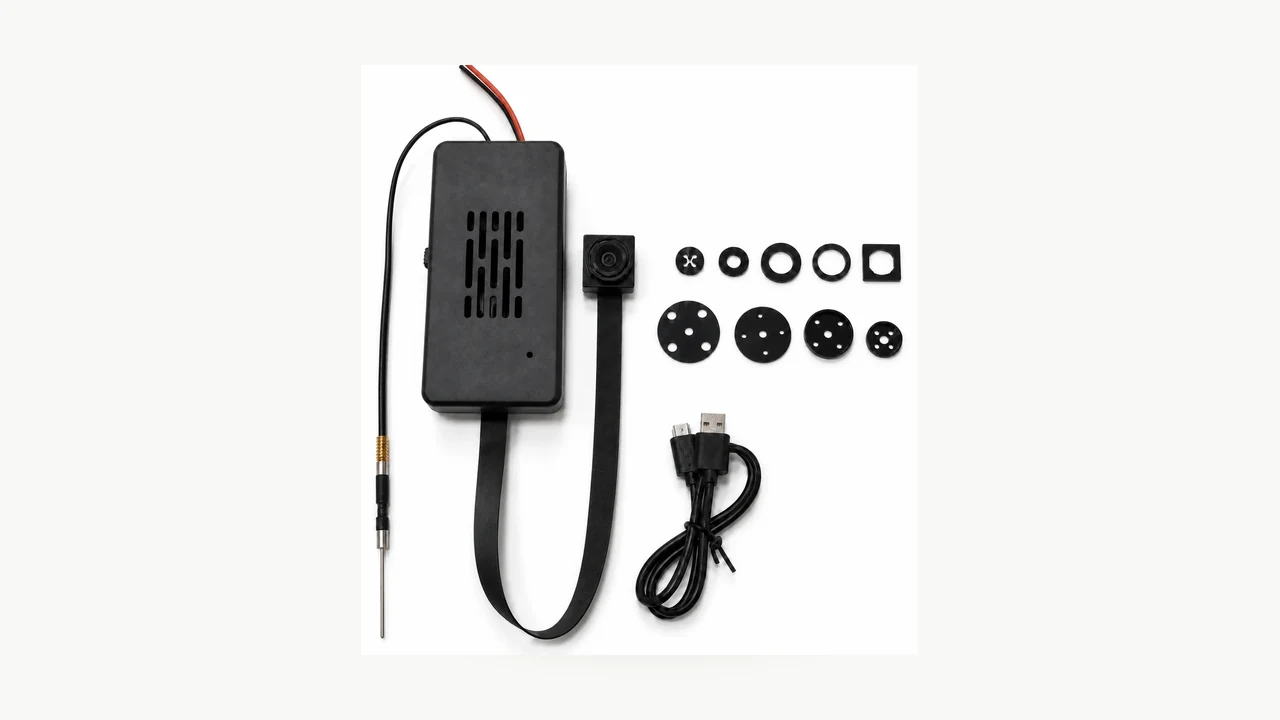
Immagine reale del modulo QZT DIY C10 Tuya. Questo articolo non applica un unico tempo di reset a ogni telecamera che utilizza l'ecosistema Tuya o Smart Life.
First identify which “C10” you actually have
QZT attualmente ha due diverse famiglie di prodotti che possono essere confuse perché entrambe usano il nome C10.
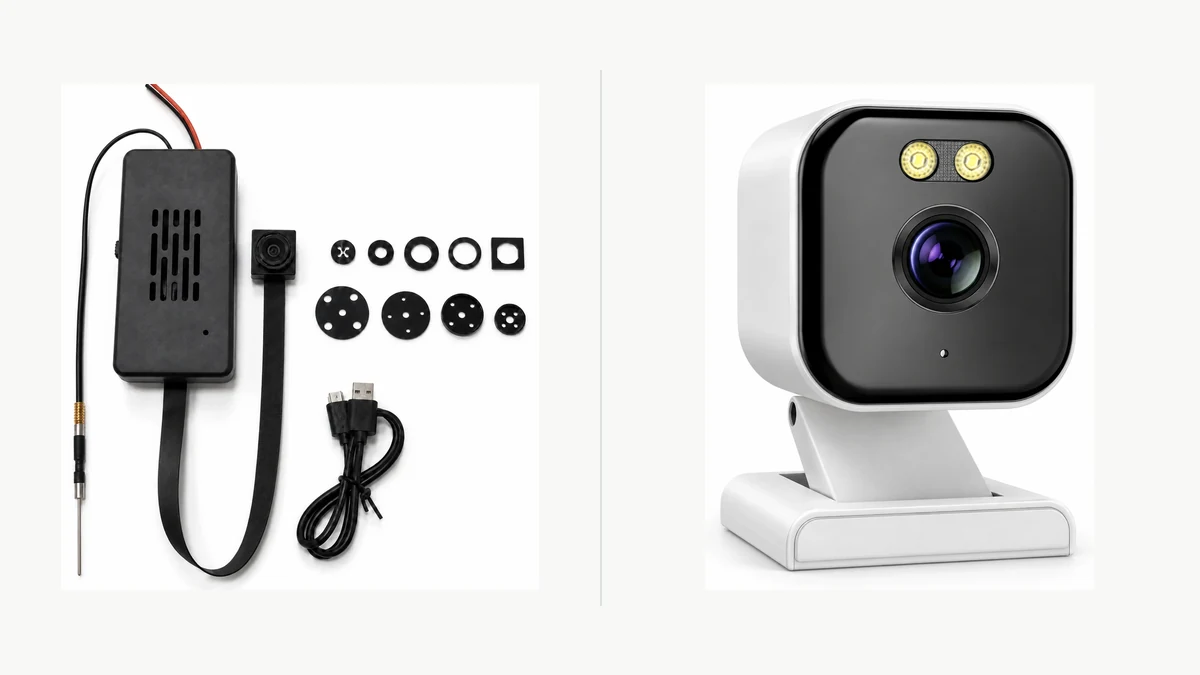
Composito realizzato da due immagini reali di prodotti QZT. Il più vecchio modulo DIY Tuya e la più recente telecamera indoor C10 sono famiglie hardware diverse.
Il più vecchio Kit Fai-da-te per Telecamera Spia Nascosta con Modulo WiFi Tuya è un modulo utilizzato all'interno di prodotti come orologi, prese e custodie decorative. La sua pagina attuale elenca:
– Tuya app viewing;
– 2.4GHz WiFi;
– 1080p / 4K product options;
– USB power / battery configurations;
– MicroSD storage.
Il più recente C10 4MP Compact Indoor WiFi Camera is a complete visible indoor camera. Its current page lists:
– 4MP;
– 5V DC power;
– 2.4GHz WiFi;
– Bluetooth-assisted setup;
– ONVIF listed;
– MicroSD up to 256GB.
La pagina attuale della C10 indoor non non stabilisce che utilizzi lo stesso firmware del modulo DIY, comportamento del pulsante di reset, schema LED o flusso di accoppiamento Tuya del più vecchio modulo telecamera nascosta.
Quindi registra almeno:
| Campo | Cosa registrare |
|---|---|
| Product family | Old DIY C10 module / newer indoor C10 / another Tuya camera |
| Exact SKU / housing | |
| Revisione hardware | |
| Firmware / app version | |
| App indicata nel manuale | Tuya Smart / Smart Life / another app |
| Reset control | Button / pinhole / other documented method |
| Pairing indication | LED / sound / screen / app prompt |
| Banda WiFi indicata per questa versione | |
| Storage behavior | Manuale esatto / evidenza di test |
Il solo nome del modello non è sufficiente quando più famiglie hardware lo condividono.
Sapere cosa fa un reset hardware — e cosa potrebbe non fare
Reimpostare l'hardware della telecamera e rimuovere un dispositivo dal tuo account Tuya non sono sempre la stessa azione.
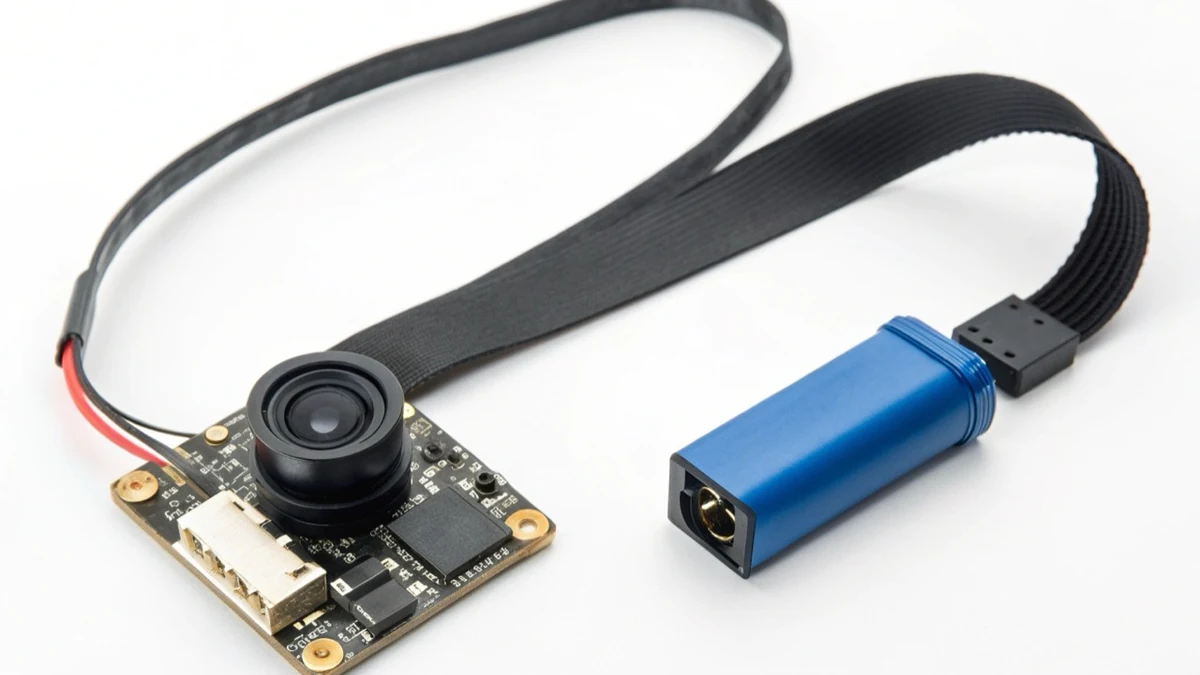
Immagine reale del prodotto QZT DIY C10. Utilizza il controllo di reset effettivo documentato per la versione fornita invece di copiare la posizione del pulsante da un altro alloggiamento.
Tuya’s current support article “Perché premere a lungo il pulsante di reset della telecamera/serratura/citofono…?” afferma che una telecamera precedentemente associata non può necessariamente essere rimossa dall'account solo tramite reset hardware; per sicurezza, il dispositivo potrebbe dover essere rimosso da Tuya Smart.
Ciò crea due attività separate:
Attività A — mettere l'hardware in modalità di associazione
Questa è l'azione locale sul dispositivo: alimenta correttamente la telecamera esatta e utilizza il controllo di reset/associazione documentato fino a quando il dispositivo mostra il suo stato di pronto per l'associazione.
Task B — remove or transfer account binding
Questa è un'azione sull'app/account. Se il dispositivo è ancora associato al vecchio account, segui la procedura di rimozione o trasferimento Tuya/Smart Life per quel prodotto.
Non promettere che una lunga pressione del pulsante eseguirà automaticamente:
– cancellare ogni record dell'account lato cloud;
– transfer ownership;
– delete cloud recordings;
– la formattazione della scheda microSD;
– la rimozione del dispositivo dall'account di un altro utente.
Quelli sono stati separati.
Se la telecamera viene trasferita a un altro proprietario, verifica sia la local reset state e il account-binding state before handover.
Reset in base allo stato di associazione, non a un numero di secondi presunto
Per i dispositivi Tuya WiFi generici, il supporto Tuya attuale utilizza comunemente “circa cinque secondi” come riferimento per la pressione del pulsante di reset. Ma le stesse pagine di supporto invitano gli utenti a fare riferimento al manuale del prodotto per il metodo esatto.
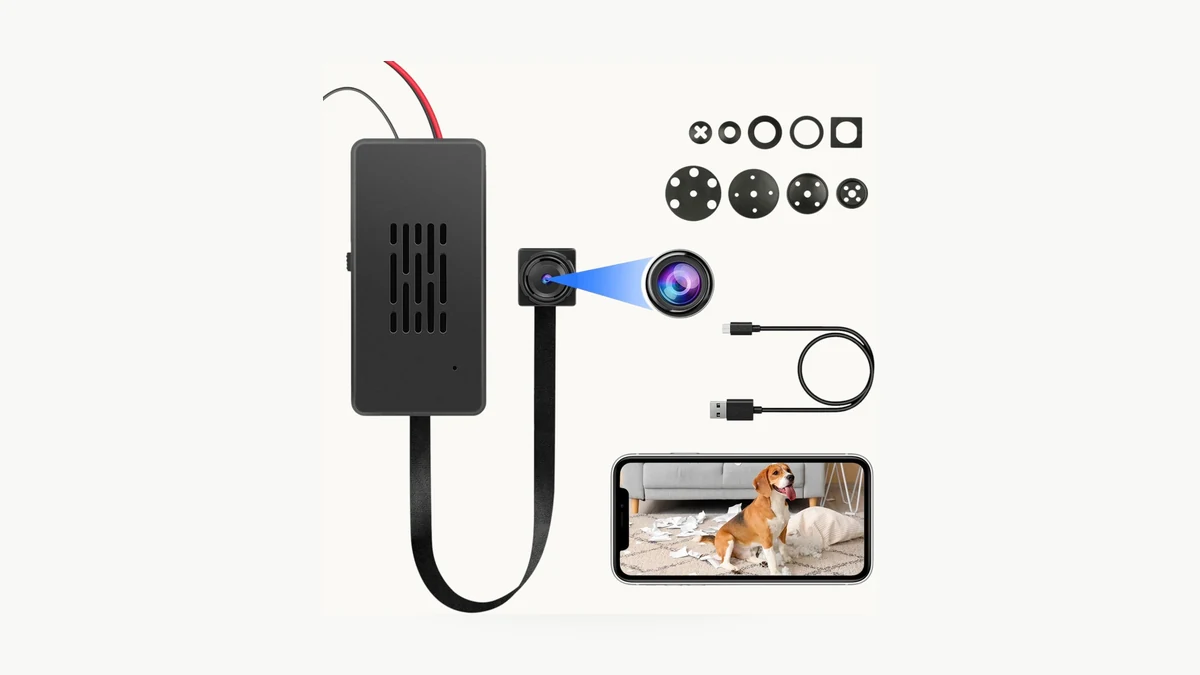
Immagine reale del QZT DIY C10. L'attuale pagina prodotto non pubblica un tempo di reset verificato di 6–7 secondi, una frequenza LED di 2Hz o una finestra di pairing di tre minuti.
Useful current Tuya references include:
– How do I configure a Wi-Fi device? — mette al primo posto il manuale del prodotto e utilizza circa cinque secondi come riferimento generico per il pulsante di reset.
– Cosa fare se il dispositivo non può essere resettato o non riesce a entrare in modalità abbinamento? — consiglia di verificare l'alimentazione, il controllo di reset e l'indicazione di associazione del dispositivo stesso; nota che i metodi variano.
– Come utilizza la telecamera la scansione del codice QR per configurare la rete? — fornisce un flusso generico della telecamera utilizzando una pressione di riavvio di circa cinque secondi fino a quando il dispositivo indica la modalità di associazione.
Per la pagina più vecchia del QZT DIY C10 esaminata per questo articolo, la specifica pubblica del prodotto non fornisce prove per le precedenti affermazioni del vecchio articolo su:
– exactly 6–7 seconds;
– exactly 0.5Hz → 2Hz LED behavior;
– exactly two flashes per second;
– exactly a three-minute pairing window.
Tali valori sono pertanto rimossi da questa pagina proprietario a meno che non venga successivamente aggiunto un manuale hardware corrispondente o un record di campione controllato.
Utilizzare invece questa regola di accettazione:
1. alimentare la telecamera esatta utilizzando l'ingresso documentato;
2. trovare il controllo di reset/associazione per quello specifico alloggiamento;
3. seguire la sequenza di pressione o pulsanti del manuale del prodotto;
4. smettere di fare affidamento sul tempo una volta che il dispositivo fornisce la sua indicazione documentata di prontezza all'associazione;
5. confermare che l'app riconosca la modalità di associazione prima di procedere.
Se non c'è un LED, il dispositivo potrebbe utilizzare un suono, uno schermo o un prompt dell'app. Se il pulsante di reset non produce alcun cambiamento, controllare l'alimentazione e il funzionamento del pulsante prima di ripetere pressioni sempre più lunghe.
Controllare la banda WiFi per la telecamera esatta
Non generalizzare “telecamera Tuya = solo 2,4 GHz” all'intero ecosistema.
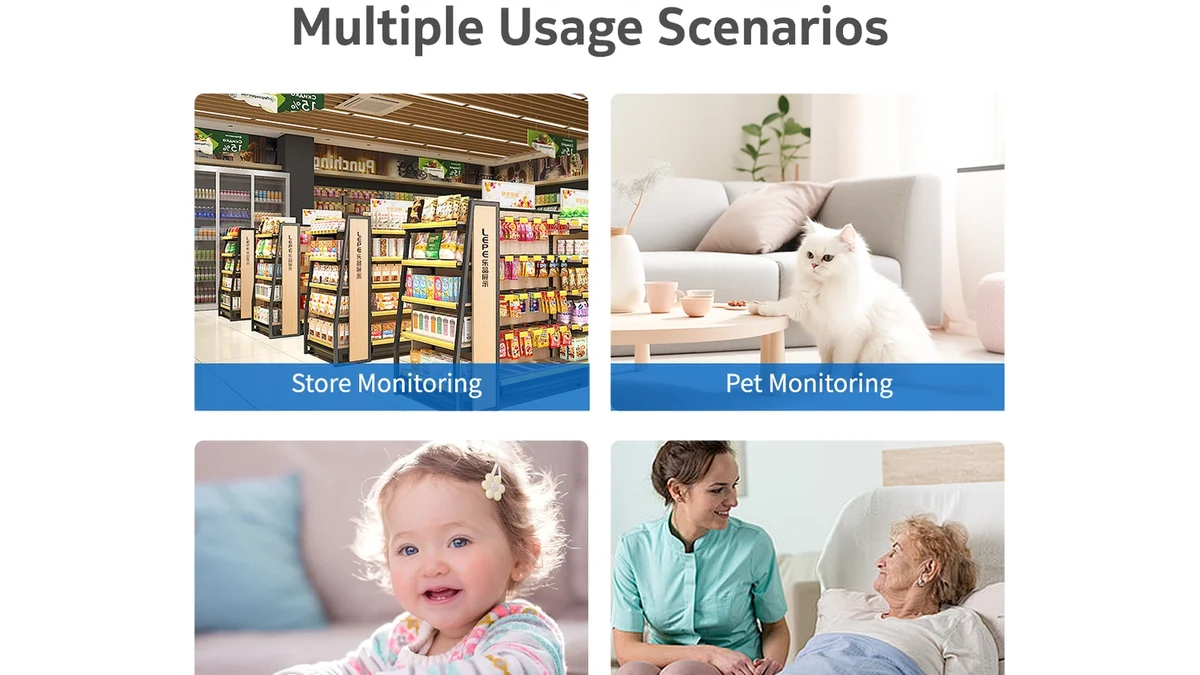
Scena reale della telecamera QZT indoor C10 più recente. È una famiglia hardware diversa dal vecchio modulo DIY C10 Tuya.
La pagina del modulo QZT DIY C10 più vecchio attualmente elenca WiFi a 2,4 GHz. Anche la pagina della C10 indoor più recente attualmente elenca WiFi a 2,4 GHz, ma ciò non rende i due prodotti lo stesso modulo.
Tuya’s broader platform documentation shows why ecosystem-wide claims are risky. Its current support article on Tuya WiFi protocol product lines include linee di prodotti di telecamere IP che possono utilizzare configurazioni Wi-Fi 4 che coprono 2.4GHz/5GHz nonché altre configurazioni solo a 2.4GHz.
Per l'associazione della telecamera, il supporto consumatori di Tuya comunemente istruisce gli utenti a utilizzare una 2.4GHz network, e il suo camera connection troubleshooting attualmente dice agli utenti di confermare 2.4GHz quando una telecamera non si connette.
La regola sicura è:
> Utilizzare la banda documentata per la specifica versione della telecamera.
Se un router combina 2,4GHz e 5GHz sotto un unico SSID e l'associazione fallisce, il supporto Tuya suggerisce di separare le bande o di utilizzare la modalità di associazione raccomandata dall'app. Questo è un passaggio di risoluzione dei problemi — non la prova che “Smart Connect rompe sempre le telecamere Tuya”.
Le affermazioni dell'articolo precedente su VSWR dell'antenna PCB, perdita di 6–10dB, soglia del muro di cinque metri e 5GHz fisicamente impossibile su ogni futura versione C10 non sono mantenute senza corrispondenti prove di test RF.
Abbinare la modalità di associazione mostrata dall'app e dal dispositivo
Tuya supporta più di un flusso di configurazione iniziale.
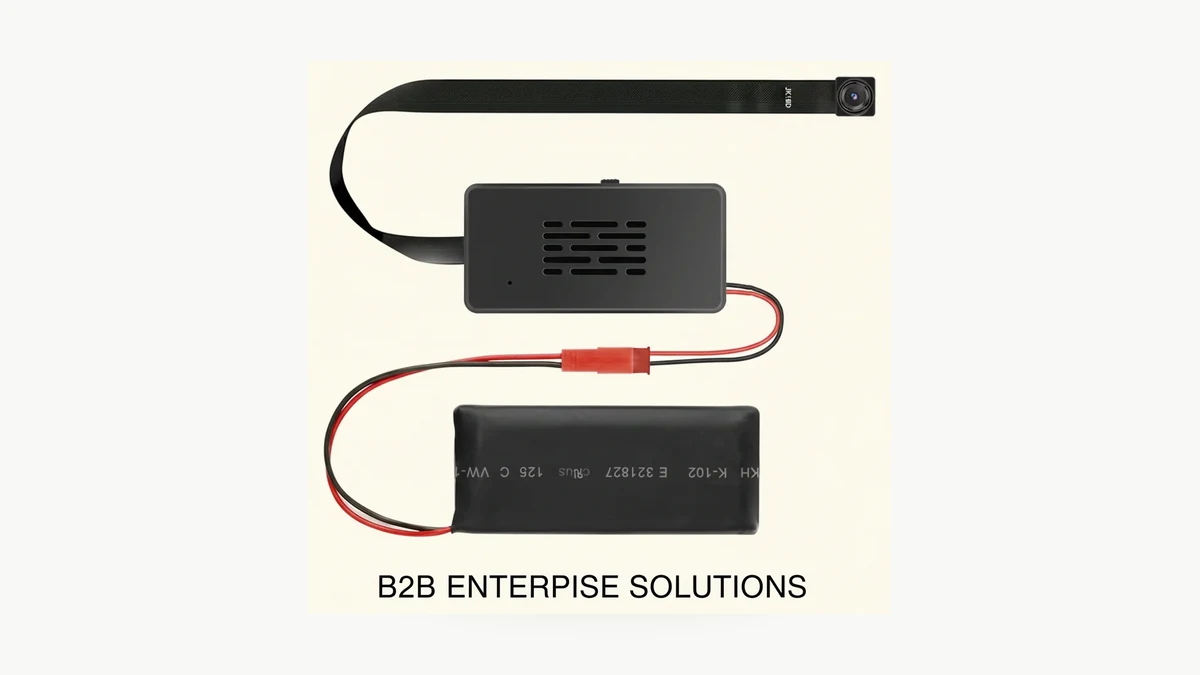
Immagine reale del prodotto QZT DIY C10. La modalità di associazione deve essere identificata dall'esatta indicazione dell'app/dispositivo, non dedotta dall'involucro.
Tuya’s current device-addition guide descrive un flusso WiFi generico in cui:
– il lampeggio rapido può indicare l'associazione EZ / rapida;
– il lampeggio lento può indicare l'associazione AP / hotspot;
– se l'indicatore non lampeggia, il dispositivo non è ancora entrato nello stato di associazione previsto.
Una telecamera diversa può utilizzare l'associazione tramite codice QR o un altro indicatore. La categoria dell'app e il manuale esatto del prodotto hanno la precedenza.
A safer pairing checklist is:
1. confermare l'app indicata per il modello esatto;
2. confermare che la telecamera sia alimentata e reimpostata nello stato di preparazione all'associazione documentato;
3. collegare il telefono alla banda WiFi documentata per quella telecamera;
4. inserire le credenziali WiFi corrette;
5. scegliere la modalità di associazione che corrisponde all'effettiva indicazione del dispositivo;
6. tenere la telecamera vicino al router durante la prima configurazione;
7. se l'associazione fallisce, verificare la banda, la password, lo stato di associazione e le impostazioni del router prima di reimpostare di nuovo;
8. registrare la versione hardware/firmware/app che ha finalmente avuto successo.
La vecchia pagina del proprietario QZT C10 non dice più agli utenti che i dati mobili must devono essere disabilitati o che l'associazione utilizza universalmente la porta UDP 8883. Il supporto Tuya attuale esaminato per questo aggiornamento non stabilisce questi come requisiti universali della telecamera.
Allo stesso modo, l'autorizzazione Bluetooth/posizione deve essere richiesta solo quando il flusso di onboarding del prodotto/app esatto lo richiede. La pagina più recente del C10 da interno elenca la configurazione assistita da Bluetooth; ciò non prova che il modulo DIY C10 più vecchio utilizzi lo stesso percorso.
Il ripristino di una telecamera non prova la registrazione offline né la “disconnessione fisica dal cloud”
Reset e archiviazione sono argomenti separati.
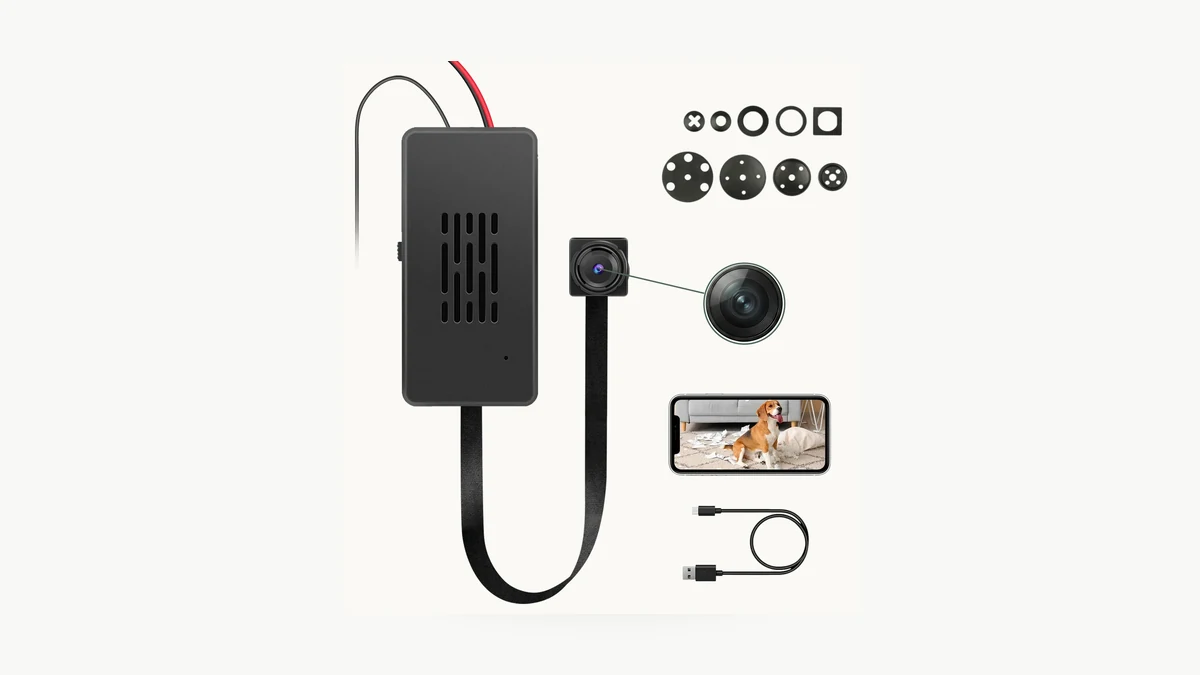
Immagine reale del prodotto QZT DIY C10. Uno slot MicroSD non prova di per sé l'avvio offline, la registrazione dopo la perdita del router o la disconnessione permanente dal cloud.
La versione precedente di questo articolo sosteneva che inserire una scheda FAT32 ed evitare credenziali WiFi memorizzate potesse creare una modalità solo locale imposta dall'hardware che rendeva fisicamente impossibile la connessione al cloud. L'attuale pagina prodotto pubblica del DIY C10 esaminata per questo aggiornamento non documenta tale meccanismo.
Tale affermazione è pertanto rimossa.
A reset also does not automatically prove:
– la telecamera si avvia e registra senza router;
– la registrazione continua dopo la scomparsa del WiFi;
– le clip restano accessibili localmente senza internet;
– cloud association has been deleted;
– cloud files have been erased;
– l'installazione è conforme al GDPR.
Per queste domande, utilizza il proprietario QZT dedicato:
Una Telecamera da Interno Può Registrare Senza WiFi o Internet?
Questa guida separa il funzionamento DVR autonomo, internet assente/router attivo, perdita router/WiFi e registrazione locale mai associata.
Per la telecamera Tuya esatta, registra:
| Verifica offline / reset | Risultato |
|---|---|
| La telecamera si avvia senza router disponibile | Superato / Non superato / Non testato |
| La registrazione locale inizia senza internet | Superato / Non superato / Non testato |
| La registrazione continua dopo la perdita del router | Superato / Non superato / Non testato |
| Riproduzione locale funziona senza cloud | Superato / Non superato / Non testato |
| Hardware reset removes WiFi credentials | Superato / Non superato / Non testato |
| Hardware reset removes app binding | Superato / Non superato / Non testato |
| App removal deletes cloud data | Conferma dai termini di servizio attuali |
| MicroSD is preserved after reset | Superato / Non superato / Non testato |
Do not turn a blank cell into “Yes.”
Domande frequenti
Per quanto tempo devo tenere premuto il pulsante di reset su una telecamera Tuya?
Usa il manuale esatto del prodotto. Il supporto generico di Tuya usa spesso circa cinque secondi come riferimento per dispositivi con pulsante di reset, ma il metodo e l'indicazione di associazione possono variare. Non sostituire l'indicazione LED/suono/app del dispositivo con un valore universale da cronometro.
Il ripristino di fabbrica rimuove una telecamera Tuya dal mio account?
Non necessariamente. Il supporto Tuya specifica che una telecamera associata potrebbe dover essere rimossa da Tuya Smart invece di affidarsi solo al reset hardware.
Tutte le telecamere Tuya usano solo 2.4GHz?
Non si deve fare un'affermazione valida per l'intero ecosistema. Molte guide di associazione delle telecamere Tuya usano 2.4GHz, e il modulo QZT DIY C10 più vecchio è attualmente indicato come 2.4GHz. La documentazione della linea di prodotti Tuya include anche configurazioni di telecamere IP capaci di Wi-Fi 4 2.4/5GHz. Verifica il prodotto esatto.
Il lampeggio veloce è sempre modalità EZ e il lampeggio lento è sempre modalità AP?
Questa è la convenzione nelle indicazioni generiche di Tuya per l'aggiunta di dispositivi WiFi, ma la telecamera specifica potrebbe utilizzare un altro indicatore o un flusso tramite codice QR. Utilizzare l'app e il manuale del prodotto per la build fornita.
Do I need to turn off mobile data before pairing?
Non farne una regola universale. Le attuali pagine di supporto Tuya esaminate qui si concentrano sullo stato di associazione, l'app corretta, i 2,4GHz ove richiesto, le credenziali WiFi, la compatibilità del router e la vicinanza. Seguire il flusso esatto dell'app/manuale per il proprio dispositivo.
Does inserting a MicroSD card make a Tuya camera fully offline?
No. Uno slot per scheda non stabilisce l'avvio offline, la registrazione dopo la perdita del router, la rimozione dell'account o la disconnessione permanente dal cloud. Testa questi stati separatamente.
Cosa devo fare dopo aver cambiato il router?
Tuya’s current linee guida per il cambio di router indica agli utenti di riconnettere i dispositivi WiFi alla nuova rete e di reinserire le credenziali di rete. Utilizzare il flusso attuale dell'app e il manuale esatto della telecamera invece di presumere che il vecchio profilo WiFi continui a funzionare.
La regola pratica è: identificare la telecamera esatta, resettare finché quella telecamera non mostra il suo stato di associazione documentato, e verificare account, WiFi e comportamento di archiviazione come cose separate.

 English
  Italiano
  Deutsch
  Français
  Español
  Polski