
How to Update Firmware on Your Hidden Camera
Firmware updates keep your hidden camera secure, stable, and feature-rich.
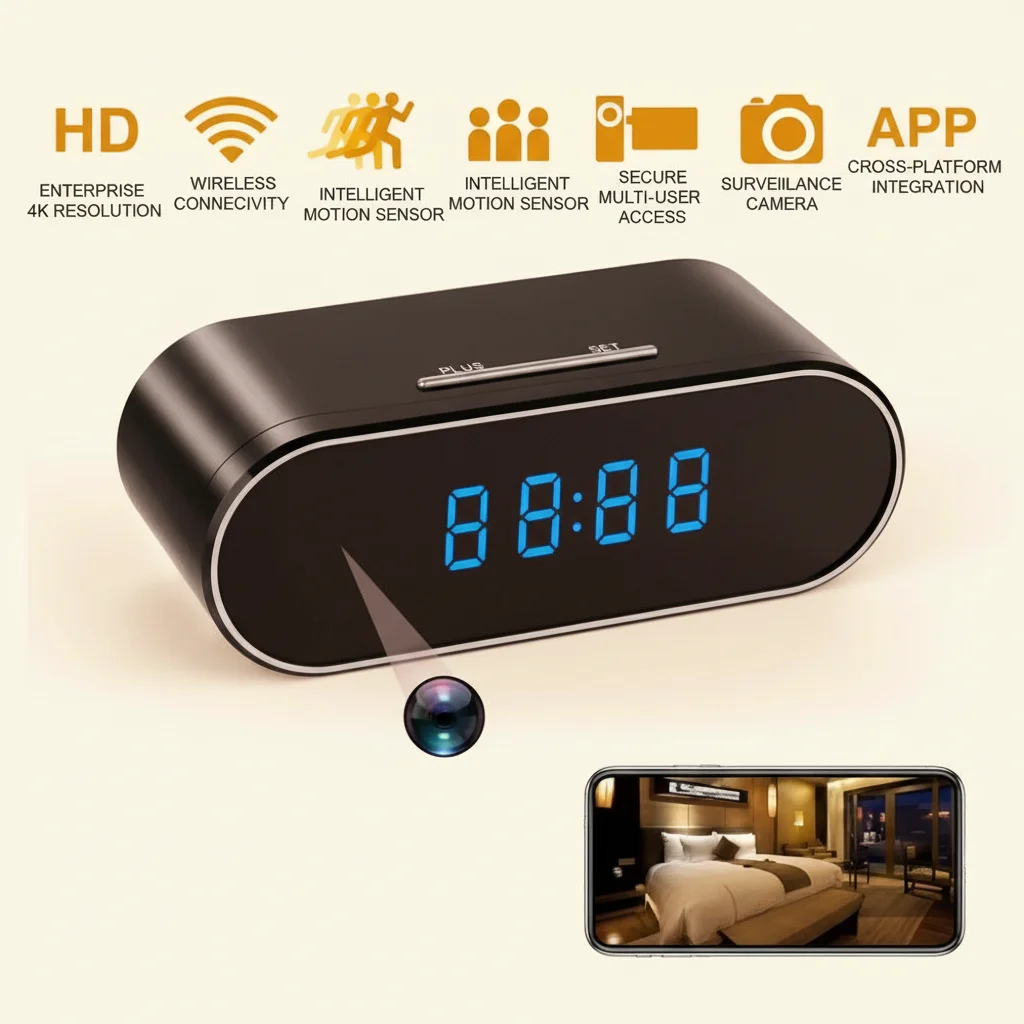
Like any connected device, cameras running outdated software are more prone to crashes, connectivity issues, and security vulnerabilities. This guide walks through the firmware update process for all major camera types sold on qztsecurity.com—from pen cameras and clock cameras to smoke detector cameras and USB charger cameras—so you can keep your devices running their best.
Why Firmware Updates Matter
Firmware is the low-level software embedded in the camera’s hardware. It controls everything: how the camera records video, how it connects to WiFi, how the app communicates with it, and how it handles storage. Manufacturers release firmware updates to fix bugs discovered after launch, patch security vulnerabilities, improve WiFi stability, and occasionally add new features such as enhanced motion detection sensitivity or improved night vision processing.
For distributors managing multiple client sites, keeping firmware up to date reduces on-site support calls. For end users, a 2-minute update can resolve chronic issues that seem like hardware problems.
Before You Start: Preparation Checklist
Back Up Your Footage
Firmware updates should not delete your recordings, but the process involves overwriting system files on the camera. If anything goes wrong, you want your footage safe. Copy important recordings from the SD card to a computer or cloud storage before updating.
Check Your Battery Level
Ensure the camera has at least 50% battery before starting a firmware update. If the device loses power mid-update, it can become bricked—a state where the firmware is partially written and the camera will not boot. For USB charger cameras and clock cameras that are always plugged in, this is less of a concern, but a stable power connection is still essential.
Use a Stable WiFi Connection

Firmware files are downloaded over WiFi. An interrupted download results in a corrupted firmware install. Make sure your phone and camera are both connected to a strong 2.4GHz WiFi network. Avoid updating over mobile data or public WiFi.
Confirm the Correct Firmware File
Download firmware only from the official source provided in the app or by qztsecurity.com support. Installing firmware from third-party websites is the single most common cause of camera failures. Each camera model has specific firmware—do not install firmware meant for a different model.
Step-by-Step: Updating via the App
Most hidden cameras update through their companion app. The exact steps vary slightly by app, but the general process is the same.
Step 1: Open the App and Select the Camera

Open HDMiniCam, Tuya Smart, Smart Life, or the relevant app. Navigate to the camera you want to update.
Step 2: Check for Available Updates
Look for a settings icon (usually a gear), then find an entry labeled Firmware Update, System Update, or Device Info. Some apps automatically notify you when an update is available. Others require you to manually check.
Step 3: Read the Update Notes
Firmware releases usually include release notes describing what was fixed or changed. Read these carefully. If the update notes say “improved WiFi stability” and your camera has been dropping offline, this is exactly what you need. If you have no issues with the current firmware, updating is still recommended for security patches, but you can wait a few days to confirm no bugs are reported by other users.
Step 4: Download and Install
Tap Update or Download. The app will download the firmware file, transfer it to the camera, and initiate the installation. Do not power off the camera or close the app during this process. The camera may restart automatically—this is normal. The entire process typically takes 3–5 minutes.
Step 5: Verify the Update
After the camera restarts, open the app and confirm the camera connects normally. Check the firmware version number in Device Info to confirm the update was applied. Review a short recording to ensure video quality is normal.
Manual Firmware Update (Advanced)
Some cameras, particularly older models or certain DIY camera modules, require manual firmware updates via an SD card. This is less common but still encountered with some Tuya-based modules and older pen camera models.
Step 1: Download the Firmware File
Obtain the correct firmware file from qztsecurity.com support. Copy it to the root directory of an SD card (not inside any folder). The file must be named exactly as specified in the instructions—usually “fw.bin” or a similar specific filename.
Step 2: Insert the SD Card with the Camera Powered Off
Power down the camera completely. Insert the SD card with the firmware file.
Step 3: Enter Update Mode
For some cameras, you power on with the SD card inserted and the camera automatically enters update mode. For others, you need to hold the reset button while powering on. Consult the specific instructions for your model.
Step 4: Wait for the Update to Complete
The LED indicator will flash or change color during the update. Do not power off. When the light stabilizes (usually solid blue or off), the update is complete.
Step 5: Remove the SD Card and Restart
Remove the SD card before restarting the camera. Power on normally and verify functionality.
Common Firmware Update Problems
Update Fails Midway
If the app shows an error or the camera does not restart after the update, the firmware file may have been corrupted during download. Delete the partial download, reconnect to a stable WiFi network, and try again. If the camera does not boot at all after multiple failed attempts, contact qztsecurity.com support—this is a bricked device that requires factory repair.
Camera Won’t Connect After Update
Some firmware updates change the camera’s default AP mode behavior or app pairing requirements. Try resetting the camera to factory settings (hold the reset button for 5–10 seconds) and re-pairing with the app. If the app no longer recognizes the camera after the reset, contact support with the firmware version that was installed.
Update Not Available in the App
If the app shows “Your firmware is up to date” but you know a newer version exists, the app may be region-locked or the camera model may not be automatically detected. Contact qztsecurity.com support with your camera model and current firmware version to request the latest update file.
WiFi Module Stops Working After Update
WiFi connectivity issues after a firmware update are a known issue on some models, particularly clock cameras and smoke detector cameras with older WiFi chipsets. A factory reset usually resolves this. If the WiFi module fails completely after the reset, it may be a hardware issue requiring warranty service.
Firmware Update Best Practices for Distributors
For distributors deploying cameras across multiple locations, maintain a firmware update log. Track which firmware version each deployed camera is running and schedule periodic checks. Update cameras in batches during low-activity periods to minimize disruption to clients.
Never push firmware updates to client cameras without notifying the client first, especially for security installations where the camera may be actively recording. Schedule updates during maintenance windows when the camera can be briefly offline.
FAQ
How often should I check for firmware updates?
Check monthly, or whenever you notice performance issues with the camera. qztsecurity.com releases updates as needed—there’s no fixed schedule.
Will updating firmware delete my recordings?
No. Firmware updates overwrite system files only and should not affect your SD card footage. Always back up important recordings before updating as a precaution.
Can I skip a firmware update?
You can, but it is not recommended. Skipping security patches leaves the camera vulnerable to exploits. Skipping bug fixes means the camera continues operating with known issues.
I updated the firmware and the camera is worse than before. Can I revert?
Firmware downgrades are not typically supported on hidden cameras. If a new firmware version causes problems, contact qztsecurity.com support to discuss repair or replacement options.
My camera is not responding after a firmware update. What do I do?
Wait 5 minutes in case it is still processing. Then try a factory reset (pin reset button for 5–10 seconds). If it still does not respond, contact qztsecurity.com support with details of the update process and the firmware version that was installed.

 English
  Italiano
  Deutsch
  Français
  Español
  Polski