
Come Aggiornare il Firmware della tua Telecamera Nascosta
Firmware updates keep your hidden camera secure, stable, and feature-rich.
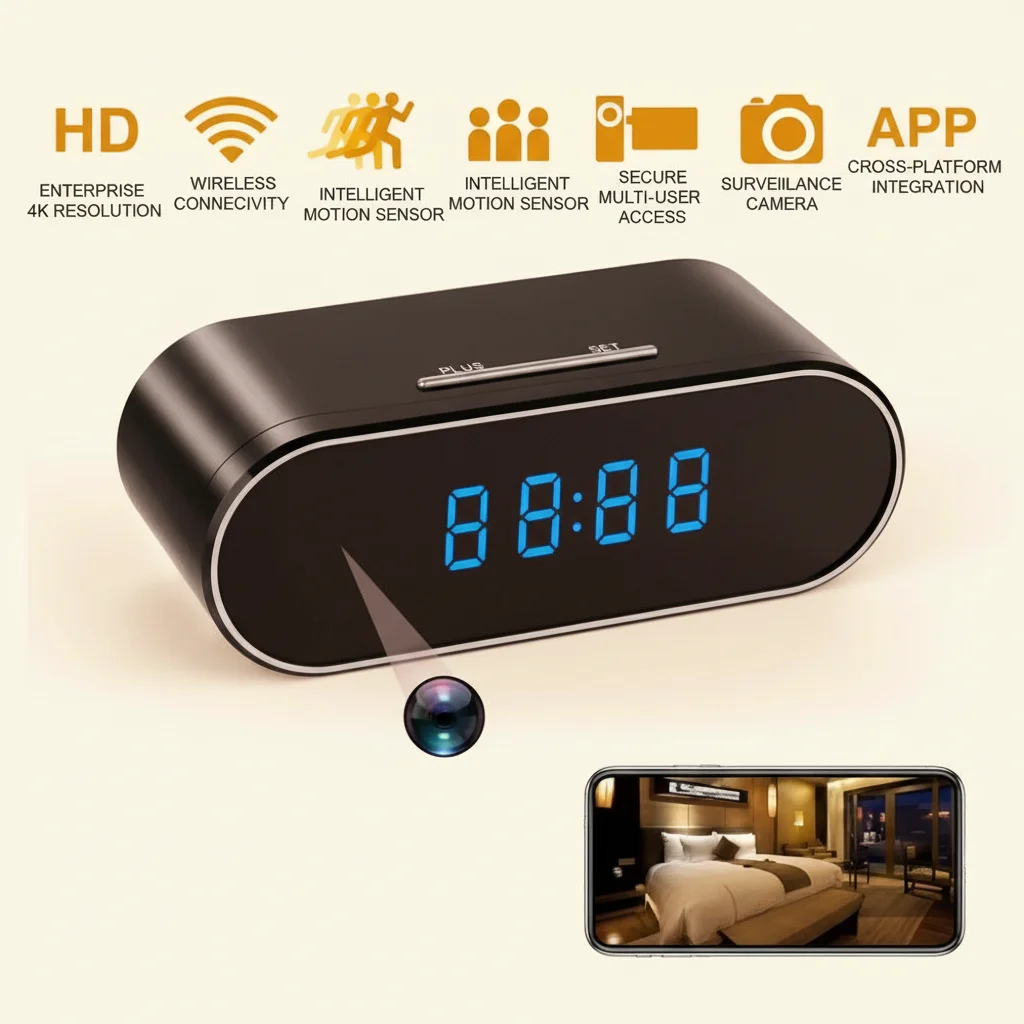
Like any connected device, cameras running outdated software are more prone to crashes, connectivity issues, and security vulnerabilities. This guide walks through the firmware update process for all major camera types sold on qztsecurity.com—from pen cameras and clock cameras to smoke detector cameras and USB charger cameras—so you can keep your devices running their best.
Why Firmware Updates Matter
Firmware is the low-level software embedded in the camera’s hardware. It controls everything: how the camera records video, how it connects to WiFi, how the app communicates with it, and how it handles storage. Manufacturers release firmware updates to fix bugs discovered after launch, patch security vulnerabilities, improve WiFi stability, and occasionally add new features such as enhanced motion detection sensitivity or improved night vision processing.
For distributors managing multiple client sites, keeping firmware up to date reduces on-site support calls. For end users, a 2-minute update can resolve chronic issues that seem like hardware problems.
Before You Start: Preparation Checklist
Back Up Your Footage
Firmware updates should not delete your recordings, but the process involves overwriting system files on the camera. If anything goes wrong, you want your footage safe. Copy important recordings from the SD card to a computer or cloud storage before updating.
Check Your Battery Level
Ensure the camera has at least 50% battery before starting a firmware update. If the device loses power mid-update, it can become bricked—a state where the firmware is partially written and the camera will not boot. For USB charger cameras and clock cameras that are always plugged in, this is less of a concern, but a stable power connection is still essential.
Use a Stable WiFi Connection

Firmware files are downloaded over WiFi. An interrupted download results in a corrupted firmware install. Make sure your phone and camera are both connected to a strong 2.4GHz WiFi network. Avoid updating over mobile data or public WiFi.
Confirm the Correct Firmware File
Download firmware only from the official source provided in the app or by qztsecurity.com support. Installing firmware from third-party websites is the single most common cause of camera failures. Each camera model has specific firmware—do not install firmware meant for a different model.
Step-by-Step: Updating via the App
Most hidden cameras update through their companion app. The exact steps vary slightly by app, but the general process is the same.
Step 1: Open the App and Select the Camera

Open HDMiniCam, Tuya Smart, Smart Life, or the relevant app. Navigate to the camera you want to update.
Step 2: Check for Available Updates
Look for a settings icon (usually a gear), then find an entry labeled Firmware Update, System Update, or Device Info. Some apps automatically notify you when an update is available. Others require you to manually check.
Step 3: Read the Update Notes
Firmware releases usually include release notes describing what was fixed or changed. Read these carefully. If the update notes say “improved WiFi stability” and your camera has been dropping offline, this is exactly what you need. If you have no issues with the current firmware, updating is still recommended for security patches, but you can wait a few days to confirm no bugs are reported by other users.
Step 4: Download and Install
Tap Update or Download. The app will download the firmware file, transfer it to the camera, and initiate the installation. Do not power off the camera or close the app during this process. The camera may restart automatically—this is normal. The entire process typically takes 3–5 minutes.
Step 5: Verify the Update
After the camera restarts, open the app and confirm the camera connects normally. Check the firmware version number in Device Info to confirm the update was applied. Review a short recording to ensure video quality is normal.
Manual Firmware Update (Advanced)
Some cameras, particularly older models or certain DIY camera modules, require manual firmware updates via an SD card. This is less common but still encountered with some Tuya-based modules and older pen camera models.
Step 1: Download the Firmware File
Obtain the correct firmware file from qztsecurity.com support. Copy it to the root directory of an SD card (not inside any folder). The file must be named exactly as specified in the instructions—usually “fw.bin” or a similar specific filename.
Step 2: Insert the SD Card with the Camera Powered Off
Power down the camera completely. Insert the SD card with the firmware file.
Step 3: Enter Update Mode
For some cameras, you power on with the SD card inserted and the camera automatically enters update mode. For others, you need to hold the reset button while powering on. Consult the specific instructions for your model.
Step 4: Wait for the Update to Complete
The LED indicator will flash or change color during the update. Do not power off. When the light stabilizes (usually solid blue or off), the update is complete.
Step 5: Remove the SD Card and Restart
Remove the SD card before restarting the camera. Power on normally and verify functionality.
Common Firmware Update Problems
Update Fails Midway
If the app shows an error or the camera does not restart after the update, the firmware file may have been corrupted during download. Delete the partial download, reconnect to a stable WiFi network, and try again. If the camera does not boot at all after multiple failed attempts, contact qztsecurity.com support—this is a bricked device that requires factory repair.
Camera Won’t Connect After Update
Some firmware updates change the camera’s default AP mode behavior or app pairing requirements. Try resetting the camera to factory settings (hold the reset button for 5–10 seconds) and re-pairing with the app. If the app no longer recognizes the camera after the reset, contact support with the firmware version that was installed.
Update Not Available in the App
If the app shows “Your firmware is up to date” but you know a newer version exists, the app may be region-locked or the camera model may not be automatically detected. Contact qztsecurity.com support with your camera model and current firmware version to request the latest update file.
WiFi Module Stops Working After Update
I problemi di connettività WiFi dopo un aggiornamento del firmware sono un problema noto su alcuni modelli, in particolare le telecamere con clock e le telecamere con sensore di fumo con chipset WiFi più vecchi. Un ripristino delle impostazioni di fabbrica generalmente risolve questo problema. Se il modulo WiFi fallisce completamente dopo il ripristino, potrebbe essere un problema hardware che richiede un servizio di garanzia.
Firmware Update Best Practices for Distributors
Per i distributori che installano telecamere in più località, mantieni un registro degli aggiornamenti firmware. Traccia quale versione firmware ogni telecamera installata sta utilizzando e pianifica controlli periodici. Aggiorna le telecamere in batch durante periodi di bassa attività per minimizzare il disturbo ai clienti.
Non inviare mai aggiornamenti firmware alle telecamere dei clienti senza prima notificare il cliente, soprattutto per installazioni di sicurezza dove la telecamera potrebbe essere in registrazione attiva. Pianifica gli aggiornamenti durante finestre di manutenzione quando la telecamera può essere brevemente offline.
Domande frequenti
Con quale frequenza dovrei controllare gli aggiornamenti del firmware?
Controlla mensilmente, o ogni volta che noti problemi di performance con la telecamera. qztsecurity.com rilascia aggiornamenti quando necessario—non c'è un calendario fissato.
L'aggiornamento del firmware eliminerà le mie registrazioni?
No. Gli aggiornamenti firmware sovrascrivono solo i file di sistema e non dovrebbero influenzare i video sulla tua SD card. Esegui sempre un backup delle registrazioni importanti prima dell'aggiornamento come precauzione.
Posso saltare un aggiornamento firmware?
Puoi, ma non è raccomandato. Saltare le patch di sicurezza lascia la telecamera vulnerabile a exploit. Saltare le correzioni di bug significa che la telecamera continua a operare con problemi noti.
Ho aggiornato il firmware e la telecamera è peggio di prima. Posso annullare?
Il downgrade del firmware non è generalmente supportato per le telecamere nascoste. Se una nuova versione del firmware causa problemi, contatta il supporto di qztsecurity.com per discutere le opzioni di riparazione o sostituzione.
La mia telecamera non risponde dopo un aggiornamento firmware. Cosa devo fare?
Aspetta 5 minuti nel caso sia ancora in elaborazione. Poi prova un reset factory (premi il pulsante di reset per 5–10 secondi). Se ancora non risponde, contatta il supporto di qztsecurity.com con i dettagli del processo di aggiornamento e la versione firmware installata.

 English
  Italiano
  Deutsch
  Français
  Español
  Polski