
WiFi connectivity is what makes modern hidden cameras truly useful—remote viewing, push notifications, and app-based control all depend on a stable connection. When a camera refuses to connect or keeps dropping off the network, the experience breaks down fast.
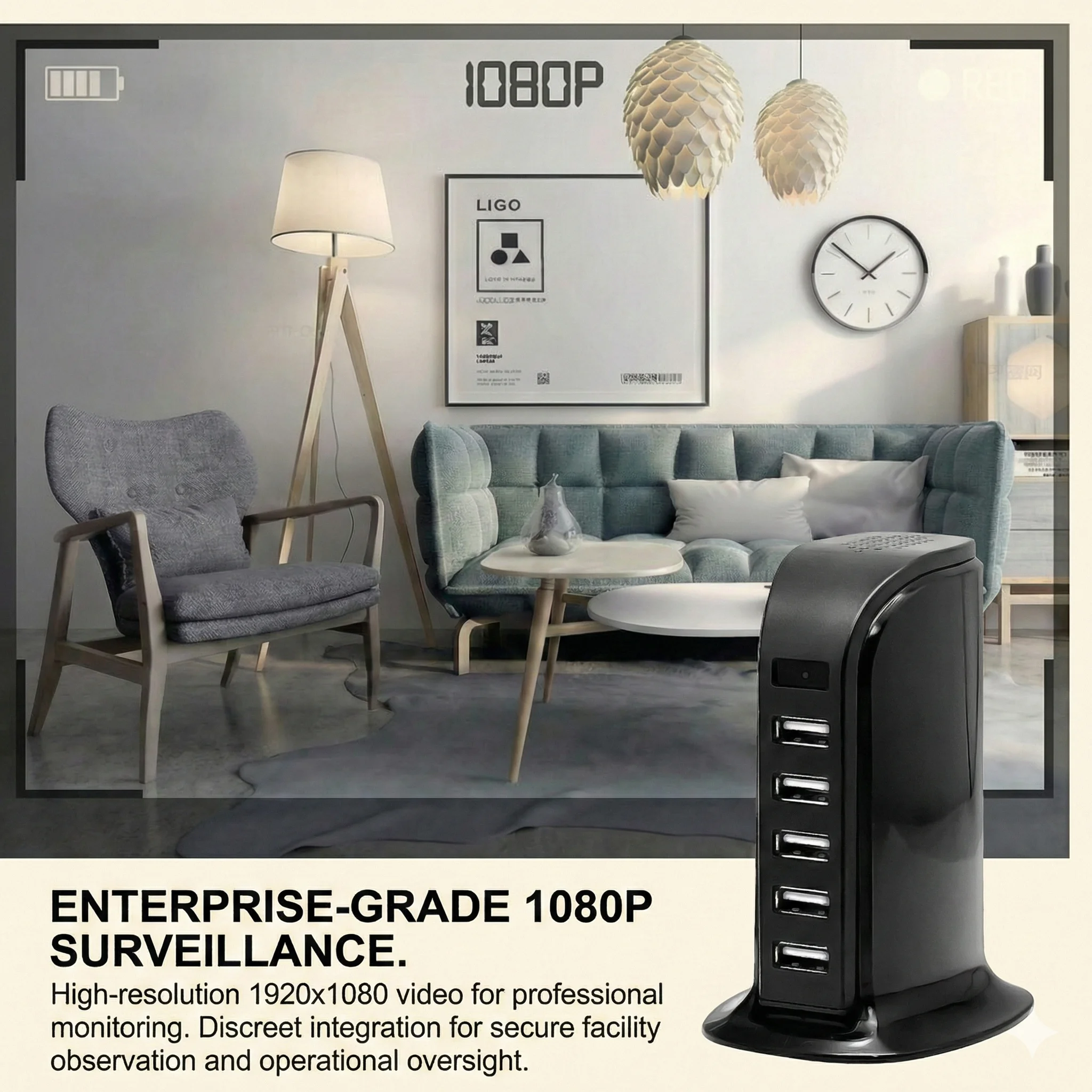
This guide covers the most common WiFi problems and how to resolve them for pen cameras, clock cameras, smoke detector cameras, USB charger cameras, and power bank cameras sold on qztsecurity.com.
Understanding How Hidden Camera WiFi Works

Most hidden cameras operate in two modes: AP mode and Station (STA) mode. In AP mode, the camera creates its own WiFi hotspot that you connect to directly—this is useful for initial setup when no router is available. In Station mode, the camera connects to your existing home or office WiFi network, allowing remote viewing from anywhere in the world.
Station mode is what most users want for ongoing surveillance. If the camera keeps dropping offline or fails to connect in the first place, the issue is almost always in this mode.
Step-by-Step: Connecting Your Hidden Camera to WiFi
Step 1: Check Your Network Requirements
Check the WiFi band documented for the exact camera. Many compact cameras are 2.4GHz-only, while other current hardware can support different radio configurations. If a 2.4GHz-only camera fails to pair on a combined SSID, temporarily separating bands can be a useful troubleshooting step. Confirm the requirement in the product manual or listing page.
Step 2: Position the Camera Within Range
During setup, place the camera within 3–5 meters of your router. Once successfully connected, the camera can usually maintain a connection from further away, but the initial handshake is more sensitive to distance and interference.
Step 3: Reset the Camera’s WiFi Settings
If the camera previously connected to a different network, use the exact model’s documented reset or re-pairing method. Button location, hold time and LED behavior vary. Tuya users should follow the Tuya-specific reset guide rather than copying timing from another camera.
Step 4: Use the Correct App
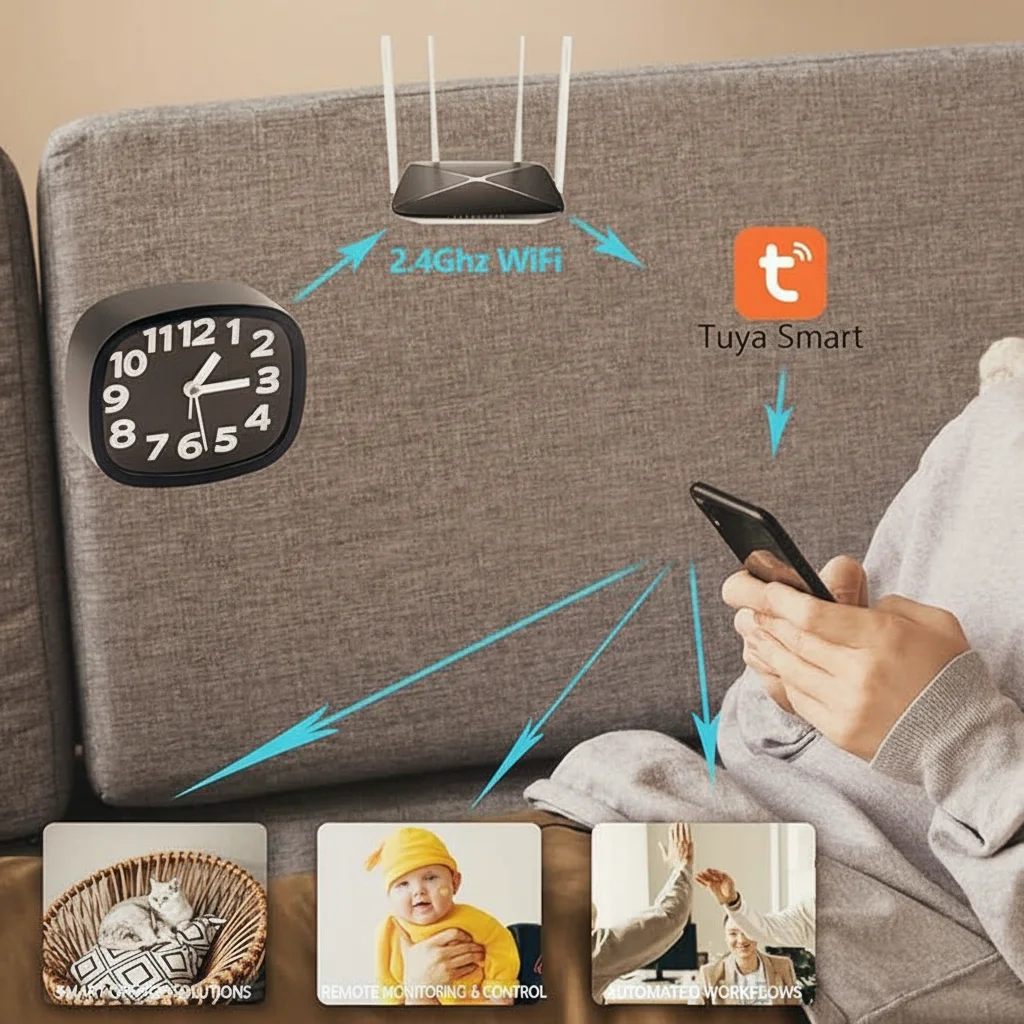
Download the app specified in your camera’s manual. Common apps include HDMiniCam, Tuya Smart, and Smart Life. Using the wrong app will prevent pairing even if every other step is correct.
Step 5: Follow the App’s Pairing Sequence
The typical sequence is: put the camera into pairing mode (usually by pressing a button until the LED blinks), open the app, select Add Device, choose the correct device category, enter the WiFi credentials for the band supported by that exact camera, and wait for the app to confirm the connection. Do not exit the app during pairing.
Diagnosing and Fixing Common WiFi Problems
Camera Does Not Appear in the App During Pairing
First, confirm the camera is in pairing mode—the LED should be blinking. If the camera was previously connected to another network, reset it. If the camera’s LED is solid blue (already connected to a network) but does not appear in the app, check whether the app has device limits or account conflicts. Some apps allow only a limited number of devices per account.
**

Connection Fails at “Sending WiFi Information”**
This step requires the app to transmit your WiFi password to the camera via the phone’s WiFi radio. If the phone is connected to 5GHz, the transmission may fail. Switch your phone to the 2.4GHz network manually, disable 5GHz temporarily, or bring the phone closer to the router. Also confirm the WiFi password is correct—special characters in the SSID or password sometimes cause pairing failures.
Camera Goes Offline After a Few Hours
Cameras that stay connected locally (phone and camera on the same network) but drop off when accessed remotely usually have a cloud service registration issue. This is common after router firmware updates that change the device’s local IP address. Re-add the device in the app to refresh the cloud binding.
For cameras that go completely offline, check whether the router has MAC address filtering enabled. Hidden cameras have specific MAC addresses that may be blocked. Log into your router settings and ensure the camera’s MAC address is on the allowed list.
Live View is Choppy or Delays
Choppy live view over WiFi is typically caused by bandwidth congestion, not a camera defect. Other devices on the same network streaming 4K video or large downloads will starve the camera’s bandwidth. Use a dedicated 2.4GHz band for the camera, separate from your main network traffic. For power bank cameras and pen cameras streaming at 1080p, a minimum upload speed of 2Mbps at the camera’s location is recommended for smooth playback.
Camera Connected but No Push Notifications
Push notifications require the app to have background refresh enabled and notification permissions granted. On iOS, go to Settings > Notifications > [App Name] and enable notifications. On Android, ensure battery optimization is not restricting the app. Some routers with built-in ad blockers or firewalls may also block the notification servers—temporarily disable these to test.
Router Settings That Affect Hidden Camera Performance
Certain router configurations interfere with always-on devices like hidden cameras:
– AP Isolation: When enabled, devices on the same network cannot communicate with each other. Disable AP isolation for reliable local streaming.
– Client Isolation: Similar to AP isolation; check router settings.
– Sleep Schedules: Some routers have power-saving modes that switch off inactive ports or radio bands. Disable these for the camera’s connected port/band.
– Firmware Updates: Router firmware updates sometimes change IP assignment behavior or encryption settings. Reboot the router after any firmware update and re-pair the camera if needed.
FAQ
My camera only supports 2.4GHz but my router is 5GHz. What do I do?
Most dual-band routers allow you to create a separate 2.4GHz network with a different SSID. Log into your router and enable this option, then connect the camera to the 2.4GHz SSID.
The camera connects to my phone’s hotspot but not my home WiFi. Why?
Your home router may have MAC filtering, AP isolation, or a captive portal that the hotspot bypasses. Check router settings or contact your ISP. As a workaround, use the camera in AP mode (direct hotspot connection) for local monitoring.
Why does the camera keep saying “device offline” in the app?
This usually means the cloud service registration failed. Re-add the device in the app and ensure your phone has a stable internet connection during pairing. If the issue persists, reset the camera and try again.
Can I connect multiple hidden cameras to the same WiFi network?
Yes. Most home networks support 10+ devices. Each camera will appear as a separate device in the app. Just ensure your internet bandwidth is sufficient for simultaneous streaming.
The live view is very laggy. Is the camera defective?
Probably not. Lag is almost always a bandwidth issue. Check other devices on your network, move the camera closer to the router, or switch to a 2.4GHz band dedicated to the camera.

 English
  Italiano
  Deutsch
  Français
  Español
  Polski