
A security camera can show a double image for several unrelated reasons. A moving person may leave a trail at night, a dome cover may reflect part of the scene, a bright lamp may create a ghost spot, or a dual-lens camera may overlap an object at its stitch line. A playback app can also be at fault even when the saved video is clean.
Do not change every image setting at once. Save one short original clip, note when the duplicate appears, and work through the checks below. The shape and position of the duplicate usually identify the part of the video path that needs attention.
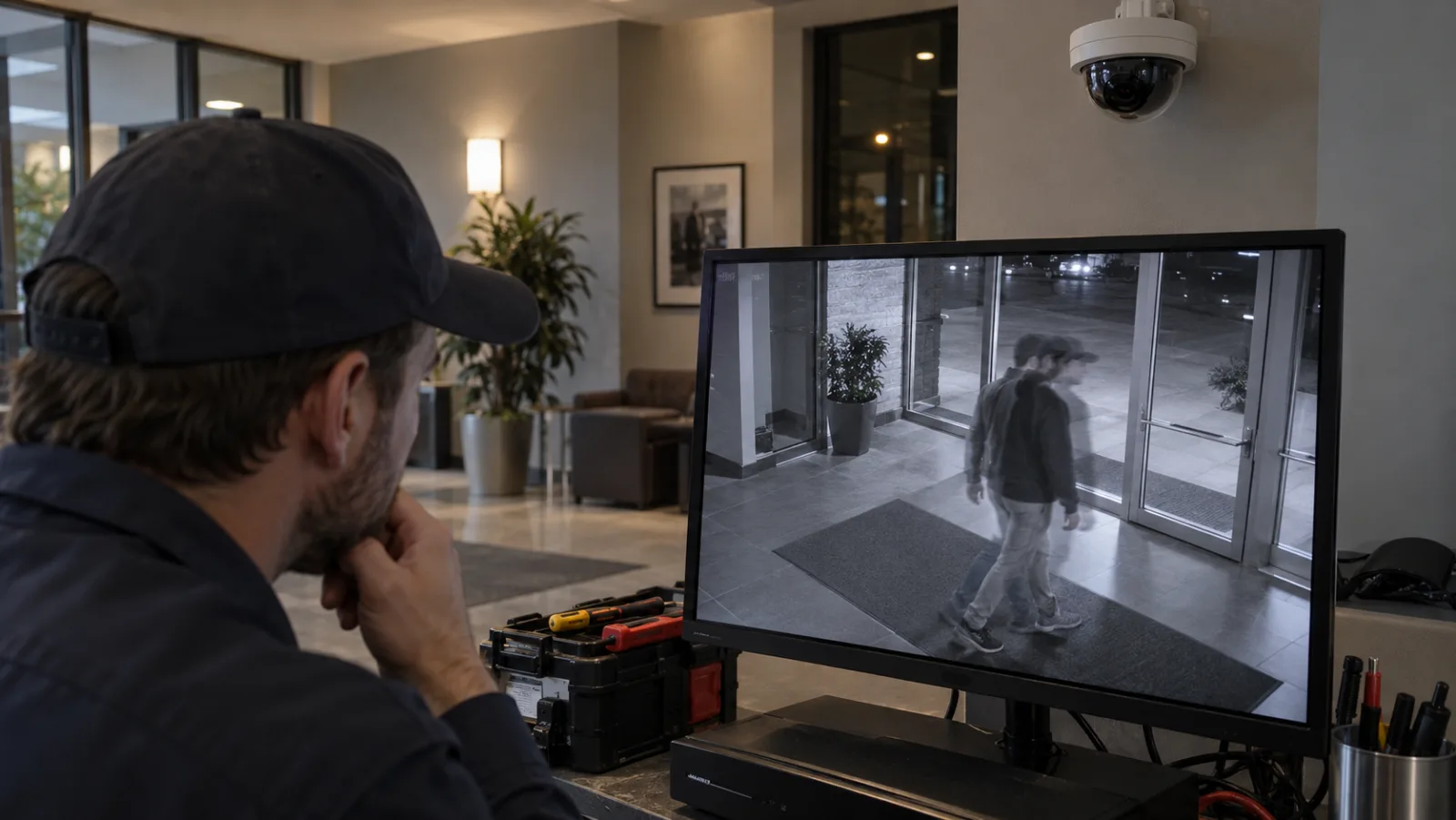
What kind of double image are you seeing?
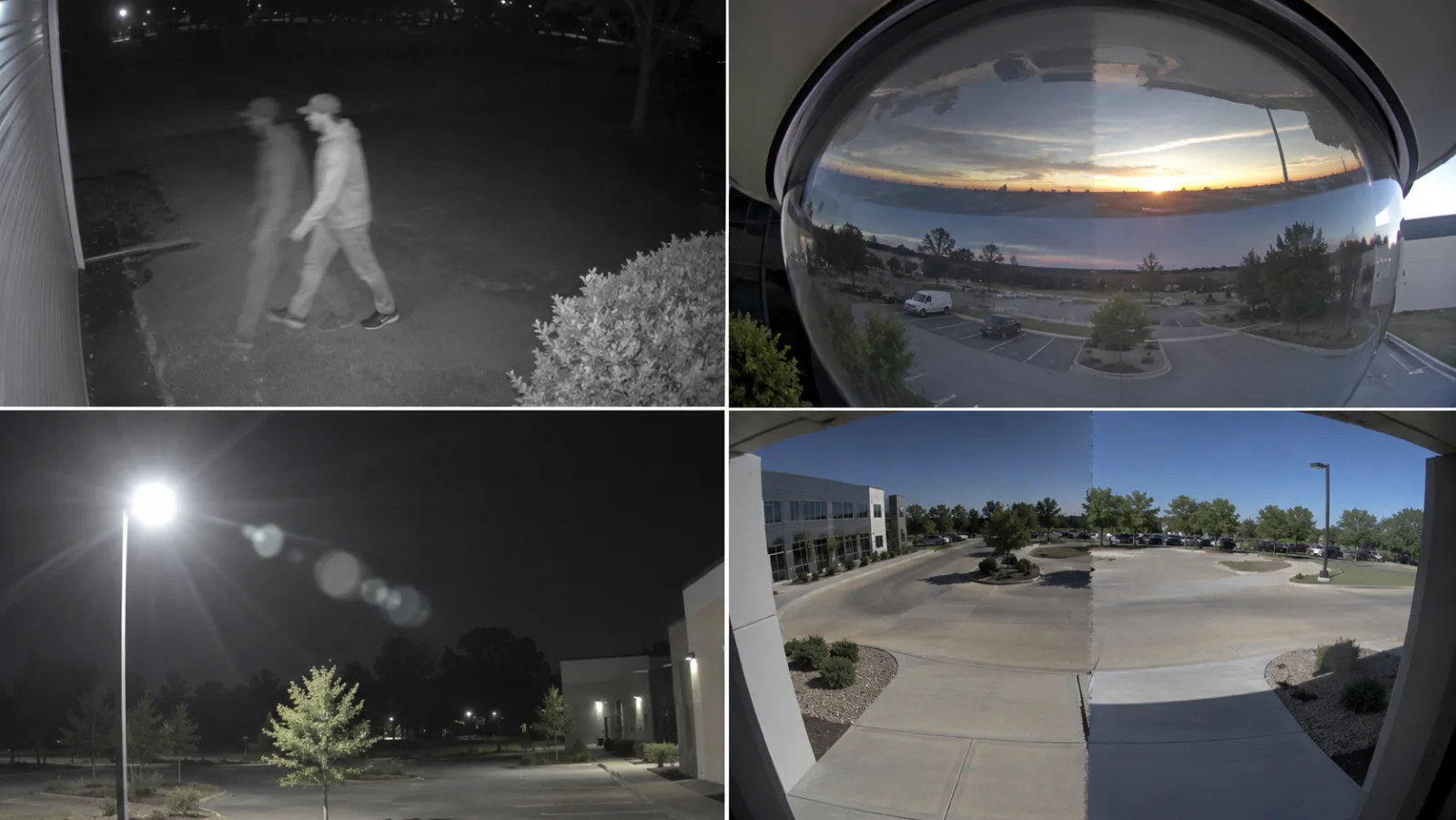
Start with the symptom, not a presumed cause. Pause a new recording at the clearest example and compare the duplicate with fixed objects in the scene.
– A trail follows only moving people or vehicles: test the night-motion checks next. Static walls and parked objects should remain single.
– A roofline, horizon or bright edge appears twice: inspect a dome cover, front glass and camera tilt.
– A pale spot copies the shape of a lamp: change the angle to the strong light before changing compression or network settings.
– The duplicate appears only in a narrow vertical zone: check whether a dual-lens camera is joining two views there.
– One app shows the fault but the exported clip does not: compare the viewer, stream and decoding path.
– The entire picture has moving horizontal bands: use the separate security-camera flicker checks. Rolling bands under artificial light are not the same fault as an offset duplicate subject.
Keep the original clip, camera model, firmware version, time of day and active stream name with your notes. If the fault appears only after dark, repeat the same test before and after the camera changes to night mode. If it appears only after a recent update or setting change, record that too.
Does the duplicate follow moving objects at night?
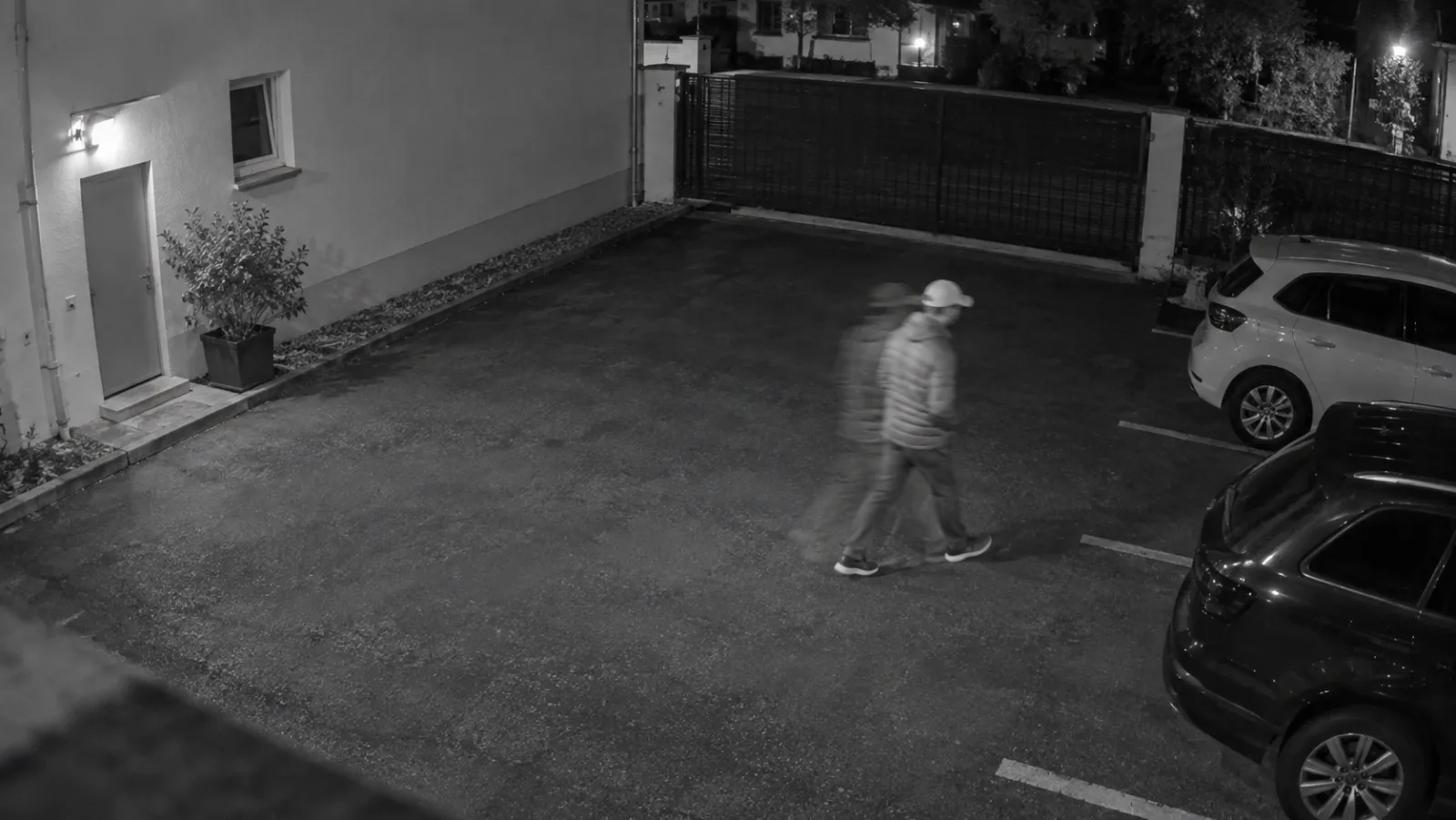
A moving subject that leaves a pale trail while the background stays sharp is usually motion smearing or ghosting, not a second person in the scene. Low light can force longer exposures, heavier noise reduction or a lower frame rate, so the problem may appear after sunset even when daytime video looks normal.
Reolink’s ghosting and smearing guidance tells users to check nearby surfaces that can reflect infrared light, return altered image settings to their defaults, and check whether the frame rate drops at night. Those steps apply only where the exact model provides the named controls.
Run a controlled test:
1. Record the same person walking across the same route in daylight and after night mode starts.
2. Keep the camera and subject position unchanged.
3. Remove or reposition a nearby object that reflects the camera’s infrared light, such as glass, glossy paint or a pale wall close to the lens.
4. If image settings were manually altered, photograph the values before restoring the manufacturer’s defaults.
5. Where the model supports it, compare automatic frame rate with the documented fixed or constant option.
6. Review the original recording rather than a phone video of the monitor.
Do not force a fast shutter or high frame rate without checking the result. A shorter exposure may reduce the trail but also make a dark scene too dim. After every change, test whether faces, clothing and movement remain usable at the actual installation distance.
Is a dome cover or steep tilt doubling the horizon?
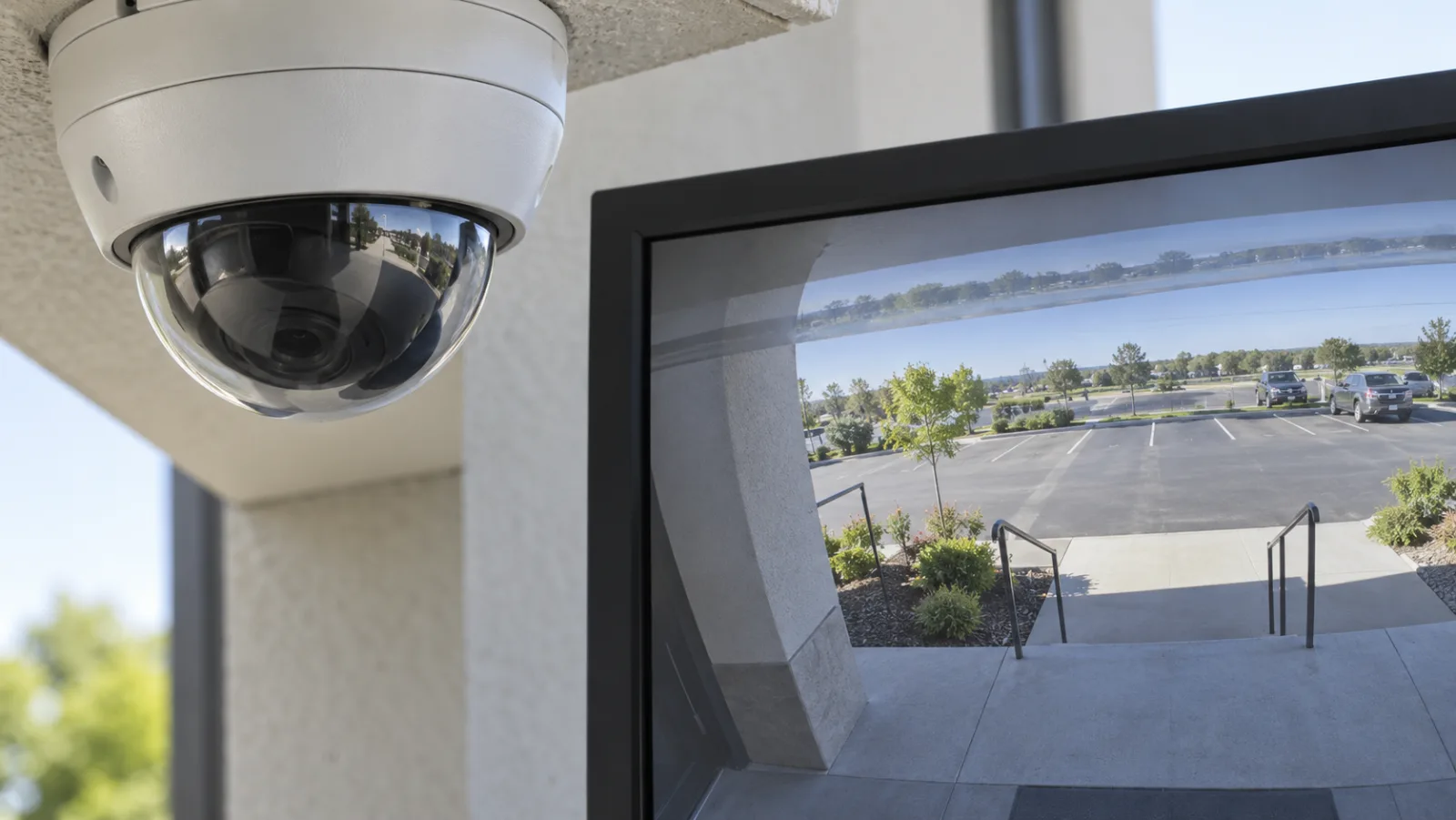
Some dome cameras can produce a second edge near the horizon when the camera looks through the curved cover at a steep angle. This fault often stays in the same part of the frame even when nothing moves.
Axis documents the double-image effect for some conventional dome cameras. Its recommended checks are to move the device higher, reduce the tilt angle, or zoom out when a large tilt cannot be avoided. Axis also warns that careless cleaning can scratch a dome and says to use mild, solvent-free soap with lukewarm water only when the cover is heavily soiled.
Before moving the camera, save a frame that shows the duplicate and mark the required field of view. Then:
1. Check whether the duplicate follows the curved horizon or a high-contrast edge.
2. Inspect the dome for protective film, dirt, moisture, scratches or an incorrectly seated cover.
3. Reduce the tilt slightly while keeping the required doorway, counter or vehicle lane in view.
4. If the lens is zoomed in, test a wider field of view.
5. Recheck focus at the same day and night conditions in which the fault appeared.
Do not polish a scratched dome or use a strong solvent. If reducing tilt removes the double edge but loses critical coverage, a different mount, camera height or housing may be needed.
Does a bright light create a second spot?
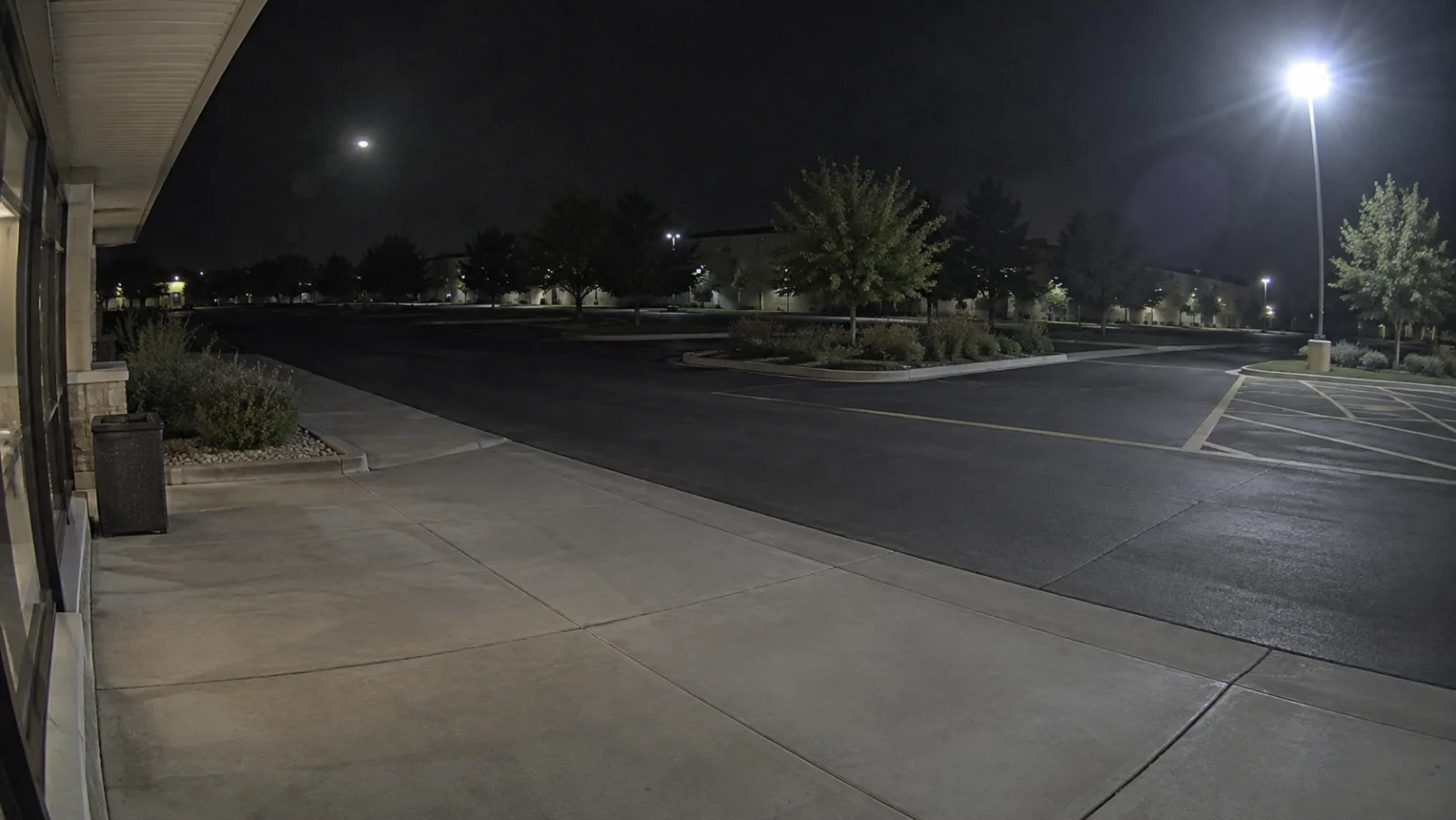
Optical ghosting can copy a bright streetlight, headlamp or window reflection as a weaker spot elsewhere in the image. The ghost usually moves when the camera angle changes and may disappear when the strong light is blocked.
TP-Link’s VIGI support guidance explains that part of a strong light can reflect between lens surfaces and follow an unintended optical path. It recommends monitoring the live view while moving the light toward the edge of the frame or outside it, while preserving the area that must remain covered.
Test this without dismantling the camera:
1. Note the position of the main light and the faint duplicate spot.
2. Shade the lens from that light briefly without touching the glass or blocking the required scene.
3. Change the camera angle by a small amount and watch whether the ghost moves.
4. Clean only according to the model’s instructions and remove any shipping film.
5. Check that a nearby window, glossy sign, rain cover or housing edge is not reflecting light back into the lens.
Avoid replacing the camera based on one night frame. If a small angle change removes the ghost while keeping the monitored area intact, the optics and installation geometry were the likely cause. If the artifact remains fixed with every light removed, continue with the other checks.
Does the fault sit on a dual-lens stitch line?
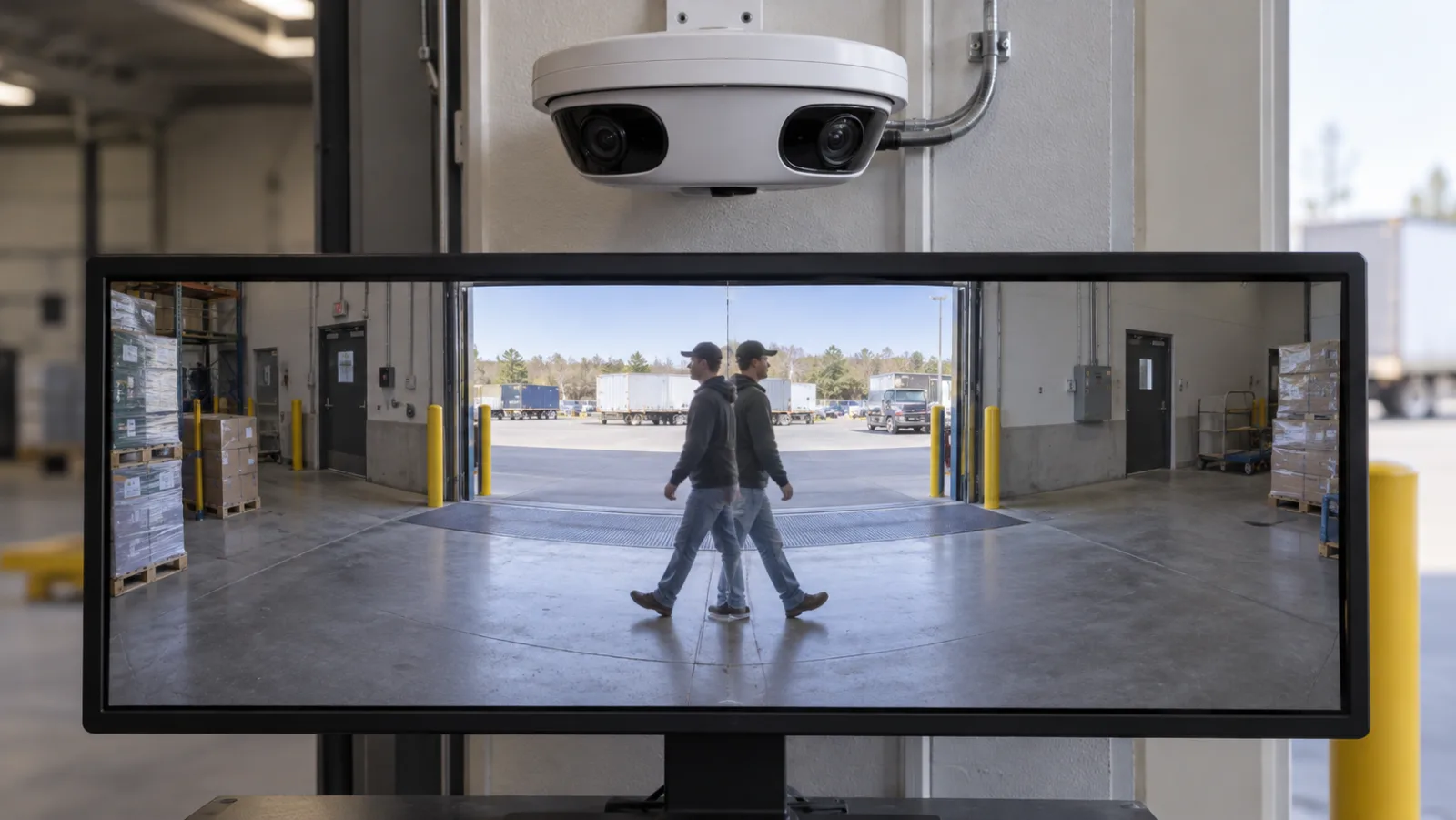
A panoramic camera with two lenses combines separate views into one wide image. A person or vehicle can look doubled, cut or offset while crossing the join even though each lens is working normally.
Reolink’s image-stitching instructions explain that object distance can affect the stitched area on supported dual-lens models. Its covered cameras provide distance, horizontal and vertical adjustments; the documented distance range is 2 to 20 meters. The same menu and range must not be assumed for another brand or an unsupported model.
Confirm the seam before changing values:
1. Keep the camera fixed and have one person walk slowly from one lens view into the other.
2. Check whether the duplicate appears only at the same vertical join.
3. Estimate the real distance from the camera to the important crossing point.
4. Save the current stitching values or use the app’s documented restore option.
5. Change one parameter at a time, then repeat the same walking path.
Choose settings for the distance that matters most. A loading-bay doorway five meters away and a fence twenty meters away cannot both be treated as the same stitch plane. If the app offers no stitching control, use the model manual or support channel rather than copying another camera’s values.
Is the double image limited to one viewer or stream?
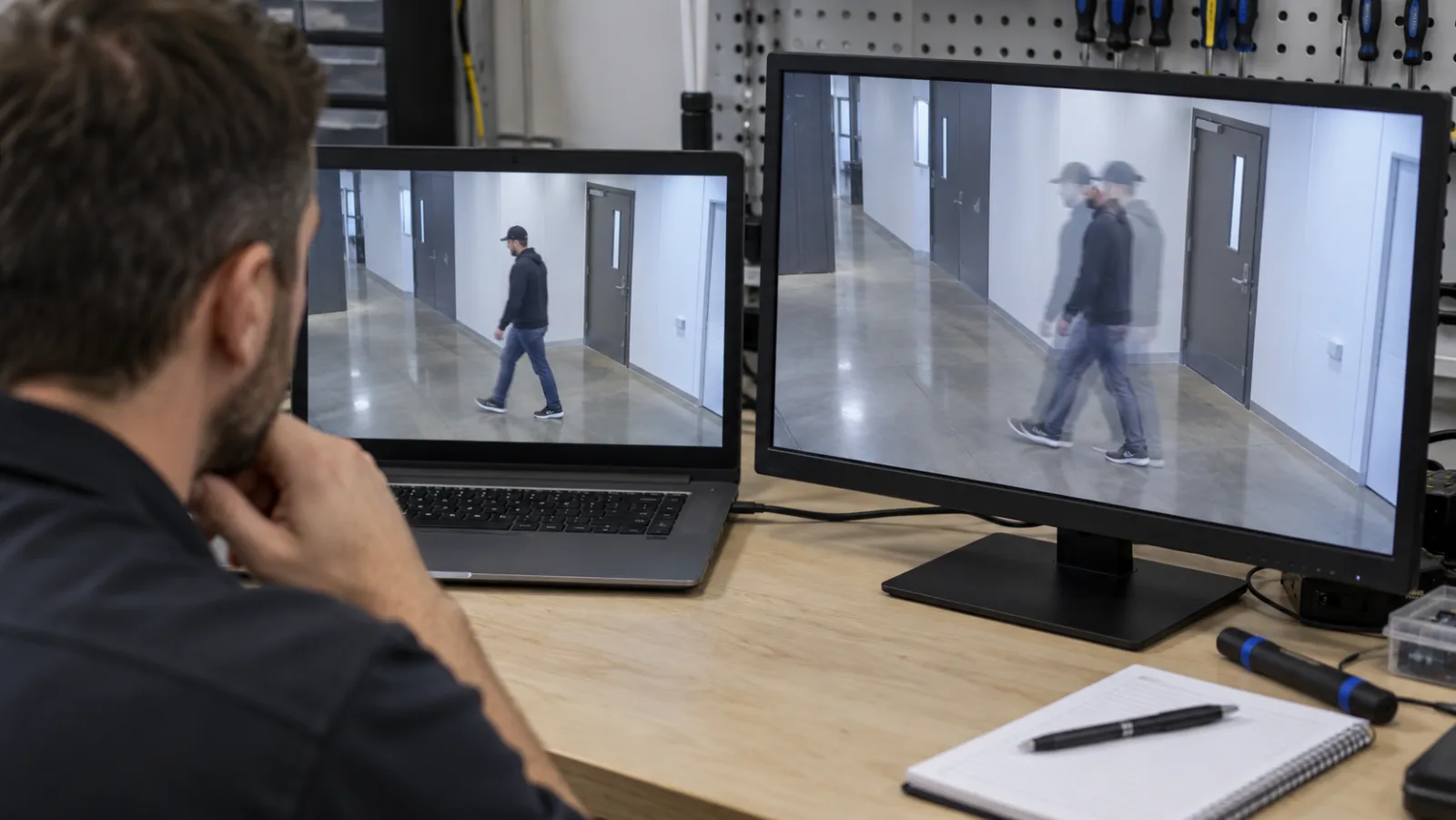
If the same event is clean in one place and doubled in another, the camera optics may not be the problem. A low-resolution preview, a browser decoder, an NVR display or a mobile app can use a different stream and playback path from the stored original.
Use one saved clip as the reference:
1. Download or export the original recording without screen-recording it.
2. Play that exact file on two authorized devices or players.
3. Compare the camera’s main stream with its lower-resolution preview stream.
4. Check the local NVR monitor, the camera’s approved app and one desktop or browser client.
5. Note whether the duplicate is present in the file itself or appears only during one viewing path.
If the exported file shows the duplicate everywhere, return to the camera, lighting, dome and stitching checks. If the file is clean but one client shows a double image, update or reset only that viewer after saving its settings. The security-camera recording checks explain why live view, playback and exported files should be verified separately.
After the repair, repeat the original movement and lighting test. Keep one clean exported clip as the acceptance sample. A clear live view alone is not enough if the recorded evidence still contains the duplicate.
Frequently Asked Questions
Why does a security camera show a double image only at night?
A security camera showing a double image only at night may be using a longer exposure, stronger noise reduction or a lower frame rate. Infrared light can also reflect from glass or a nearby pale surface. Compare daylight and night clips, remove reflective obstacles, restore documented image defaults and test a fixed frame rate if the model supports it.
Can infrared light cause a security camera double image?
A security camera double image can be related to infrared reflection when a nearby wall, window, housing edge or protective cover sends light back toward the lens. The result may look like a pale trail, haze or duplicate edge. Reposition the reflective surface or camera, then record a new night clip before replacing hardware.
Why does a dome security camera show two horizons?
A dome security camera can show two horizons when a steep viewing angle creates optical distortion through the curved cover. Axis recommends testing a higher mounting position, less tilt or a wider zoom setting on affected dome designs. Inspect the cover for dirt, scratches, moisture and protective film, but do not polish it or use harsh solvent.
Why does a dual-lens security camera duplicate a person?
A dual-lens security camera may duplicate a person when the subject crosses the stitched boundary at a distance that does not match the stitching setup. On supported models, adjust the documented distance, horizontal and vertical parameters one at a time. Test the same walking path again and keep the previous values available for rollback.
Should I factory-reset a security camera showing a double image?
A factory reset should not be the first step for a security camera showing a double image. First save an original clip and identify whether the fault follows motion, a dome edge, a bright light, a stitch line or one viewer. Back up settings before any reset because network, recording, privacy and notification values may be erased.
Conclusion
A finished repair should survive a normal restart and produce a clean live view, recording and export under the same conditions that caused the fault. If the duplicate remains in the original file after model-specific checks, send support the clip, camera model, firmware version, image settings and a photograph of the installation. When replacement is necessary, compare QZT security cameras by lens design, night performance, stream support and mounting limits.
 English
  Italiano
  Deutsch
  Français
  Español
  Polski