
For an indoor security camera, brightness pulsing or moving dark bands under artificial light can come from the interaction between lighting and exposure. Start by checking a saved clip, then match the camera’s documented anti-flicker setting to the installation’s 50 Hz or 60 Hz supply. If LED lighting still produces bands, test the light source before replacing the camera.
Axis documents this lighting-related fault. The checks below separate a recording problem from a viewing problem, then test whether the chosen fix preserves useful detail. They are intended for an authorized sample or a planned maintenance window, not an interruption to an active security system.
1. Check whether the flicker is in the recording
Keep a short original clip before changing anything. Replay that same file on a second player or device, then compare it with the live view. A phone recording of the monitor is a poor reference: the display and the phone camera introduce another light-and-camera combination.
Use the results to choose the next check:
| Observation | Next check |
|---|---|
| The same bands appear in the original file on two players | Continue with the lighting and exposure tests below. |
| The original file looks normal, but one viewer flickers | Compare the viewer, playback device and stream settings before changing the camera. |
| The view freezes, disconnects or restarts | Investigate the connection or power symptom separately. An anti-flicker setting does not repair a lost connection. |
| The image changes between color and black-and-white | Record the day/night transitions separately from moving bands. Avoid diagnosing both as one fault. |
These comparisons narrow the investigation; they do not identify a failed component by themselves. Also record whether the live view and saved clip use the same stream. A low-resolution preview and a higher-resolution recording are not a controlled comparison.
For a camera accessed through a recorder, keep the NVR and camera configuration with the clip. For a Tuya browser viewer, check the supported PC-viewing path rather than assuming every viewer exposes the same settings.
2. Match anti-flicker frequency, not just frame rate
Look in the exact model’s manual or image settings for anti-flicker, power-line frequency or an exposure mode. Use the setting matching the site’s electrical supply. The menu label describes an image-control function; it does not change the voltage supplied to the camera.

Do not infer the correct choice from the phone’s location, the app language or the camera’s purchase country. Confirm the installation’s supply frequency with the site operator or utility information. Keep that separate from WiFi frequency and video frame rate.
Here is one documented implementation, not a universal QZT setting: the AXIS Q6215-LE manual describes flicker-free modes using 1/50 second at 50 Hz and 1/60 second at 60 Hz. Those exposure times are 20 ms and approximately 16.7 ms. Its flicker-reduced modes permit faster exposures in brighter scenes.
Sony’s explanation of lighting flicker describes older fluorescent lighting pulsing at 100 or 120 times per second. For those specific light cycles, the arithmetic is:
| Light modulation frequency | Duration of one light cycle |
|---|---|
| 100 Hz | 10 ms |
| 120 Hz | About 8.33 ms |
The intervals are calculated as 1,000 divided by frequency in hertz. They explain why exposure timing matters; they are not measured results for your room or instructions to force a particular shutter value.
A video frame rate tells you how often frames are produced. Exposure time tells you how long light is collected for each image. Changing to 25 or 30 frames per second alone does not establish that exposure is matched to the lighting. Axis defines shutter speed as the exposure interval in its image-quality guide.
Save the original setting, change only the documented anti-flicker option, and record another clip in the same scene. Some cameras expose the control through their own interface; others offer fewer settings. For example, Reolink’s web-interface guide lists anti-flicker options for products supporting that interface. It does not establish the menu available in a QZT or Tuya camera.
3. If LED bands remain, isolate the light source
A correct 50/60 Hz selection can leave an LED-related problem unresolved. Sony describes LED lighting and signage with modulation at hundreds or thousands of cycles per second, so a mains-frequency choice cannot be treated as a guarantee for every fixture.
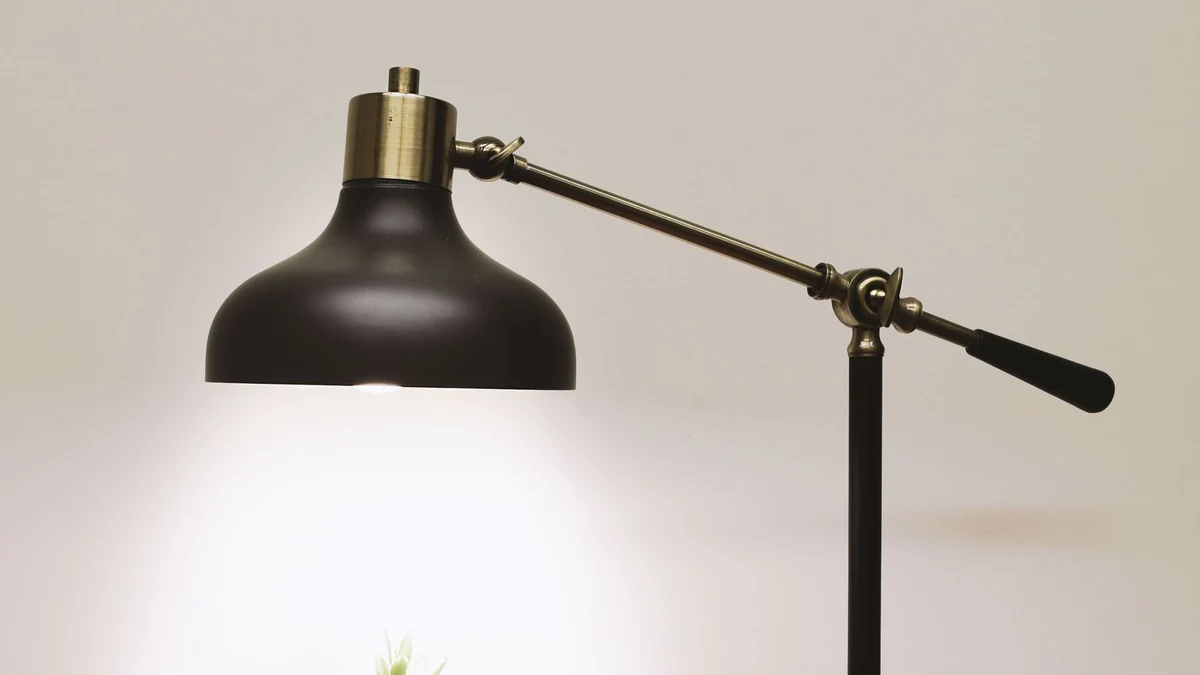
Run a controlled comparison on the sample. Keep the camera position, target and recording settings unchanged. First record under the normal room lighting. Then, where safe, switch off one suspect fixture using its normal control and repeat with sufficient alternative light. Daylight can provide a useful comparison without another artificial lamp dominating the scene.
If a dimmer is present, compare the normal dimmed setting with full brightness, using only the fixture’s intended controls. Record the setting that was used. A change in bands is evidence to investigate the lighting combination; it does not prove that full brightness is flicker-free or that the fixture is defective.
Do not open a mains-powered lamp, bypass a driver or change wiring to perform this check. Arrange any electrical work through a qualified installer. Where a light cannot be switched off safely, use a separate sample area rather than disrupting occupied premises.
Some cameras offer fine shutter adjustments for high-frequency lighting. Sony documents this for supported cameras with its variable-shutter function. That is an example of a specialized control, not a feature to assume exists in a small security camera. When the exact camera lacks a suitable adjustment, evaluate a different light source under the required recording conditions.
4. Check motion and daylight after the bands improve
An improvement on a still wall is only part of the result. Repeat the clip with an authorized person or a test object moving through the area at the speed the installation needs to record. Review individual frames as well as normal playback.
Longer exposure can blur a moving subject. Adding gain can brighten the image but also increase noise. The AXIS P1265 Mk II manual describes these trade-offs and recommends more scene light when motion blur remains a problem. A cleaner-looking static preview can therefore conceal a loss of useful moving detail.
Check the site’s brighter condition too. An entrance may be lit by fixtures after dark and by a window during the day. Axis distinguishes flicker-free and flicker-reduced exposure for these changing conditions in its P1455-LE manual. Do not leave a fixed exposure in place after a night-only test without reviewing the daytime result.
If the camera has a documented WDR or HDR control, keep its original state in your notes. Axis lists flicker-related artifacts among possible WDR effects in its image-quality guide. Comparing enabled and disabled states on the sample may help isolate an interaction, but check the doorway or window detail before accepting the change. Turning WDR off can sacrifice detail elsewhere in the scene.
Accept the revised setting only when bands, motion detail and exposure meet the actual task. Restore the earlier configuration when the test makes the required view worse.
5. Send a reproducible sample result before ordering replacements
When the problem persists, send the supplier original clips and the conditions that produced them. A message saying “the camera flickers” leaves several different problems unresolved. A comparison made on the same sample gives support something specific to reproduce.
Use the following as a handover checklist. It requests observations; it is not a completed test or a product certification.
| Record | Include in the support request |
|---|---|
| Camera identity | Model, hardware revision, firmware and app or recorder version |
| Lighting | Fixture identity where available, supply frequency and dimmer setting |
| Symptom | Whole-frame pulsing, moving bands, color changes, freezing or restarting |
| Image settings | Available anti-flicker option, exposure, frame rate and WDR/HDR state |
| File comparison | Original clip, second-player result and live-view stream selection |
| Controlled changes | One change per clip, its result, and the setting restored afterward |
| Acceptance | Moving-target detail plus the required bright and low-light conditions |
For a repeat order, ask whether the approved settings are available on the supplied firmware and whether they remain after an ordinary restart. Test restart behavior only in the planned sample window. Keep the observations with that revision instead of extending them to every later batch.
A QZT C12 sample enquiry, for example, should ask which anti-flicker and exposure controls the supplied build exposes. This guide does not claim that C12, C23B or C26 has a particular manual-shutter menu, or that any of those models passed a lighting test here.
For procurement, specify a lighting condition and an observable result: a usable saved image under the site’s normal fixtures, with the required moving detail. Avoid a blanket request for “no flicker under all LED lights.” The fixture, settings and camera revision belong in the acceptance record.
Frequently asked questions
Should a security camera use 50 Hz or 60 Hz?
Use the security camera’s documented anti-flicker setting for the installation’s electrical supply frequency. Confirm the site rather than using the phone’s region or a continent-wide shortcut. The setting concerns lighting and exposure, not WiFi speed. Check a saved clip after changing it, because LED modulation may need a separate lighting test.
Why does a security camera flicker when the room looks normal?
A security camera can record changes that are not obvious to someone looking at the room. Sony describes older fluorescent lighting pulsing at 100 or 120 Hz and some LED lighting at much higher frequencies. The interaction with image exposure can produce bands or brightness changes without proving a camera hardware fault.
Will changing the security camera to 30 fps fix flicker?
Changing a security camera to 30 fps is not a complete flicker diagnosis. Frame rate and exposure time are separate variables. Check the supported anti-flicker control, preserve the original settings and compare saved clips under the same lighting. Accept a change only after checking motion detail as well as visible bands.
Can a security camera flicker even with a DC power adapter?
Yes. A security camera powered by DC can still photograph light that changes in brightness over time. That optical effect is separate from whether the camera’s own power supply is stable. Use a lighting comparison for bands; investigate power separately when the camera resets, loses connection or shows other power-related symptoms.
Does a security camera need replacing if LED bands remain?
Persistent LED bands do not establish that a security camera needs replacing. Compare a saved clip, the documented frequency setting and an alternative lighting condition first. If the problem remains, send the supplier the exact firmware and clips. Replacement is a support decision based on the reproduced fault, not the bands alone.
Keep the original clip and change one setting at a time. When comparing the QZT indoor camera range, include the intended lighting and recording requirements with your sample request so the result can be checked before a larger order.

 English
  Italiano
  Deutsch
  Français
  Español
  Polski