
Tuya camera integration is not one feature. A buyer may mean mobile-app pairing, PC browser viewing, ONVIF/NVR recording, a documented RTSP stream, Home Assistant control, or an OEM app. Those paths are separate and may not exist on the same camera build.
For a European B2B project, start with the exact SKU, hardware revision, firmware, app/account region and required viewing path. Approve a sample against that requirement. Do not turn “uses Tuya Smart” into a universal promise of PC, RTSP, NVR, local-only operation or GDPR compliance.
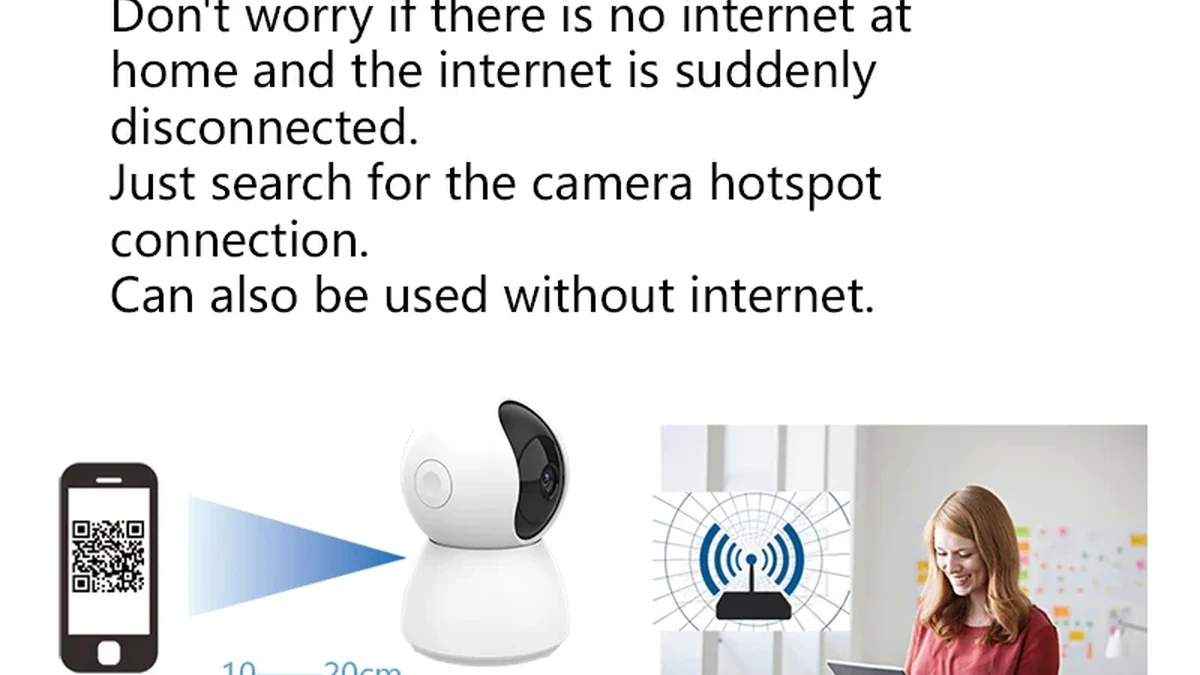
Real QZT C23B product package. The package identifies a sample; it does not prove every Tuya, PC, ONVIF or RTSP function.
1. Define the integration path before choosing the camera
The first question is what the buyer must do after installation. “Integrate with Tuya” is too broad for a quotation.
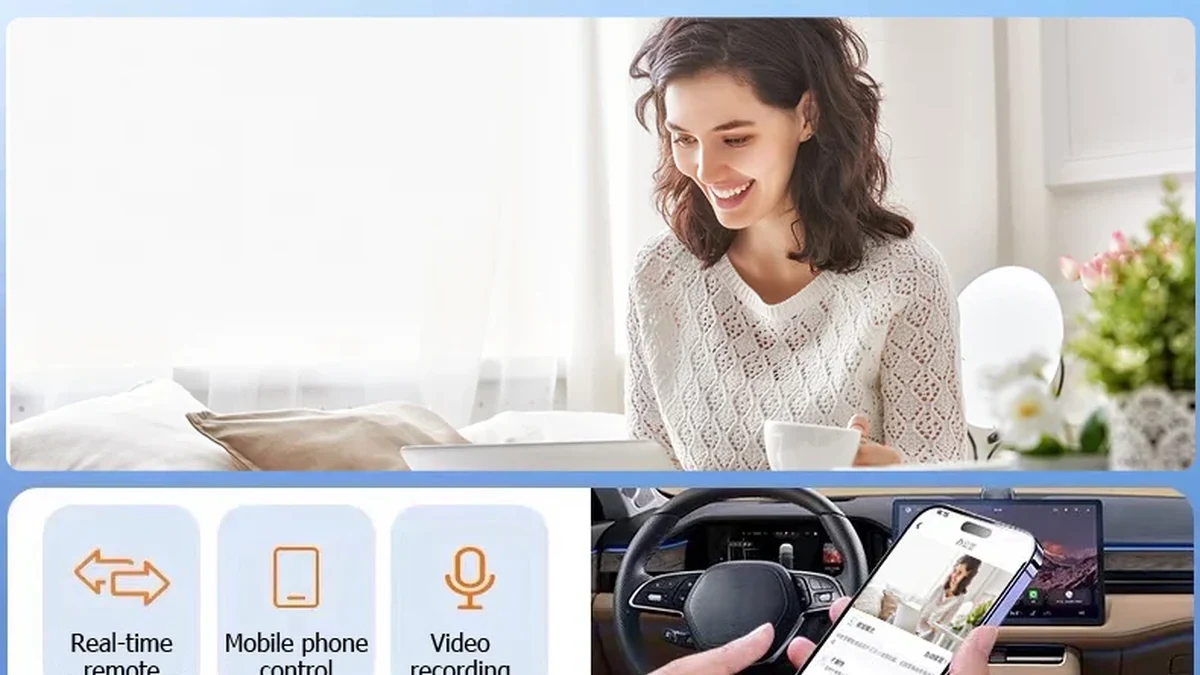 Real QZT C12 product photograph. App, browser and local-protocol support must be recorded as separate fields.
| Required path | Meaning | Evidence |
|---|---|---|
| Mobile app | Pairing, live view, alerts and settings | Exact app, WiFi band, account region, firmware and sample test |
| PC browser | Video through a supported regional Tuya portal | Device visible in the correct portal; live/cloud/SD functions tested |
| ONVIF/NVR | Local recorder or VMS integration | Exact camera and recorder versions plus a function matrix |
| RTSP | A documented local stream exposed by the camera build | Vendor documentation or authorized sample test; no guessed URL |
| Home Assistant | Account/device integration through the official Tuya integration | Entities and functions shown in diagnostics; do not assume video |
| OEM app/web | A branded app or separately enabled web service | Commercial scope, region, account ownership and support terms |
One camera can support several paths, but a pass in one does not fill the others. Use the PC-viewing guide for browser access, the ONVIF/NVR guide for local integration, and the new-WiFi guide after a router or credential change.
2. Pair the exact model, account and region
Tuya Smart and Smart Life are ecosystems, not hardware specifications. Record the QZT SKU, hardware revision, firmware, app or OEM app, account country/region, intended market, supported WiFi band, pairing method and account-binding state before the sample ships.
- List each required path: mobile, cloud, MicroSD, PC, ONVIF/NVR, RTSP or automation.
- Identify who owns the Tuya/OEM project and who supplies updates.
- Do not write “all Tuya cameras are 2.4GHz only”; use the exact page, manual and sample.
- Test the intended market and account instead of assuming regions are interchangeable.
 Licensed router photograph. It illustrates network setup, not universal Tuya compatibility.
3. PC browser viewing is device-specific
Tuya currently provides regional camera portals for supported devices, using authorized app QR login. Its support also says that a camera missing from the web device list may not support the feature. The documented portals include China, United States, Europe and Singapore.
 Licensed laptop photograph. It is not a Tuya login screenshot and does not prove that a particular camera appears in the portal.
Check the exact device against Tuya's camera web-viewing guidance. Keep that camera viewer separate from OEM App WEB and the broader PC web rollout. A Europe portal is not a GDPR certificate: review the actual processing, controller/processor roles, retention, access, transfers and notices for the deployment.
4. ONVIF and RTSP require explicit build support
Tuya's TuyaOS ONVIF documentation treats ONVIF as a capability enabled in the IPC solution and RTSP as part of delivering the stream. Tuya app compatibility does not prove ONVIF; ONVIF listed does not prove every NVR function; and ONVIF does not disclose a reusable RTSP URL.
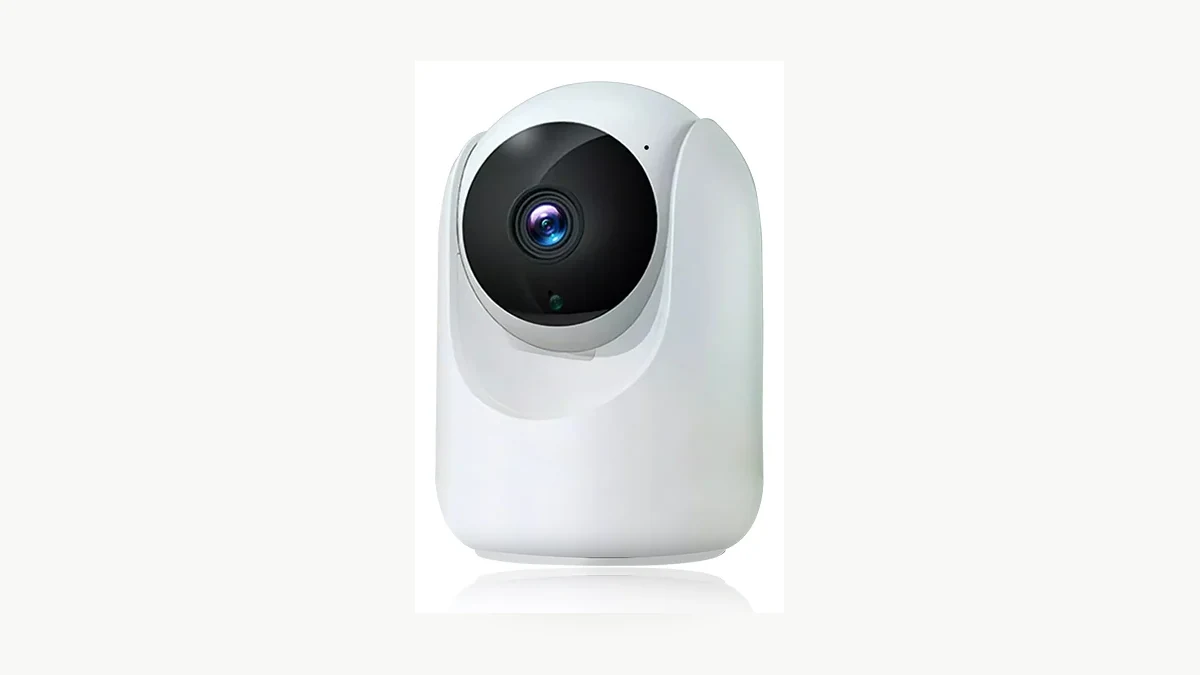 Real QZT C26 image. Public ONVIF wording is a starting point, not a completed integration test.
QZT C45L is a useful counterexample: its current page lists Tuya Smart / Smart Life and explicitly says no ONVIF. C12, C23B, C26 and C40 currently list ONVIF, but video, audio, recording, playback, PTZ, events and reconnect still require a versioned sample test. Never copy a generic RTSP path, port or password from another product.
5. Home Assistant is not an RTSP shortcut
The official Home Assistant Tuya integration connects devices already added to Tuya Smart or Smart Life. It is classified as Cloud Push, requires account authorization, and notes that the official Tuya SDK does not expose every Smart Life function. Inspect the entities and diagnostics that actually appear.
 Licensed control-room photograph. Home Assistant entities, ONVIF, RTSP and NVR video are separate capabilities.
Do not promise that Home Assistant automatically creates a local RTSP stream, ONVIF endpoint, MicroSD playback, every Smart Life control or cloud-independent operation. Specify local video separately.
6. Approve one versioned integration record
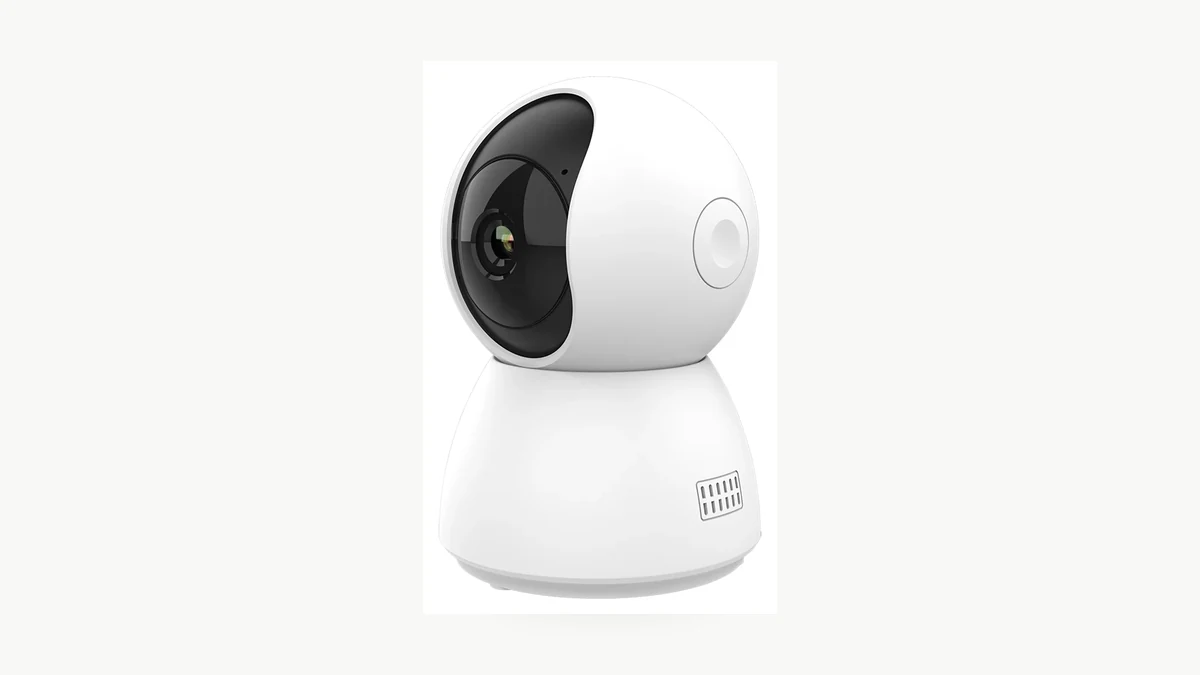 Real QZT C23B photograph. Keep screenshots, sample files and version numbers with the approved sample.
| Field | Record |
|---|---|
| Identity | SKU, hardware revision and firmware |
| Market/account | Country, account region, app and app version |
| Mobile | Pairing, live view, alerts, recording and reconnect |
| PC | Portal, device visibility, live/cloud/SD, browser and OS |
| Local video | ONVIF/RTSP discovery, stream, audio, recording, playback, PTZ, events and reconnect |
| Other | Home Assistant entities, storage/cloud plan, outage behavior and dated evidence |
Sample request: We need [SKU] for [country] using [Tuya Smart / Smart Life / OEM app]. Required paths are [mobile / Europe web portal / ONVIF NVR / RTSP / Home Assistant]. Please identify the supplied hardware and firmware, region requirements, subscriptions, documented local protocols and unsupported functions.
Frequently asked questions
Does every Tuya camera support RTSP?
No. The exact build must expose and document RTSP.
Can every Tuya camera be viewed on a PC?
No. The regional portals work only with supported devices.
Does ONVIF mean official ONVIF conformance?
No. Formal conformance must match the exact product and software/firmware entry in the ONVIF database.
Does the Europe portal make the deployment GDPR-compliant?
No. Region is one technical fact; compliance depends on the actual processing and deployment.
Will Home Assistant expose every Smart Life function?
Not necessarily. Home Assistant says the official Tuya SDK does not expose everything available in Smart Life.
What belongs in a distributor listing?
Publish only paths confirmed for the approved model and firmware. Keep mobile app, PC web, ONVIF/NVR, RTSP, Home Assistant, cloud and MicroSD as separate fields.
Practical rule: choose the integration path first, then verify the exact camera, firmware, account region and service. “Tuya compatible” is an ecosystem statement, not a universal PC, RTSP, NVR, local-only or compliance guarantee.

 English
  Italiano
  Deutsch
  Français
  Español
  Polski