
Come Risolvere il Problema della Telecamera Nascosta WiFi che Non Si Collega all'App
Una telecamera nascosta WiFi che rifiuta di connettersi alla sua app companion è uno dei problemi di supporto più comuni che gli utenti incontrano. Il problema è quasi sempre causato da una delle poche condizioni risolvibili — la banda WiFi sbagliata, un passaggio di abbinamento saltato, un glitch del firmware o una restrizione del firewall. Questa guida illustra ogni causa e soluzione in ordine, dai controlli più semplici alla risoluzione dei problemi di rete più approfondita.
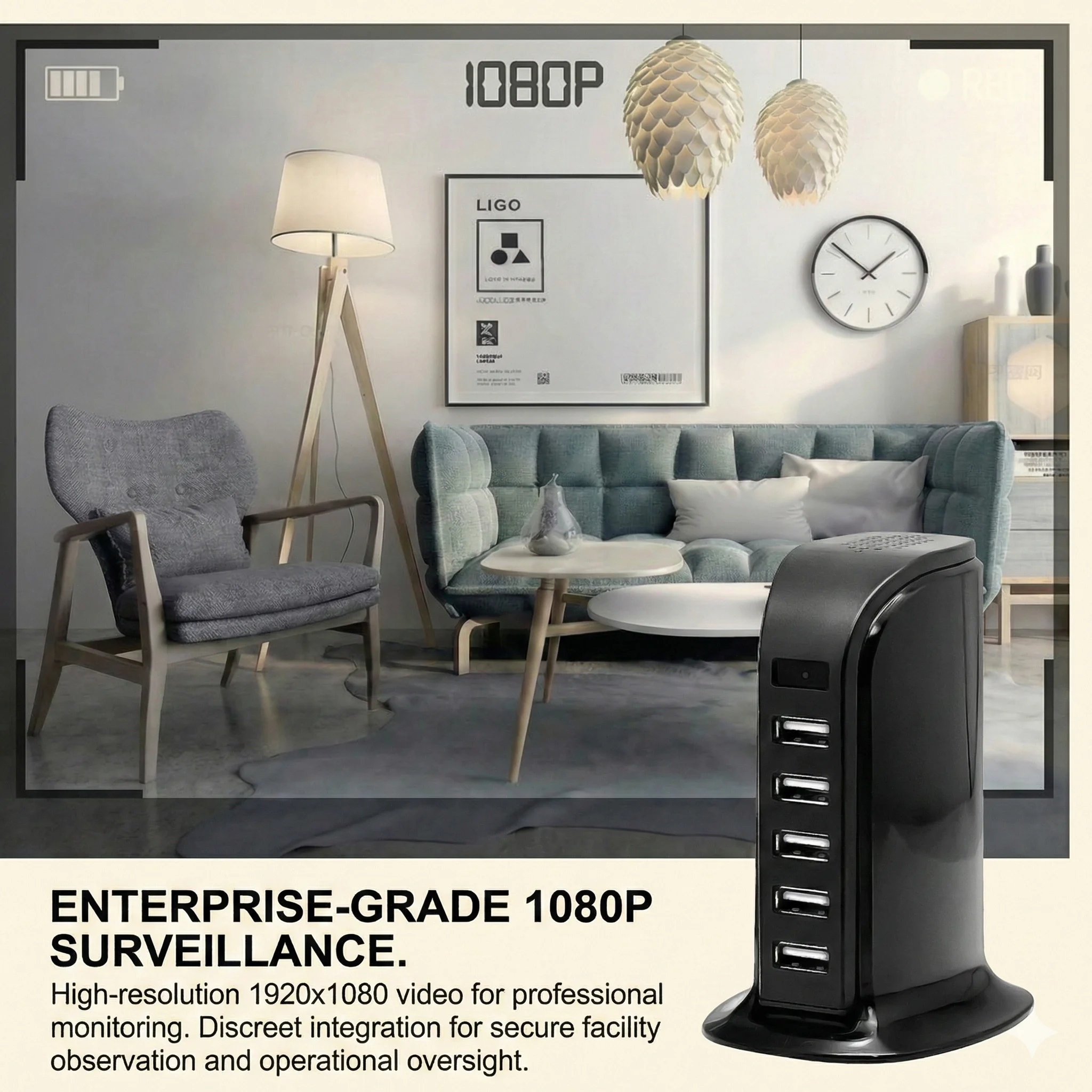
Qual è il motivo più comune per cui una telecamera spia WiFi non si connette
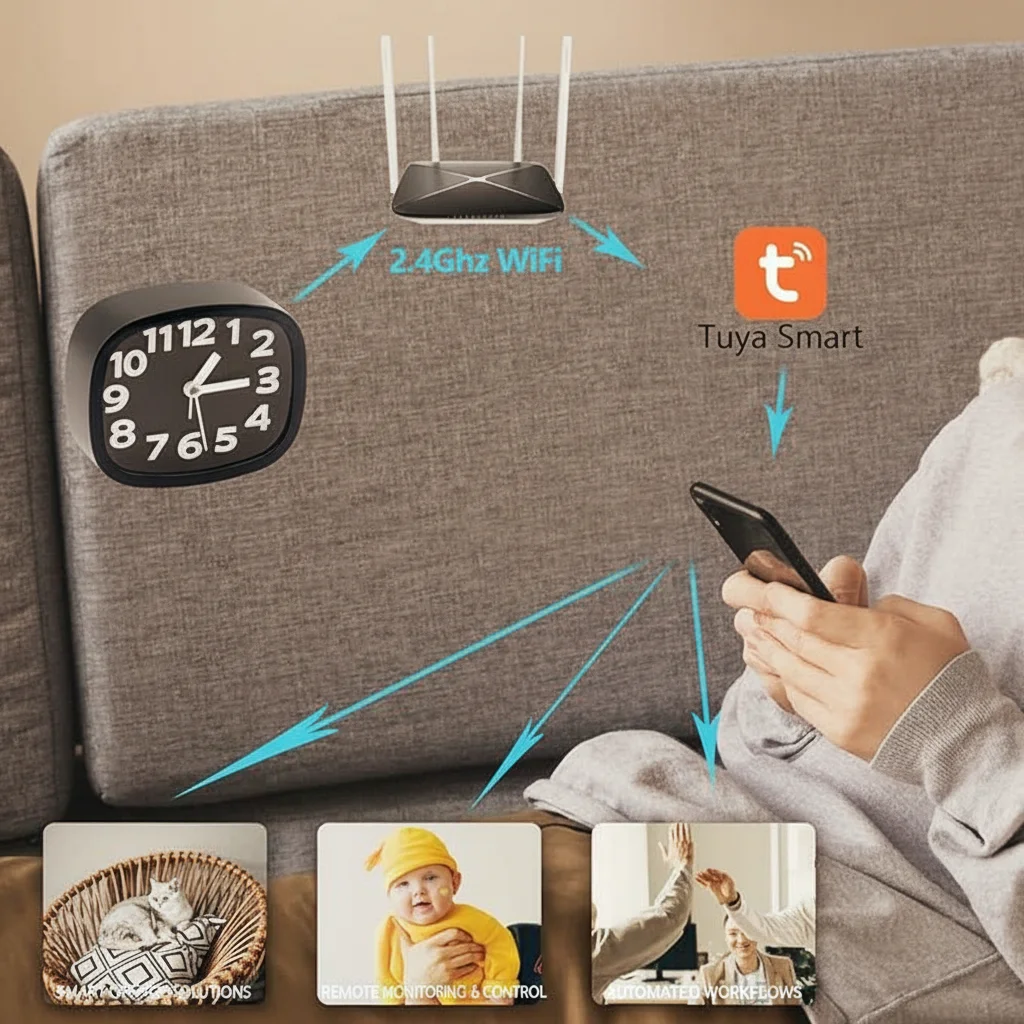
Una causa frequente è un disallineamento della banda WiFi su modelli documentati come solo 2,4GHz. Controllare il manuale esatto del prodotto o l'inserzione prima dell'associazione; non presumere che ogni telecamera nascosta utilizzi la stessa banda. Se la telecamera è solo 2,4GHz, assicurarsi che il flusso di associazione utilizzi la rete supportata.
Prima di provare qualsiasi altra cosa, conferma che il tuo telefono sia connesso alla versione 2.4GHz della tua rete domestica durante la procedura di abbinamento.
Guida alla risoluzione dei problemi passo dopo passo
Passo 1: Verifica la tua banda WiFi
Apri le impostazioni WiFi del tuo telefono e controlla a quale rete sei connesso. Se il tuo router trasmette sia una banda a 2,4 GHz che a 5 GHz con nomi diversi, connettiti alla rete a 2,4 GHz prima di aprire l'app della telecamera. Se il tuo router utilizza lo stesso SSID per entrambe le bande (band steering), potresti dover disabilitare temporaneamente la banda a 5 GHz nelle impostazioni di amministrazione del router per forzare il telefono e la telecamera sulla 2,4 GHz durante l'associazione.
Una volta completato l'abbinamento, puoi riattivare i 5GHz — la telecamera rimarrà sui 2.4GHz e il tuo telefono potrà tornare ai 5GHz per velocità maggiori.
Passaggio 2: Reimposta la telecamera in modalità di abbinamento
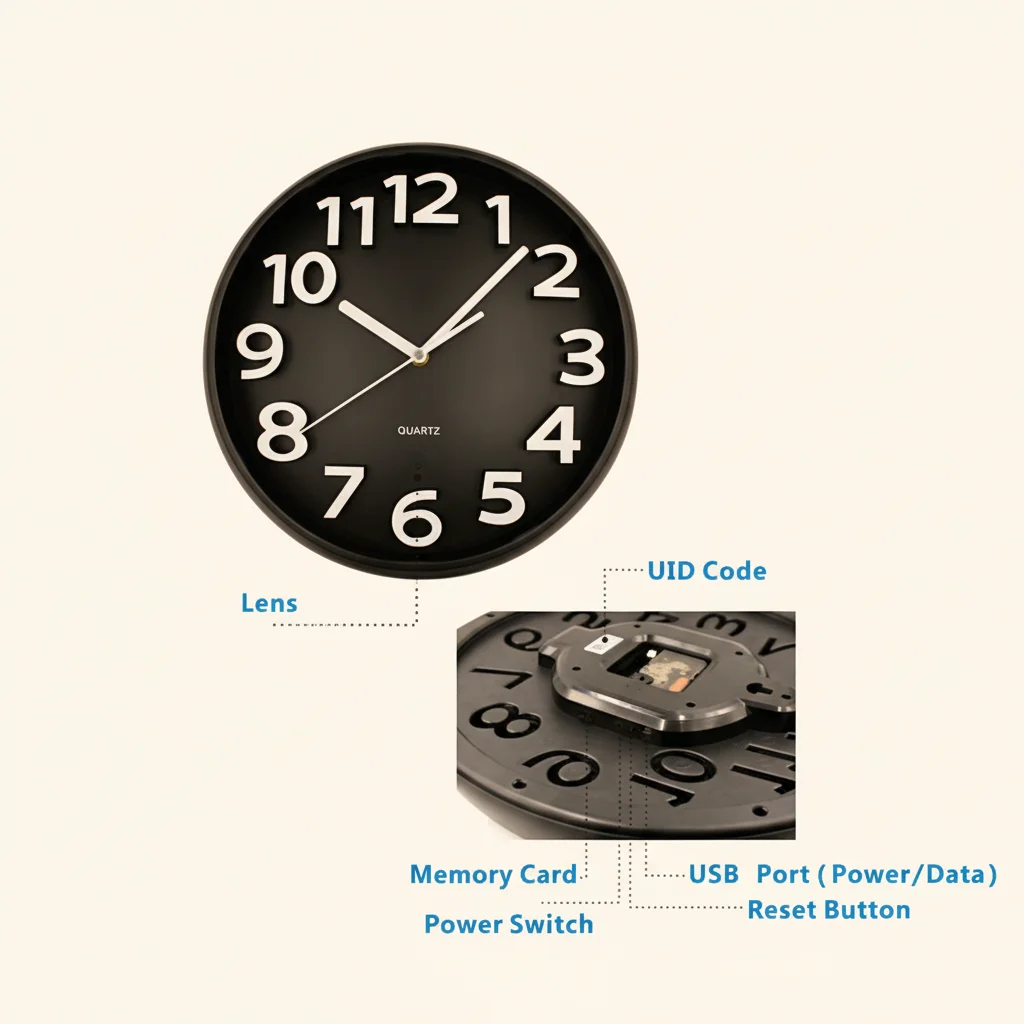
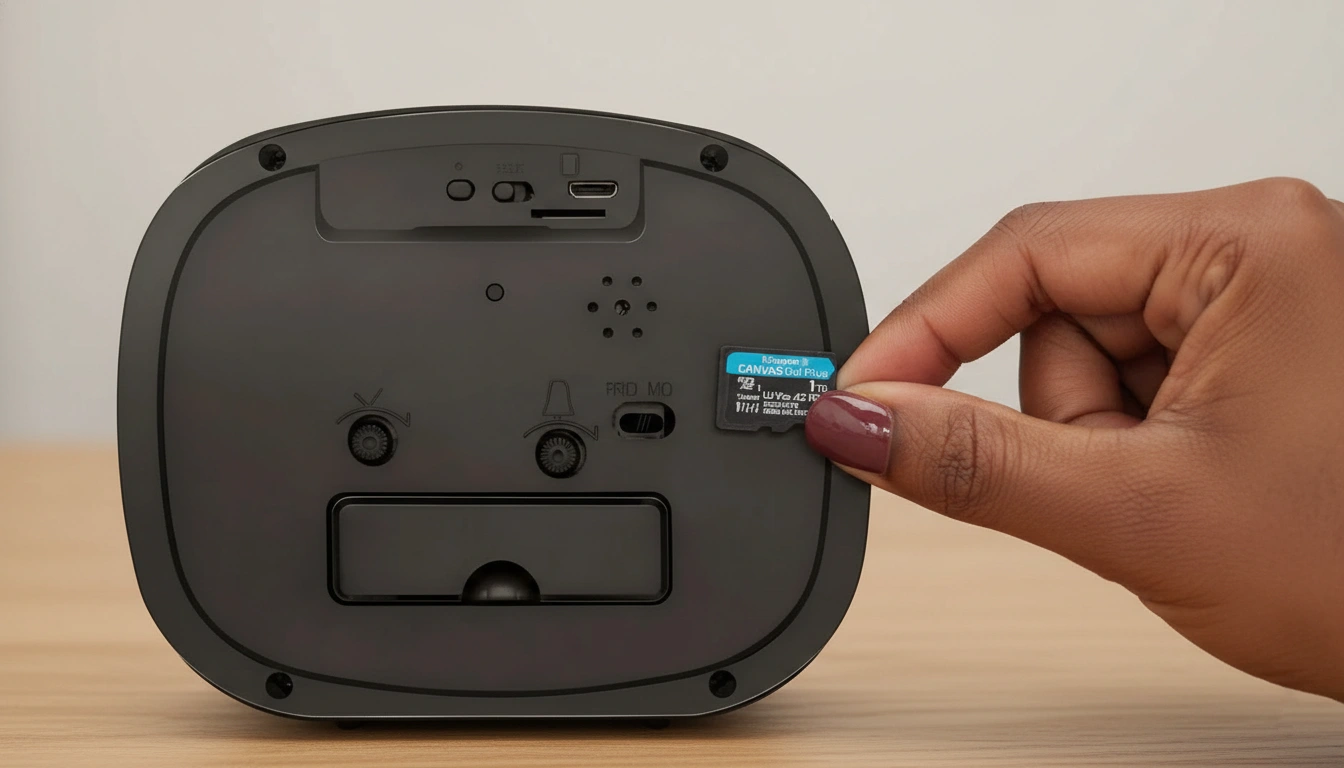
Utilizzare la procedura documentata del modello esatto per riportarla in modalità associazione. Non affidarsi a una pressione universale di 5–10 secondi. Osservare il LED, il suono, lo schermo o l'indicazione dell'app definiti da quella telecamera. Per l'hardware Tuya, vedere la guida specifica Tuya per reset e riassociazione.
La posizione del pulsante di reset varia a seconda del tipo di dispositivo:
– Telecamere ad orologio: Di solito sul retro o sul fondo dell'unità vicino alla porta USB
– Fotocamere con caricabatterie USB: Piccolo foro sul lato o sul retro
– Telecamere con detector di fumo: Pulsante accessibile attraverso la staffa di montaggio
– Telecamere con power bank: Pulsante a foro sul pannello laterale
Passaggio 3: Controlla la password WiFi
Una password WiFi digitata in modo errato è una causa frequente di fallimento dell'abbinamento. La maggior parte delle app mostra un campo di inserimento della password durante la configurazione che non visualizza i caratteri mentre digiti. Reinserisci attentamente la password WiFi, prestando attenzione a lettere maiuscole, numeri e caratteri speciali. Se hai cambiato recentemente la password del router, anche la telecamera dovrà essere riabbinata con le nuove credenziali.
Passaggio 4: Avvicina la telecamera al router
Durante l'abbinamento iniziale, posiziona la telecamera entro 3 metri (10 piedi) dal router WiFi. Muri, oggetti metallici e altri dispositivi elettronici tra la telecamera e il router attenuano il segnale a 2,4 GHz. Un segnale debole durante l'abbinamento causa il timeout della telecamera prima di completare la registrazione, anche se lo stesso segnale sarebbe sufficientemente forte per il normale funzionamento dopo l'abbinamento. Una volta completato l'abbinamento, sposta la telecamera nella posizione desiderata.
Passaggio 5: Forza la chiusura e riavvia l'app
Se la telecamera è entrata correttamente in modalità abbinamento e le tue credenziali WiFi sono corrette, ma l'app mostra ancora un errore di connessione, forza la chiusura dell'app companion (Tuya Smart, HDLiveCam o l'app specifica della tua telecamera), attendi 10 secondi e riaprila. Alcune versioni dell'app hanno un bug noto per cui un tentativo di connessione obsoleto da una sessione precedente blocca il nuovo abbinamento. La chiusura forzata cancella questo stato.

Passo 6: Controlla i permessi del telefono
Le app delle telecamere richiedono l'autorizzazione alla posizione durante l'abbinamento dei dispositivi WiFi sia su iOS che su Android. Questo perché l'accesso ai nomi dei dispositivi nelle vicinanze e alle informazioni sulla rete WiFi richiede l'accesso alla posizione a livello di sistema operativo. Se hai negato questa autorizzazione al primo avvio dell'app, la scansione di abbinamento non riesce a rilevare la telecamera. Vai alle impostazioni delle autorizzazioni delle app sul tuo telefono e assicurati che l'app della telecamera abbia l'autorizzazione alla Posizione impostata su "Durante l'utilizzo dell'app" o "Sempre".
Su Android, controlla anche che l'app abbia le autorizzazioni WiFi e dispositivi nelle vicinanze abilitate.
Passaggio 7: Disattiva la VPN e controlla il firewall del router
Se utilizzi una VPN sul tuo telefono, disabilitala prima dell'associazione. Le VPN reindirizzano il traffico e possono impedire all'app di comunicare direttamente con la telecamera sulla rete locale. Allo stesso modo, se il tuo router ha l'isolamento AP o l'isolamento client abilitato (un'impostazione che impedisce ai dispositivi wireless di comunicare tra loro), disabilitalo temporaneamente. Le telecamere nascoste necessitano di comunicazione diretta LAN-to-LAN tra il telefono e la telecamera durante l'associazione.
I pannelli di amministrazione dei router variano a seconda del produttore. Cerca “Wireless Isolation”, “AP Isolation” o “Client Isolation” nella sezione delle impostazioni wireless.
Passo 8: Esegui un ripristino completo di fabbrica
Se la telecamera era precedentemente associata a un altro account o rete WiFi, seguire la procedura esatta di reset e rimozione dell'account del modello. Non presumere che una pressione più lunga del pulsante cancelli automaticamente un'associazione account. Sulle telecamere Tuya, il reset hardware e la rimozione da app/account possono essere azioni separate.
Dopo un ripristino completo delle impostazioni di fabbrica, avvia nuovamente la procedura di abbinamento dall'inizio nella sezione "Aggiungi dispositivo" dell'app.
Errori di connessione della telecamera WiFi per tipo di dispositivo
Diversi fattori di forma delle telecamere nascoste hanno flussi di abbinamento leggermente diversi e punti di guasto comuni.
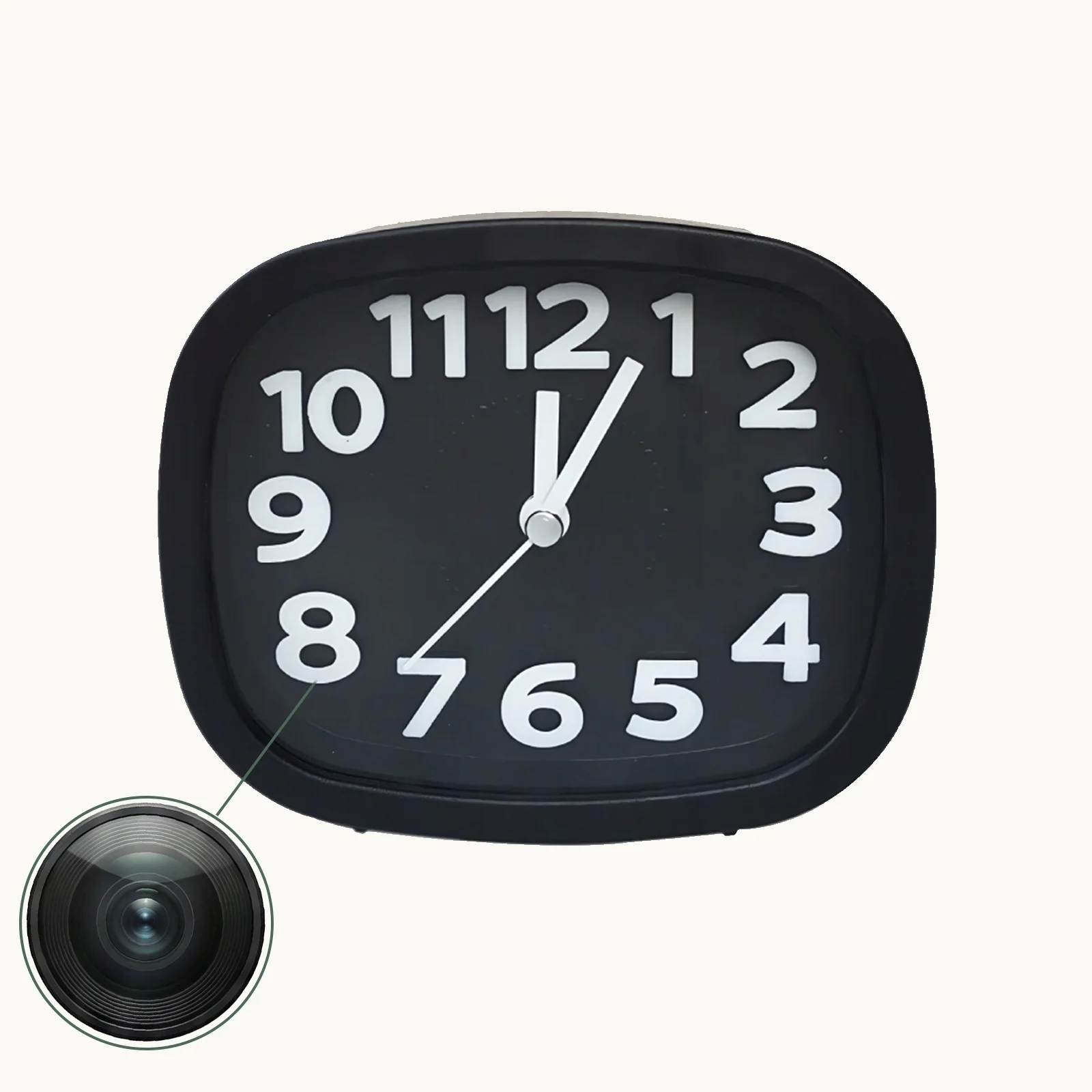
Telecamere orologio (Z10, C6 e simili) utilizzare Tuya Smart o un'app proprietaria. Il punto di errore più comune è il problema della banda 2,4GHz. Queste telecamere a volte falliscono anche se il Bluetooth del telefono è spento durante l'associazione — alcune telecamere basate su Tuya utilizzano il Bluetooth per l'handshake iniziale prima di passare al WiFi.
Fotocamere con caricabatterie USB sono semplici da configurare ma sensibili agli errori di password di rete. Poiché l'interfaccia di configurazione su questi dispositivi non ha schermo, non c'è feedback visivo su cosa sia andato storto. Se l'associazione fallisce, presumere prima un errore di password e reinserire con attenzione le credenziali WiFi.
Telecamere con detector di fumo a volte non riescono a connettersi a causa del posizionamento a soffitto lontano dal router. Se il router è su un piano inferiore, l'attenuazione del segnale attraverso il soffitto può causare timeout di associazione. Portare la telecamera sullo stesso piano del router per l'associazione iniziale, poi montarla nella posizione finale in seguito.
Telecamere power bank WiFi potrebbe non riuscire a connettersi se la batteria interna è sotto il 20%. Caricare il dispositivo per almeno 30 minuti prima di tentare l'associazione.
Come capire se la telecamera è connessa correttamente
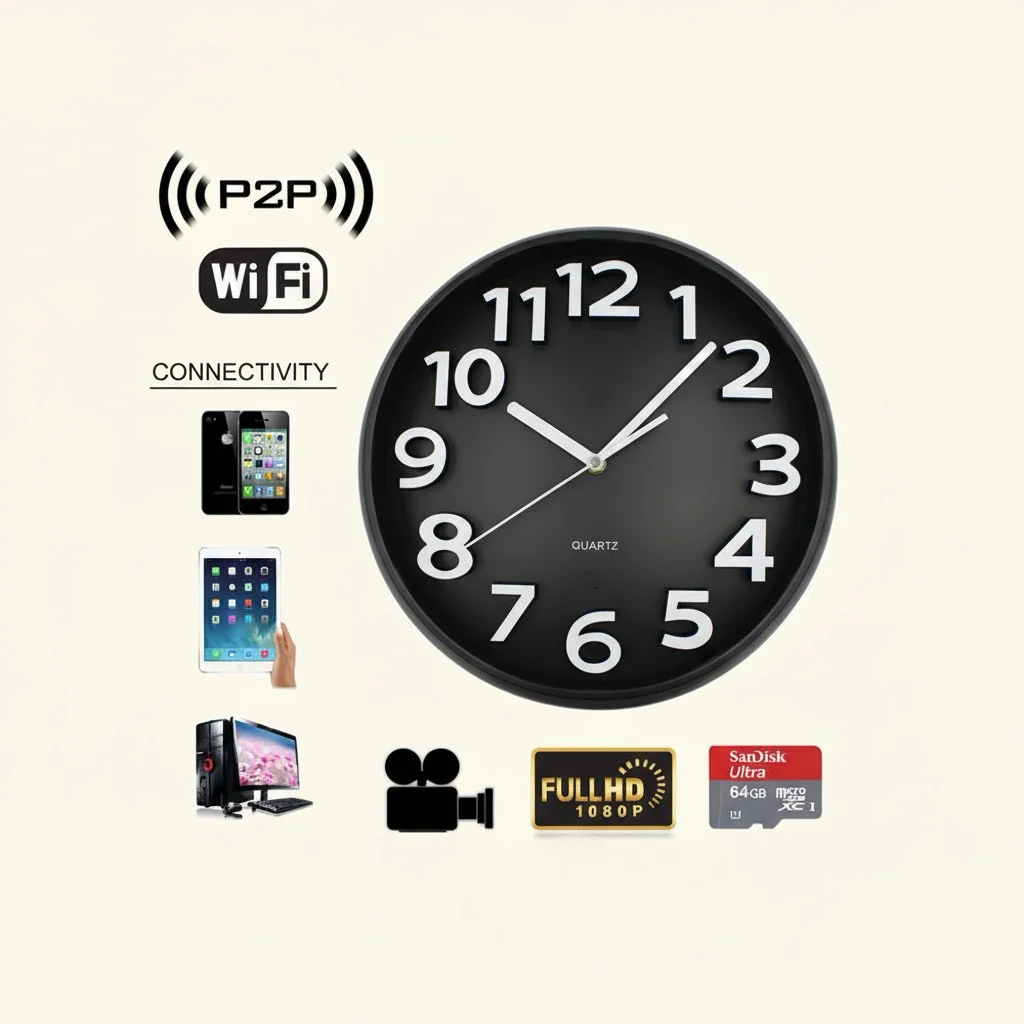
Una telecamera connessa con successo apparirà nell'elenco dei dispositivi della tua app con un indicatore di stato verde o colorato e l'opzione di toccare e visualizzare un feed live. Il feed live dovrebbe caricarsi entro 5–15 secondi a seconda della velocità di internet. Se il dispositivo appare nel tuo elenco ma mostra "Offline" o "Dispositivo non disponibile", la telecamera è registrata sul tuo account ma non è attualmente sulla rete — controlla che sia accesa e nel raggio del WiFi.
Le notifiche di rilevamento del movimento inizieranno ad apparire sul tuo telefono una volta che la telecamera è connessa e il rilevamento del movimento è abilitato nelle impostazioni dell'app.
Cosa fare se nulla funziona
Se hai provato tutti i passaggi precedenti senza successo, il problema è probabilmente una delle tre cause rimanenti:
1. Restrizioni a livello ISP: Alcune connessioni dati mobili (quando il tuo telefono utilizza la rete cellulare invece del WiFi) impediscono la scoperta dei dispositivi sulla rete locale. Associa sempre tramite WiFi, non dati mobili.
2. Corruzione del firmware: Raramente, il firmware di una telecamera si corrode durante un aggiornamento fallito. Contatta il tuo fornitore e richiedi un reflash del firmware o una unità sostitutiva.
3. Difetto hardware: Se il modulo WiFi della telecamera è danneggiato (da scariche statiche, shock fisici o difetti di produzione), non si connetterà indipendentemente dalla configurazione. Testa la telecamera su un router e un telefono completamente diversi prima di concludere che sia un guasto hardware.
Consigli per prevenire problemi di connessione in futuro
Mantieni il firmware della tua telecamera aggiornato tramite l'app companion — gli aggiornamenti spesso includono miglioramenti dello stack WiFi che aumentano la stabilità della connessione. Assicurati che anche il firmware del router sia aggiornato. Posiziona la tua telecamera entro un range WiFi ragionevole (idealmente in linea diretta o attraverso una sola parete) per una connettività affidabile a lungo termine. Evita di posizionare telecamere vicino a grandi oggetti metallici come frigoriferi o microonde che interferiscono con i segnali a 2.4GHz.
Se utilizzi più telecamere nascoste, usa un SSID dedicato solo a 2.4GHz sul tuo router. Questo elimina le interferenze del band-steering e ti offre un segmento di rete chiaro per tutti i tuoi dispositivi di sorveglianza.
Conclusione
Una telecamera nascosta WiFi che non si connette alla sua app è quasi sempre un problema di configurazione piuttosto che un difetto hardware. Segui la checklist nell'ordine: conferma banda 2.4GHz, ripristina alla modalità pairing, verifica la password WiFi, controlla le autorizzazioni dell'app e disabilita VPN o isolamento AP. La maggior parte dei problemi di connessione si risolve in uno di questi passaggi. Se raggiungi il Passaggio 8 e la telecamera ancora non si connette, contatta il tuo fornitore per supporto firmware o hardware.
Domande frequenti
Perché la mia telecamera spia continua a disconnettersi dopo la connessione?
Le disconnessioni intermittenti sono generalmente causate da un segnale WiFi debole nella posizione della telecamera, interferenze del router o un conflitto di indirizzo IP. Prova ad assegnare alla telecamera una riserva DHCP statica nelle impostazioni del router per prevenire conflitti IP. Migliorare il segnale WiFi con un estensore di range aiuta anche.
Posso collegare una telecamera WiFi nascosta a una rete WiFi pubblica o al WiFi di un hotel?
Generalmente no. Molte reti WiFi pubblici e degli hotel utilizzano l'isolamento AP, che impedisce ai dispositivi sulla rete di comunicare tra loro. Questo blocca la connessione locale P2P utilizzata dalle telecamere nascoste. Per il monitoraggio in una stanza d'hotel o in un luogo pubblico, usa invece un router portatile per viaggi con le tue credenziali WiFi.
La mia telecamera è stata associata correttamente ma il feed live è nero. Che c'è che non va?
Un feed live in bianco e nero indica generalmente che la telecamera è connessa all'app ma il flusso video non si carica. Prova a disattivare e riattivare la telecamera, controlla la SD card (una card pieno o corrotta può influenzare l'output del flusso su alcuni modelli) e verifica che la velocità di upload della tua internet sia almeno 2 Mbps.
Devo avere l'app aperta costantemente per la telecamera per registrare?
No. Una volta configurata, la telecamera registra autonomamente sulla sua SD card e carica gli avvisi di movimento sul tuo telefono. L'app deve essere aperta solo quando vuoi vedere lo streaming live o rivedere i clip registrati.
Più telefoni possono monitorare la stessa telecamera simultaneamente?
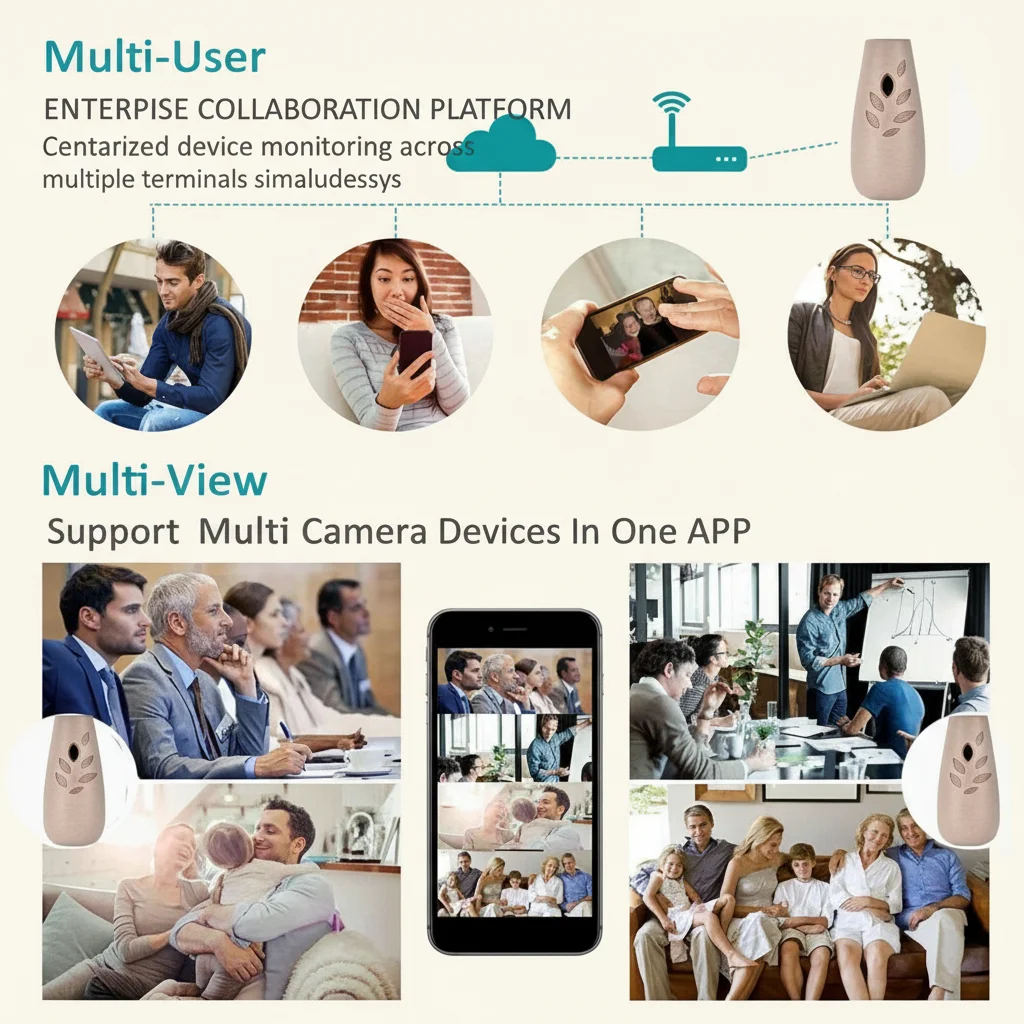
Sì. Molte app basate su Tuya e simili supportano la condivisione dell'accesso al dispositivo con altri account. Il titolare dell'account principale può condividere l'accesso alla telecamera tramite la funzione “Condividi dispositivo” dell'app, consentendo ai familiari o ai partner commerciali di visualizzare il feed della stessa telecamera.
 English
  Italiano
  Deutsch
  Français
  Español
  Polski