
Wie man eine WiFi-Verkdecktkamera repariert, die sich nicht mit der App verbindet
Eine WiFi-Versteckkamera, die sich nicht mit ihrer Begleit-App verbinden lässt, ist eines der häufigsten Support-Probleme von Nutzern. Das Problem wird fast immer durch eine von wenigen behebbaren Ursachen verursacht – das falsche WiFi-Frequenzband, ein übersehener Pairing-Schritt, eine Firmware-Störung oder eine Firewall-Einschränkung. Dieser Leitfaden führt Sie der Reihe nach durch jede Ursache und Lösung, von den einfachsten Prüfungen bis zur tiefergehenden Netzwerk-Fehlerbehebung.
Was ist der häufigste Grund, warum eine WiFi-Spionagekamera keine Verbindung herstellt
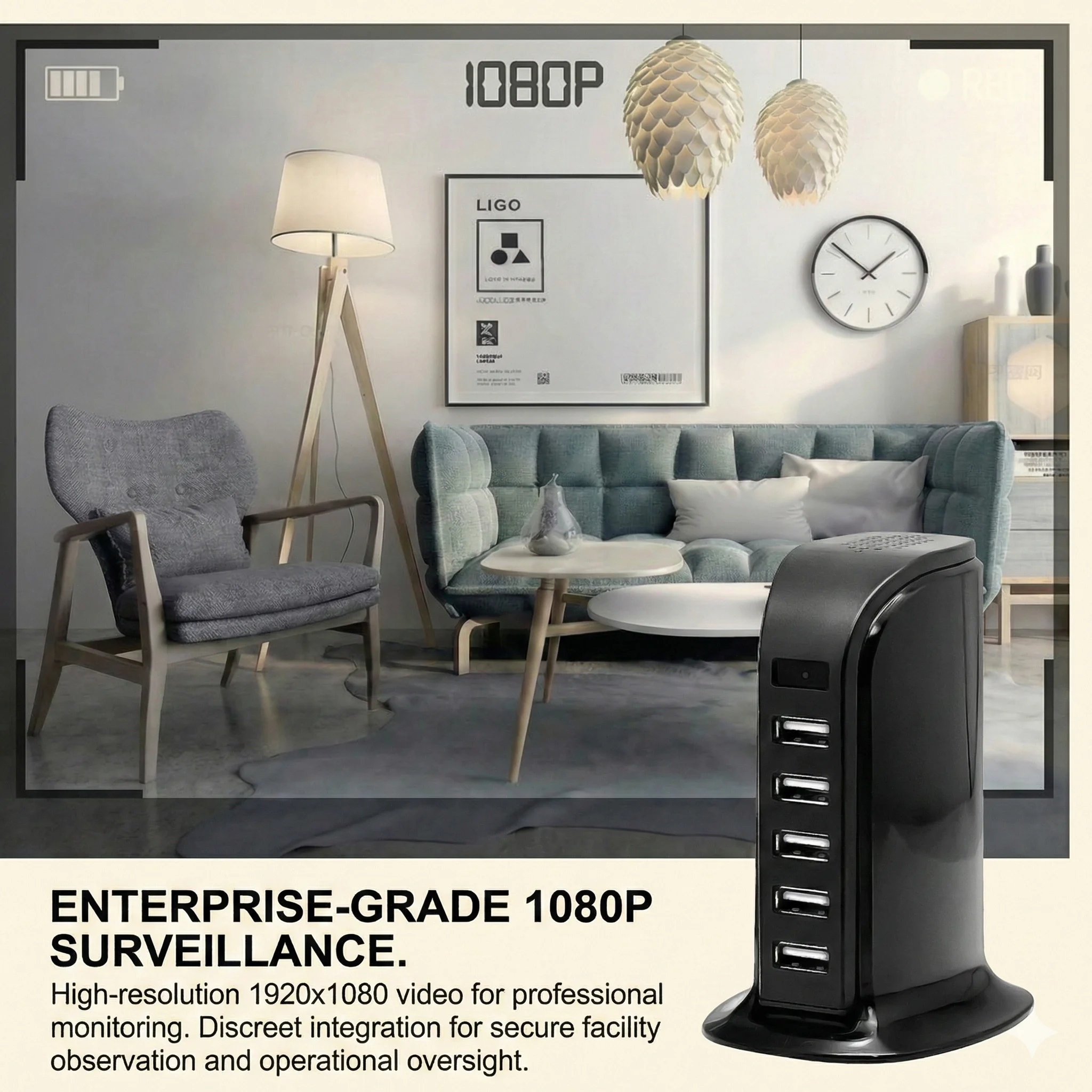
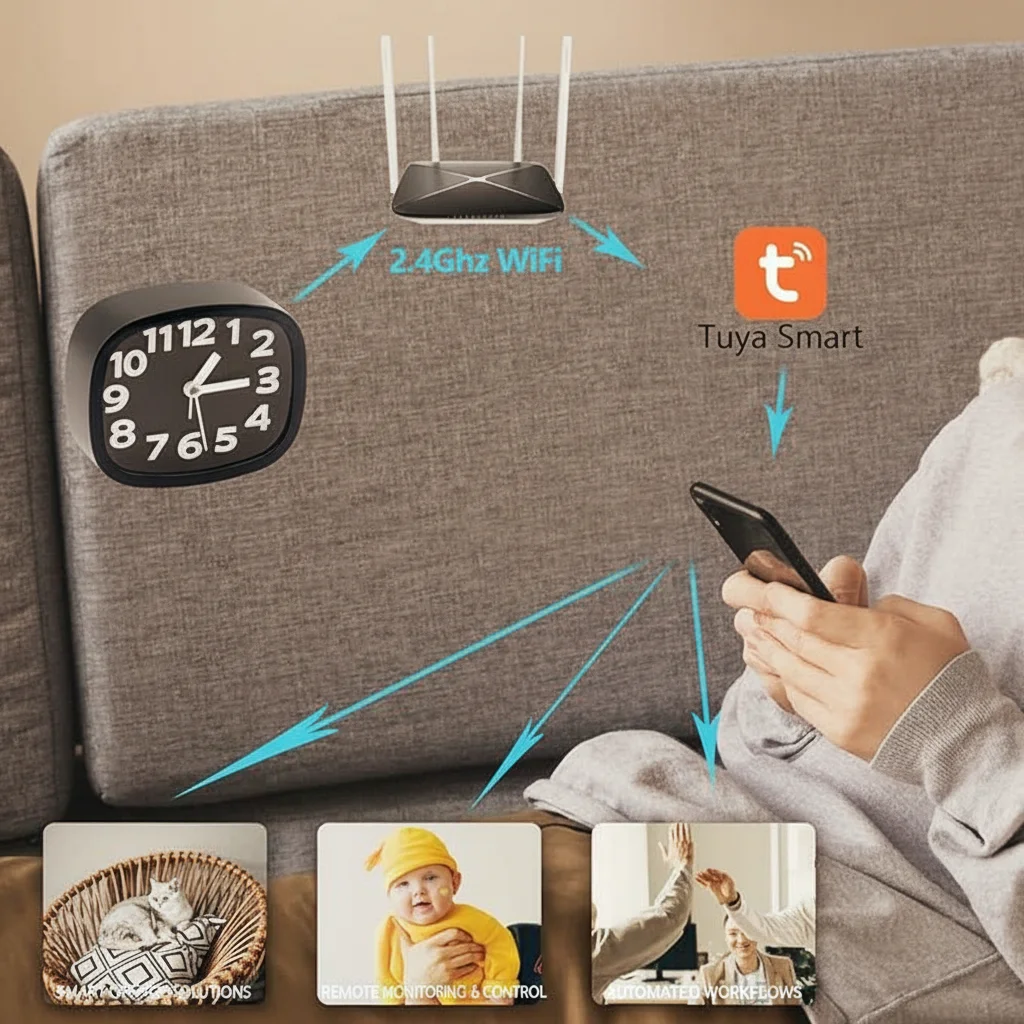
Eine häufige Ursache ist eine WLAN-Band-Unstimmigkeit bei Modellen, die als ausschließlich 2,4 GHz dokumentiert sind. Prüfen Sie vor dem Pairing das genaue Produkthandbuch oder das Listing; gehen Sie nicht davon aus, dass jede versteckte Kamera dasselbe Band verwendet. Wenn die Kamera nur 2,4 GHz unterstützt, stellen Sie sicher, dass der Pairing-Vorgang das unterstützte Netzwerk verwendet.
Bevor Sie etwas anderes versuchen, stellen Sie sicher, dass Ihr Telefon während des Pairing-Vorgangs mit der 2,4-GHz-Version Ihres Heimnetzwerks verbunden ist.
Schritt-für-Schritt-Fehlerbehebungsanleitung
Schritt 1: Überprüfen Sie Ihr WLAN-Band
Öffnen Sie die WiFi-Einstellungen Ihres Telefons und prüfen Sie, mit welchem Netzwerk Sie verbunden sind. Wenn Ihr Router sowohl ein 2,4-GHz- als auch ein 5-GHz-Band unter verschiedenen Namen ausstrahlt, verbinden Sie sich mit dem 2,4-GHz-Netzwerk, bevor Sie die Kamera-App öffnen. Wenn Ihr Router dieselbe SSID für beide Bänder verwendet (Band Steering), müssen Sie möglicherweise das 5-GHz-Band vorübergehend in den Admin-Einstellungen Ihres Routers deaktivieren, um Telefon und Kamera während der Kopplung auf 2,4 GHz zu zwingen.
Nach Abschluss der Kopplung können Sie 5 GHz wieder aktivieren — die Kamera bleibt auf 2,4 GHz und Ihr Telefon kann für schnellere Geschwindigkeiten wieder auf 5 GHz umschalten.
Schritt 2: Setzen Sie die Kamera in den Kopplungsmodus zurück
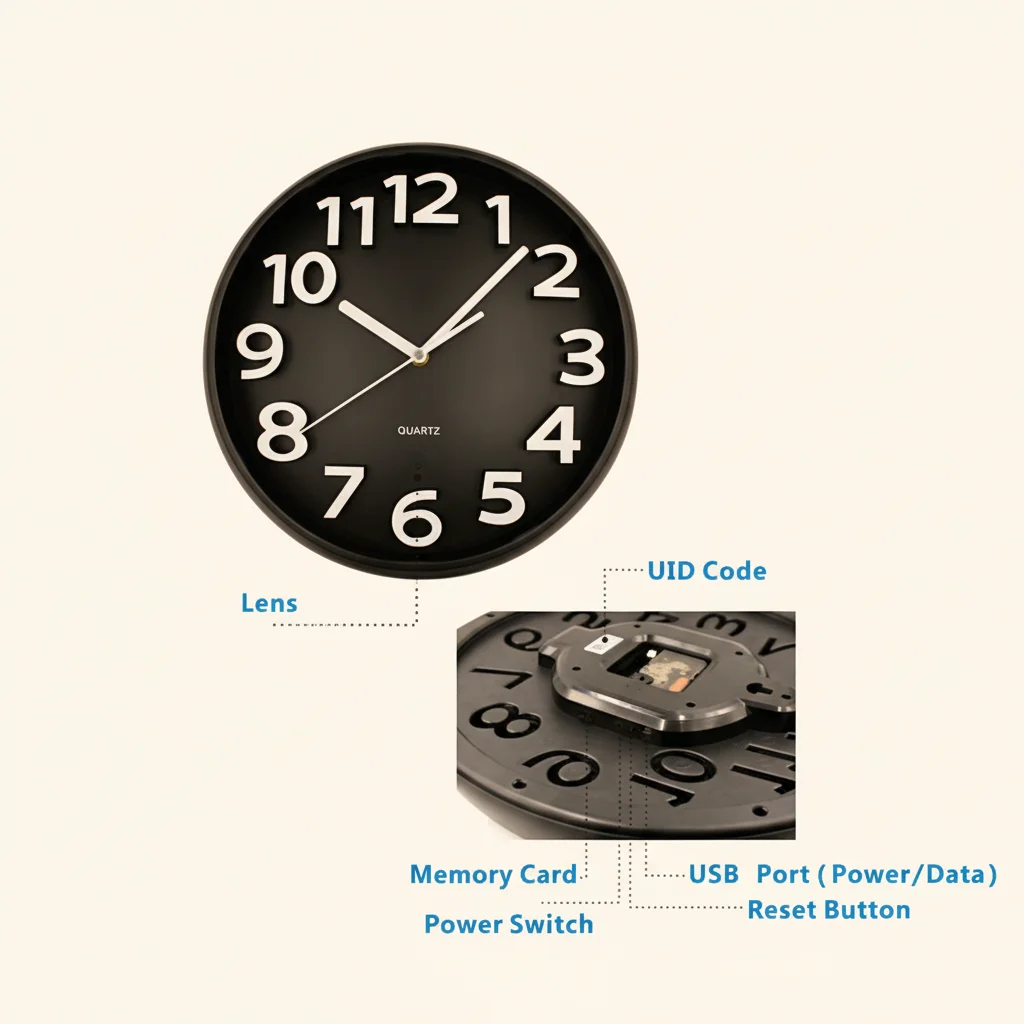
Verwenden Sie das dokumentierte Verfahren des genauen Modells, um es in den Pairing-Modus zurückzusetzen. Verlassen Sie sich nicht auf ein universelles 5–10-Sekunden-Halten. Achten Sie auf die LED-, Ton-, Bildschirm- oder App-Anzeige, die für diese Kamera definiert ist. Bei Tuya-Hardware siehe die Tuya-spezifische Anleitung zum Zurücksetzen und erneuten Pairing.
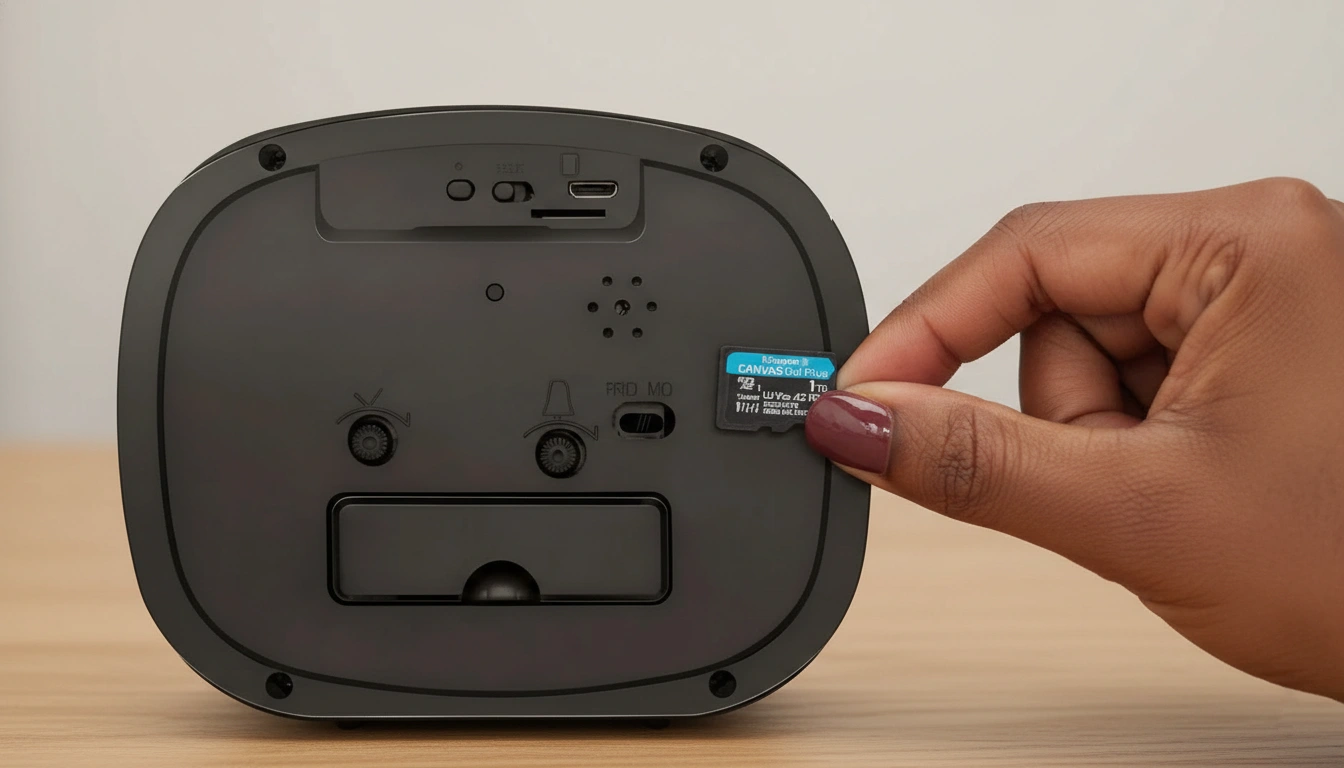
Die Position der Reset-Taste variiert je nach Gerätetyp:
– Uhrenkameras: Normalerweise auf der Rückseite oder Unterseite des Geräts in der Nähe des USB-Anschlusses
– USB-Ladegerät Kameras: Kleines Nadelloch an der Seite oder Rückseite
– Rauchmelder-Kameras: Taste, die durch die Montagehalterung zugänglich ist
– Powerbank-Kameras: Nadelloch-Taste an der Seitenblende
Schritt 3: Überprüfen Sie Ihr WiFi-Passwort
Ein falsch eingegebenes WiFi-Passwort ist eine häufige Ursache für Pairing-Fehler. Die meisten Apps zeigen während der Einrichtung ein Passwortfeld an, das die Zeichen beim Tippen nicht anzeigt. Geben Sie Ihr WiFi-Passwort sorgfältig erneut ein und achten Sie auf Großbuchstaben, Zahlen und Sonderzeichen. Wenn Sie kürzlich Ihr Router-Passwort geändert haben, muss die Kamera ebenfalls mit den neuen Zugangsdaten neu gekoppelt werden.
Schritt 4: Bringen Sie die Kamera näher an den Router
Positionieren Sie die Kamera während des ersten Pairings innerhalb von 3 Metern (10 Fuß) zu Ihrem WiFi-Router. Wände, Metallobjekte und andere Elektronikgeräte zwischen Kamera und Router dämpfen das 2,4-GHz-Signal. Ein schwaches Signal während des Pairings führt dazu, dass die Kamera vor Abschluss der Registrierung in einen Timeout läuft, selbst wenn dasselbe Signal nach dem Pairing für den normalen Betrieb ausreichen würde. Sobald das Pairing abgeschlossen ist, bringen Sie die Kamera an ihren vorgesehenen Einsatzort.
Schritt 5: Erzwingen Sie das Schließen und starten Sie die App neu
Wenn die Kamera korrekt in den Pairing-Modus gewechselt ist und Ihre WiFi-Zugangsdaten korrekt sind, die App aber weiterhin einen Verbindungsfehler anzeigt, schließen Sie die Begleit-App (Tuya Smart, HDLiveCam oder die App Ihrer spezifischen Kamera) zwangsweise, warten Sie 10 Sekunden und öffnen Sie sie erneut. Bei einigen App-Versionen gibt es einen bekannten Fehler, bei dem ein veralteter Verbindungsversuch aus einer früheren Sitzung das neue Pairing blockiert. Das zwangsweise Schließen behebt diesen Zustand.

Schritt 6: Überprüfen Sie die Telefonberechtigungen
Kamera-Apps erfordern während der WiFi-Gerätekopplung sowohl auf iOS als auch auf Android die Standortberechtigung. Dies liegt daran, dass der Zugriff auf Namen in der Nähe befindlicher Geräte und WiFi-Netzwerkinformationen einen Standortzugriff auf Betriebssystemebene erfordert. Wenn Sie diese Berechtigung bei der ersten Installation der App verweigert haben, kann der Kopplungsscan die Kamera nicht entdecken. Gehen Sie zu den App-Berechtigungseinstellungen Ihres Telefons und stellen Sie sicher, dass die Kamera-App die Standortberechtigung auf „Beim Verwenden der App“ oder „Immer“ gesetzt hat.
Prüfen Sie unter Android außerdem, ob der App die Berechtigungen für WiFi und Geräte in der Nähe erteilt wurden.
Schritt 7: Deaktivieren Sie VPN und prüfen Sie die Router-Firewall
Wenn Sie ein VPN auf Ihrem Telefon verwenden, deaktivieren Sie es vor der Kopplung. VPNs leiten den Datenverkehr um und können verhindern, dass die App direkt mit der Kamera im lokalen Netzwerk kommuniziert. Wenn Ihr Router AP-Isolation oder Client-Isolation aktiviert hat (eine Einstellung, die verhindert, dass drahtlose Geräte miteinander kommunizieren), deaktivieren Sie diese vorübergehend. Versteckte Kameras benötigen während der Kopplung eine direkte LAN-zu-LAN-Kommunikation zwischen Telefon und Kamera.
Router-Admin-Oberflächen unterscheiden sich je nach Hersteller. Suchen Sie im Bereich der WLAN-Einstellungen nach „Wireless Isolation“, „AP Isolation“ oder „Client Isolation“.
Schritt 8: Führen Sie einen vollständigen Werksreset durch
Wenn die Kamera zuvor mit einem anderen Konto oder WLAN-Netzwerk gekoppelt war, befolgen Sie das genaue Reset- und Kontoentfernungsverfahren des Modells. Gehen Sie nicht davon aus, dass ein längeres Gedrückthalten der Taste automatisch eine Kontobindung löscht. Bei Tuya-Kameras können Hardware-Reset und App-/Kontoentfernung separate Aktionen sein.
Starten Sie nach einem vollständigen Werksreset den Kopplungsvorgang von Anfang an im Bereich „Gerät hinzufügen“ der App.
WLAN-Kamera-Verbindungsfehler nach Gerätetyp
Verschiedene Bauformen versteckter Kameras haben leicht unterschiedliche Pairing-Abläufe und typische Fehlerquellen.
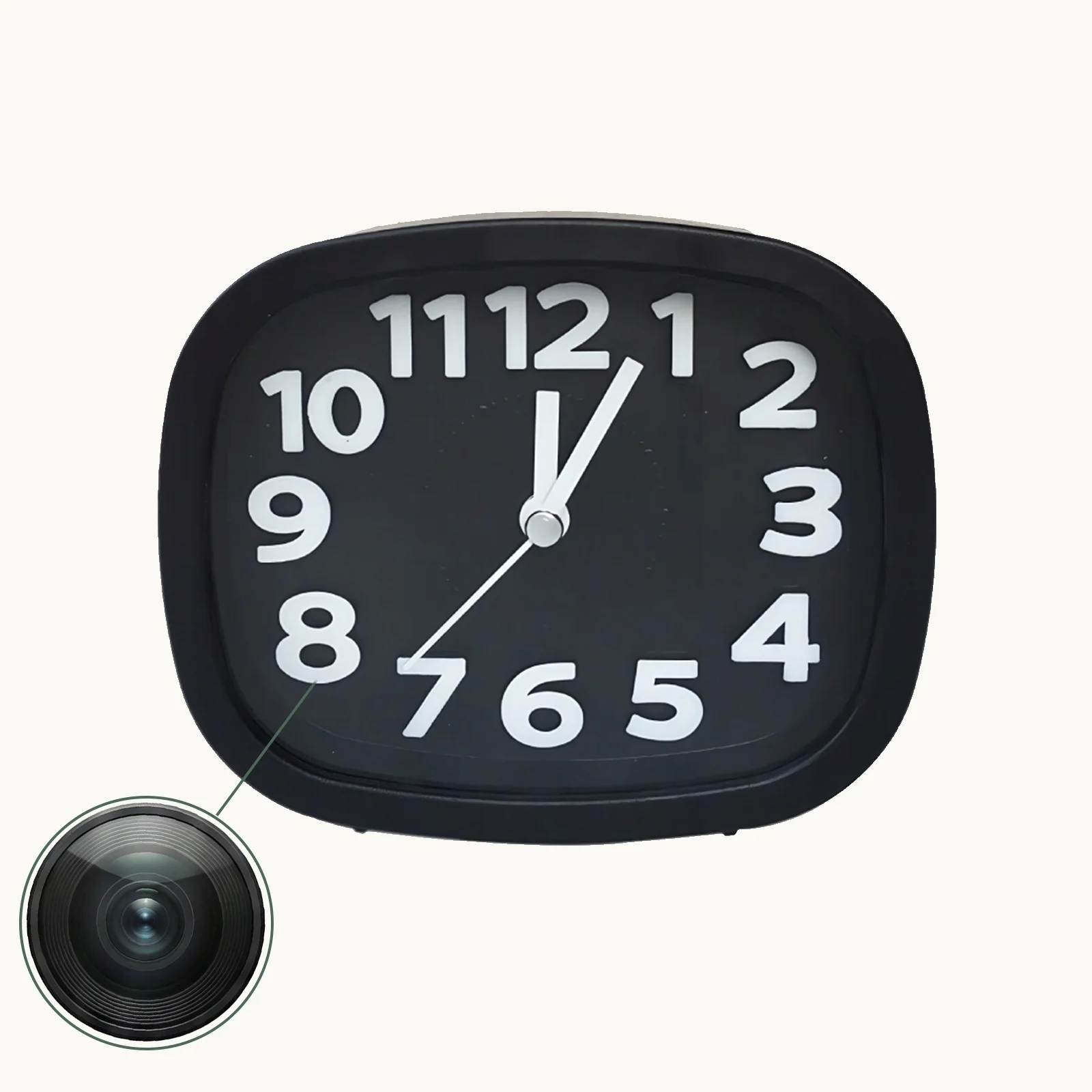
Uhr-Kameras (Z10, C6 und ähnliche) verwenden Sie Tuya Smart oder eine proprietäre App. Der häufigste Fehlerpunkt ist das 2,4-GHz-Band-Problem. Diese Kameras versagen manchmal auch, wenn das Bluetooth des Telefons während des Pairings ausgeschaltet ist — einige Tuya-basierte Kameras verwenden Bluetooth für den anfänglichen Handshake, bevor sie auf WLAN umschalten.
USB-Ladegerät Kameras sind in der Einrichtung unkompliziert, aber empfindlich gegenüber Netzwerk-Passwortfehlern. Da die Einrichtungsschnittstelle dieser Geräte keinen Bildschirm hat, gibt es keine visuelle Rückmeldung darüber, was schiefgelaufen ist. Wenn das Pairing fehlschlägt, gehen Sie zuerst von einem Passwortfehler aus und geben Sie Ihre WLAN-Zugangsdaten sorgfältig erneut ein.
Rauchmelder-Kameras schlagen gelegentlich fehl, weil sie an der Decke weit vom Router entfernt platziert sind. Wenn sich Ihr Router in einer niedrigeren Etage befindet, kann die Signalabschwächung durch die Decke zu Pairing-Timeouts führen. Bringen Sie die Kamera für das erste Pairing auf dieselbe Etage wie den Router und montieren Sie sie anschließend in ihrer endgültigen Position.
WiFi-Powerbank-Kameras können möglicherweise keine Verbindung herstellen, wenn der interne Akku unter 20 % liegt. Laden Sie das Gerät mindestens 30 Minuten auf, bevor Sie das Pairing versuchen.
So erkennen Sie, ob Ihre Kamera erfolgreich verbunden ist
Eine erfolgreich verbundene Kamera erscheint in der Geräteliste Ihrer App mit einer grünen oder farbigen Statusanzeige und der Option, durch Tippen einen Live-Stream anzuzeigen. Der Live-Stream sollte je nach Internetgeschwindigkeit innerhalb von 5–15 Sekunden geladen werden. Wenn das Gerät in Ihrer Liste erscheint, aber „Offline“ oder „Gerät nicht verfügbar“ anzeigt, ist die Kamera zwar bei Ihrem Konto registriert, aber derzeit nicht im Netzwerk — prüfen Sie, ob sie eingeschaltet und in WiFi-Reichweite ist.
Bewegungserkennungs-Benachrichtigungen erscheinen auf Ihrem Smartphone, sobald die Kamera verbunden und die Bewegungserkennung in den App-Einstellungen aktiviert ist.
Was zu tun ist, wenn nichts funktioniert
Wenn Sie alle oben genannten Schritte ohne Erfolg versucht haben, liegt die Ursache wahrscheinlich bei einer von drei verbleibenden Möglichkeiten:
1. Einschränkungen auf ISP-Ebene: Einige mobile Datenverbindungen (wenn Ihr Telefon Mobilfunk statt WLAN verwendet) verhindern die Erkennung lokaler Netzwerkgeräte. Führen Sie das Pairing immer über WLAN durch, nicht über mobile Daten.
2. Firmware Beschädigung: Selten kann die Firmware einer Kamera während eines fehlgeschlagenen Updates beschädigt werden. Kontaktieren Sie Ihren Lieferanten und bitten Sie um ein Firmware-Reflash oder eine Austausch-Einheit.
3. Hardwaredefekt: Wenn das WiFi-Modul der Kamera beschädigt ist (durch statische Entladung, physischen Stoß oder Fertigungsdefekt), wird es sich nicht verbinden, egal wie die Konfiguration ist. Testen Sie die Kamera auf einem komplett anderen Router und Telefon, bevor Sie einen Hardware-Fehler feststellen.
Tipps, um Verbindungsprobleme in Zukunft zu vermeiden
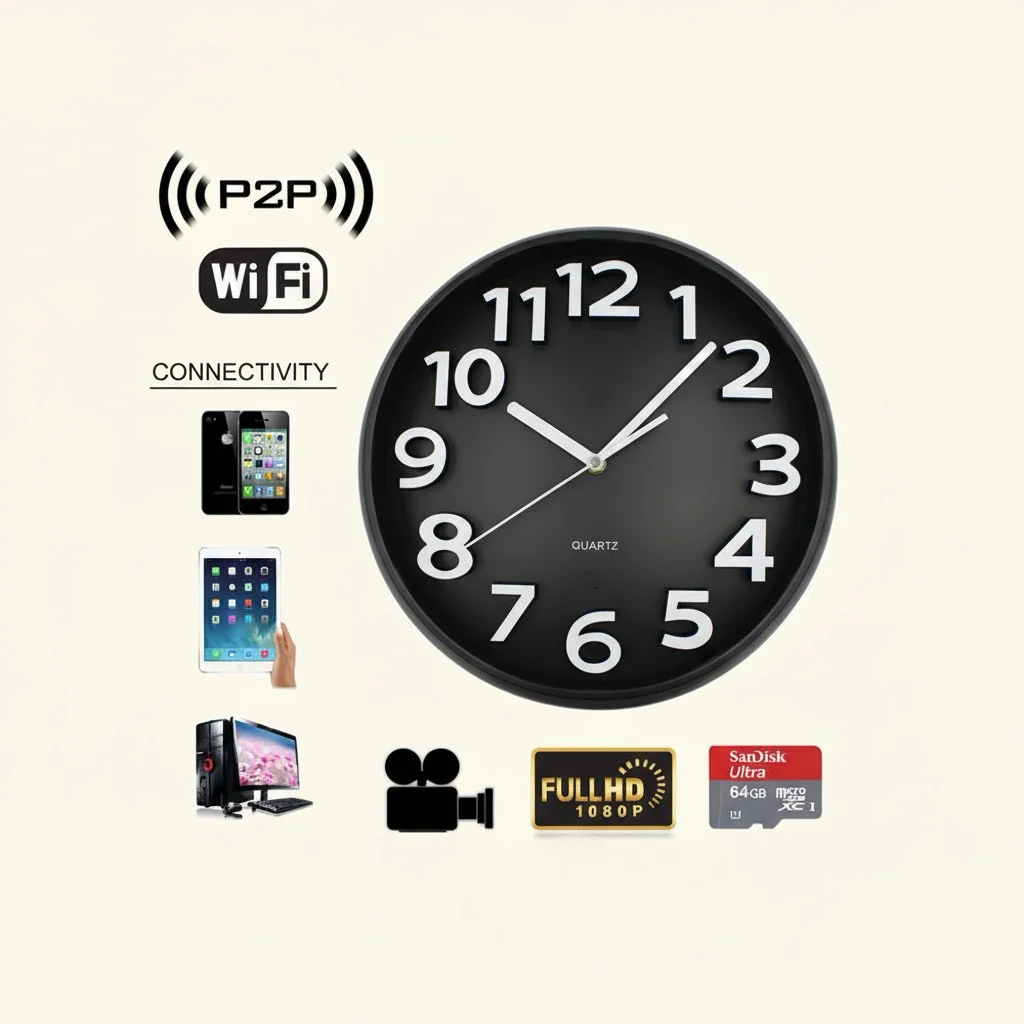
Halten Sie die Firmware Ihres Kamera durch die Companion-App aktuell – Updates enthalten oft Verbesserungen des WiFi-Stacks, die die Verbindungsstabilität erhöhen. Stellen Sie sicher, dass auch die Router-Firmware aktuell ist. Platzieren Sie Ihre Kamera innerhalb eines angemessenen WiFi-Reichweite (idealerweise in Sichtlinie oder durch eine einzelne Wand) für eine zuverlässige Langzeitverbindung. Vermeiden Sie die Platzierung von Kameras in der Nähe großer Metallobjekte wie Kühlschränke oder Mikrowellen, die 2,4GHz-Signale beeinträchtigen.
Wenn Sie mehrere versteckte Kameras betreiben, verwenden Sie einen dedizierten 2,4GHz-only SSID auf Ihrem Router. Dies eliminiert Band-Steering-Interferenzen und bietet Ihnen einen sauberen Netzwerksegment für alle Ihre Überwachungsgeräte.
Schlussfolgerung
Eine WiFi versteckte Kamera, die sich nicht mit ihrer App verbindet, ist fast immer ein Konfigurationsproblem, nicht ein Hardwaredefekt. Arbeiten Sie die Checkliste in der Reihenfolge durch: bestätigen Sie das 2,4GHz-Band, setzen Sie auf Pairing-Mode zurück, verifizieren Sie Ihr WiFi-Passwort, prüfen Sie App-Berechtigungen, und deaktivieren Sie VPN oder AP-Isolation. Die meisten Verbindungsprobleme lösen sich bei einem dieser Schritte. Wenn Sie Schritt 8 erreichen und die Kamera sich immer nicht verbindet, kontaktieren Sie Ihren Lieferanten für Firmware- oder Hardware-Support.
Häufig gestellte Fragen
Warum geht meine Spy-Kamera nach der Verbindung immer offline?
Unregelmäßige Verbindungsabbrüche werden meist durch schwache WiFi-Signale am Standort der Kamera, Router-Interferenzen oder einen IP-Adresskonflikt verursacht. Versuchen Sie, der Kamera eine statische DHCP-Reservierung in Ihren Router-Einstellungen zuweisen, um IP-Konflikte zu vermeiden. Die Verbesserung des WiFi-Signals mit einem Reichweitenverstärker hilft ebenfalls.
Kann ich eine WiFi-Videokamera mit einem öffentlichen WiFi-Netzwerk oder Hotel-WiFi verbinden?
Generell nicht. Die meisten öffentlichen und Hotel-WiFi-Netzwerke verwenden AP-Isolation, die die Kommunikation zwischen Geräten im Netzwerk blockiert. Dies blockiert die lokale P2P-Verbindung, die versteckte Kameras verwenden. Für Überwachung in einem Hotelzimmer oder öffentlichen Ort verwenden Sie stattdessen einen portablen Travel-Router mit Ihren eigenen WiFi-Zugangsdaten.
Meine Kamera wurde erfolgreich gepaart, aber der Live-Feed ist schwarz. Was ist das Problem?
Ein schwarzer Live-Feed deutet meist darauf hin, dass die Kamera mit der App verbunden ist, aber der Video-Stream nicht geladen wird. Versuchen Sie, die Kamera aus- und wieder einzuschalten, die SD-Karte zu prüfen (eine vollständige oder beschädigte Karte kann den Stream-Ausgang bei manchen Modellen beeinflussen), und zu verifizieren, dass Ihre Internet Upload-Speed mindestens 2 Mbps ist.
Muss die App ständig offen sein, damit die Kamera aufzeichnet?
Nein. Nach der Konfiguration zeichnet die Kamera unabhängig auf ihre SD-Karte und uploadet Bewegungsalarme auf Ihr Telefon. Die App muss nur offen sein, wenn Sie den Live-Stream sehen oder aufgezeichnete Clips überprüfen möchten.
Können mehrere Telefone gleichzeitig denselben Kamera überwachen?
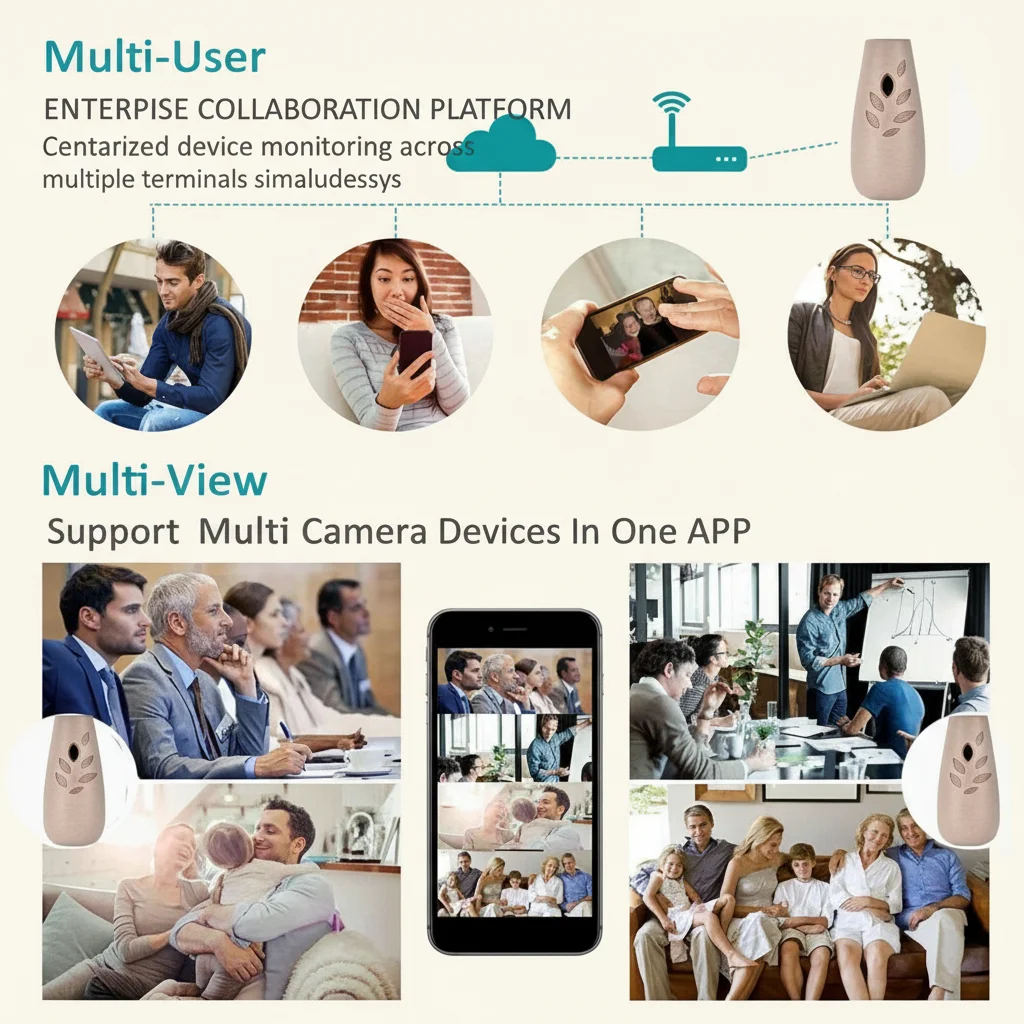
Ja. Die meisten Tuya-basierten und ähnliche Apps unterstützen das Teilen des Zugangs zu Geräten mit anderen Accounts. Der Hauptaccount-Halter kann den Zugang zur Kamera durch die “Gerät teilen” Funktion der App teilen, sodass Familienmitglieder oder Geschäftspartner den gleichen Kamera-Feed sehen können.

 English
  Italiano
  Deutsch
  Français
  Español
  Polski