
How to Reset a Hidden Spy Camera to Factory Settings
A reset is model-specific. It may clear network or device settings, but account binding, cloud data and MicroSD footage can follow separate rules. Use the manual for the exact camera and verify the observed pairing/reset state rather than relying on a universal button-hold time. For Tuya-specific reset and account-binding behavior, see How to Reset a Tuya Camera Without Guessing the Button Timing.
What Does a Factory Reset Do to a Spy Camera
There is no single reset result that applies to every hidden camera. Depending on the hardware and firmware, a reset can clear WiFi credentials, restore device settings, or return the device to a pairing-ready state. Account binding may require a separate action in the companion app, and local MicroSD files may be preserved or handled separately.
For a safe handover, verify four states independently: local device settings, WiFi credentials, app/account binding, and stored footage. Do not assume a reset button changes all four.
Where Is the Reset Button on Different Hidden Camera Types
The reset button is a small tactile switch, usually accessible through a pinhole to prevent accidental activation. Its location varies by device type.
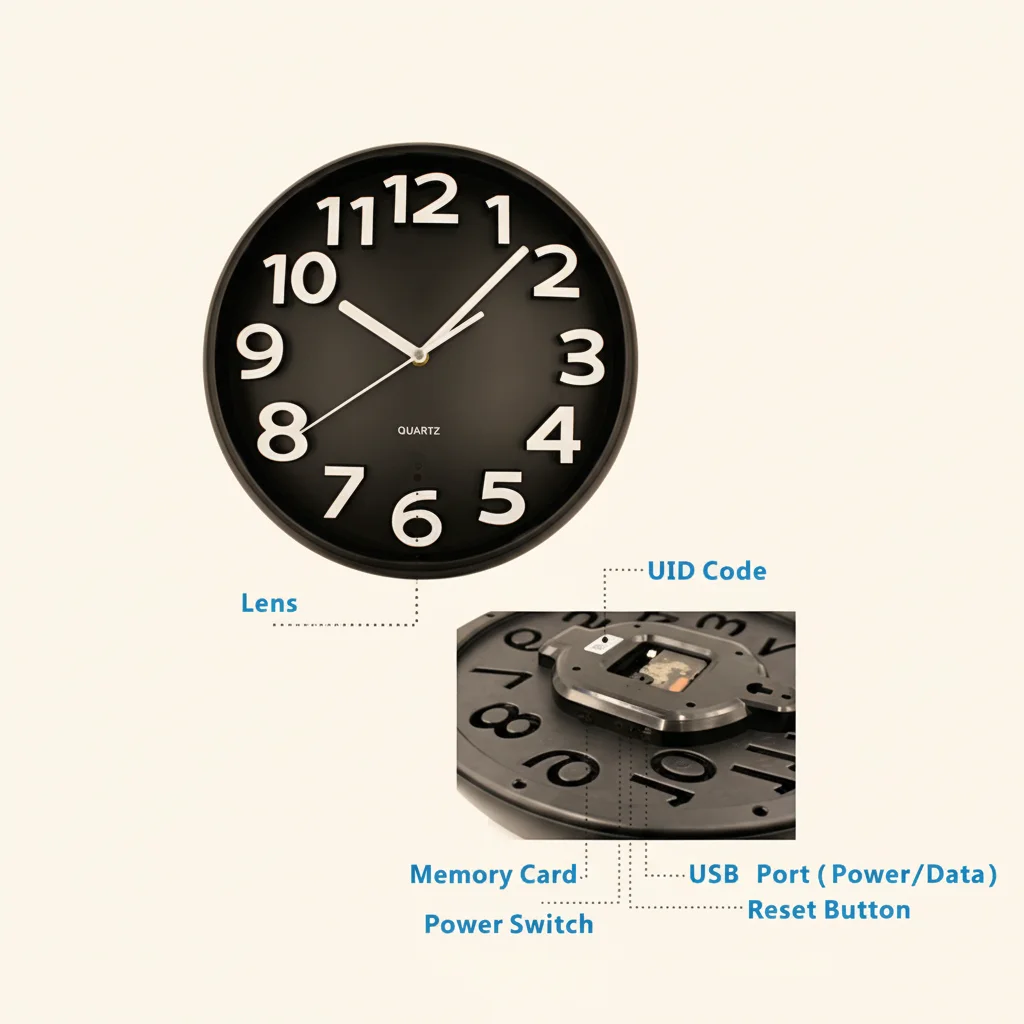
Clock cameras (Z10, C6, wall clock cameras): The reset button is on the back or bottom of the clock unit. Look for a small labeled hole near the USB power input or on the rear panel. On some models it is inside the battery compartment.
USB charger cameras: The reset button is typically a pinhole on the left or right side of the charger body. Use a SIM card ejector tool or a straightened paperclip to press it.
Smoke detector cameras: Open the outer housing (twist or unclip from the mounting bracket) and look for a small button on the circuit board near the lens assembly. Some models have an external pinhole accessible without opening the unit.
Power bank cameras: The reset pinhole is usually on one of the narrow side edges. Check both sides if you do not find it on the first.
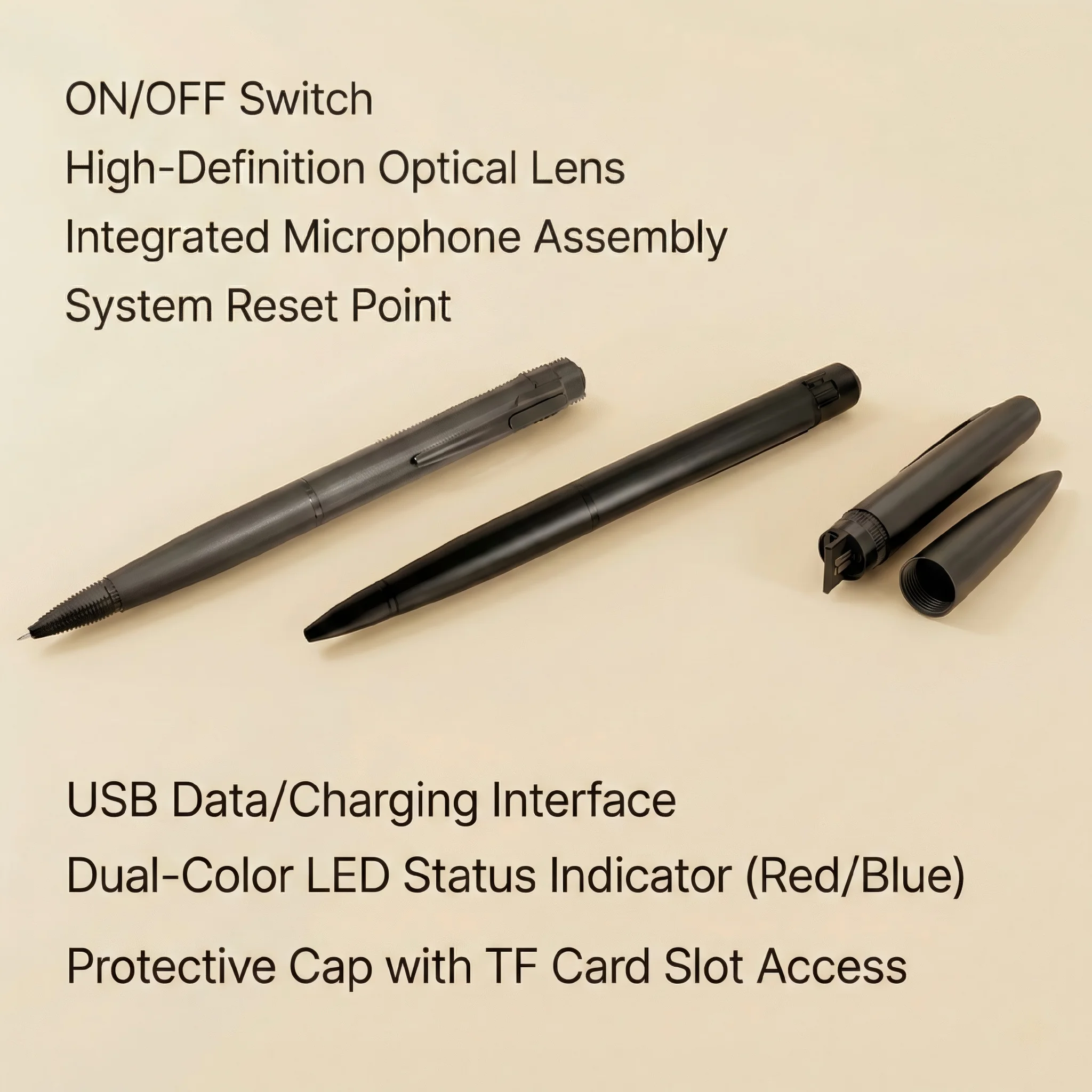
Pen cameras and body worn cameras: Press and hold the main function button for an extended duration (usually 10+ seconds) rather than a separate reset pinhole. Refer to the instruction sheet for your specific model.
DIY camera modules: Reset is typically triggered through the companion app’s device settings, or by pressing the onboard reset button on the PCB.
How to Perform a Factory Reset Step by Step
Step 1: Identify the exact model and manual. Confirm the camera family, app and power input before pressing any reset control.
Step 2: Power the camera normally. A reset control may not respond correctly during low battery, boot failure or unstable power.
Step 3: Locate the documented reset control. Do not copy a pinhole location from another clock, charger, detector or power-bank camera.
Step 4: Follow the model’s documented hold or button sequence. Stop guessing at 5, 10 or 20 seconds. Watch for the exact LED, sound, screen or app indication that the manual defines as reset or pairing-ready.
Step 5: Verify the result. Check whether the camera returned to pairing mode, whether the old WiFi profile still works, and whether account binding remains in the companion app.
Step 6: Re-pair only when required. Use the app and WiFi band documented for the exact camera.
How to Reset or Remove a Camera via the App
App removal, network reset and hardware reset are not interchangeable. Use the removal/reset option documented by the exact app and camera. For Tuya cameras in particular, current Tuya support notes that a hardware reset does not necessarily remove an already bound camera from the account; account removal may need to be completed in Tuya Smart.
Before transferring a camera, confirm both the device’s local state and the account/device list. Do not promise that a menu named “Remove Device,” “Delete,” or “Reset” has identical cloud-data behavior across every app version.
For the current Tuya-specific workflow, use the dedicated Tuya reset and re-pairing guide.
Factory Reset Scenarios and What to Do
Selling or transferring the camera: Always perform a factory reset before transferring a camera to another person. If the device is still bound to your account, the new owner cannot pair it. Use the account-removal and hardware-reset procedures documented for the exact camera, then verify that the new owner can complete pairing.
Camera frozen or unresponsive: If the camera is on but not responding to button presses or app commands, perform a power cycle first (disconnect power for 30 seconds, reconnect). If it remains frozen after power cycling, follow the exact model’s documented recovery/reset procedure. This forces a hardware reset that recovers most frozen states.
Moving to a new WiFi network: If you change your router or move to a new location, the camera needs to be paired to the new network. Perform a factory reset, then set it up again with the new WiFi credentials. There is no way to change the stored WiFi network without going through the pairing process again.
Camera showing offline after firmware update: Failed over-the-air firmware updates sometimes leave the device in an inconsistent state. A factory reset followed by a fresh pairing usually resolves this.
After the Reset: Reconfiguring Your Camera
After a factory reset, your camera is completely blank from a configuration standpoint. Reconfiguration takes 10–15 minutes and covers:
1. Pairing to WiFi — download the app, add the device, enter WiFi credentials
2. Motion detection — set sensitivity (start at medium)
3. Recording mode — choose continuous, motion-triggered, or scheduled
4. Notification settings — enable push alerts for motion events
5. SD card check — verify the card is recognized and has sufficient space
6. Time and date — sync the device clock (usually automatic via internet time servers once connected)
If you use Tuya Smart, your device preferences are linked to your Tuya account and can be reconfigured through the app after pairing. Other standalone apps may require you to set preferences from scratch each time.
Troubleshooting: Reset Is Not Working
The LED only enters pairing mode, not full reset. You are not holding the button long enough. Try again and hold for a full 20 seconds, counting out loud if necessary.
The camera is unresponsive to the reset button. The device may be in a deep sleep state. Disconnect it from power, wait 30 seconds, reconnect, and immediately attempt the reset while the device is booting.
The app still shows the device as online after reset. The app displays cached device status. Pull down to refresh the device list, or close and reopen the app. If the device still shows as online after a confirmed factory reset, it means the reset command did not register — repeat the process.
Reset worked but camera will not pair to new network. Use the WiFi band documented for the exact camera. Many compact cameras are 2.4GHz-only, but this is not a universal rule across all current hardware.
Conclusion
Reset timing and LED behavior are model-specific. Identify the exact camera, use its manual, verify the observed reset/pairing state, and treat account binding and stored footage as separate checks. For Tuya-specific reset and re-pairing behavior, use the current Tuya camera reset guide.
FAQ
Does a factory reset delete my recorded footage?
No. The factory reset only clears network credentials and app account bindings. Footage on the SD card is untouched. To erase footage, format the SD card separately through the app or on a computer.
How do I reset a spy camera with no visible reset button?
Some cameras, particularly pen cameras and body worn devices, use extended button presses on the main function button rather than a separate reset pinhole. Hold the main button for 10–15 seconds until the indicator LED changes behavior. If no LED is present, hold for 15 seconds and then power cycle the device.
Can I reset a hidden camera I bought secondhand if the previous owner did not wipe it?
Yes. Hold the physical reset button for 15–20 seconds regardless of what account it is bound to. The physical reset always overrides software account bindings. After the hardware reset, you can pair it to your own account fresh.
Why does my camera keep resetting on its own?
Spontaneous resets are usually caused by power supply instability. If the USB power adapter is underpowered or the USB cable is worn, brief voltage drops during recording can trigger the camera’s hardware watchdog, which resets the device to prevent data corruption. Use a quality 5V/2A power adapter and replace the USB cable.
After a factory reset, do I need to buy a new SD card?
No. The SD card works normally after a factory reset. The camera will recognize the existing card and begin writing new footage. If the card was previously formatted with the correct file system, no reformatting is needed.

 English
  Italiano
  Deutsch
  Français
  Español
  Polski