
How to Update Firmware on Your Hidden Spy Camera
Firmware updates keep your spy camera performing at its best. They fix bugs, improve video quality, patch security vulnerabilities, and sometimes add entirely new features. Many users never update their camera firmware, which means they’re running outdated software that causes unnecessary problems. This guide walks through firmware update methods for all major hidden camera types including Tuya-based WiFi cameras, HDLiveCam cameras, and standalone SD card cameras.
Why You Should Update Spy Camera Firmware
Before explaining how, here’s why firmware updates matter for hidden cameras:
Bug fixes: Older firmware can cause random restarts, WiFi disconnections, and failed recordings. Updates patch these known issues.
Improved video compression: Newer H.265/H.264 encoding algorithms produce the same quality video at smaller file sizes, extending SD card capacity and reducing bandwidth usage.
Night vision improvements: Firmware updates often include better IR exposure algorithms that reduce overexposed or underexposed night footage.
Security patches: WiFi cameras are network devices. Unpatched firmware can contain vulnerabilities that allow unauthorized access to your camera feed.
New features: Manufacturers frequently add features like improved motion zones, two-way audio, cloud storage options, and better alert systems via firmware updates.
App compatibility: As the companion app updates, older firmware versions may lose compatibility. Updating ensures full functionality with the latest app version.

How to Check Your Current Firmware Version
Before updating, check what version your camera currently runs.
For Tuya / Smart Life app cameras:
1. Open the Tuya or Smart Life app
2. Tap on your camera’s device page
3. Tap the pencil/edit icon or “…” in the top right corner
4. Scroll to “Device Information” or “About Device”
5. Note the “Firmware Version” number (e.g., 1.0.8 or 2.3.1)
For HDLiveCam / similar app cameras:
1. Open the app and select your camera
2. Tap the Settings or gear icon
3. Look for “Firmware Version” or “Software Version” in device info
For standalone cameras (no WiFi app):
– Check the sticker on the device itself — some manufacturers print the firmware version
– Check the SD card after inserting it: some cameras create a `version.txt` file in the root directory on first boot
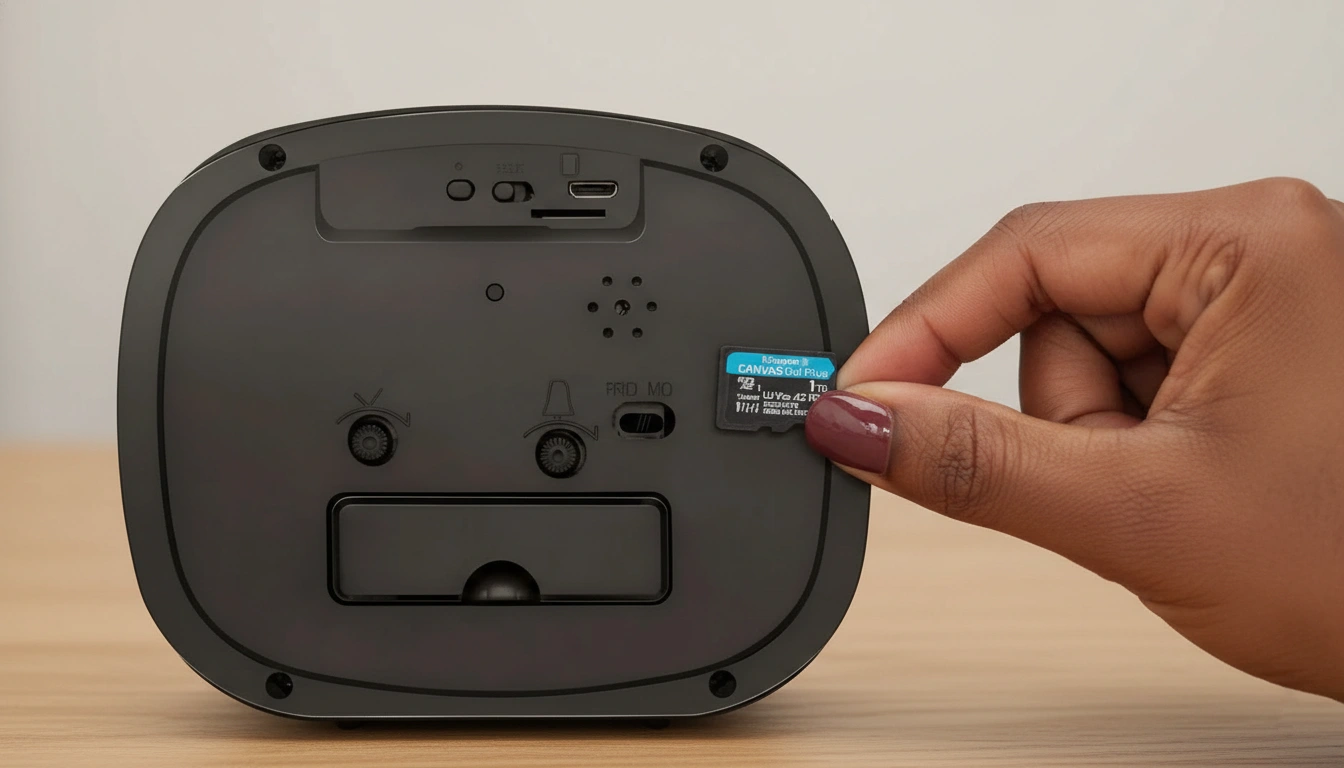
How to Update Firmware via the Tuya App
This is the simplest and most common update method for WiFi hidden cameras.
Requirements:
– Camera connected to WiFi and powered on
– Tuya or Smart Life app updated to the latest version
– Stable WiFi connection throughout the update (do not disconnect power)
Steps:
1. Open the Tuya or Smart Life app on your phone
2. Tap on the camera device you want to update
3. In the live view screen, tap the pencil icon (top right) to open device settings
4. Scroll down and tap “Device Update” or “Firmware Upgrade”
5. The app will check the server for available updates
– If an update is available, you’ll see a notification: “New firmware available: v1.X.X”
– If you’re already up to date: “Your device is up to date”
6. Tap “Update Now”
7. The camera will download the firmware (30 seconds to 2 minutes depending on connection)
8. The camera will automatically restart and install the update (1–3 minutes)
9. Do not power off the camera during this process — this can corrupt the firmware
After the camera restarts, re-open the device settings and confirm the new firmware version appears.

How to Update Firmware via HDLiveCam App
For cameras using the HDLiveCam app (common with DIY module cameras and some dedicated spy cameras):
1. Open HDLiveCam and connect to your camera
2. Tap the menu icon (three lines or gear) in the camera’s live view
3. Select “Settings” → “System” → “Device Upgrade”
4. The app queries the update server
5. If an update is available: tap “Upgrade” to start the download
6. The camera will install and reboot automatically
> HDLiveCam tip: Some versions of the app show firmware updates only when the camera is in Settings mode, not in live view. If you don’t see an update option during live view, exit and enter the device settings directly from the device list screen.
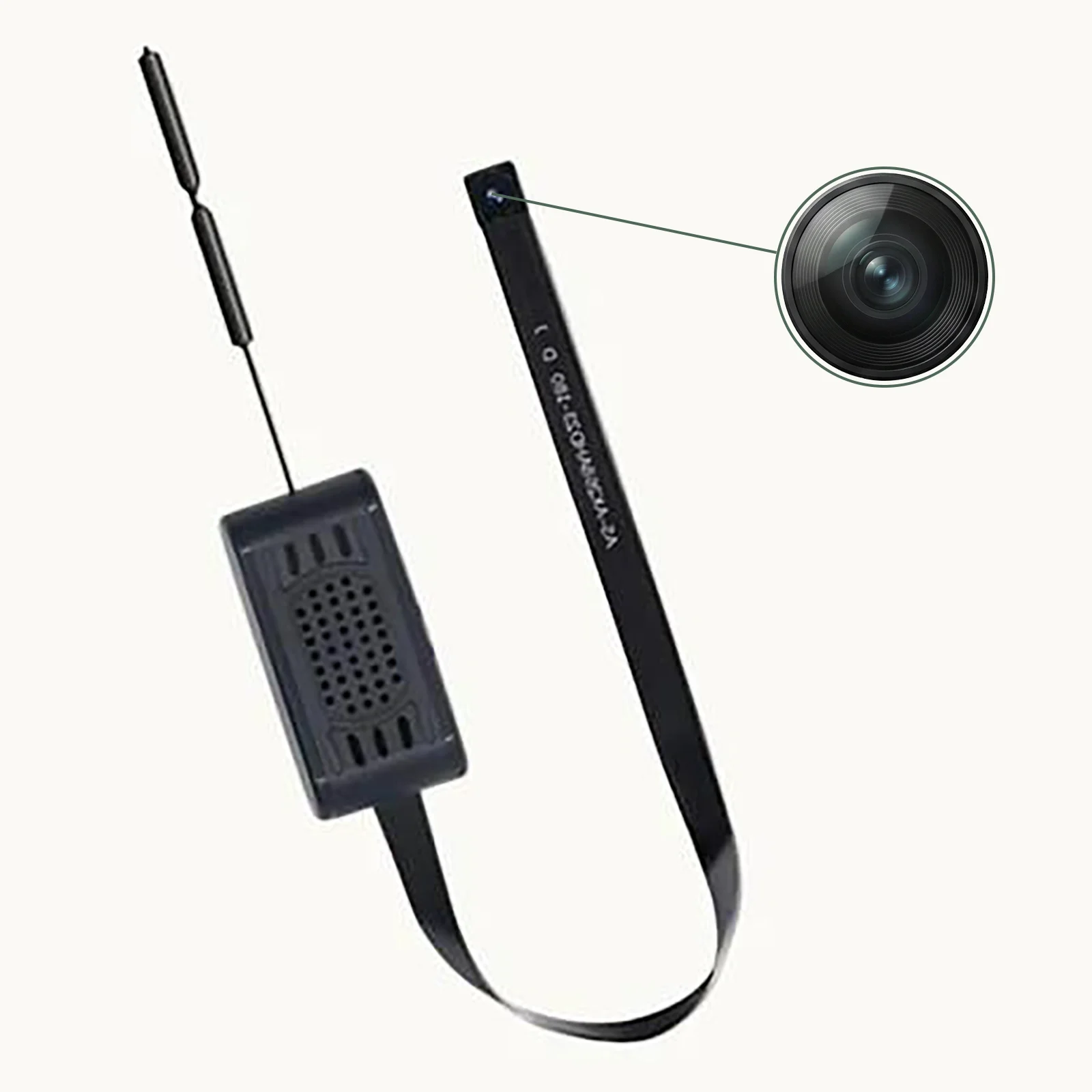
How to Update Firmware via SD Card (Manual Method)
If your camera doesn’t support OTA (over-the-air) updates through an app, or if the app update fails, you can manually flash firmware using the SD card.
This method applies to:
– Standalone cameras with no WiFi
– WiFi cameras where the OTA update repeatedly fails
– Cameras requiring a specific firmware version rollback
Steps:
Step 1: Download the correct firmware file
– Visit the manufacturer’s official website or support page
– Search for your specific camera model number (usually found on the device label)
– Download the firmware `.bin` or `.zip` file
– For Q-Z-T cameras, contact support at the product page for the latest firmware file
Step 2: Prepare the SD card
– Format the SD card as FAT32 (not exFAT, not NTFS). See our full guide on how to format an SD card in a spy camera for step-by-step instructions.
– The SD card must be empty — remove all existing files
Step 3: Copy the firmware file to the SD card
– Extract the downloaded file if it’s a `.zip`
– Copy the `.bin` firmware file to the root directory of the SD card (not inside any folder)
– Do not rename the file — the camera looks for a specific filename
Step 4: Install the firmware
– Power off the camera completely
– Insert the prepared SD card
– Power the camera back on
– The camera will detect the firmware file and automatically begin updating
– The camera’s LED indicator typically flashes rapidly during the update (1–5 minutes)
– When complete, the LED will return to normal behavior and the camera will reboot
Step 5: Verify the update
– Connect to the camera via the app and check the firmware version
– Remove the firmware `.bin` file from the SD card to prevent accidental re-flashing on next boot

What to Do If a Firmware Update Fails
Firmware update failures can leave a camera in an unstable state. Here’s how to recover:
Camera stuck on flashing LED / won’t boot:
– This indicates the firmware write was interrupted
– Do NOT power cycle multiple times rapidly
– Leave the camera powered off for 30 seconds
– If it has a reset button, hold it for 10 seconds while powering on — this triggers a recovery boot
– Try the SD card update method with a fresh download of the firmware file
Camera boots but WiFi won’t reconnect after update:
– The update may have reset network settings
– Delete the camera from the app and re-add it as a new device
– See our WiFi connection fix guide for detailed steps
Camera shows wrong firmware version after update:
– The update may not have applied correctly
– Perform a factory reset to clear any corrupted settings: factory reset guide
– Then attempt the update again
App shows “Update Failed” repeatedly:
– Check internet connection — the camera needs reliable WiFi during the entire download
– Try updating at a different time of day (server load varies)
– Ensure the camera’s battery/power is stable — never update on low battery
– Switch to SD card update method as an alternative
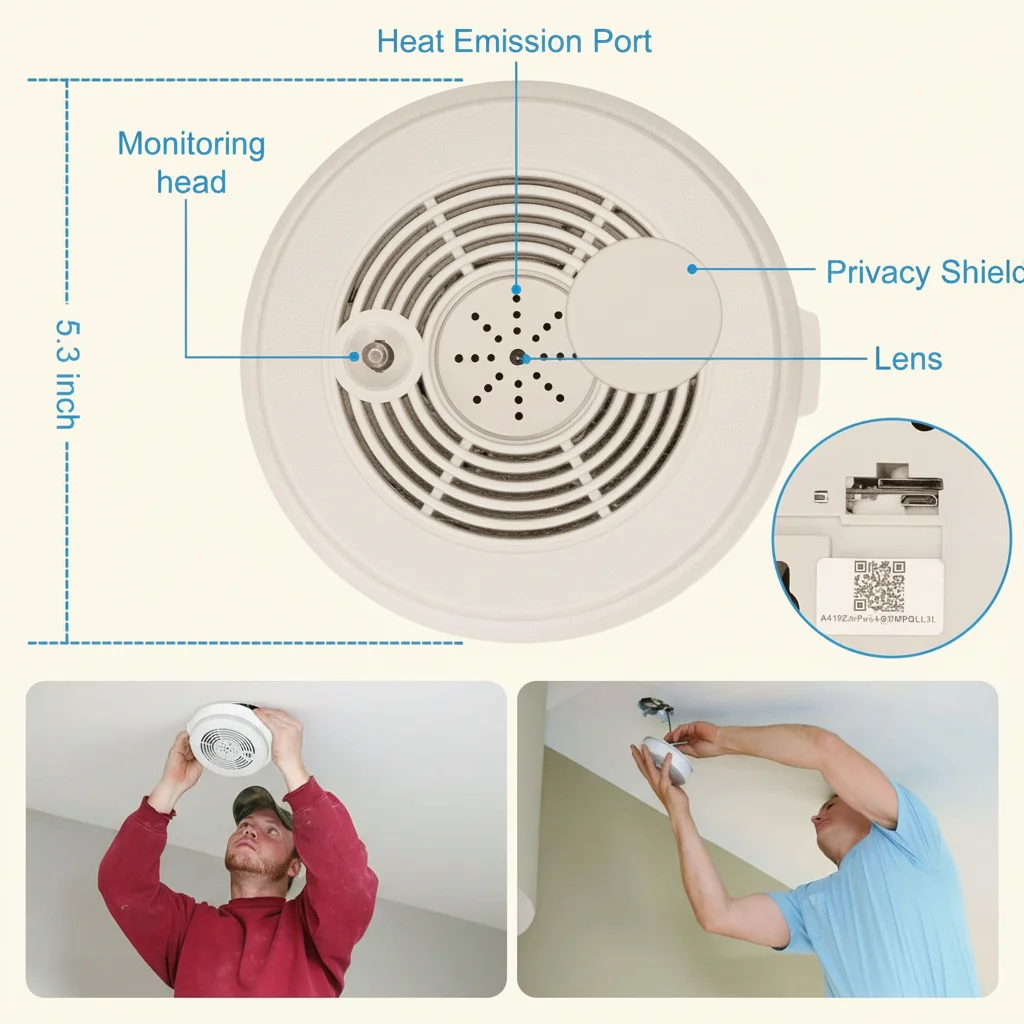
How Often Should You Update Spy Camera Firmware
Update immediately when:
– A new firmware version fixes a specific bug you’re experiencing
– The manufacturer announces a security patch
– The companion app has been updated and the camera is experiencing compatibility issues
Routine update schedule:
– Check for updates every 1–3 months as standard maintenance
– Enable auto-update notifications in the Tuya/Smart Life app so you’re notified when updates are available
– After any major update to the companion app, immediately check if a camera firmware update is also available
When NOT to update immediately:
– If the camera is working perfectly and the update release notes don’t describe relevant fixes, you may want to wait 1–2 weeks to let other users report any bugs in the new version
– Never update when you depend on the camera being active (e.g., during an active monitoring period) — always update during downtime
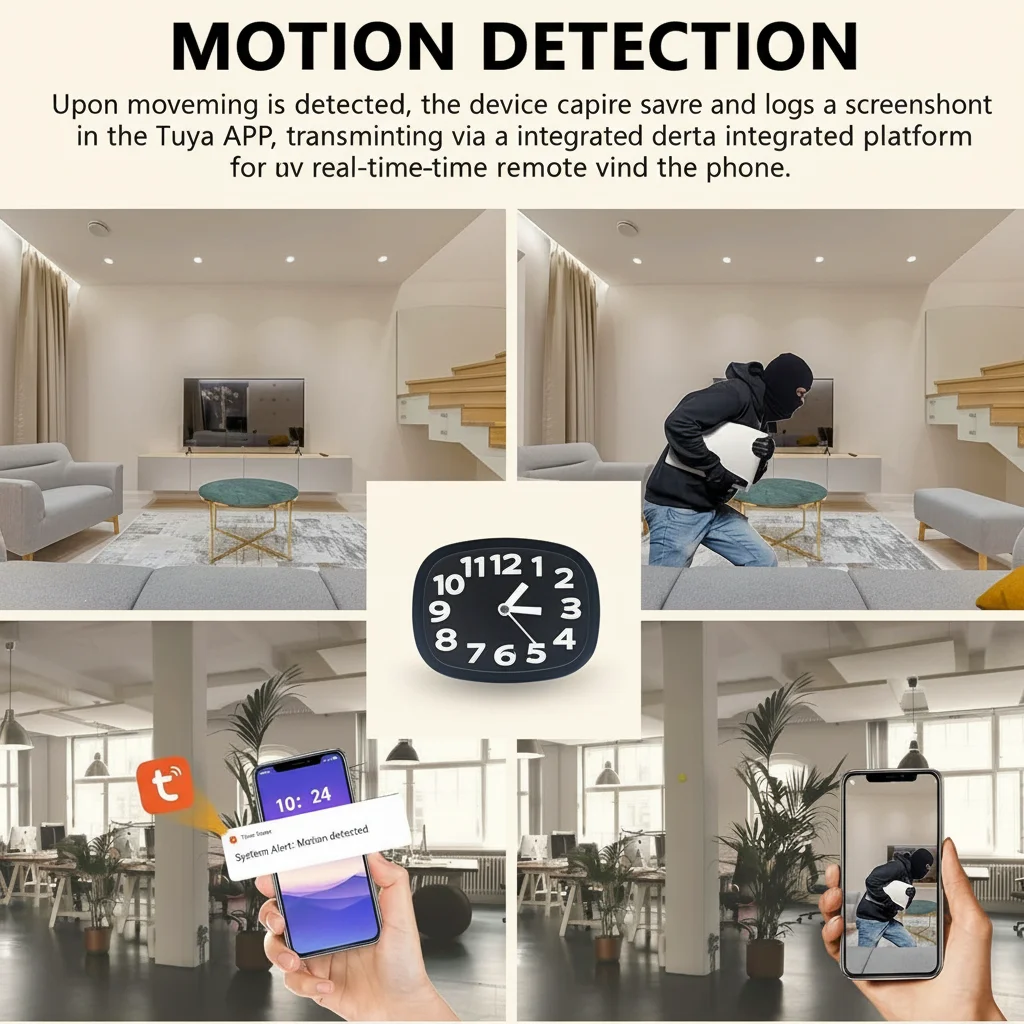
Conclusion
Firmware updates are one of the simplest and most effective ways to maintain your hidden camera. For Tuya and HDLiveCam cameras, the in-app update process takes under 5 minutes. For standalone cameras, the SD card method is equally straightforward. Make firmware maintenance part of your regular camera care routine — check for updates quarterly and always update before reporting performance issues to support, as many problems are already fixed in the latest version.
For cameras that support it, enabling auto-update notifications ensures you never miss critical patches. If you’re experiencing problems that firmware updates don’t resolve, visit our support pages for specific troubleshooting guides covering WiFi connectivity, night vision issues, and video lag.
FAQ
Q: Will updating firmware delete my SD card recordings?
A: No — firmware updates only change the camera’s internal software. SD card recordings are not affected. Your cloud recordings are also preserved.
Q: Can I downgrade to an older firmware version?
A: On most consumer cameras, downgrading is not officially supported through the app. Some cameras allow it via SD card if you have the older firmware file, but this is not recommended as it re-introduces previously patched bugs.
Q: My camera isn’t showing any firmware updates available — is this normal?
A: Yes, if your camera is already on the latest available version, the app will show “Up to date.” Manufacturers don’t update firmware on a fixed schedule — some models receive updates monthly, others receive updates infrequently.
Q: Does updating firmware change my camera settings?
A: Major firmware version updates (e.g., 1.x to 2.x) may reset some settings. Minor updates (e.g., 1.0.8 to 1.0.9) typically preserve all settings. After any major update, verify your recording settings, motion detection zones, and notification preferences.
Q: Can I update firmware without the Tuya app by using a third-party app?
A: No — firmware updates are cryptographically signed by the manufacturer and can only be installed through the official app or official SD card update file. Third-party tools cannot install manufacturer firmware.

 English
  Italiano
  Deutsch
  Français
  Español
  Polski