
A WiFi hidden camera that connects successfully and later goes offline usually has a stability problem, not a pairing problem. Weak or noisy 2.4GHz signal, unstable power, router steering, an IP conflict, outdated firmware or a failing SD card are the most common categories to test.
Do not factory-reset the camera after every disconnection. First identify whether the camera loses power, loses the local WiFi link, or stays on the network but loses cloud access. That distinction prevents repeated setup without fixing the cause.
This diagnostic order applies to many WiFi hidden camera form factors, although menu names and LED signals differ by model.
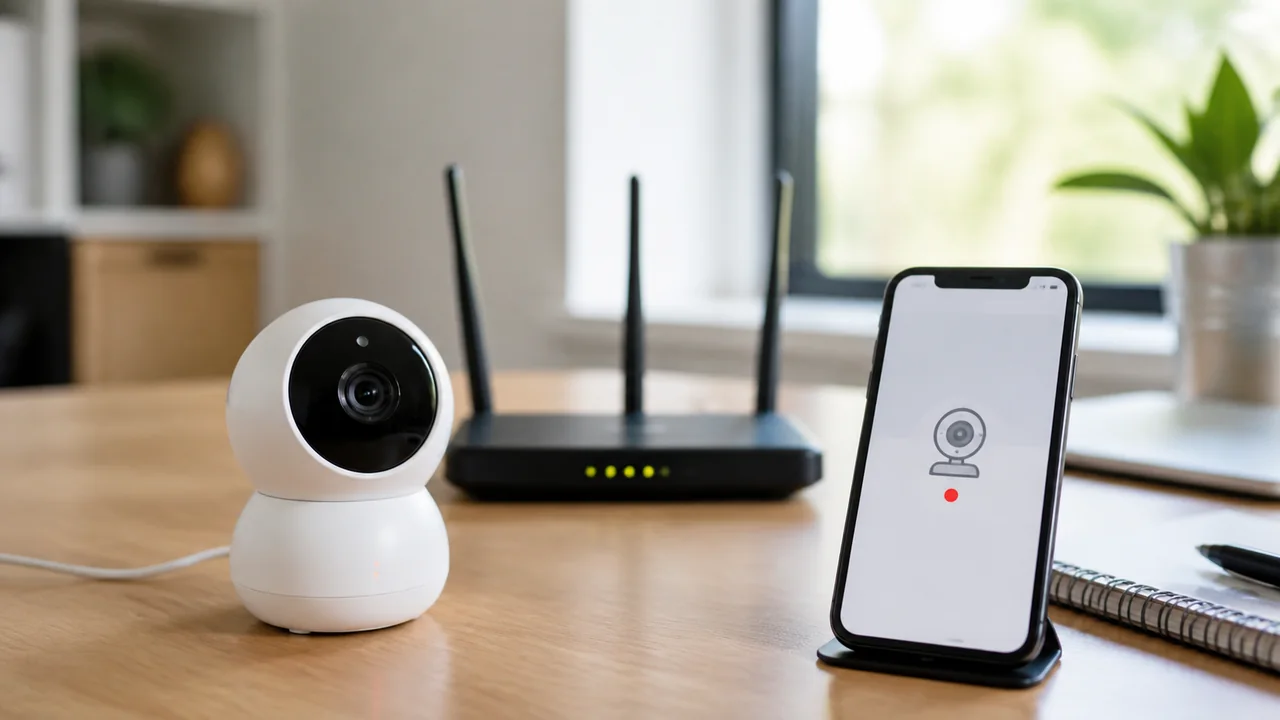
Is the Camera Failing to Pair or Going Offline Later?
Initial setup failure and repeated disconnection are separate faults.
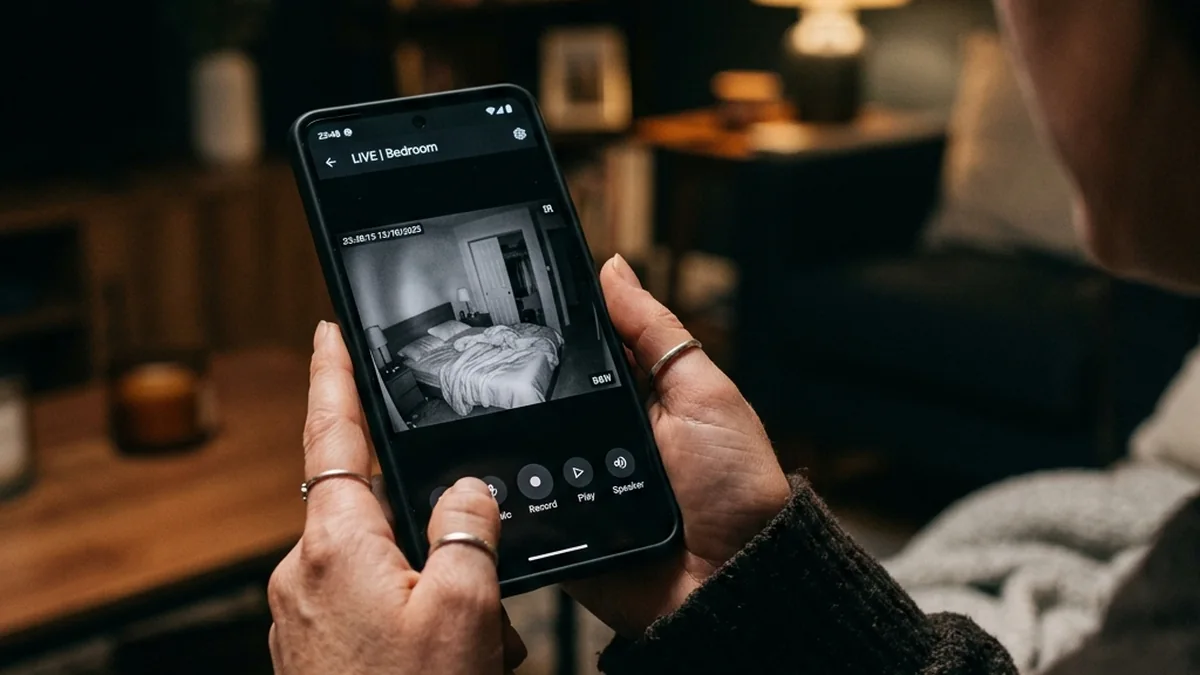
If the app has never added the camera, start with the QZT guide for a WiFi hidden camera that will not connect to the app. That process checks passwords, pairing mode, phone permissions and 2.4GHz setup.
This article is for a different pattern:
– The camera was added successfully.
– Live view worked for a period.
– The app later reports offline, timeout or failed connection.
– Rebooting the camera or router temporarily restores it.
– Local SD recording may or may not continue during the outage.
Record the exact symptom before changing settings. Note the time, LED condition, whether the camera appears in the router’s client list, and whether local recordings continue. Those four observations narrow the fault quickly.
How Do You Tell Power Failure from WiFi Failure?
Watch what happens when the camera drops.
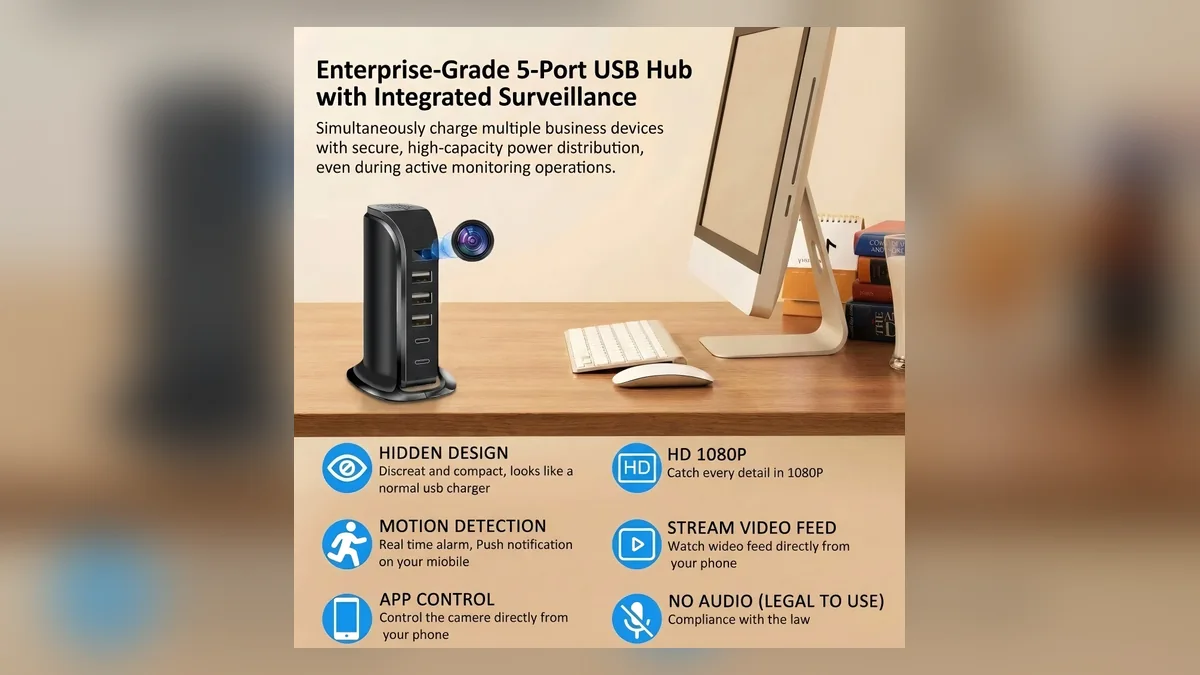
| Observation | More likely cause | First check |
|---|---|---|
| LED turns off and boot sequence restarts | Power supply, cable, socket or camera hardware | Use rated adapter and short known-good cable |
| LED stays on but router client disappears | WiFi signal or radio compatibility | Move camera closer and test 2.4GHz settings |
| Router still shows the camera but app says offline | Cloud, DNS, app or IP-session problem | Test local access, app status and router lease |
| SD card keeps recording while app is offline | Network path rather than camera power | Check router, Internet and cloud service |
| All cameras drop together | Router, access point, ISP or cloud service | Test a wired device and router logs |
| Only one camera drops in one location | Local signal, power or individual hardware | Swap location and power supply |
Use the rated power adapter whenever possible. A cable can charge a phone yet still drop too much voltage when a camera enables infrared LEDs or starts writing video. Test another wall socket and remove extension leads temporarily.
TP-Link’s current camera troubleshooting also places power checks before router tuning because an unstable supply can look exactly like a network fault.
How Strong Should the 2.4GHz Signal Be at the Camera?
Phone signal bars beside the camera are not conclusive. A phone has different antennas, radio power and roaming behaviour from a compact camera module.
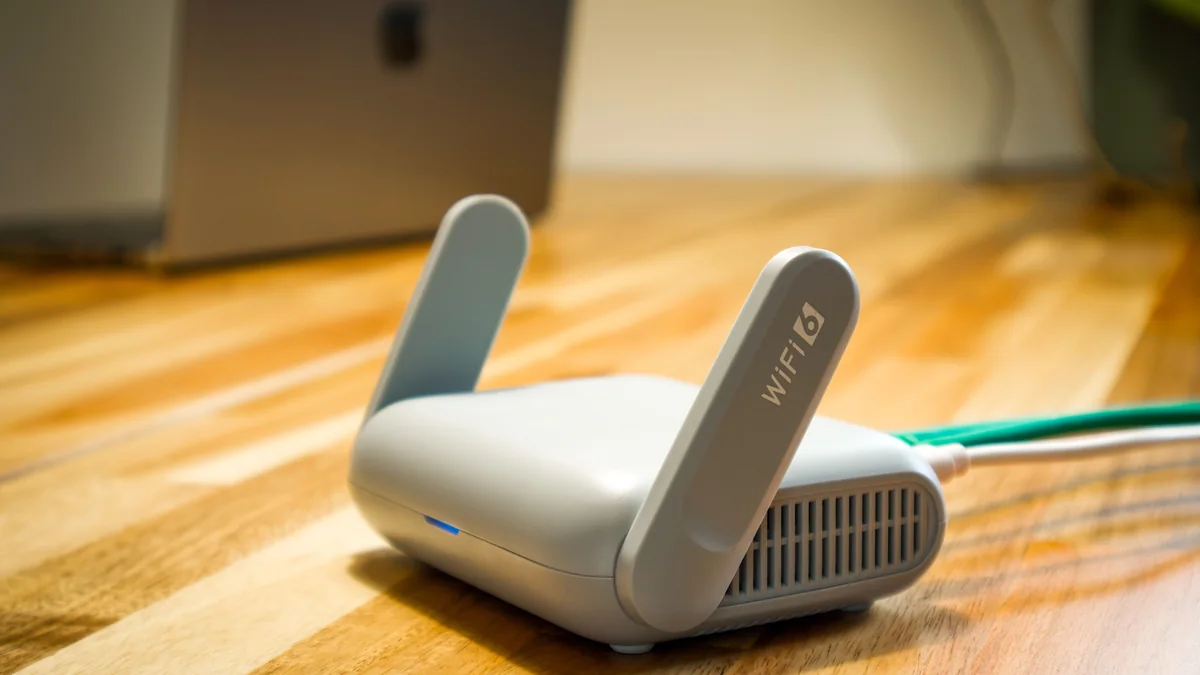
Start with a location test:
1. Move the camera within two to three metres of the main router.
2. Keep the same power supply and app account.
3. Leave it running for the same period that normally produces a drop.
4. If it becomes stable, the original location or radio environment is involved.
5. If it still drops, continue with power, router and firmware isolation.
Walls, metal cabinets, reinforced concrete, mirrors, appliances and the enclosure around a hidden module can reduce usable signal. A camera mounted beside a router is not automatically safe from interference; several nearby access points can also create a congested environment.
Do not place a repeater directly beside the camera as the first test. A repeater with a poor backhaul link can display a strong local signal while still delivering an unstable connection.
Which Router Settings Improve Camera Stability?
Many compact cameras use 2.4GHz because it provides better range and hardware cost than 5GHz. For a camera that supports only 2.4GHz, a conservative router profile is often more stable than automatic optimisation.

TP-Link’s official guidance recommends testing:
– 2.4GHz channel width set to 20MHz.
– A fixed non-overlapping channel: 1, 6 or 11.
– WPA2/WPA3 Personal where the camera supports it.
– Smart Connect, WiFi optimisation or automatic channel optimisation disabled for testing.
– Current router firmware.
| Router setting | Why it can matter | Test approach |
|---|---|---|
| Smart Connect or band steering | Some 2.4GHz-only devices handle steering poorly | Separate 2.4GHz and 5GHz SSIDs temporarily |
| Auto channel | Router may move to a crowded or incompatible channel | Fix 1, 6 or 11 after checking local congestion |
| 40MHz width on 2.4GHz | Uses more spectrum and may overlap more neighbours | Test 20MHz width |
| Client limit | New or reconnecting devices may be refused | Check router maximum-client setting |
| AP isolation | Prevents local devices from communicating | Disable on the camera’s private network if local access is required |
| Aggressive mesh roaming | Camera may be moved between nodes unnecessarily | Pin to one node or test the main router |
Change one setting at a time and observe long enough to reproduce the original fault. If five settings change together, you will not know which one solved the problem.
Can an IP Address Conflict Make the Camera Appear Offline?
Yes. A camera may remain connected to WiFi but become unreachable if another device receives the same local IP address or if a stale lease confuses the app or recorder.
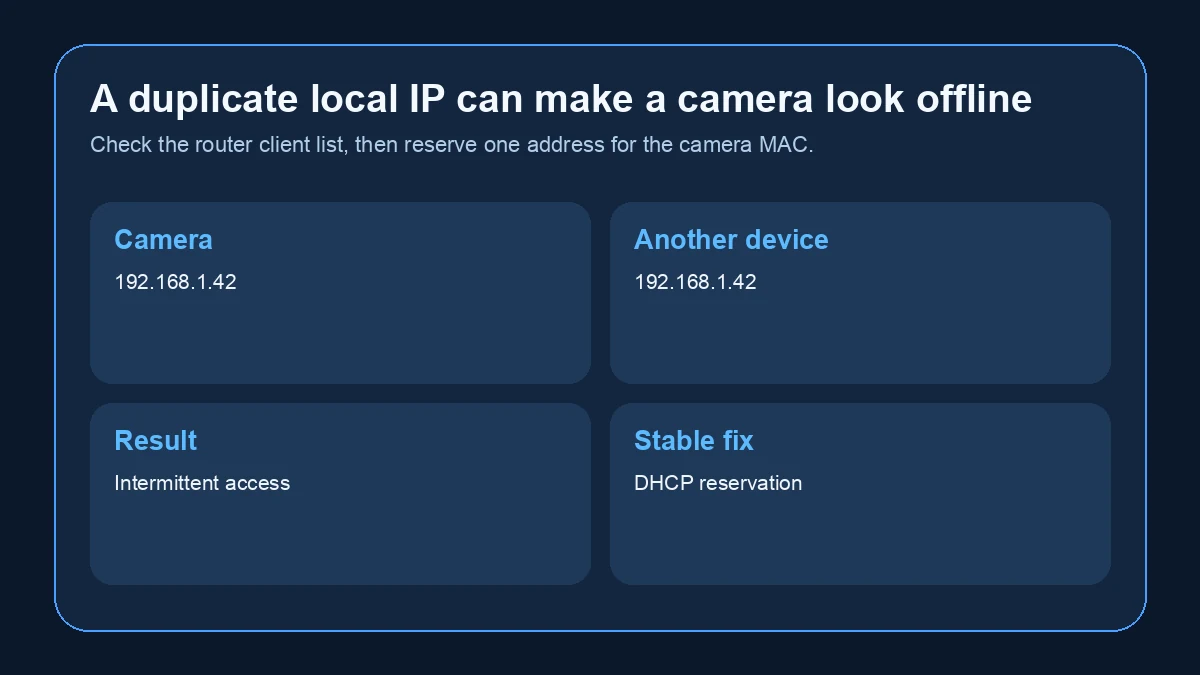
Open the router’s connected-device list and look for:
– Two clients using the same address.
– The camera repeatedly receiving a different address.
– Duplicate device names.
– A lease that expires near the time of each outage.
If the router supports DHCP reservation, reserve one address for the camera’s MAC address. Do not assign a manual address inside the router’s automatic pool unless you understand the network range; that can create the conflict you are trying to solve.
After reserving the address, reboot the camera once and confirm that the router gives it the reserved address. Static addressing is a diagnostic step, not a universal requirement.
Why Can the App Say Offline While Local Recording Continues?
Local recording and remote viewing use different paths. A camera can continue writing to microSD while its cloud session, Internet connection or phone app is unavailable.

Test the layers separately:
1. Check whether another phone on the same local WiFi can reach the camera.
2. Check whether the router itself has Internet access.
3. Disable VPN, private DNS or firewall applications on the phone temporarily.
4. Force-close and reopen the camera app.
5. Check whether the vendor reports a cloud-service outage.
6. Review the SD card after the outage to confirm whether recording continued.
If local video exists throughout the outage, do not describe the camera as having stopped recording. The more precise diagnosis is that remote access failed while local capture continued.
For sites that require recording without cloud access, QZT’s Tuya WiFi and offline recording setup explains the difference between network setup and local-only operation.
Can Firmware, the App or the SD Card Cause Repeated Drops?
All three can contribute, but they should be isolated rather than blamed together.
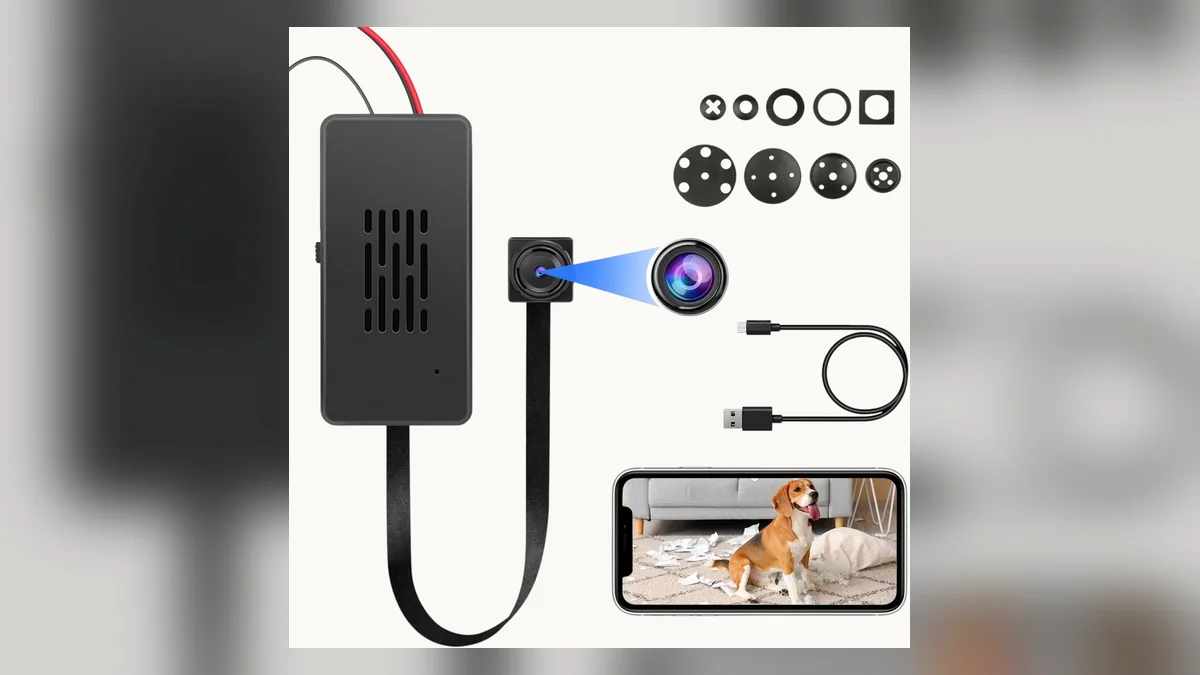
Update the camera firmware and mobile app from the official source for the exact model. Then restart and observe before changing the router. Avoid installing firmware for a visually similar camera; identical housings can contain different modules.
If the camera still drops, remove the SD card temporarily and run the camera without local recording. TP-Link includes this test in its current offline-device guidance because an incompatible or failing card can cause instability on some cameras. If stability returns, back up required footage, format a supported card in the camera, or replace the card.
Also disconnect third-party ONVIF, NAS or recorder software temporarily. Excessive reconnect attempts or an incompatible integration can keep a camera session busy even when the vendor app appears normal.
How Do You Test Whether the Router Is the Real Cause?
Connect the camera and phone to a different private 2.4GHz network for a controlled test. A spare router is preferable; a phone hotspot can help if it allows the phone running the app to access the same network.
| Result | What it indicates |
|---|---|
| Stable on second router | Original router settings, congestion or topology need attention |
| Drops on both networks | Camera power, firmware, SD card or hardware becomes more likely |
| Stable only near both routers | Original installation position has insufficient usable signal |
| Several cameras drop only on one network | Shared network or cloud path is more likely than several camera failures |
Keep the camera, power supply and app version unchanged during the test. Otherwise the result cannot isolate the router.
For a permanent installation, a dedicated 2.4GHz SSID or access point can be easier to maintain than repeatedly adapting a crowded household network. Confirm local radio regulations and use supported router channels for the deployment country.
When Should You Reset the Camera?
Reset only after the non-destructive checks have failed or when the device cannot retain a valid configuration.
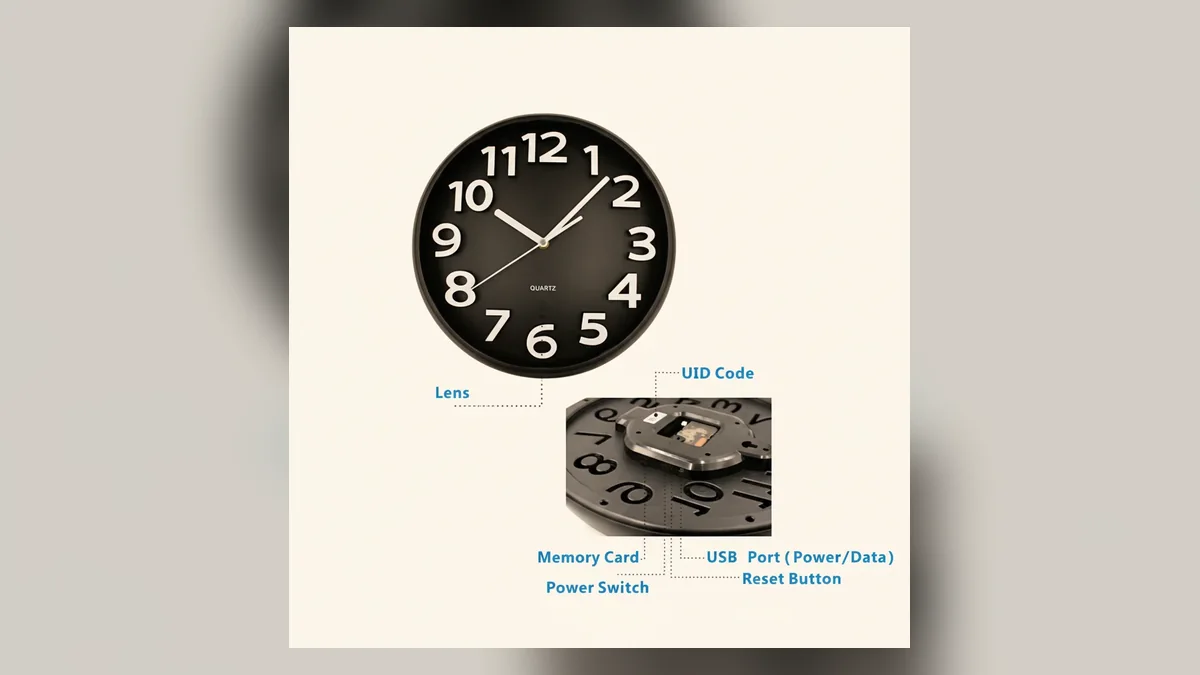
Before resetting, record:
– Camera model and firmware version.
– App name and account ownership.
– WiFi SSID and whether it is 2.4GHz-only.
– Router model and current channel settings.
– Whether SD recordings must be preserved.
– Any device-sharing permissions that will need to be restored.
A factory reset clears pairing and may remove local settings. It does not repair a weak signal, failing power adapter or congested router. If rebooting provides only a short temporary recovery, that is diagnostic evidence, not a complete fix.
When Is the Camera Itself Probably Faulty?
Suspect hardware after the camera fails controlled tests with a known-good power source, close router placement, a second 2.4GHz network, current firmware and no SD card.

Signs that justify support or replacement include:
– Repeated power cycling on two correct adapters.
– Excessive heat followed by shutdown.
– WiFi failure at close range on more than one router.
– A loose USB socket or intermittent power connector.
– Corrupted configuration after every normal restart.
– The same failure interval regardless of network conditions.
For distributors, keep the test results with the unit. A reproducible fault description is more useful than “camera offline” and reduces unnecessary replacement of working hardware.
Frequently Asked Questions
Why does a WiFi hidden camera go offline every few hours?
A WiFi hidden camera that goes offline every few hours may be losing power, renewing an unstable network lease, switching access points or encountering 2.4GHz interference. Check whether the camera disappears from the router, whether its LED restarts, and whether SD recording continues before resetting the device.
Can Smart Connect disconnect a WiFi hidden camera?
Smart Connect can contribute when a WiFi hidden camera supports only 2.4GHz or handles band steering poorly. Temporarily separate the 2.4GHz and 5GHz network names, connect the camera to 2.4GHz, and observe it. If stability improves, keep a dedicated compatible network or adjust the router’s steering settings.
Should a WiFi hidden camera use channel 1, 6 or 11?
A WiFi hidden camera on 2.4GHz can often use channel 1, 6 or 11 because these are the standard non-overlapping 20MHz choices in many regions. Select the least congested supported channel and confirm local regulations. A fixed 20MHz channel can be more stable than automatic wide-channel selection.
Will a WiFi extender stop a hidden camera going offline?
A WiFi extender can help a hidden camera only when weak coverage is the cause and the extender has a stable backhaul connection. Placing an extender where the original signal is already poor simply repeats a poor link. Test the camera beside the main router first, then place the extender between router and camera.
Can a bad SD card make a WiFi hidden camera disconnect?
A bad or incompatible SD card can make a WiFi hidden camera unstable on some models, especially while the camera initializes or writes files. Remove the card temporarily and observe the camera. If stability returns, back up necessary footage and replace the card with a supported, correctly formatted high-endurance card.
Fix the Layer That Actually Failed
The fastest route is to separate power, local WiFi, Internet/cloud access and storage. Move the camera close to the router, verify stable power, test conservative 2.4GHz settings, reserve its IP if necessary, and isolate firmware and SD-card factors before performing a factory reset.
When selecting a permanent device, compare powered and portable WiFi hidden camera models against the actual router location, recording method and maintenance access rather than relying on signal bars alone.

 English
  Italiano
  Deutsch
  Français
  Español
  Polski