
3. Wybierz kartę SD w panelu lewym
Nieprawidłowe formatowanie karty SD to jedna z głównych przyczyn zawieszania się kamer szpiegowskich, zatrzymywania nagrywania lub braku zapisu materiału. Ten przewodnik wyjaśnia dokładnie, jak sformatować kartę SD do dowolnej ukrytej kamery — czy jest to kamera w zegarze, kamera w ładowarce USB, kamera w czujniku dymu, kamera w długopisie czy urządzenie noszone na ciele — oraz jak naprawić najczęstsze błędy pamięci.

Dlaczego formatowanie karty SD ma znaczenie w ukrytych kamerach
Kamery szpiegowskie to systemy wbudowane o ograniczonej mocy obliczeniowej. W przeciwieństwie do komputera, który obsługuje systemy plików FAT32, exFAT i NTFS, większość ukrytych kamer obsługuje tylko FAT32 (dla kart do 32GB) lub exFAT (dla 64GB i większych). Karta sformatowana w NTFS lub z niedopasowanym rozmiarem klastra nie zostanie w ogóle rozpoznana przez kamerę albo będzie wyglądać na rozpoznaną, ale nie zapisze żadnych plików.
Poza zgodnością z systemem plików, formatowanie usuwa fragmentację, która narasta przez tygodnie nagrywania zapętlonego, resetuje tablicę katalogów i eliminuje uszkodzone sektory gromadzące się w wyniku nieprawidłowego odcięcia zasilania (np. odłączenia kamery podczas aktywnego nagrywania). Regularne formatowanie — co 4–8 tygodni przy intensywnym użytkowaniu — zapewnia spójną wydajność nagrywania.
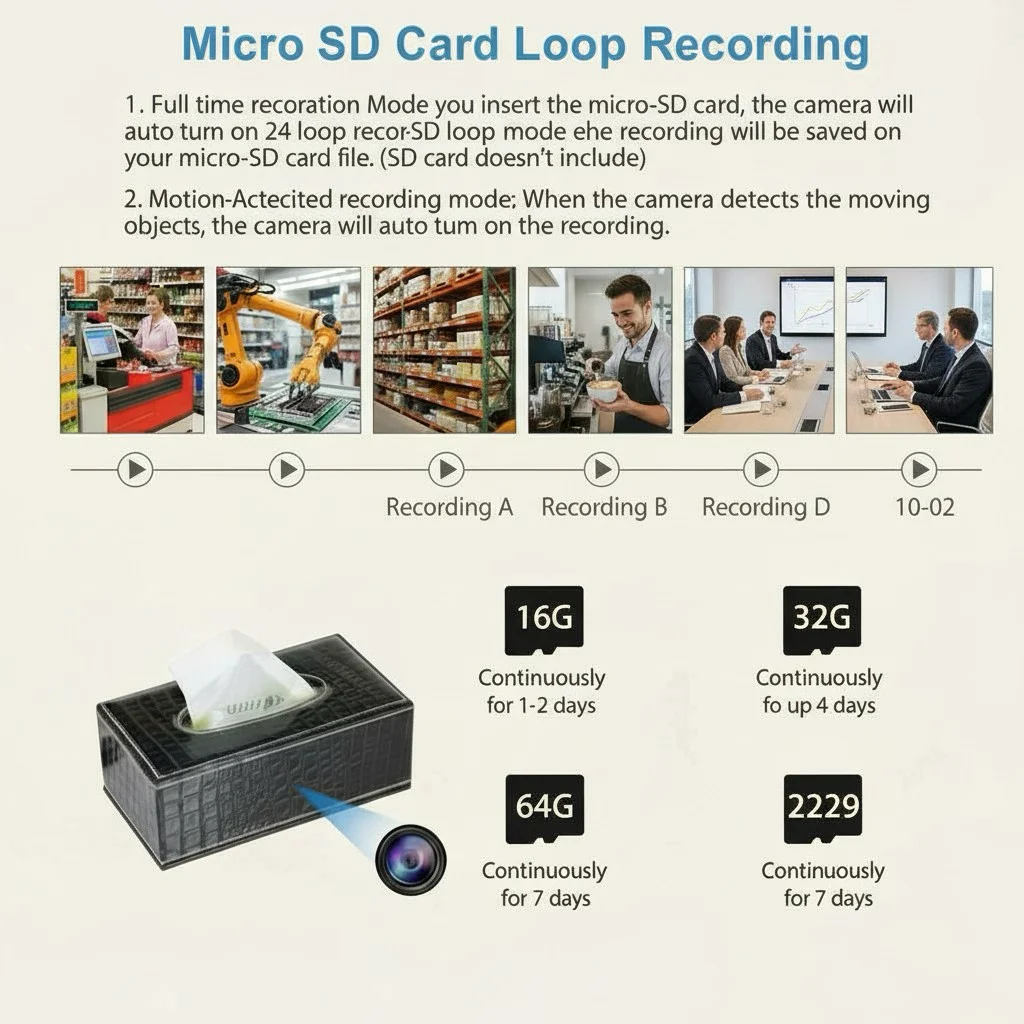
Jakie parametry karty SD sprawdzają się najlepiej w kamerach szpiegowskich
Przed formatowaniem upewnij się, że używasz kompatybilnej karty. Kamery ukryte wymagają kart microSD przeznaczonych do ciągłego zapisu. Karty konsumenckie zaprojektowane do fotografii seryjnej (oznaczone jako “klasa prędkości UHS 1” lub szybsza, U1 lub U3) sprawdzają się dobrze. Unikaj kart bez marki lub sprzedawanych bez jasnych oznaczeń klasy prędkości.
| Pojemność karty | System plików | Kompatybilność z kamerami |
|---|---|---|
| 8GB – 32GB | FAT32 | Wszystkie kamery szpiegowskie (uniwersalne) |
| 64GB – 128GB | exFAT | Większość ukrytych kamer WiFi |
| 256GB+ | exFAT | Sprawdź specyfikacje przed zakupem |
Zalecane: Samsung Endurance, SanDisk High Endurance lub seria Kingston Canvas. Są one zaprojektowane do zastosowań w monitoringu i wideorejestratorach, które wykorzystują ten sam wzorzec ciągłego zapisu w nagrywaniu zapętloną co ukryte kamery.
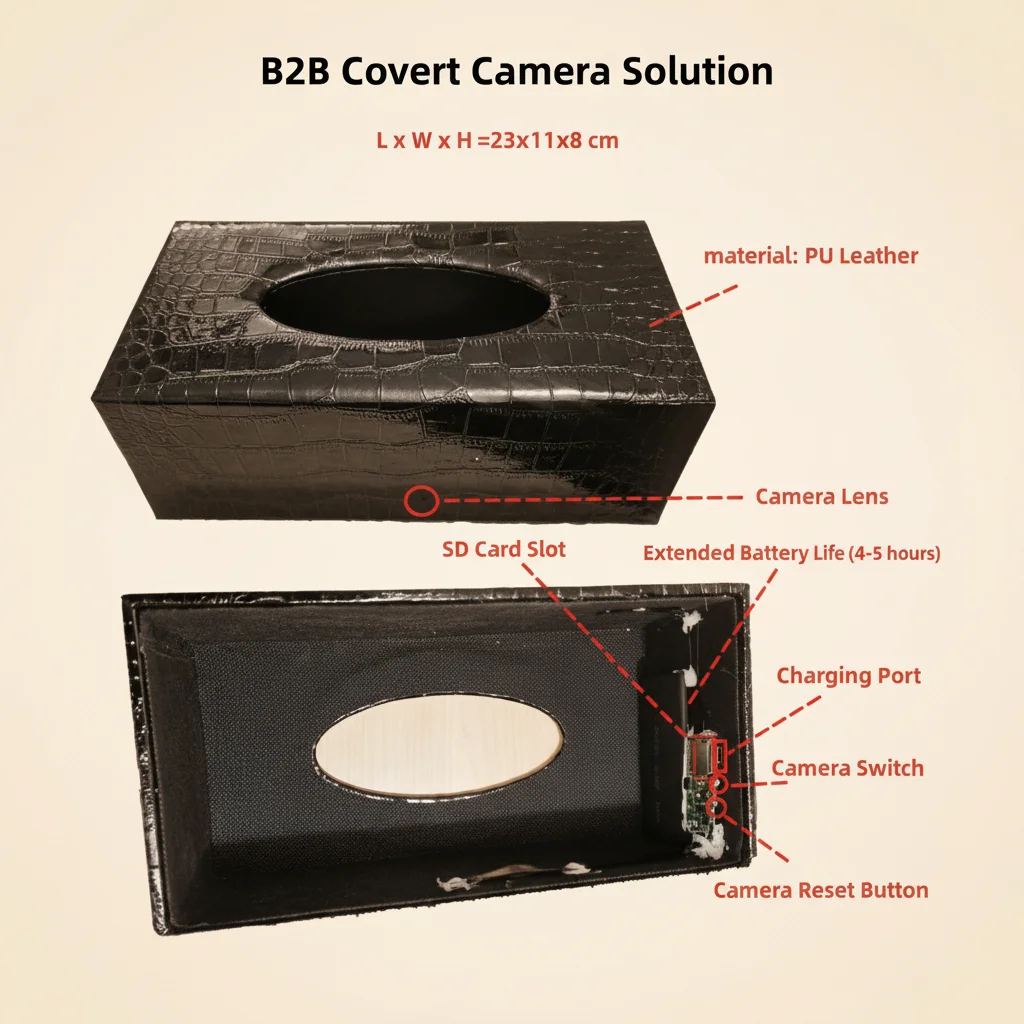
Jak sformatować kartę SD za pomocą aplikacji kamery
Najprostsza i najbardziej niezawodna metoda to formatowanie bezpośrednio przez aplikację towarzyszącą kamery. Zapewnia to automatyczne użycie prawidłowego systemu plików i rozmiaru klastra.
W przypadku kamer opartych na Tuya (kamery w zegarze, kamery w ładowarce USB, kamery w czujniku dymu):
1. Otwórz aplikację Tuya Smart i dotknij swojego urządzenia kamerowego
2. Dotknij ikony ustawień (ikona koła zębatego) w prawym górnym rogu
3. Przewiń do “Pamięć” lub “Zarządzanie kartą SD”
4. Stuknij “Formatuj” i potwierdź
5. Poczekaj na zakończenie procesu (od 30 sekund do 2 minut w zależności od pojemności karty)
Dla HDLiveCam lub innych samodzielnych aplikacji:
Opcja formatowania zwykle znajduje się w Ustawienia > Pamięć > Formatuj kartę SD. Dokładna ścieżka menu różni się w zależności od wersji aplikacji, ale ogólna struktura jest podobna.
Po sformatowaniu przez aplikację kamera natychmiast rozpozna kartę jako pustą i rozpocznie nagrywanie. Proces formatowania usuwa wszystkie zapisane nagrania, więc najpierw wykonaj kopię zapasową ważnych nagrań.

Jak sformatować kartę SD na komputerze (dla FAT32)
Jeśli aplikacja kamery nie ma wbudowanej opcji formatowania lub karta w ogóle nie jest rozpoznawana przez kamerę, najpierw sformatuj ją na komputerze.
W systemie Windows:
1. Włóż kartę microSD za pomocą czytnika kart
2. Otwórz Eksplorator plików i kliknij prawym przyciskiem myszy dysk karty SD
3. Wybierz “Formatuj”
4. Set File System to FAT32 (dla kart 32GB lub mniejszych) lub exFAT (dla 64GB+)
5. Set Allocation Unit Size to 32768 (32KB) — to optymalny rozmiar klastra do nagrywania wideo
6. Zaznacz “Szybkie formatowanie” i kliknij Start
W systemie macOS:
1. Włóż kartę microSD
2. Otwórz Narzędzie dyskowe (Aplikacje > Narzędzia > Narzędzie dyskowe)
3. Wybierz kartę SD w lewym panelu
4. Kliknij “Usuń”
5. Set Format to MS-DOS (FAT) dla kart poniżej 32GB lub ExFAT dla większych kart
6. Ustaw nazwę na coś prostego, np. “SDCARD”
7. Kliknij Erase
Ważna uwaga dla użytkowników systemu Windows: Windows 10 i 11 nie oferują FAT32 jako opcji formatowania dla kart większych niż 32GB w standardowym interfejsie graficznym. Jeśli musisz sformatować kartę 64GB jako FAT32 (dla starszej kamery, która nie obsługuje exFAT), użyj narzędzia zewnętrznego, takiego jak guiformat.exe, lub sformatuj kartę za pomocą wiersza poleceń.
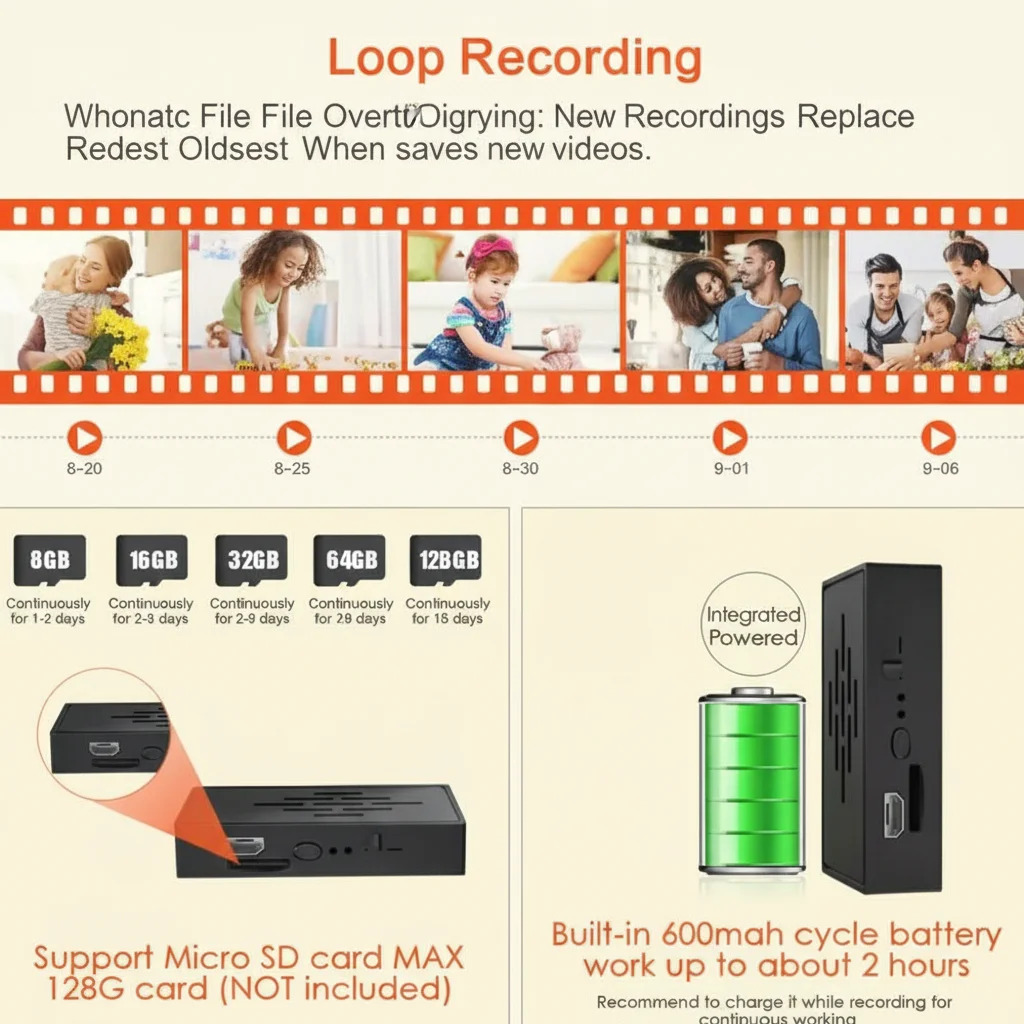
Jak naprawić kartę SD nierozpoznawaną przez kamerę
Jeśli twoja kamera pokazuje “Brak karty SD”, “Błąd pamięci” lub podobne po włożeniu karty, przejdź przez te kroki:
Krok 1: Sprawdź fizyczne włożenie karty. Wyjmij kartę i włóż ją ponownie mocno. Gniazda kart MicroSD wymagają wyraźnego kliknięcia, aby zapewnić prawidłowy kontakt elektryczny. W niektórych kamerach szpiegowskich gniazdo karty jest ciasne i karta może wydawać się włożona, ale nie jest całkowicie osadzona.
Krok 2: Wypróbuj kartę w innym urządzeniu. Włóż kartę microSD do innej kamery, telefonu lub czytnika kart. Jeśli żadne urządzenie jej nie rozpoznaje, karta jest uszkodzona.
Krok 3: Sprawdź limit pojemności karty. Niektóre starsze lub budżetowe kamery ukryte obsługują maksymalną pojemność 32 GB lub 64 GB. Karta 128 GB lub 256 GB nie zostanie rozpoznana, jeśli przekracza maksymalną pojemność urządzenia. Sprawdź kartę specyfikacji produktu.
Krok 4: Sformatuj ponownie na komputerze. Nawet jeśli karta działała wcześniej, ponowne sformatowanie jej na komputerze z prawidłowym systemem plików często rozwiązuje problemy z rozpoznawaniem spowodowane uszkodzeniem systemu plików.
Krok 5: Wypróbuj inną kartę. Jeśli gniazdo i system plików karty są sprawne, ale kamera nadal jej nie rozpoznaje, spróbuj użyć sprawdzonej karty renomowanej marki. Podrobione karty SD (częste na platformach internetowych) często zawodzą niespodziewanie.
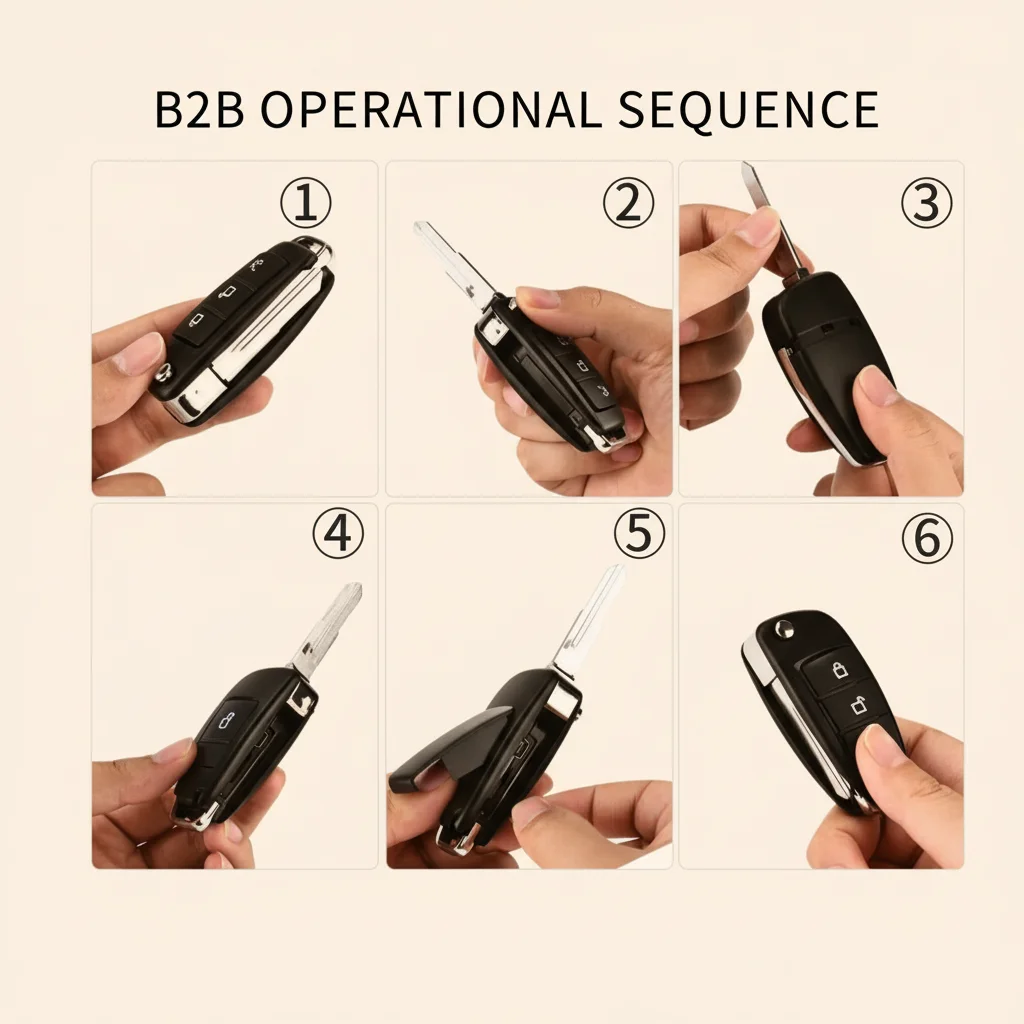
Jak często należy formatować kartę SD
W przypadku kamer pracujących w trybie ciągłego nagrywania zapętlonego 24 godziny na dobę formatuj kartę SD co 4 tygodnie. W przypadku kamer ustawionych wyłącznie na nagrywanie wyzwalane ruchem, miesięczne formatowanie jest nadal zalecane, jeśli kamera znajduje się w miejscu o dużym natężeniu ruchu. W przypadku kamer o niskim użytkowaniu (jedno lub dwa zdarzenia ruchu dziennie) formatowanie co 8–12 tygodni jest wystarczające.
Nigdy nie wyjmuj karty SD podczas nagrywania kamerą. Zawsze najpierw wyłącz zasilanie kamery lub wejdź do menu ustawień i wybierz “Bezpiecznie wyjmij kartę SD”, jeśli twoja aplikacja oferuje tę opcję. Wyjęcie karty podczas zapisu powoduje uszkodzenia na poziomie sektorów, których nie zawsze można naprawić.
Jak odzyskać nagrania z uszkodzonej karty SD
Jeśli pilnie potrzebujesz nagrań z uszkodzonej karty, nie formatuj jej jeszcze. Zamiast tego wypróbuj oprogramowanie do odzyskiwania danych, zanim nadpiszesz dane.
W systemie Windows: Recuva (bezpłatna) lub Disk Drill mogą przeskanować kartę i odzyskać pliki wideo nawet z uszkodzonej tablicy alokacji plików. Podłącz kartę przez czytnik kart, uruchom głębokie skanowanie i filtruj pliki .mp4, .avi lub .mov.
W systemie macOS: Disk Drill dla Mac zapewnia taką samą możliwość odzyskiwania. PhotoRec (bezpłatny, wiersz poleceń) to potężna alternatywa, która działa na obu platformach.
Skuteczność odzyskiwania danych zależy od tego, ile nowych danych zostało zapisanych na karcie po wystąpieniu uszkodzenia. Im szybciej podejmiesz próbę odzyskiwania, tym lepiej.
Po odzyskaniu wszelkich możliwych do uratowania nagrań sformatuj kartę zgodnie z powyższymi krokami i przywróć ją do użytku. Karty, które doświadczyły wielu zdarzeń uszkodzenia, należy wymienić, a nie kontynuować ich użytkowanie.
Wnioski
Sformatowanie karty SD kamery szpiegowskiej z odpowiednim systemem plików — FAT32 dla kart do 32 GB, exFAT dla 64 GB i więcej — jest podstawą niezawodnego długoterminowego nagrywania. Jeśli to możliwe, używaj wbudowanej funkcji formatowania aplikacji kamery dla najprostszego i najbezpieczniejszego procesu. Jeśli karta nie jest rozpoznawana lub nagrywanie przestaje działać, sformatuj ją na komputerze z odpowiednimi ustawieniami, zanim założysz problem sprzętowy. Regularne formatowanie co 4–8 tygodni utrzymuje działanie kamery ukrytej bez awarii związanych z pamięcią.
Często zadawane pytania
Czy mogę użyć karty SD 128GB w mojej kamerze szpiegowskiej?
To zależy od modelu kamery. Większość nowoczesnych ukrytych kamer WiFi obsługuje karty do 128GB. Niektóre starsze lub budżetowe modele mają maksimum 32GB lub 64GB. Przed zakupem karty o dużej pojemności sprawdź specyfikację produktu.
Moja kamera pokazuje “Karta SD pełna”, ale automatycznie usuwa stare nagrania. Czy to normalne?
Tak. Gdy nagrywanie zapętlone jest włączone, kamera automatycznie nadpisuje najstarsze nagrania, gdy karta jest pełna. Jeśli karta nadal pokazuje się jako pełna bez nadpisywania, ustawienie nagrywania zapętlonego może być wyłączone. Włącz je w ustawieniach pamięci aplikacji kamery.
Czy powinienem sformatować kartę SD przed pierwszym użyciem?
Tak, zawsze. Karty SD zakupione od producentów są formatowane do użytku ogólnego. Ponowne formatowanie w kamerze lub z odpowiednimi ustawieniami zapewnia, że rozmiar klastra i system plików są zoptymalizowane pod ciągłe nagrywanie wideo.
Dlaczego moja karta SD działa w kamerze, ale nagrania są uszkodzone lub nieodtwarzalne?
Uszkodzony materiał zwykle oznacza, że karta jest zbyt wolna dla wymagań prędkości zapisu kamery. Używaj karty klasy U1 lub U3 (klasa prędkości UHS 1 lub 3). Karty bez oznaczeń klasy prędkości często mają niestabilną prędkość zapisu, co powoduje uszkodzenia klatek w nagranym wideo.
Jak uzyskać dostęp do nagrań z karty SD na komputerze?
Wyjmij kartę microSD z kamery, włóż ją do czytnika kart i podłącz do komputera. Kamera zapisuje wideo jako standardowe pliki .mp4 w folderach uporządkowanych według daty. Możesz odtwarzać te pliki bezpośrednio w VLC Media Player lub dowolnym standardowym odtwarzaczu wideo.

 English
  Italiano
  Deutsch
  Français
  Español
  Polski