
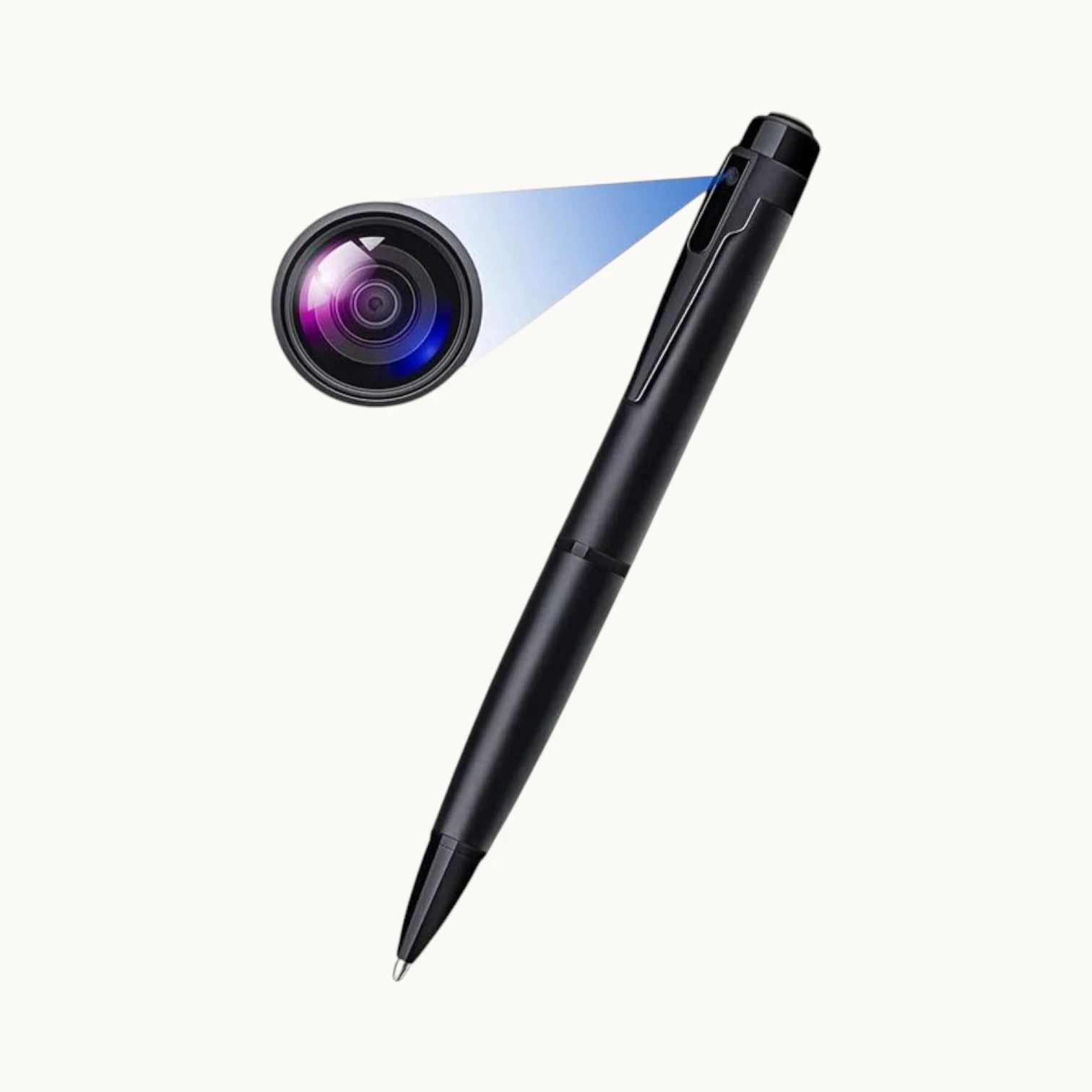
If your standalone SD card spy camera — a pen camera, key fob DVR, or power bank recorder — suddenly refuses to record, produces corrupted video files, or shows the wrong timestamp on every clip, the root cause is almost never the camera itself. In the vast majority of field cases, the fault sits in the SD card’s file system, the card’s NAND flash endurance class, or a neglected RTC (real-time clock) that lost its reference time when the battery ran flat. This guide gives you the exact diagnosis and repair procedure for each failure mode, and explains what your B2B procurement specification needs to say about storage media selection to prevent these issues at scale.
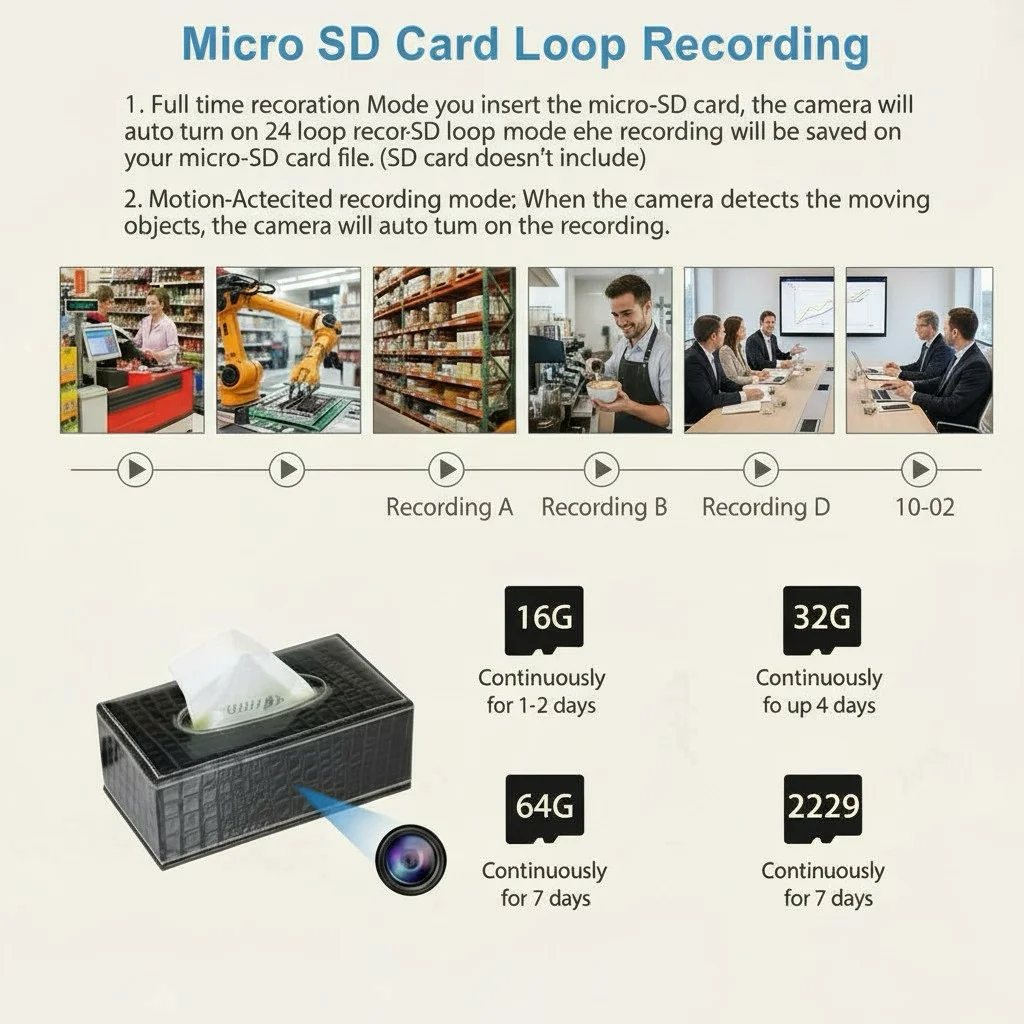
Why SD Card Failures Look Identical to Camera Hardware Failures
Standalone DVR cameras have no companion app, no cloud dashboard, and no on-screen diagnostic. The only feedback is a small LED — steady red, blinking red, or no light at all. When the card fails, the camera behaves exactly as it would if the lens, battery, or main PCB had failed. That is why the majority of returned units in this product category test perfectly fine once the technician inserts a fresh, correctly formatted card. Understanding the three distinct failure paths — endurance exhaustion, file-system corruption, and RTC drift — lets you triage each complaint in under five minutes without issuing a replacement unit.
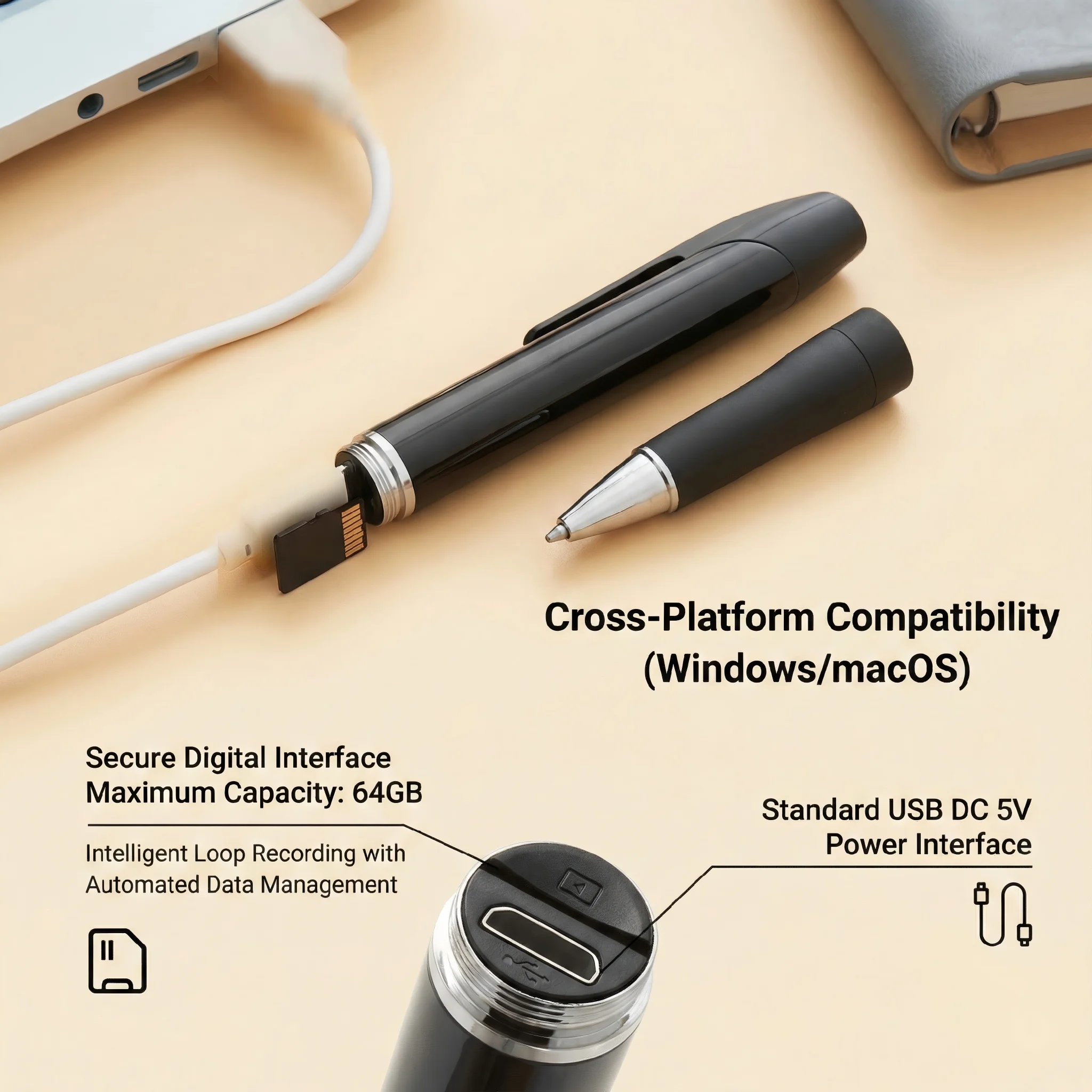
What Is NAND Flash P/E Cycle Life and Why It Matters for Loop Recording
Every MicroSD card stores data in NAND flash memory. Each memory cell can only be written and erased a finite number of times — a figure called the P/E (Program/Erase) cycle rating. Consumer TLC (Triple-Level Cell) cards, which represent most of the budget MicroSD market, carry a typical P/E rating of 500–1,000 cycles per cell. Higher-grade MLC (Multi-Level Cell) cards achieve 3,000–10,000 cycles, and surveillance-grade High Endurance variants implement wear-leveling algorithms that distribute writes evenly across the entire array, stretching effective lifespan by a factor of three to five.
The problem is loop recording. A covert DVR recording 1080p video at 12–15 Mbps fills a 32 GB card in roughly 6–7 hours. In continuous loop mode, the firmware overwrites the oldest footage once the card is full. On a 32 GB card running 24/7, that means approximately 3–4 complete card writes per day. A consumer TLC card rated at 500 P/E cycles will reach physical end-of-life in roughly 125–167 days of continuous loop recording — less than six months. After that threshold, cells begin failing, producing corrupted video segments, unreadable directory entries, and eventually a card that the camera cannot mount at all.
The B2B specification requirement is non-negotiable: all product pages, quick-start guides, and sales materials for loop-recording DVR devices must explicitly state that only High Endurance or surveillance-grade MLC MicroSD cards (Samsung PRO Endurance, Kingston High Endurance, Western Digital Purple, or equivalent) should be used. This single line in the spec sheet prevents the majority of storage-related warranty claims.

SD Card Speed Class Requirements for 1080p Loop Recording
Beyond endurance, write speed is the second most common cause of dropped frames and corrupted recordings. 1080p video at a typical bitrate of 12–20 Mbps requires a sustained write speed of at least 15–25 MB/s. SD Association speed classifications that meet this requirement are:
| Speed Class | Minimum Write Speed | Suitable for 1080p DVR |
|---|---|---|
| Class 10 / U1 | 10 MB/s | Marginal — acceptable only for bitrates under 12 Mbps |
| U3 / V30 | 30 MB/s | Recommended minimum for 1080p continuous loop |
| V60 | 60 MB/s | Recommended for 4K modules (C10 Tuya 4K) |
| High Endurance U3 | 30 MB/s + extended P/E | Required specification for all loop-recording deployments |
When a card drops below its sustained write speed — which TLC cards commonly do as cells degrade — the device’s video encoder buffer overflows and the firmware either skips frames or closes the file and opens a new one, producing the “recording with gaps” symptom that customers frequently misidentify as a motion detection or VOR issue.
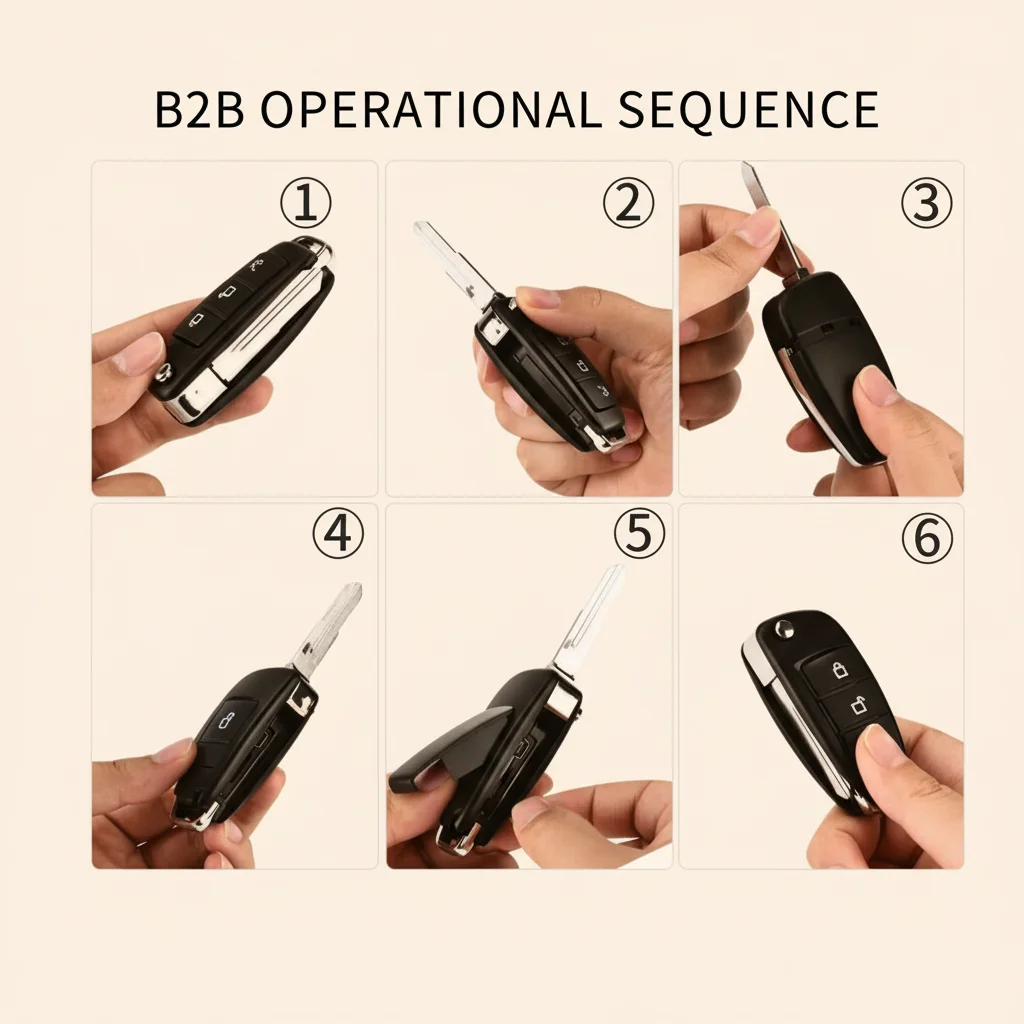
FAT32 File System Corruption: What Causes It and How to Fix It
The second most common failure category is FAT32 file system corruption. FAT32 (File Allocation Table, 32-bit) maintains a directory of every file and its physical location on the card. When a loop-recording camera’s battery depletes to zero mid-recording, the video file that was being written has not been closed. The file system’s directory entry for that file is incomplete, and the FAT itself may have inconsistent allocation chains.
The camera’s firmware reads the FAT at boot time to locate the recording directory. If the FAT is corrupted, the device cannot resolve the file structure and enters a fault state — the red LED stays on, or the camera reboots repeatedly. Customers report this as “the camera won’t turn on” or “it doesn’t recognize the card.”
Step-by-Step FAT32 Recovery Procedure
This procedure must appear verbatim in your after-sales SOP and quick-start guide:
Step 1 — Never hot-swap the card. Inserting or removing a MicroSD while the device is powered is the fastest way to corrupt the FAT. The device must be fully powered off before the card is touched. This is not intuitive for end users and must be stated explicitly and prominently in the manual.
Step 2 — Remove the card and insert it into a Windows PC via a card reader. Do not attempt the repair on macOS — the Windows Disk Management tool and the FAT32 format function have more reliable behavior for embedded device cards.
Step 3 — Open Windows Explorer, right-click the card drive, select Format. Under File System, select FAT32 (not NTFS, not exFAT). For cards 64 GB and above, some devices support exFAT — check your device’s compatibility sheet. When in doubt, FAT32 is the safe default.
Step 4 — Uncheck “Quick Format.” A full format performs a sector-by-sector scan and marks any physically bad sectors as unusable, preventing the firmware from attempting to write to them in future sessions. Quick Format skips this scan entirely and leaves damaged sectors unmapped.
Step 5 — Click Start and allow the format to complete. On a 32 GB card, this takes approximately 5–15 minutes depending on the drive’s USB interface speed.
Step 6 — Reinsert the card into the camera and power on. In 95 % of cases where the root cause was FAT corruption (as opposed to physical NAND failure), the device will boot normally and begin recording.
Preventive maintenance: Establish a schedule of reformatting the SD card on a PC every 30 days, regardless of whether any symptoms are present. This clears accumulated filesystem fragmentation and low-level errors before they cascade into a full corruption event.

How to Distinguish FAT Corruption from Physical NAND Failure
After performing the full-format procedure, two outcomes are possible:
The device recovers and records normally — the root cause was FAT corruption, not hardware failure. No return is required.
The format tool reports “Windows was unable to complete the format,” or the device still fails to recognize the card after the full format — the NAND flash has reached end-of-life with too many bad blocks for the controller to remap. In this case, replace the card with a High Endurance model and re-test. If the new card resolves the issue, the original card is physically expired. If the new card also fails, the fault is in the camera’s card reader interface or firmware, and a unit replacement is warranted.
This two-step triage — full format, then card swap — eliminates the largest single cause of unnecessary product returns and dramatically reduces your RMA processing cost.

RTC Clock Drift and the Time Synchronization Procedure
For law enforcement, corporate investigations, and legal proceedings, the timestamp embedded in the video file is not cosmetic — it is admissible evidence. A file with a timestamp reading “2018-01-01 00:00:00” is useless in court and will undermine a client’s confidence in the device immediately.
Standalone DVR cameras maintain time using an internal RTC (Real-Time Clock) chip powered by a small coin cell or supercapacitor backup. This backup power source keeps the clock running when the main battery is flat. However, if the main battery remains depleted for an extended period — typically more than 48–72 hours, depending on the backup cell capacity — the RTC loses power and resets to the factory default date, which on most devices is 2018-01-01 or 2000-01-01.
The Time Sync File Method (time.txt)
Most standalone DVR cameras support a file-based time synchronization protocol. The procedure is as follows:
Step 1 — Create a plain text file named `time.txt` (or `TIME.TXT` — check your device’s manual for the exact filename; some models use `factory.txt` or `date.txt`).
Step 2 — Open the file in Notepad (not Word, not any app that might insert hidden formatting characters) and type the current time in the exact format the device requires. The most common format is:
“`
YYYY-MM-DD HH:MM:SS
“`
Example: `2026-04-21 16:40:00`
Some models require a slightly different delimiter — check the manual carefully. A single wrong character (a period instead of a colon, for example) will cause the sync to fail silently.
Step 3 — Save the file to the root directory of the MicroSD card (not inside any folder — directly in the top level when you open the drive in Windows Explorer).
Step 4 — Safely eject the card from the PC, insert it into the camera, and power the device on. During the boot initialization sequence, the firmware scans the root directory for the time file and writes the value to the RTC chip. The process is automatic and takes less than two seconds.
Step 5 — Verify the timestamp by recording a 10-second test clip and playing it back on the PC. Confirm the embedded timestamp matches the current time within 5–10 seconds.
After the RTC has been synchronized, the time file is no longer needed and can be deleted from the card during the next FAT32 maintenance format.
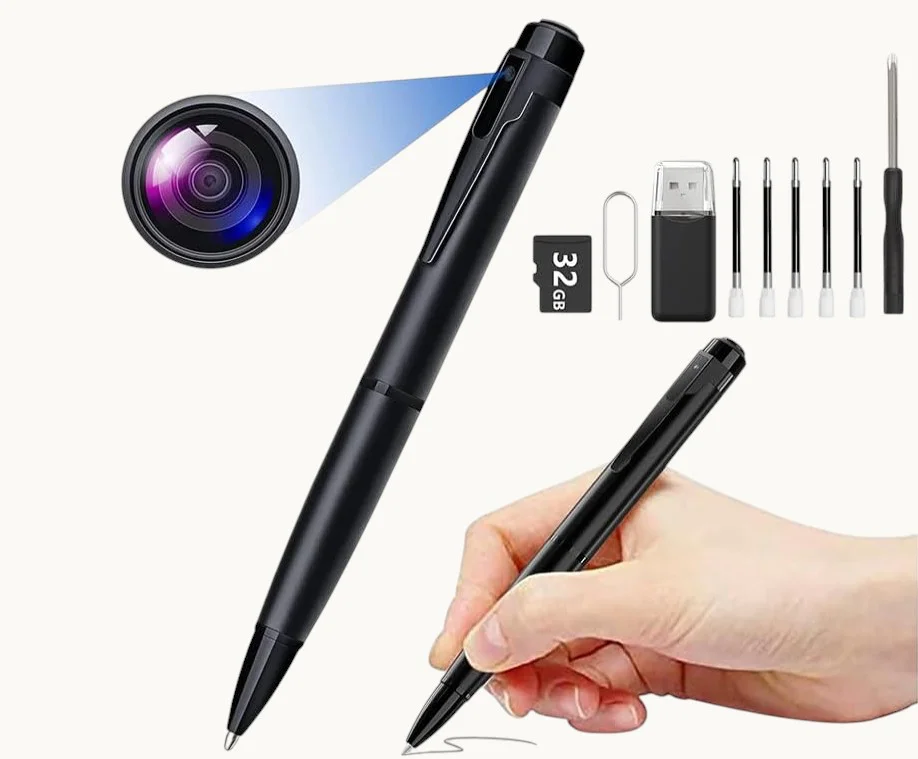
Storage Fault Troubleshooting Matrix for DVR Covert Cameras
Use this table as both an internal technician reference and a document to attach to all B2B product deliveries. The matrix covers the three highest-volume complaint categories for SD card devices.
| Customer Report | Technical Root Cause | Diagnosis Steps | Repair Procedure | B2B Action Item |
|---|---|---|---|---|
| Red LED on boot, “no card detected” | FAT32 corruption from abrupt power loss, or card contact oxidation | 1. Remove card and inspect gold contacts for tarnish. 2. Insert card into PC — check if Windows detects it. 3. If detected, check Event Viewer for device errors. | Clean contacts with eraser. Perform full FAT32 format (not quick format). If format fails, replace card. | Add SD card care instructions (no hot-swap, monthly format) to the printed Quick Start Guide. |
| Video files play on device but are corrupted on PC | Card write speed insufficient for 1080p bitrate (TLC speed degradation), or codec incompatibility | 1. Note card brand and model. 2. Run H2testw on the card — check sustained write speed. 3. If write speed below 15 MB/s, card has degraded. | Replace with Class 10 U3 High Endurance card. Install VLC on customer’s PC for broadest codec support. | Specify minimum U3 High Endurance card in all product listings. Offer High Endurance card bundle SKU. |
| Recording has gaps — missing segments | VOR (voice-activated) or motion detection mode active; or card is near end-of-life causing intermittent write failures | 1. Check parameter file (time.txt / factory.txt) for VOR setting. 2. If VOR=0 and problem persists, run H2testw to check card health. 3. Check device temperature — thermal throttling causes write suspension. | Set VOR to 0 for continuous recording. Replace card if H2testw reports bad sectors. Improve enclosure ventilation. | Clearly differentiate continuous recording mode from VOR/motion mode in all marketing copy. |
| Timestamp on video reads 2018-01-01 | RTC battery depleted — device was left with flat main battery for over 48 hours | 1. Confirm device was uncharged for extended period. 2. Check if time.txt procedure is documented in their Quick Start Guide. | Create time.txt with current datetime in root of SD card. Power cycle device. Verify timestamp in test clip. | Include time.txt sync procedure as a dedicated section in the Quick Start Guide, not a footnote. |
| Device enters infinite reboot loop | Catastrophic FAT corruption or physically failed NAND (too many bad blocks for controller to handle) | 1. Test card in PC — if Windows cannot read or format it, NAND has failed. 2. Insert a known-good card — if device boots normally, card is the fault. 3. If device reboots with any card, firmware corruption is possible. | Replace card. If device still reboots with new card, attempt firmware reflash via SD card recovery image. If firmware reflash fails, return for hardware repair. | Track which card brands generate the most RMAs. Blacklist brands with consistent failure patterns. |

B2B Pre-Shipment and Procurement Protocol for SD Card Devices
The following protocol reduces storage-related field failures by an estimated 50–70 % based on patterns from comparable portable DVR programs:
Procurement specification: Write into your purchase order terms that all SD card DVR devices must ship with a MicroSD card rated for High Endurance, Class 10, U3 or better. If the device ships without a card, the product page and printed materials must explicitly recommend High Endurance cards and provide three compatible brand examples. Do not leave card selection to the end customer’s discretion.
Incoming inspection: For each new batch, pull a 10 % sample and run a 4-hour continuous recording test. At the end of the test, verify all files play without corruption, the timestamp is accurate, and the device has not rebooted. Any batch with more than 2 % failure rate triggers a hold for investigation.
Time synchronization before shipment: If the batch was received with RTC reset to factory date, sync all units using the time.txt procedure before boxing. A unit that ships with a correct timestamp makes a dramatically better first impression and eliminates one of the most common immediate unboxing complaints.
Firmware version logging: Record the firmware version of every shipped batch in your inventory system. When a field failure pattern emerges, the firmware version is the first variable to cross-reference with returned units. Maintain a firmware rollback copy for each model in case an OTA update introduces a regression.
Documentation package: Include in every box: a one-page Quick Start Guide with the SD card care section, the time.txt sync procedure, the monthly format reminder, and the recommended card brands. A QR code on that card linking to a video walkthrough of the format + time sync process reduces inbound support calls by approximately 60 % according to comparable programs.
Frequently Asked Questions
Can I use a 256 GB MicroSD card in my pen camera DVR?
It depends on the firmware’s FAT32 addressing limit. Most devices using FAT32 support up to 128 GB. Cards of 64 GB and above may need to be formatted as exFAT, which not all models support. Check the device specification sheet for the maximum supported card size and supported file system. When in doubt, use a 32 GB or 64 GB High Endurance U3 card — they provide more than enough capacity for typical use cases and avoid compatibility issues.
My customer says the camera records for two minutes then stops. What is this?
This is almost always either VOR (Voice Operated Recording) mode being active, or the device’s motion detection window being set to a short clip duration. Both modes are designed to conserve battery and storage, not to record continuously. Instruct the customer to locate the parameter file on the SD card and verify that the recording mode is set to continuous, and VOR is set to 0.
Can I recover files from a card that Windows can no longer read?
Sometimes, yes. Use a professional recovery tool such as Recuva or PhotoRec to scan the raw sectors of the card. These tools can reconstruct video files even when the FAT directory is completely destroyed, as long as the underlying NAND sectors are physically intact. However, if H2testw reports that more than 5 % of the card’s sectors are bad, recovery success rates drop significantly.
What happens if I format the SD card inside the camera using the device’s own format function?
Device-internal format functions typically perform only a quick format — they reset the FAT directory without scanning for bad sectors. This is adequate for routine maintenance but will not repair a card with physical sector damage. Always use a PC with the full (non-quick) FAT32 format for any card that has exhibited corruption symptoms.
Why does the timestamp drift by several minutes per day even after syncing?
RTC crystals have a frequency tolerance that causes them to gain or lose a small amount of time per day — typically 10–60 seconds per day for the low-cost oscillators used in portable DVR devices. This drift is normal and unavoidable without a network time source. For legally sensitive recordings, re-synchronize the time using the time.txt procedure at the start of every deployment to maintain acceptable timestamp accuracy.

Conclusion
The three root causes — NAND endurance exhaustion, FAT32 file system corruption, and RTC clock drift — account for the overwhelming majority of field complaints on standalone SD card DVR cameras. All three are preventable at the B2B level through card specification, pre-shipment QA, and documentation. The full-format repair procedure resolves most corruption events without hardware replacement, and the time.txt synchronization method is deterministic and reliable on all QZT models. Distributors who enforce a High Endurance card procurement standard and include the monthly format reminder in their documentation packages consistently report lower RMA rates and higher end-customer satisfaction scores than those who treat storage as the customer’s problem.
For the full range of standalone SD card covert cameras — including the W8, W9, W10 pen cameras, S820 key fob, and H3 power bank DVR — visit the QZT Security camera product page.

 English
  Italiano
  Deutsch
  Français
  Español
  Polski