
Come Configurare una Camera Segreta: Guida Completa alla Configurazione
Configurare una camera segreta richiede diversi passaggi oltre l'installazione fisica. Una volta che il dispositivo è montato e alimentato, il vero lavoro di configurazione comincia — connettersi a una rete, creare zone di detezione, pianificare finestre di registrazione, impostare politiche di archiviazione, configurare backup cloud e verificare l'intera catena dall'attivazione al recupero del video. Questa guida copre il workflow completo di configurazione post-installazione per le telecamere Wi-Fi nascoste utilizzando la piattaforma Tuya Smart (usata dalla maggioranza delle telecamere nascoste moderne, inclusa tutta la gamma di prodotti di QZT Security), insieme a dispositivi solo SD-card per installazioni off-grid.
Cosa significa “Configurazione” nella pratica
Molti acquirenti confondono l'installazione (montaggio fisico e collegamento alla corrente) con la configurazione (configurazione software). Una telecamera installata fisicamente ma non configurata correttamente perderà eventi, saturerà lo spazio di archiviazione in ore, non invierà alert o si disconnetterà quando il router viene riavviato. Una configurazione corretta trasforma un dispositivo hardware in un sistema di sorveglianza funzionante.
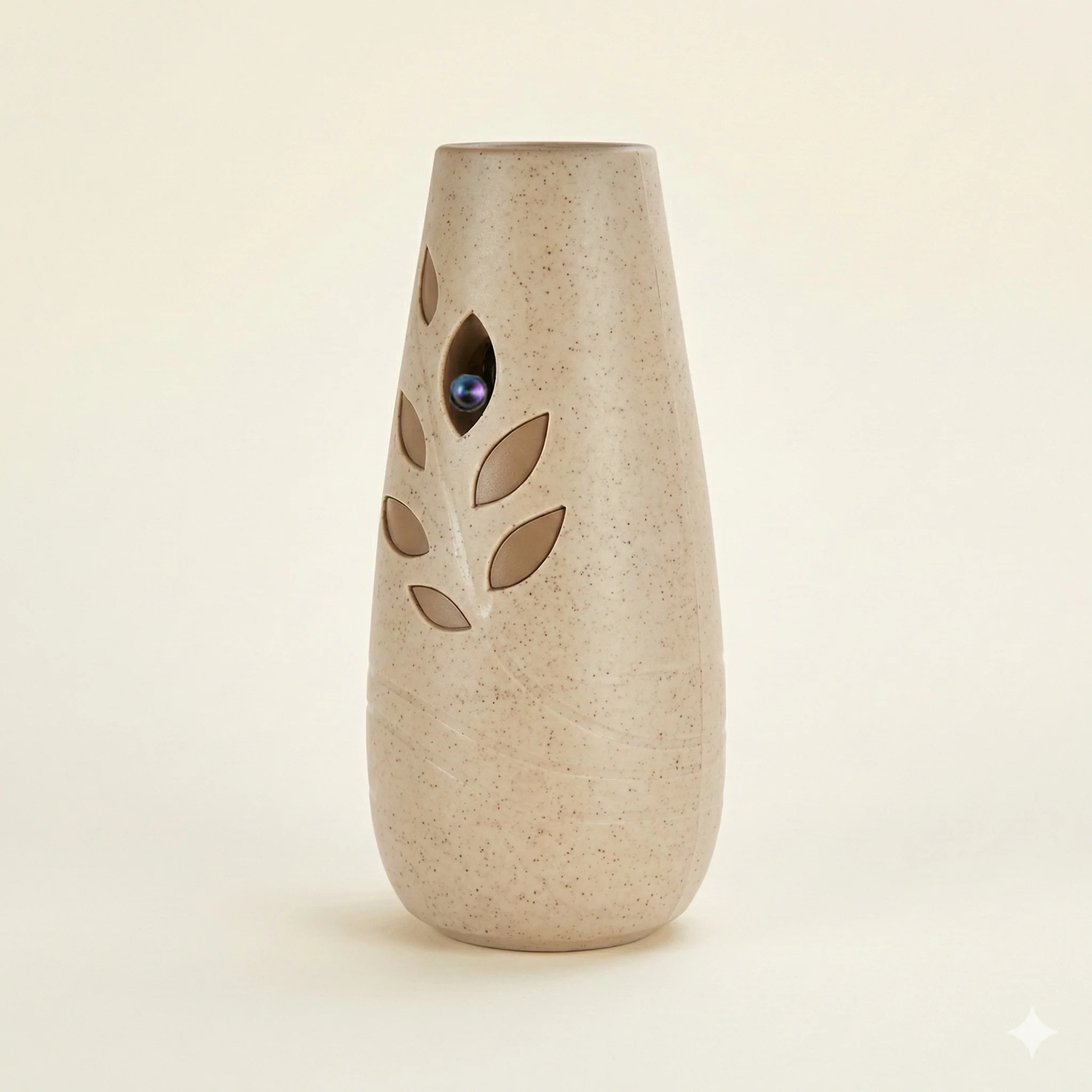
I sei pilastri di una telecamera covert configurata correttamente sono:
1. Connettività di rete — associazione stabile a 2,4 GHz con forza del segnale <−65 dBm
2. Politica di registrazione — continua vs. attivata dal movimento; locale vs. cloud; loop vs. fissata
3. Motion detection — sensibilità, zone e detezione PIR vs. differenza pixel
4. Routing degli alert — notifica push a quali dispositivi, in quali ore, con quale priorità
5. Storage management — capacità della SD card, registrazione ciclica, backup automatico sul cloud
6. Remote access — credenziali dell'account sicure, accesso condiviso per utenti autorizzati
Ogni pilastro è trattato in sequenza di seguito.
Passaggio 1 — Pairing iniziale e Configurazione della Rete
Prima di qualsiasi altra configurazione, la telecamera deve essere associata a una rete Wi-Fi e a un account utente. Il processo varia leggermente tra i diversi marchi di telecamere, ma i seguenti passaggi sono applicabili a tutte le telecamere covert basate su Tuya.
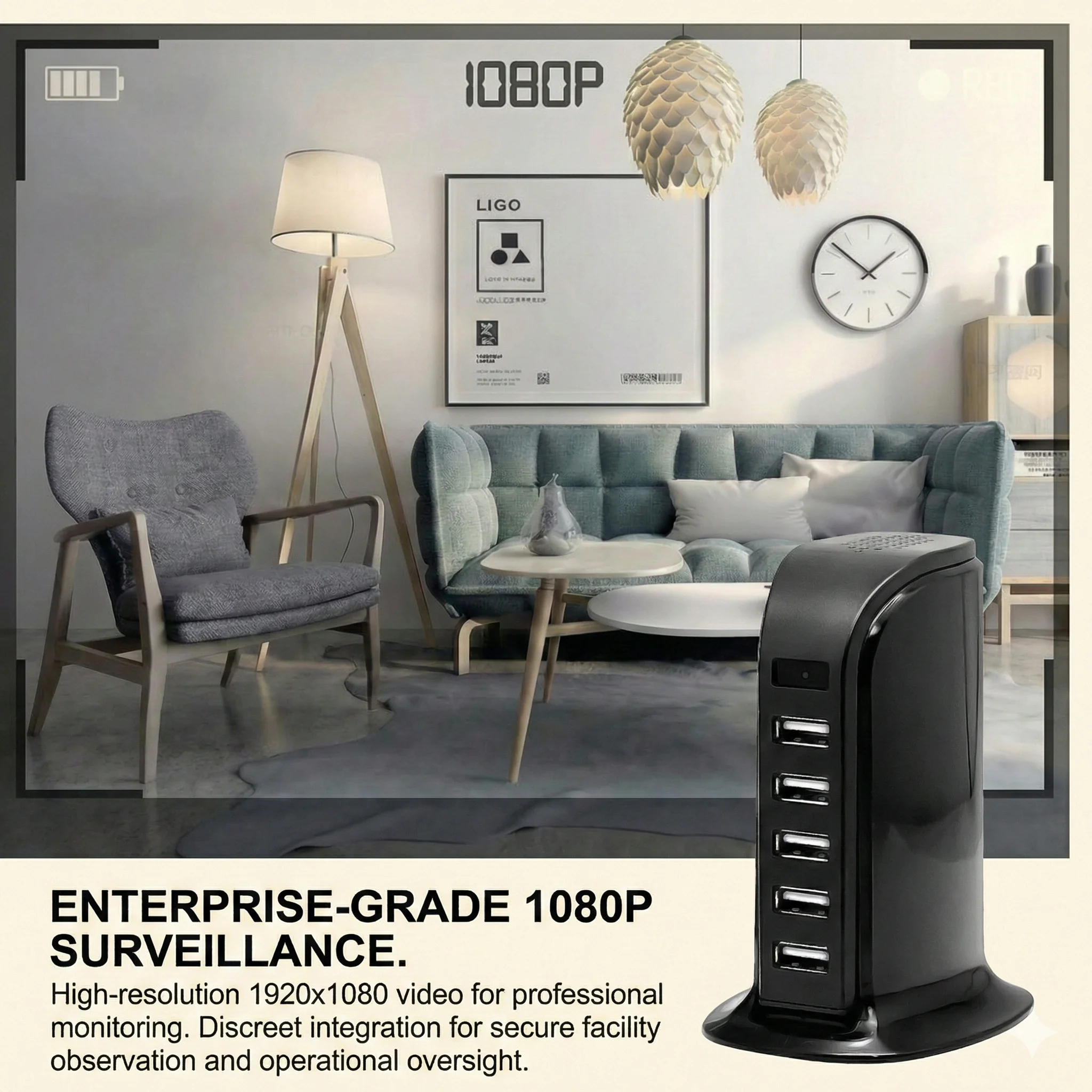
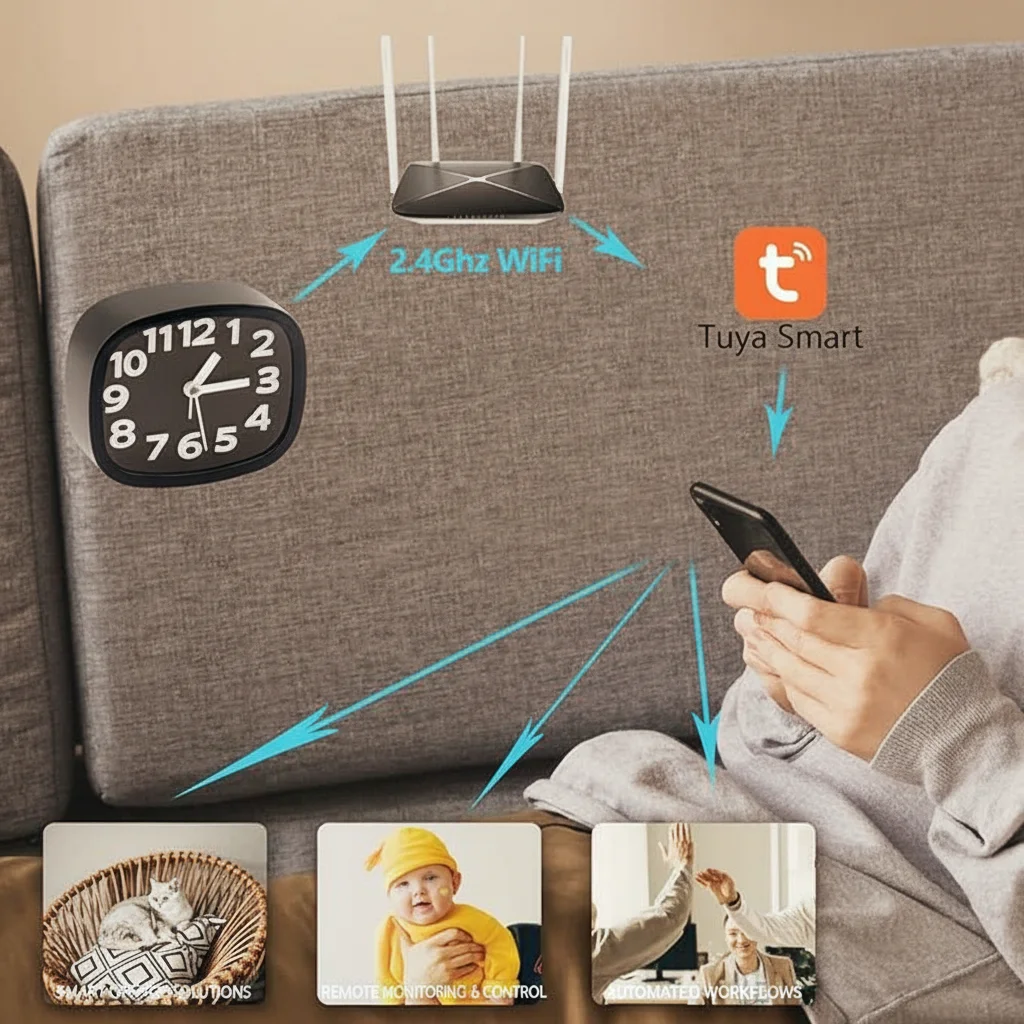
Scaricare l'app: Installare Tuya Smart o Smart Life dall'App Store o Google Play. Entrambe le app accedono al stesso ecosistema di dispositivi; Smart Life era originariamente la versione consumer ma ora ha funzionalità identiche. Creare un account usando un indirizzo email che controlli — l'email è usata per il recupero della password, quindi evitare email temporanee.
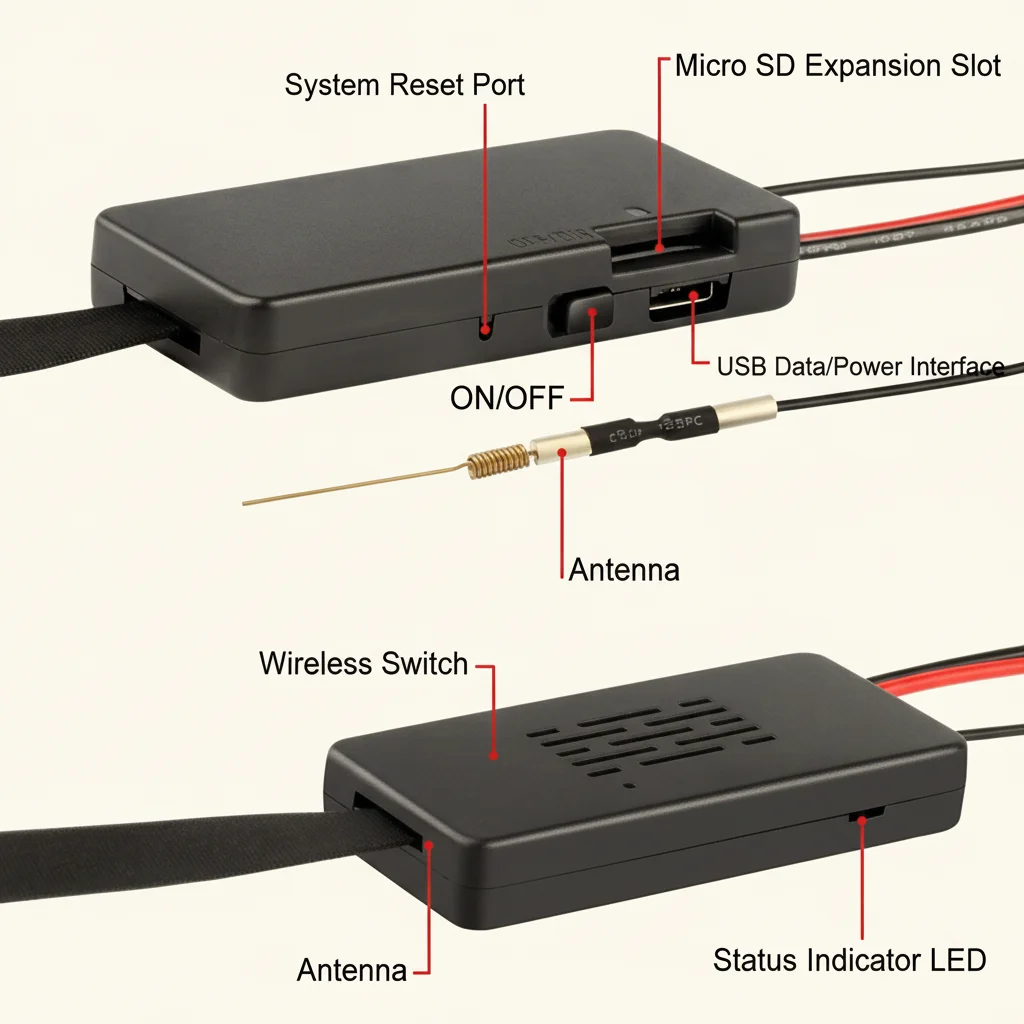
Mettere la telecamera in modalità pairing: Accendere la camera. Tenere premuto il pulsante di reset (tipicamente un pulsante a pinhole accessibile con una graffetta aperta) per 5–8 secondi finché l'LED di stato lampeggia rapidamente — tipicamente 2 lampeggi al secondo in modalità pairing vs. 1 lampeggio lento quando connessa. Alcuni modelli usano un segnale audio (beep).
Pair tramite l'app: Nell'app Tuya, toccare l'icona “+” → “Aggiungi dispositivo” → “Sicurezza & Sensore” → “Camera intelligente (Wi-Fi)”. Seguire le istruzioni sullo schermo. Quando richiesto per le credenziali Wi-Fi, assicurarsi che il telefono sia connesso alla banda 2,4 GHz (non 5 GHz — le camere Tuya non supportano 5 GHz). Inserire la password Wi-Fi esattamente, includendo le maiuscole. Caratteri speciali (!, @, #, $) nelle password Wi-Fi occasionalmente causano fallimento del pairing; se il pairing fallisce ripetutamente, provare a cambiare temporaneamente la password SSID del router in una stringa solo alfanumerica per il processo di configurazione.
Confermare la connessione: L'app mostrerà una schermata “Dispositivo aggiunto correttamente” e il LED di stato sulla telecamera passerà a un pattern di 1 flash per secondo (connesso). Tocca “Visualizza ora” per confermare che la visualizzazione live funziona prima di procedere alla configurazione.
Passaggio 2 — Configurazione della Qualità Video e Bitrate
Le impostazioni di risoluzione e bitrate influiscono direttamente sul consumo di spazio di archiviazione e sulla qualità dell'immagine. Configurarle correttamente prima di attivare la registrazione previene il comune problema di esaurimento dello spazio di archiviazione in 4–8 ore causato da impostazioni di bitrate troppo elevate.
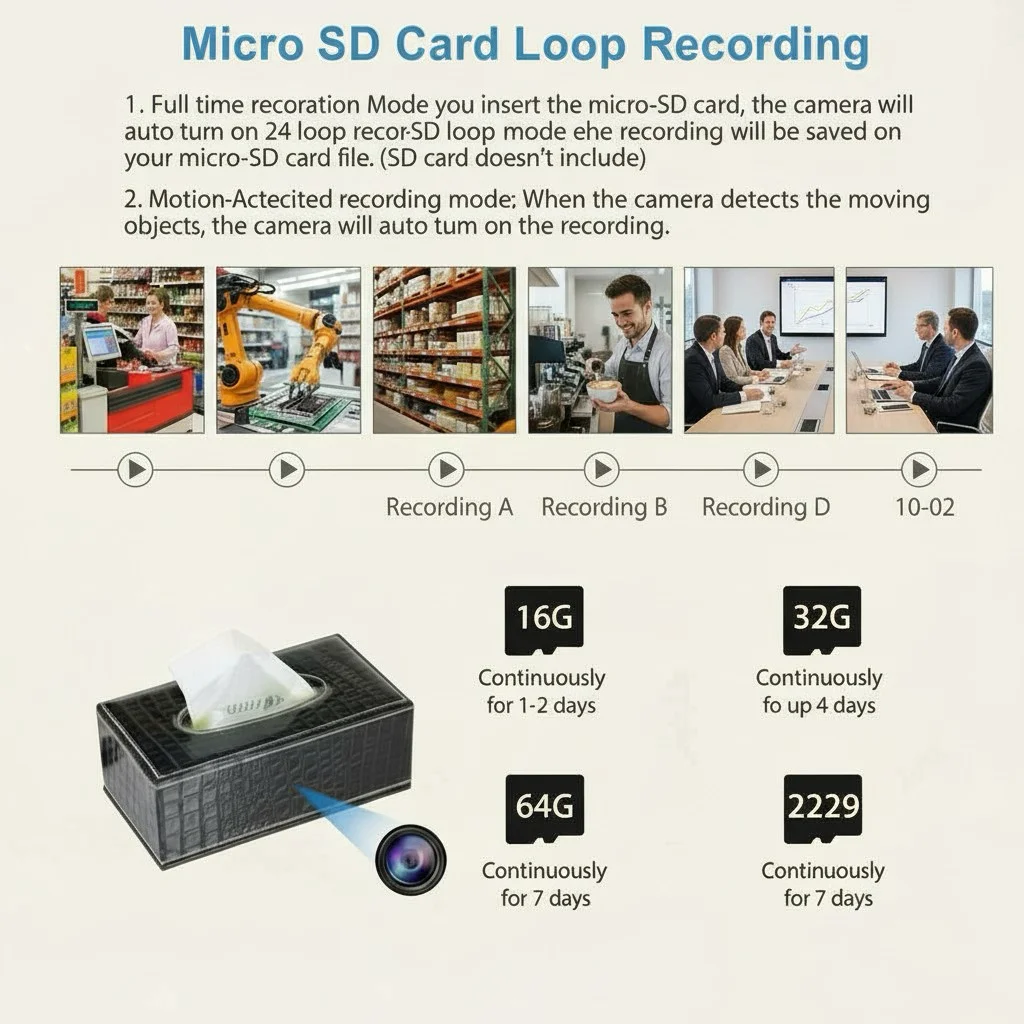
Nella vista telecamera dell'app Tuya, tocca l'icona delle impostazioni → “Configurazioni Funzioni Base” → “Configurazioni Video” o equivalente (il nome varia per versione firmware). Opzioni standard:
| Configurazione | Descrizione | Recommended |
|---|---|---|
| HD (1080p) | 1920×1080, ~6 Mbps bitrate | Default per la maggior parte dei casi d'uso |
| SD (720p) | 1280×720, ~3 Mbps bitrate | Usare solo se la SD card è <64 GB |
| 4K (se supportato) | 3840×2160, ~15–25 Mbps | Utilizzare solo se il dettaglio 4K è operativamente necessario |
| Bitrate (se regolabile) | Controlla il compromesso tra dimensione file e qualità | Impostare su “Auto” o “Medio” |
At 1080p HD with ~6 Mbps bitrate, storage consumption is approximately 2.7 GB per hour. A 128 GB SD card holds approximately 47 hours of continuous footage before loop recording begins to overwrite the oldest files.
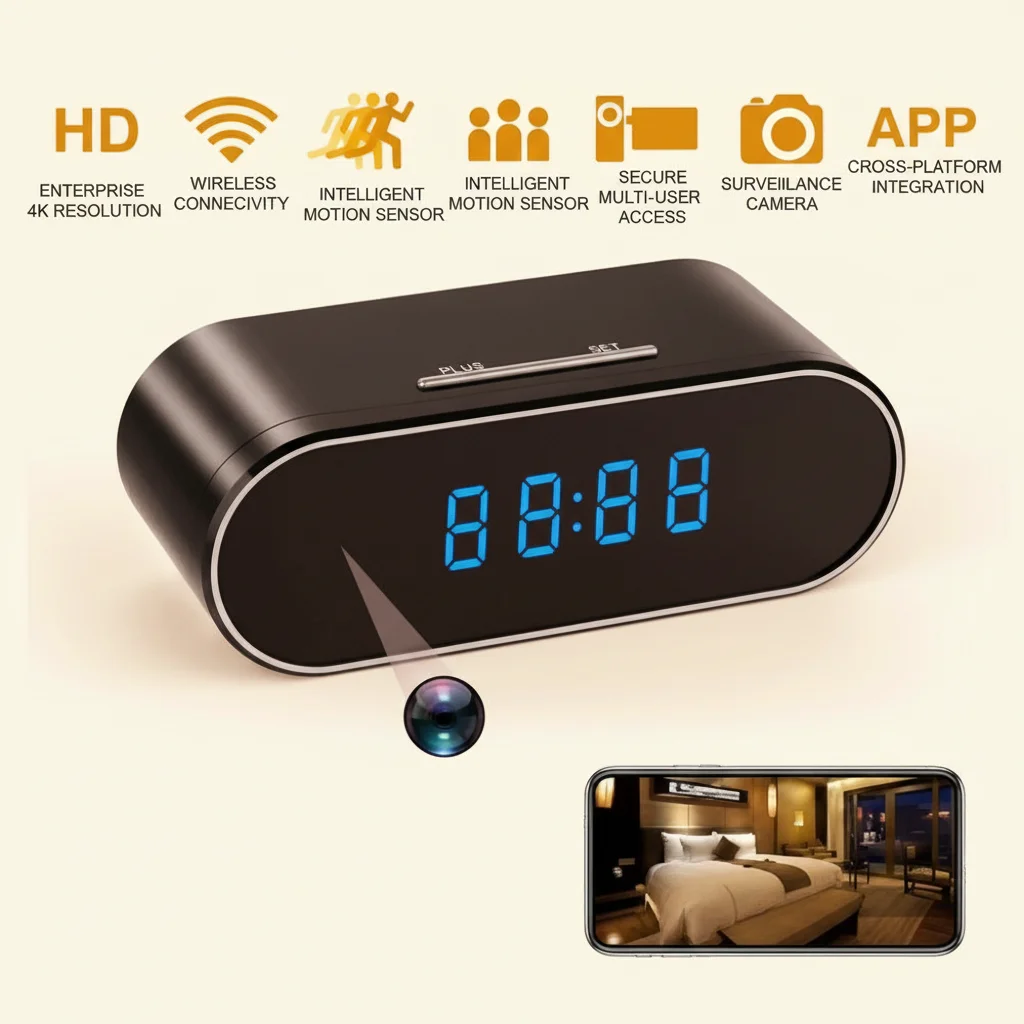
For the WiFi Tissue Box Hidden Camera 4K, 4K mode is appropriate for close-range deployments (1–3 metres) where facial detail and number/text legibility are critical. For wider area monitoring at 5+ metres, 1080p provides adequate detail with significantly lower storage overhead.
Passo 3 — Selezione della Modalità di Registrazione
The recording mode determines when the camera writes video to storage. Getting this decision right is the most consequential configuration choice for ongoing usability.
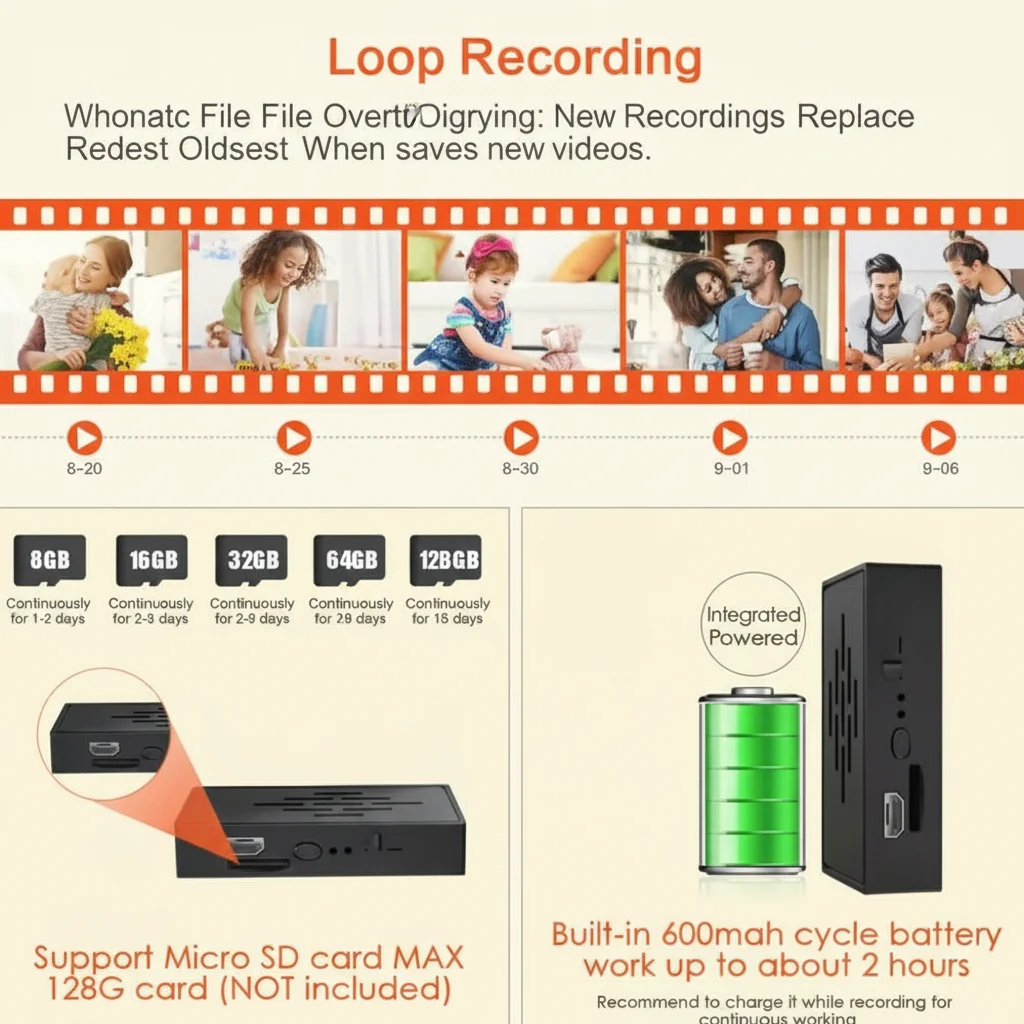
Registrazione continua writes video 24/7, regardless of whether any motion is detected. Advantages: complete record, no missed events. Disadvantage: storage is consumed rapidly and finding a specific incident requires scrubbing through hours of footage. Best for: high-value monitoring locations where completeness of record is legally or operationally critical.
Motion-triggered recording writes video only when motion is detected, typically including a pre-record buffer (10–30 seconds before the trigger) and post-record tail (30–60 seconds after motion ceases). Advantages: dramatically lower storage consumption; alerts correspond directly to recorded clips; easier to locate specific incidents. Disadvantage: a motion zone misconfiguration can result in missed events. Best for: most covert camera deployments.
Registrazione programmata combines time-window control with either of the above modes — e.g., continuous recording only during business hours, or motion-triggered alerts only at night. Access via Tuya app → camera settings → “Scheduled Recording” or “Plan Settings”.
Set loop recording to ON in all configurations. Without loop recording, the camera stops all recording when the SD card fills and sends no notification. With loop recording enabled, the oldest files are overwritten automatically, ensuring the most recent events are always preserved.
Passaggio 4 — Configurazione della Detezione del Movimento
Motion detection is the trigger mechanism for alert-based recording. Misconfigured motion detection is the leading cause of both missed events and alert fatigue.
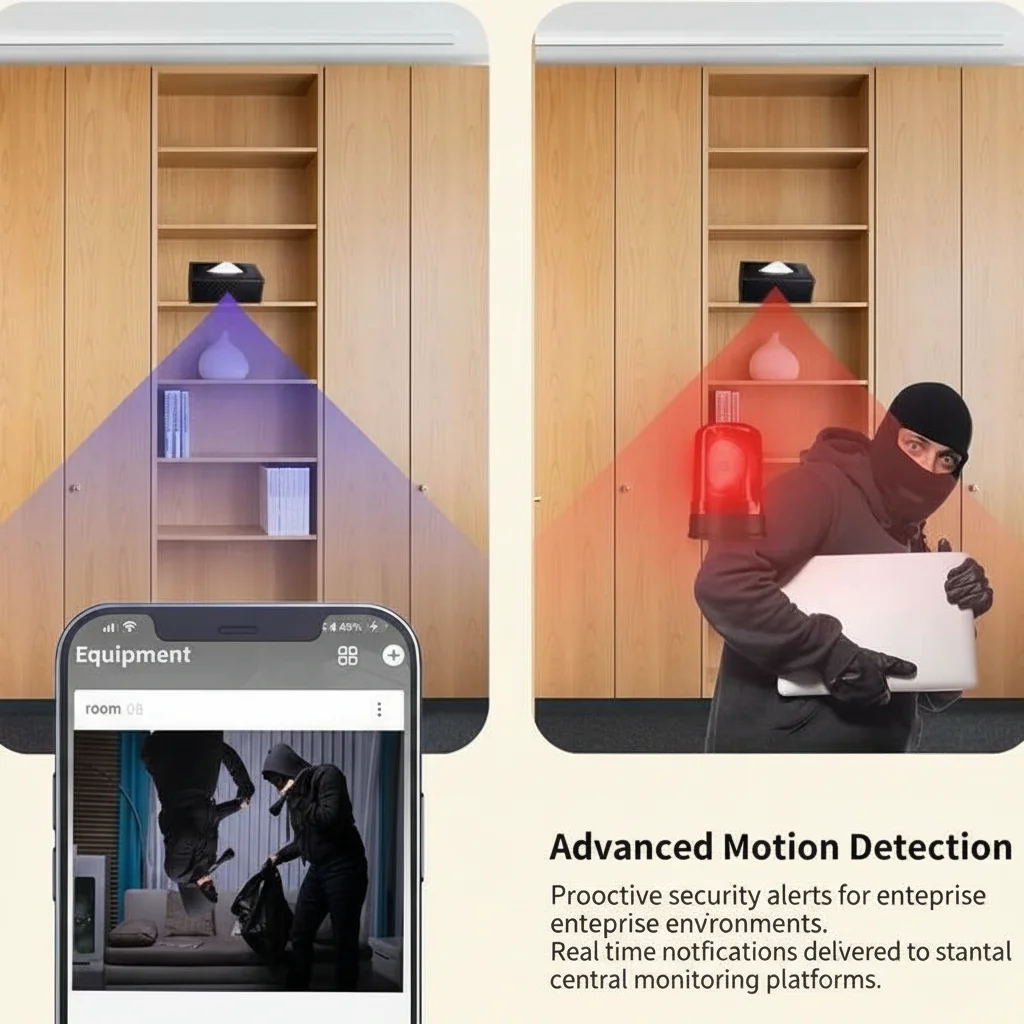
In the Tuya app, navigate to camera settings → “Motion Detection”. The main controls are:
Sensitivity: Low / Medium / High (or a slider 1–10 on some firmware versions). Start at Medium. High sensitivity detects smaller, slower movements but generates more false positives from lighting changes, pets, and HVAC airflow. Low sensitivity reduces false positives but may miss slow-moving subjects or movement at the edge of the frame.
Detection zone / activity zone: Many Tuya cameras support grid-based zone masking. The live view is divided into a grid (typically 5×4 or 6×4 cells), and individual cells can be enabled or disabled for motion detection. Disable cells that cover:
– Windows with outdoor views (tree movement, passing cars, cloud shadows)
– Mirror reflections (create double-trigger)
– TV screens or monitors (display content triggers pixel-change detection)
– Areas outside your zone of interest
Human detection / AI detection: Higher-end Tuya cameras (including several QZT models) support human silhouette detection using on-device AI processing. This significantly reduces false positives from non-human motion while maintaining sensitivity to actual intrusions. Enable this if available; it replaces basic pixel-change detection.
PIR sensitivity (hardware motion sensor): On cameras equipped with a PIR sensor (e.g., Z10 WiFi Wall Clock Camera), PIR sensitivity is a separate setting from the video-based motion detection. PIR responds to thermal signatures (body heat) and is unaffected by lighting changes, making it more reliable than pixel-based detection in variable lighting environments. Set PIR sensitivity to match the expected target distance — higher sensitivity for targets at 4–6 metres, lower for close-range (1–2 metres) to avoid excessive saturation.
Passo 5 — Routing delle Notifiche Push e degli Alert
An installed camera that does not send timely alerts provides only retrospective evidence, not real-time awareness. Configuring push notifications correctly makes the difference between reactive and proactive security.
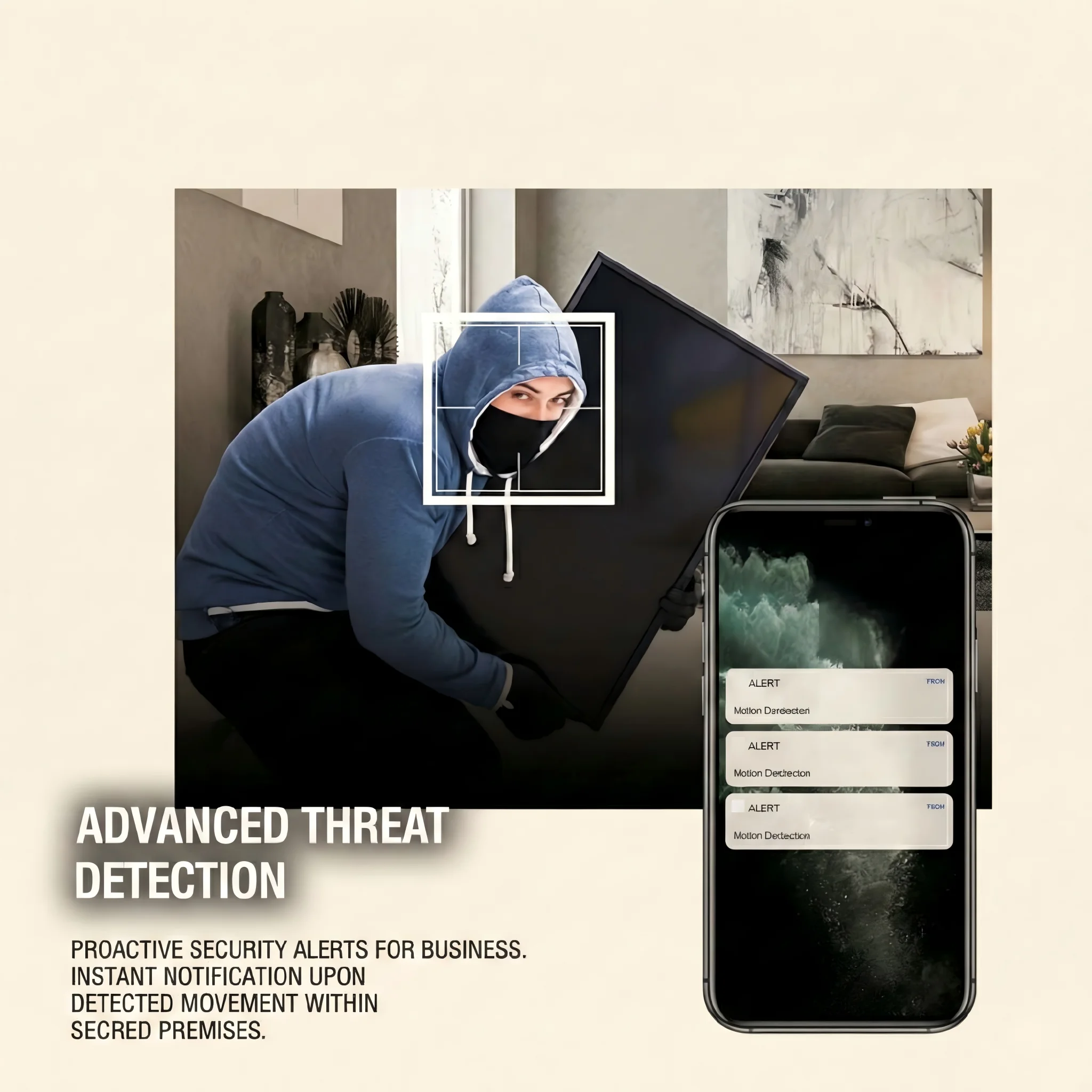
In the Tuya app, navigate to camera settings → “Message Notification” or “Alert Settings”. Configure:
Notification type: Select “Motion Alert” and (if supported) “Human Detection Alert”. Disable “Device Online/Offline” notifications unless you need to monitor device connectivity health, as these generate distracting noise.
Notification schedule: Set the hours during which alerts are active. For a business monitoring system, this might be outside business hours (18:00–08:00 weekdays, all day weekends). Ensure the camera’s time zone is correctly set — in the Tuya app under device settings → “Time Zone” — or scheduled alerts will fire at wrong local times.
Alert frequency limiting: Some Tuya firmware versions support a “minimum alert interval” setting (e.g., no more than one alert per 60 seconds). Enable this in high-activity environments to prevent alert flooding while still capturing the first-trigger notification of an event.
Multiple recipients: The Tuya app supports shared home members — under “Home Management” → “Add Member”, add additional users by their Tuya account email. Each added member can receive notifications for shared devices. This is the correct approach for multi-user monitoring (e.g., both partners in a household, or two security staff members) rather than sharing account credentials.
Passo 6 — Configurazione dello Storage Cloud
Local SD card storage is primary; cloud storage provides a backup that survives physical tampering with the camera (removing the SD card, destroying the device) and enables remote playback without physical access.
Tuya offers cloud storage via the Tuya Cloud Membership service, accessible in-app under “Cloud Storage” in the camera settings. Storage plans typically range from 7-day rolling storage to 30-day or 90-day plans, billed monthly or annually. For most use cases, 7-day rolling cloud storage of motion-triggered clips is sufficient and cost-effective.
Cloud storage configuration:
1. In the camera’s settings, tap “Cloud Storage Service”.
2. Select a plan. Free tiers (if available) typically offer 24–72 hours of motion clip cloud backup.
3. Enable “Upload to Cloud” for motion-triggered clips. Continuous upload to cloud is available on premium plans but consumes significant bandwidth.
4. Verify cloud playback works by triggering a motion event and confirming the clip appears in the cloud timeline within 60 seconds.
For GDPR compliance in the EU, note that Tuya cloud servers process personal data. Ensure the cloud storage agreement includes GDPR-compliant data processing terms. Tuya Technology has published its GDPR compliance documentation for EU users.
Passaggio 7 — Autenticazione a Due Fattori e Sicurezza dell'Account
A covert camera connected to a cloud account is a remote-access device. If the account is compromised, an adversary gains live view access to the monitored space. Account security is not optional.
In the Tuya app, navigate to account settings → “Account and Security” → “Login Password” and enable two-factor authentication (2FA) via SMS or authenticator app. Use a password that is at least 12 characters with mixed case, numbers, and symbols. Do not reuse the password from other accounts.
For business deployments with multiple cameras, create a dedicated email account exclusively for the camera management Tuya account. This reduces the risk of account compromise via phishing attacks targeting the primary email address.
Consider whether to enable the “Privacy Mode” or “Bedtime Mode” feature available on some Tuya devices — this physically disables the camera lens (lens cover motor on some models) or disables recording on a set schedule, providing a hardware-level privacy guarantee when the monitored space is occupied by the authorised user.
Passo 8 — Aggiornamento del Firmware
After completing all configuration steps, check for available firmware updates before finalising the setup.
In the Tuya app, navigate to the device settings → “Device Update” or “Check for Updates”. If a firmware update is available, install it before the camera goes into full operation. Firmware updates typically include:
– Motion detection algorithm improvements (reduced false positives)
– Wi-Fi connection stability fixes
– Video codec optimisations (better quality at same bitrate)
– Security patches addressing known vulnerabilities
After a firmware update, the camera will reboot. Verify that all configuration settings (motion zones, recording mode, cloud storage) are preserved post-update. Some major firmware revisions reset settings to defaults; a documented configuration record prevents the need to reconfigure from scratch.
Configurazione di Camere Segrete Solo con SD-Card (Non Wi-Fi)
For deployments where Wi-Fi connectivity is not available or where RF emissions must be minimised, non-Wi-Fi cameras record locally only and require a different setup approach.
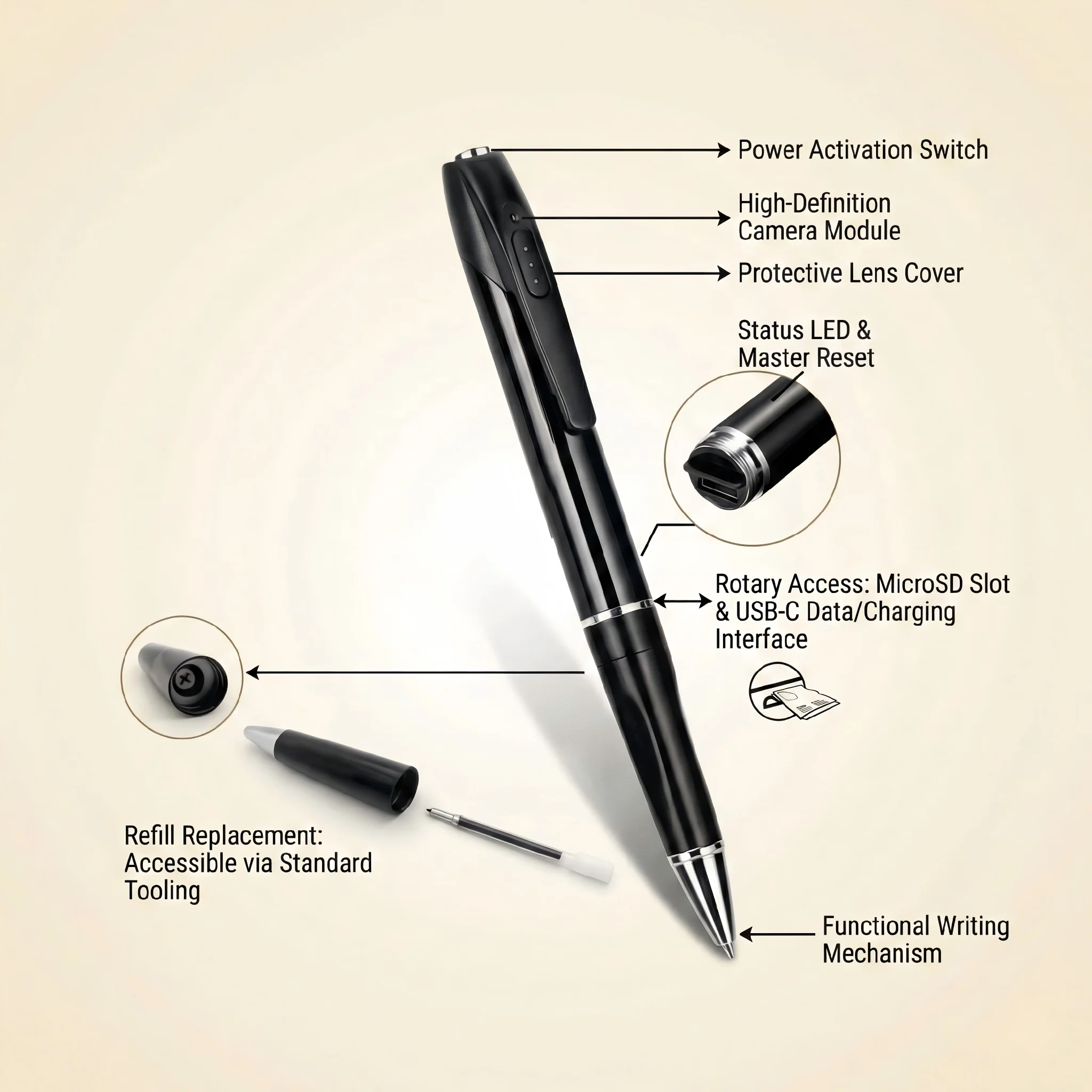
Non-Wi-Fi models — including the Penna Spia con Telecamera, Car Key Hidden Camera, E USB Stick Hidden Camera — use a physical button interface rather than an app. The standard setup process:
1. Format the micro-SD card in the camera using the reset/format button combination (refer to device manual — typically long-press the record button while inserting the card, or use the dedicated format button in the device’s button-based menu).
2. Set the clock to ensure accurate file timestamps. Connect the camera to a PC; some models sync time from the PC clock automatically, others require placing a `time.txt` file in the root of the SD card with the format `2026-04-22 12:00:00`.
3. Select recording mode: Most offer continuous recording, VOR (voice-activated), or motion-triggered modes via button combinations. Refer to the manual for the specific button sequence; typically: single press = start/stop continuous; double press = activate VOR; triple press = motion trigger mode.
4. Test before deployment: Record a 2-minute test clip and review it on a PC to confirm focus, exposure, and audio quality before placing the camera in operation.
Lista di Verifica Prima di Andare Live
Before considering setup complete, run through this checklist:
– [ ] Camera shows stable live view in Tuya app
– [ ] SD card installed, formatted in-camera, loop recording ON
– [ ] Video resolution set (HD/4K as required)
– [ ] Recording mode configured (continuous / motion-triggered)
– [ ] Motion zones configured, windows and mirrors masked
– [ ] Alert schedule set (correct time zone)
– [ ] Push notifications tested (trigger manually, confirm receipt)
– [ ] Cloud storage enabled and tested (if required)
– [ ] Firmware updated to latest version
– [ ] Two-factor authentication enabled on Tuya account
– [ ] Additional authorised users added (if multi-user deployment)
– [ ] 30-minute live operation test completed, playback verified
For business deployments, document the completed checklist with timestamps and retain it as part of your GDPR compliance records demonstrating that appropriate technical and organisational measures have been implemented under Article 25 (Data Protection by Design and by Default).
Domande frequenti
How long does the full setup process take?
For a single Wi-Fi camera, 20–40 minutes from unboxing to verified operation. For a non-Wi-Fi camera, 10–15 minutes.
Can I set up multiple cameras simultaneously?
Yes — the Tuya app supports adding multiple devices in sequence. Complete the pairing and basic configuration of the first camera before adding the next to avoid pairing mode conflicts on shared Wi-Fi.
What if my Wi-Fi password contains special characters?
Temporarily change the router password to alphanumeric-only for the pairing process, then change it back and re-enter in the camera’s Wi-Fi settings.
Can I use a 4G/LTE portable hotspot instead of fixed Wi-Fi?
Yes — the camera will pair to any 2.4 GHz Wi-Fi network. A mobile hotspot works for temporary deployments, though data charges apply for cloud storage upload.
How do I share camera access with another person without sharing my password?
In the Tuya app, use “Home Management” → “Add Member” to invite them by their Tuya account email. This grants camera access under their own login credentials.
Conclusione
Setting up a secret camera correctly requires working through network pairing, recording policy, motion detection calibration, alert configuration, storage management, and account security in sequence. Each setting builds on the previous one — a correctly paired camera with a misconfigured SD policy will fill storage within hours; a correctly configured SD policy with an uncalibrated motion zone will generate unusable alert floods. Follow the eight steps above in order, complete the verification checklist, and the result is a reliable, continuously operating covert camera system that captures evidence when it matters and stores it securely until it is needed.

 English
  Italiano
  Deutsch
  Français
  Español
  Polski