
How to Maintain Your Hidden Camera for Long-Term Performance
A hidden camera that works perfectly out of the box can gradually degrade without proper care.
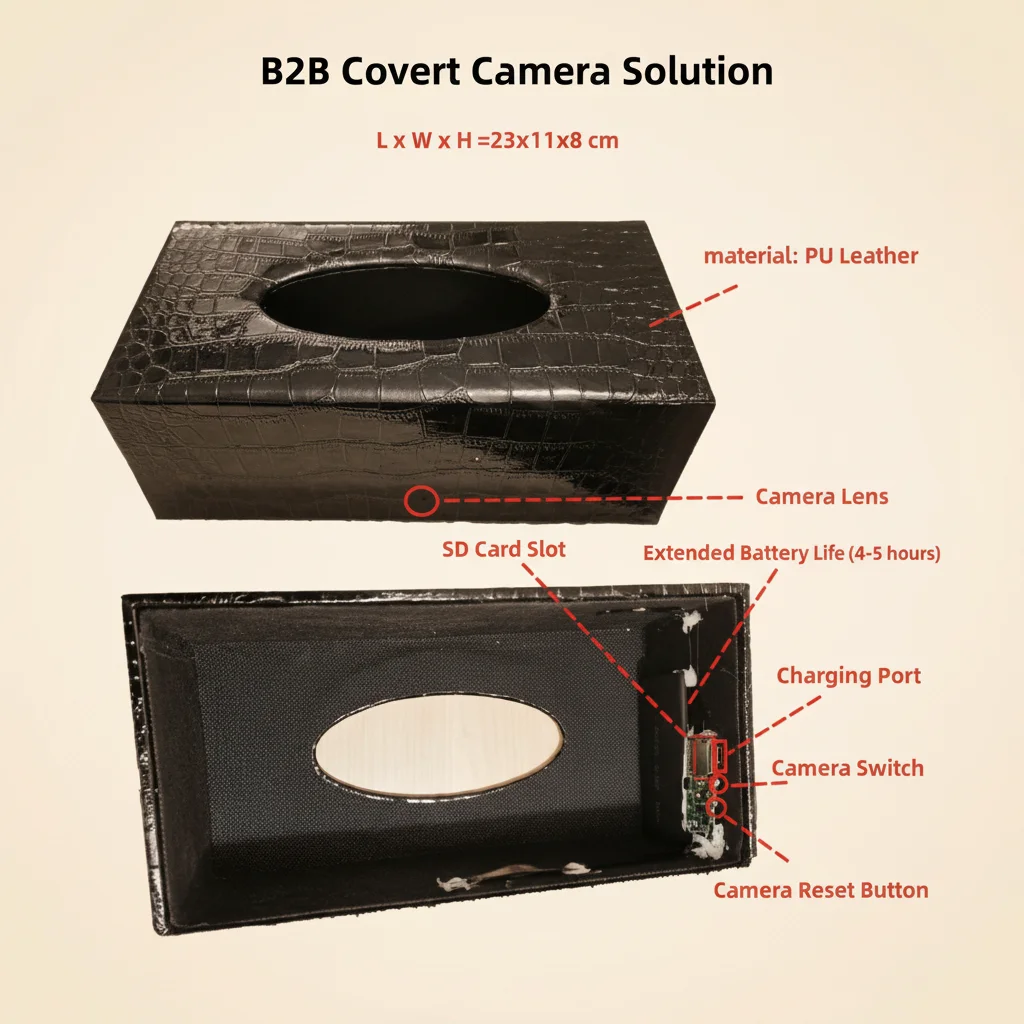
SD card corruption, battery degradation, lens scratches, and WiFi connectivity issues are all preventable with basic maintenance. This guide covers everything distributors and end users need to know to keep their spy cameras—pen cameras, clock cameras, smoke detector cameras, power bank cameras, and glasses cameras—running reliably for years.
Why Regular Maintenance Matters
Hidden cameras are typically installed and forgotten—mounted behind a clock on a wall, tucked inside a smoke detector, or carried in a bag. Unlike smartphones, they rarely get the attention that would catch problems early. A camera that records for 12 months without inspection may have a degraded SD card, a battery swollen from constant charging, or a lens clouded by dust. By the time the user notices the problem, critical footage may already be lost.
For distributors, a simple maintenance guide included with every order—or referenced in your after-sales support—reduces return rates and builds customer confidence in the product.
Monthly Maintenance Checklist
Check Recording Status
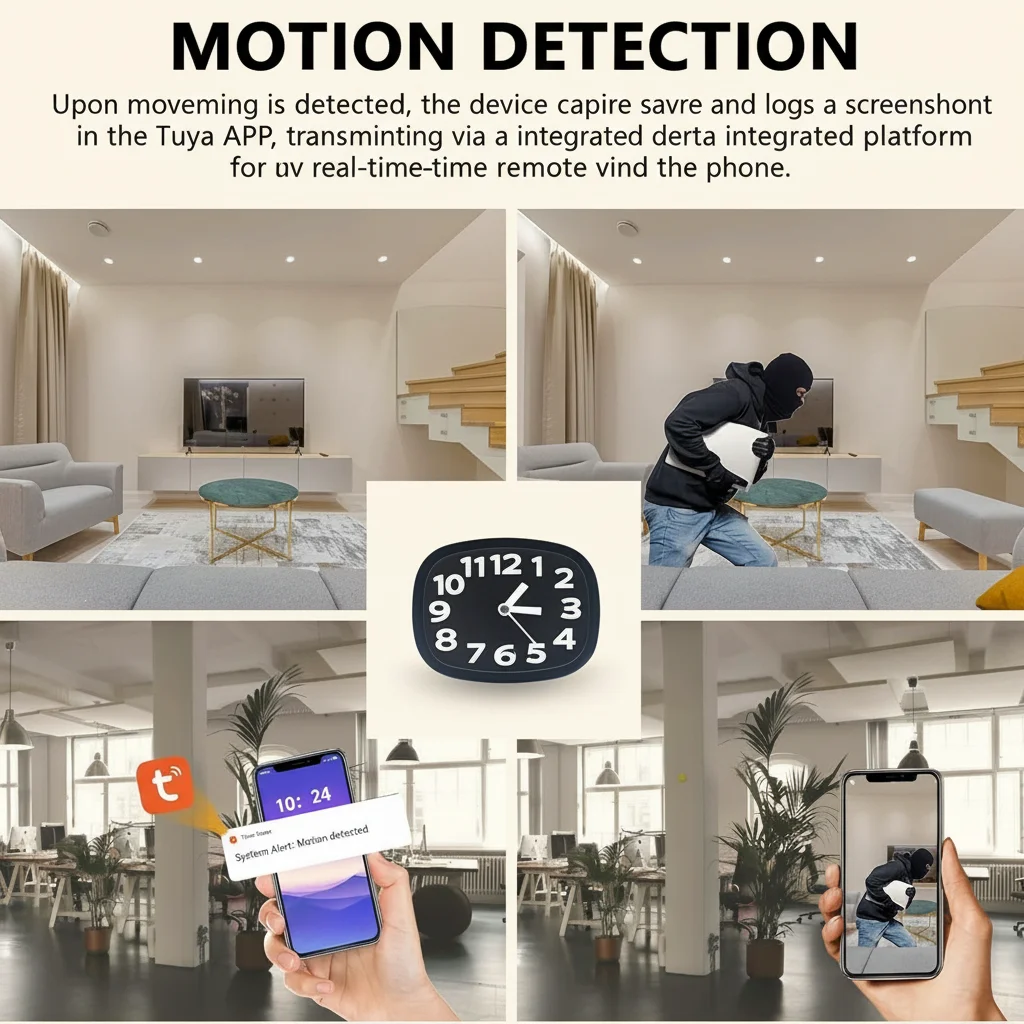
Open the app and verify the camera is actively recording. Confirm that the latest footage timestamp is recent. For clock cameras and smoke detector cameras running on loop recording, check that the card has not filled up or become corrupted. If the latest recording is more than a few hours old, investigate immediately.
Review SD Card Health
Playback a sample of recent footage. If video is choppy, freezes mid-playback, or shows artifacts (pixelation, green screens), the SD card may be failing. Back up any critical footage immediately and reformat the card through the camera’s menu. Replace the card if problems persist after formatting.
Inspect the Physical Device
Remove the camera from its location and inspect the exterior. Check for:
– Cracks or warping in the housing, especially near charging ports
– Discoloration or swelling around the battery area (for power bank cameras and pen cameras)
– Dust or smudges on the lens, which reduce image clarity
– Loose parts or screws, which may indicate the device has been tampered with or dropped
Test WiFi Connectivity
Verify that the camera connects to the app reliably. If pairing takes longer than usual or the live view shows increased latency, this may indicate a developing issue with the WiFi module. A quick reset and re-pairing often resolves early-stage connectivity drift.
Check Power and Charging
For battery-powered cameras (pen cameras, car key cameras, power bank cameras), test the battery by running the camera on battery power and timing how long it lasts compared to when the device was new. Battery capacity naturally degrades over time, but a sudden drop in battery life may indicate a charging circuit problem.
Seasonal Deep Maintenance
Every 3–4 months, perform a deeper maintenance session:
Full SD Card Reformat
Remove the SD card and reformat it through the camera’s menu. This fully resets the file system and prevents the gradual storage fragmentation that causes recording gaps. For cameras used in high-traffic environments—retail stores, busy offices—do this monthly.
Firmware Check
Check the app for firmware updates. qztsecurity.com releases updates that improve stability, fix known bugs, and occasionally add new features. Before updating, back up critical footage—the update process should not delete data, but it is good practice to be safe.
Clean the Lens
Use a microfiber cloth to gently clean the lens. For clock cameras and smoke detector cameras mounted in high-dust environments, use a can of compressed air to blow dust from the lens housing before wiping. Avoid chemical cleaners—water or a small amount of lens cleaning solution is sufficient.
Inspect Cables and Ports
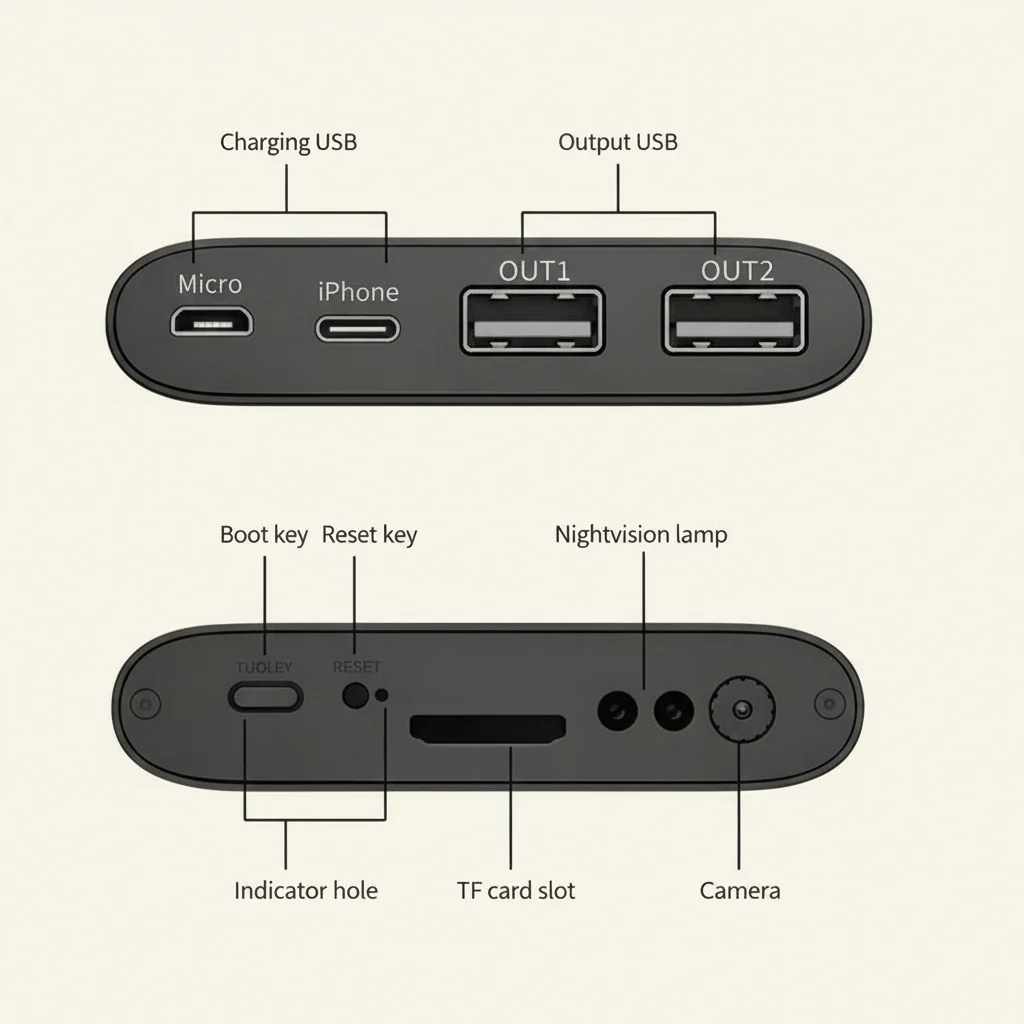
Check the charging cable for fraying, especially near the connectors. Replace cables that show signs of wear. Inspect USB ports on the camera for lint buildup or corrosion. Use a dry cotton swab to gently clean out debris from ports.
Test Backup Power Sources
If your camera has an internal backup battery (common in clock cameras and smoke detector cameras), test whether it holds a charge by unplugging the device for an hour and verifying it continues recording.
Storage and Handling Best Practices
When Not in Use
If a camera will be stored for more than a month, remove the SD card and store it separately. Fully charge the battery before storage—leaving a lithium battery completely discharged for months accelerates degradation. Store the device in a cool, dry place away from direct sunlight.
For Glasses Cameras

Handle camera glasses carefully. The lens in the frame is precision glass and scratches easily. Store in the provided hard case when not in use. Clean the lens only with the included microfiber cloth—paper towels and clothing can scratch the coating.
For Pen Cameras
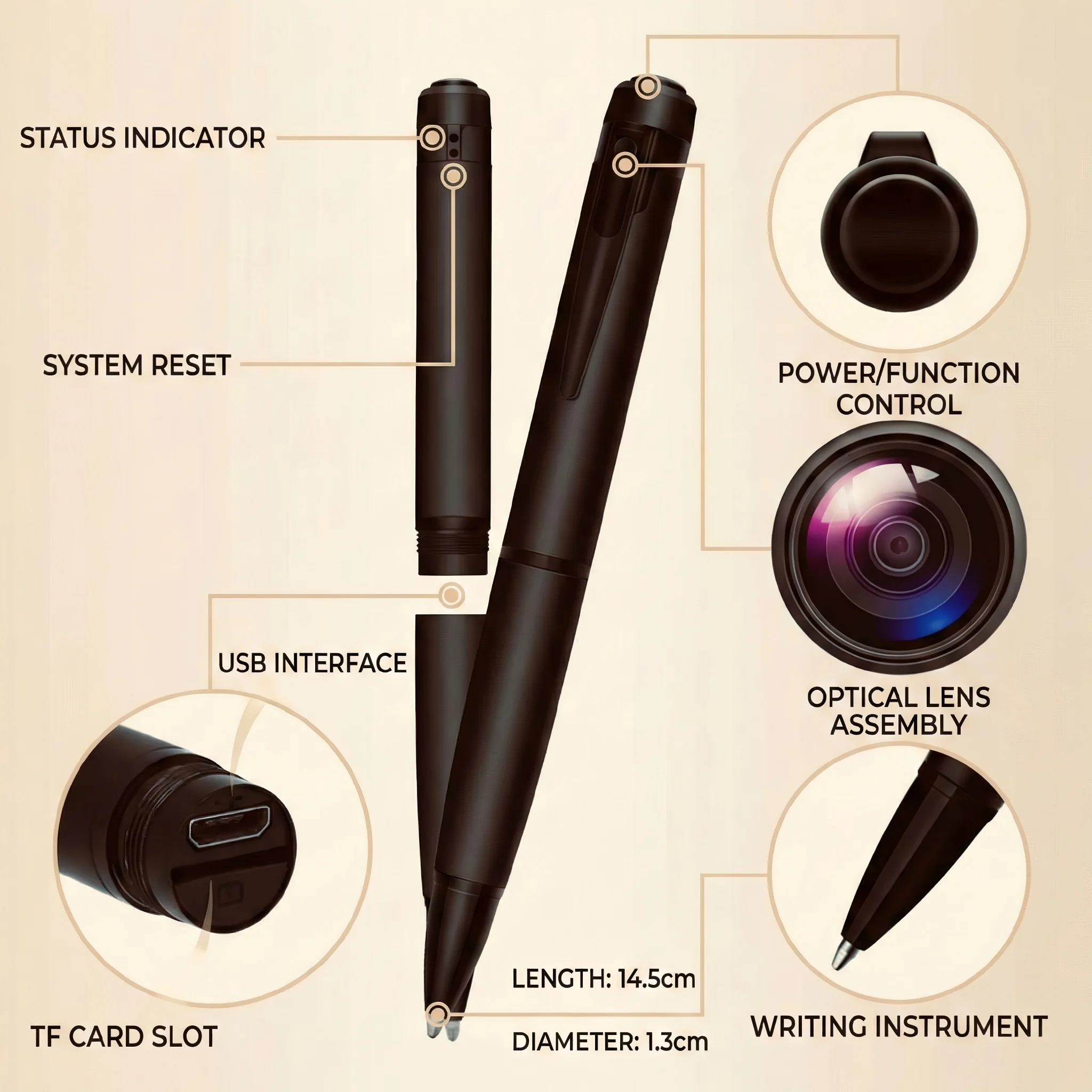
Avoid keeping a pen camera in a pocket with keys or metal objects. The pen’s lens and internal components can be damaged by impact. Carry in a dedicated pocket or the included pouch.
Distributor Maintenance Guide: What to Share With Your Customers
When selling these cameras, include a one-page maintenance checklist in the package or point customers to this guide. The most common causes of camera failure—SD card issues, battery degradation, WiFi configuration errors—are all preventable with basic care.
Keep a record of the maintenance history for each camera you deploy for clients. This is especially valuable for security installers managing multiple client sites. A simple spreadsheet tracking model, installation date, last maintenance date, and SD card replacement date helps prevent surprises.
FAQ
How often should I replace the SD card?
For cameras running continuous loop recording, replace the SD card every 12–18 months. For cameras used occasionally with motion detection, a card can last 2–3 years. Replace immediately if reformatting does not resolve recording failures.
Can I use the camera while it is charging?
Yes, most pen cameras and power bank cameras support pass-through charging—using the device while it charges. However, this generates additional heat, which accelerates battery wear over time. For long-term battery health, charge the device fully before extended use sessions.
My camera lens has condensation inside. What do I do?
This indicates a seal has been compromised. Condensation inside the lens housing can damage electronics. Stop using the camera immediately and contact qztsecurity.com for a warranty claim if the device is still within warranty. For out-of-warranty devices, this typically requires factory repair.
Is it normal for the camera body to get warm during charging?
Mild warmth is normal. If the device becomes hot to the touch, disconnect it from power immediately and stop using it—this indicates a battery or charging circuit fault that poses a safety risk.
How do I know if the battery needs replacing?
If the camera runs for significantly less time on a full charge than it did when new, the battery is degrading. For non-replaceable batteries (most hidden cameras have sealed internal batteries), battery replacement requires factory service. Contact qztsecurity.com for repair options.

 English
  Italiano
  Deutsch
  Français
  Español
  Polski