
How to Reset a Hidden Spy Camera to Factory Settings
A factory reset clears all stored WiFi credentials, account bindings, and configuration data from your hidden camera, returning it to the same state it was in when you first received it. You need to perform a factory reset when changing the camera’s WiFi network, transferring the camera to a new owner, resolving persistent app connection failures, or recovering from a frozen or unresponsive device.
What Does a Factory Reset Do to a Spy Camera
A factory reset on a hidden camera does three things: it erases the stored WiFi SSID and password, it removes the device binding to any user account (so it can be paired fresh), and it restores all settings (motion detection sensitivity, recording mode, notification preferences) to their default values. It does not erase footage stored on the SD card. Your recordings remain intact. If you also want to clear footage, format the SD card separately after the reset. See our SD card formatting guide for instructions.
A factory reset is different from simply entering pairing mode. Entering pairing mode makes the device discoverable for a new pairing attempt but retains existing account bindings — if the camera is still registered to a previous account, other users cannot pair it. A factory reset fully unregisters the device.
Where Is the Reset Button on Different Hidden Camera Types
The reset button is a small tactile switch, usually accessible through a pinhole to prevent accidental activation. Its location varies by device type.
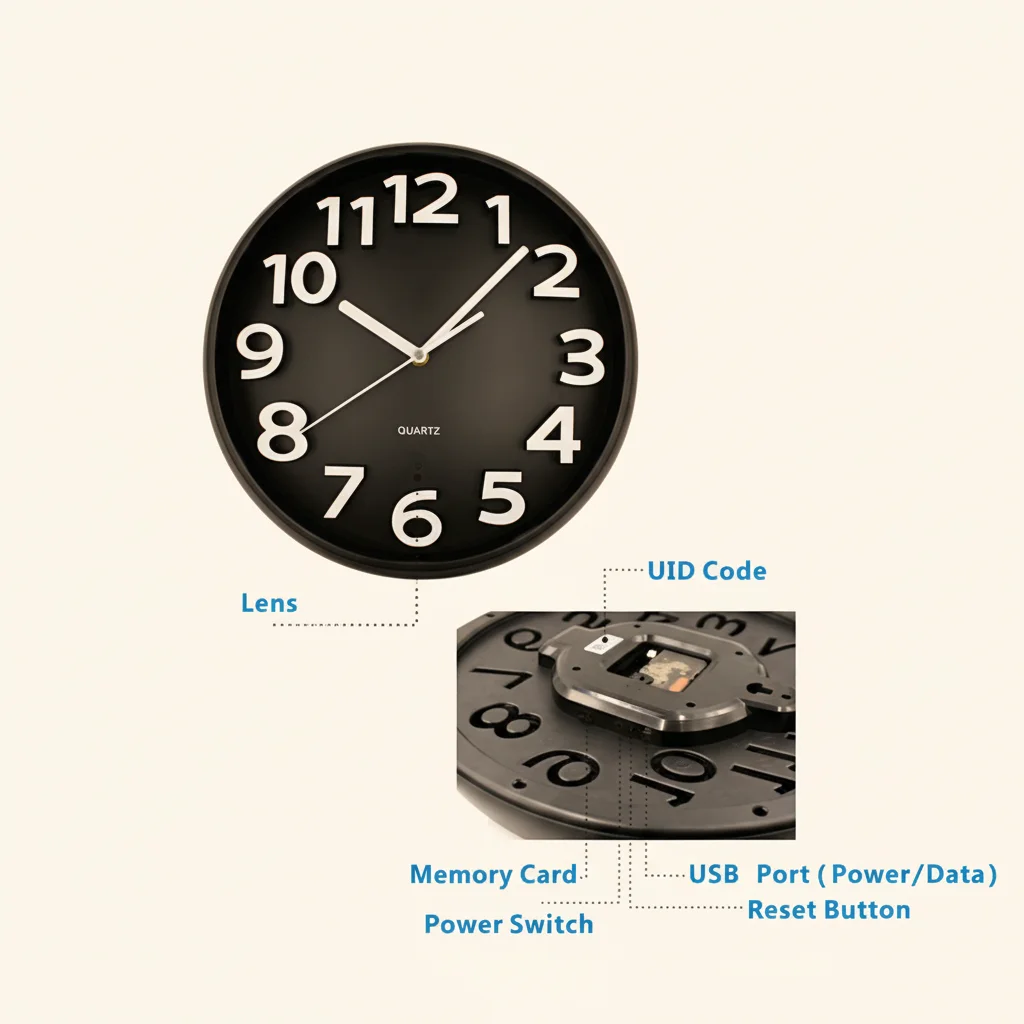
Clock cameras (Z10, C6, wall clock cameras): The reset button is on the back or bottom of the clock unit. Look for a small labeled hole near the USB power input or on the rear panel. On some models it is inside the battery compartment.
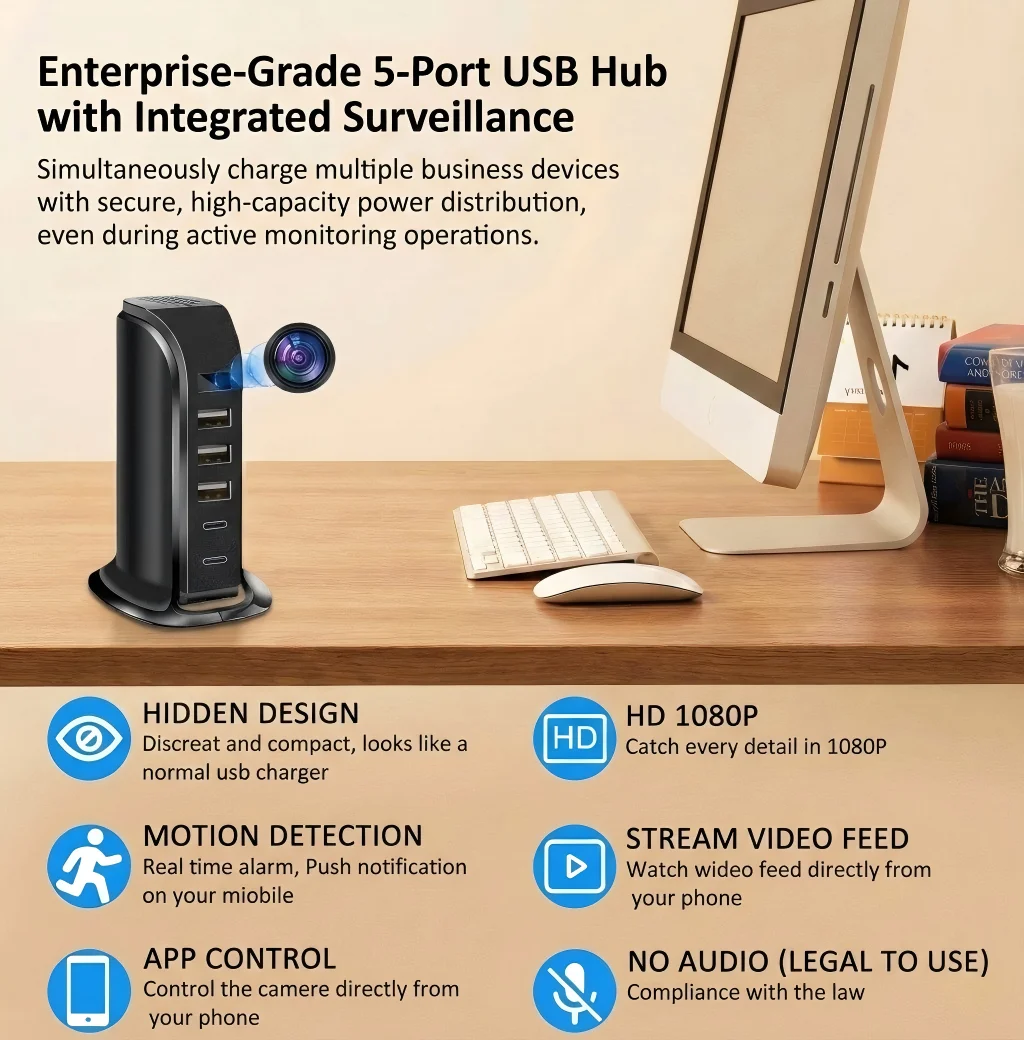
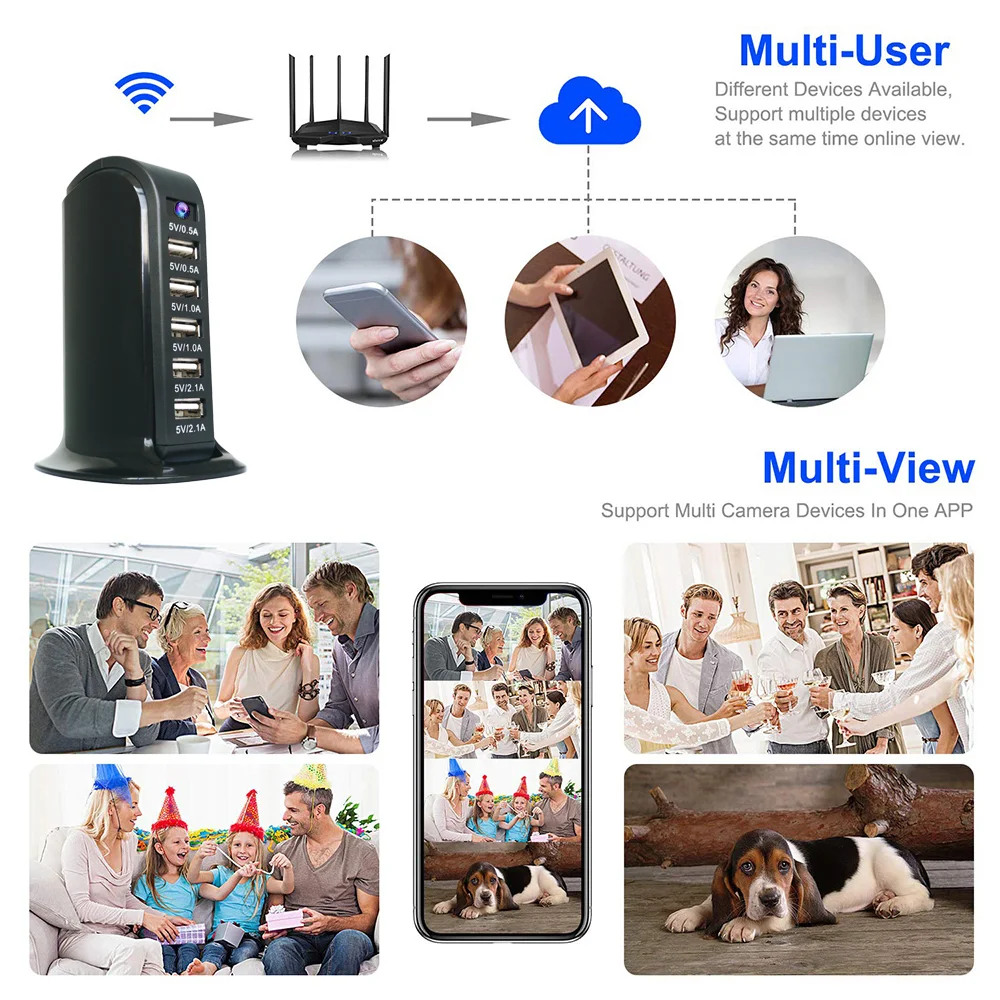
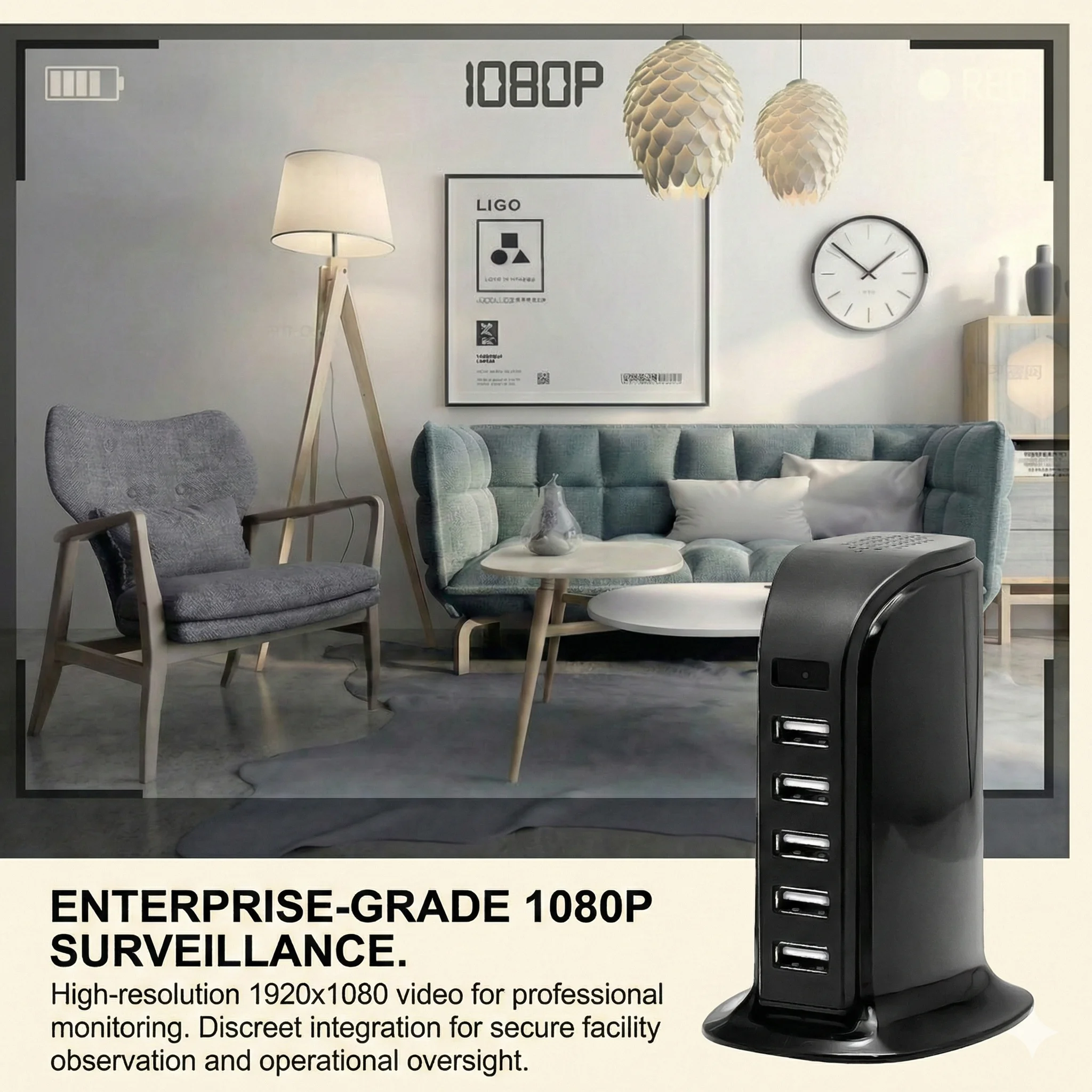
USB charger cameras: The reset button is typically a pinhole on the left or right side of the charger body. Use a SIM card ejector tool or a straightened paperclip to press it.
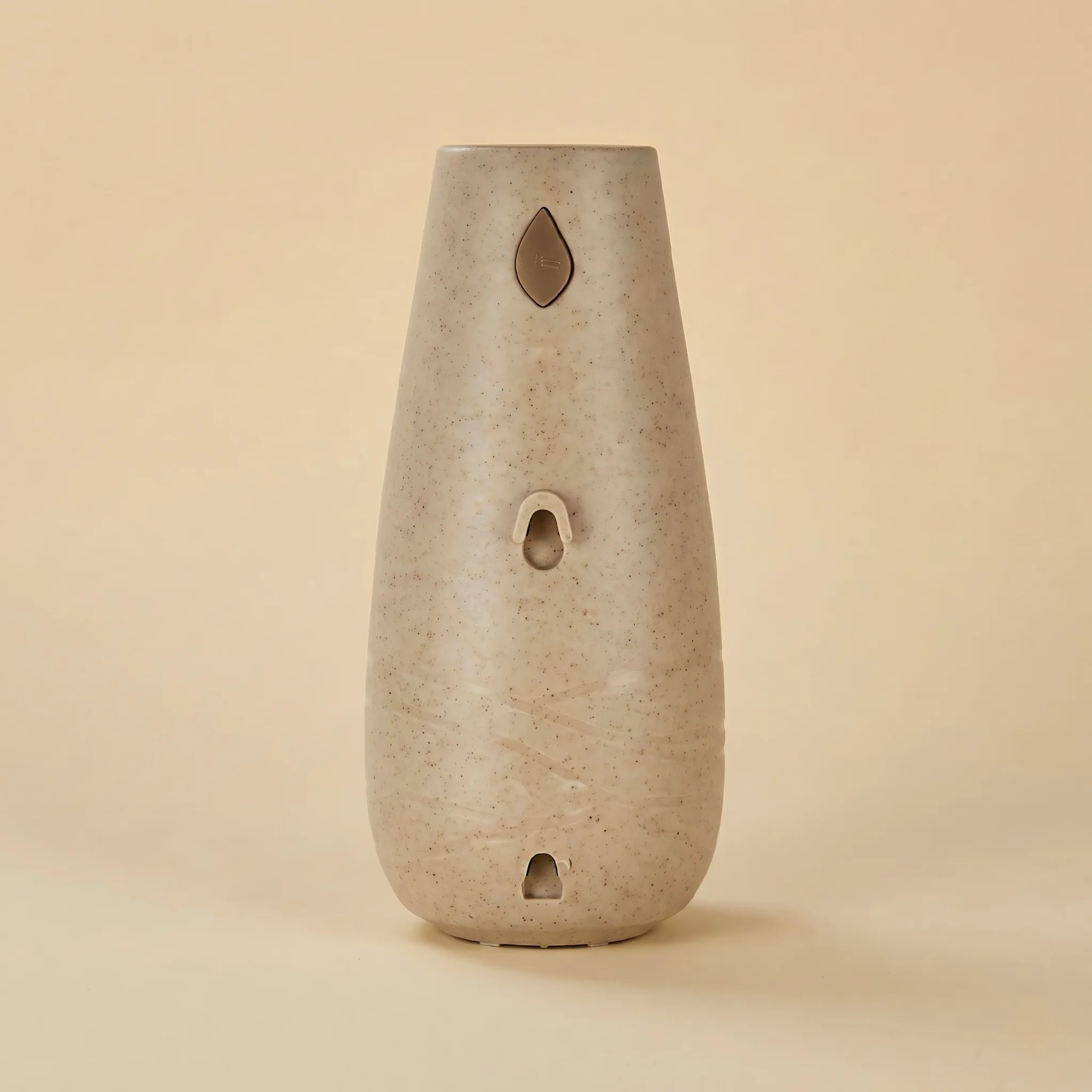
Smoke detector cameras: Open the outer housing (twist or unclip from the mounting bracket) and look for a small button on the circuit board near the lens assembly. Some models have an external pinhole accessible without opening the unit.
Power bank cameras: The reset pinhole is usually on one of the narrow side edges. Check both sides if you do not find it on the first.
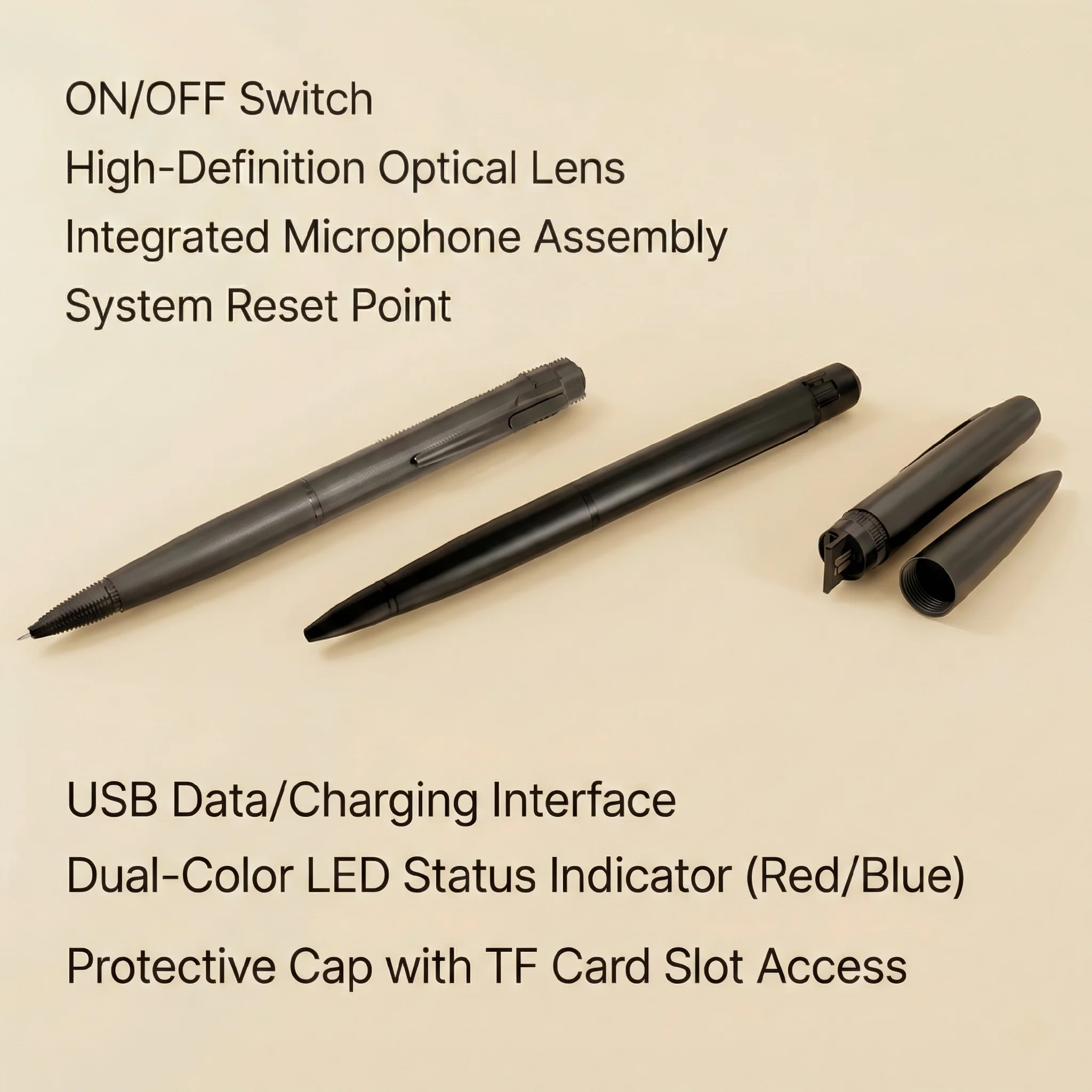
Pen cameras and body worn cameras: Press and hold the main function button for an extended duration (usually 10+ seconds) rather than a separate reset pinhole. Refer to the instruction sheet for your specific model.
DIY camera modules: Reset is typically triggered through the companion app’s device settings, or by pressing the onboard reset button on the PCB.
How to Perform a Factory Reset Step by Step
Step 1: Power on the camera. The device must be powered on for the reset to work. Connect it to power via USB before attempting the reset. A reset on an unpowered device does nothing.
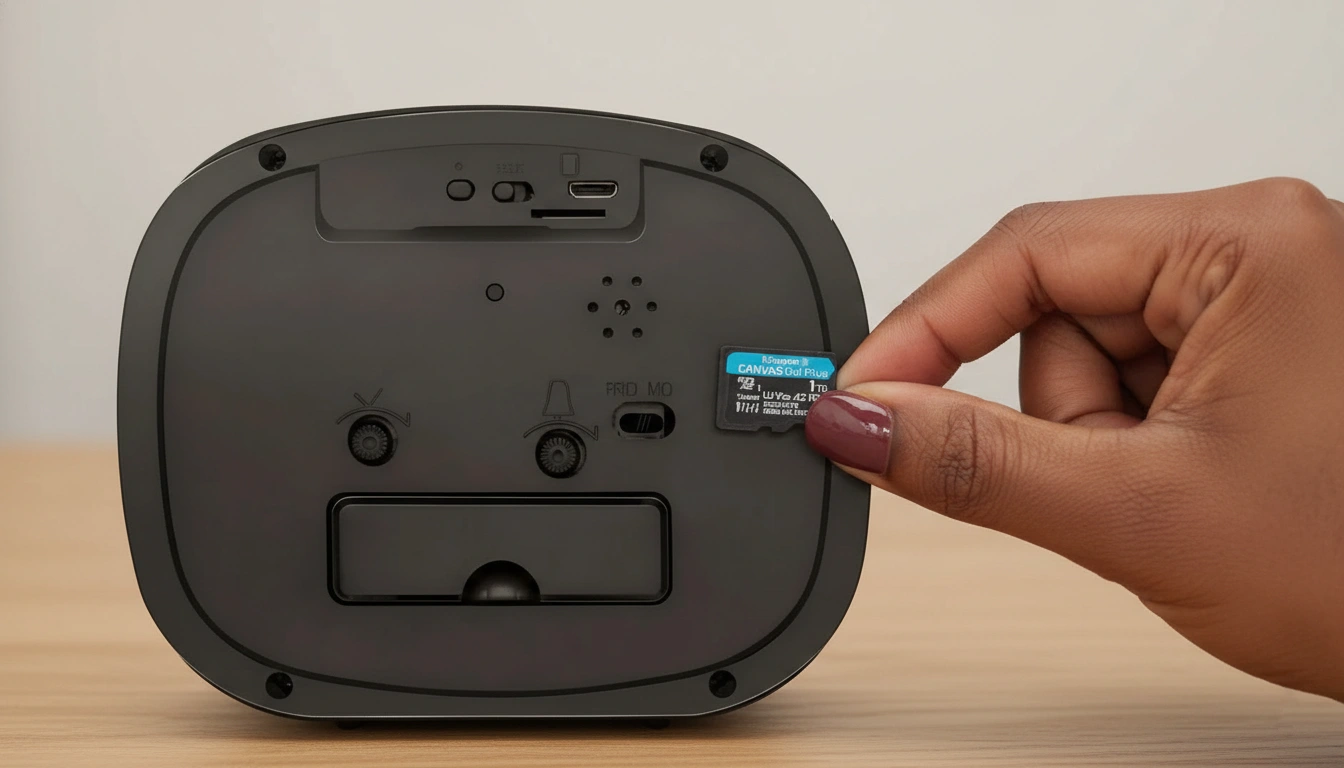
Step 2: Locate the reset pinhole. Use good lighting. The pinhole is typically 1–2mm in diameter and may be labeled “RESET” in small text.
Step 3: Insert a reset tool. Use a SIM card ejector pin, a straightened paperclip, or a toothpick. Do not use a sharp metal object that could damage the button.
Step 4: Press and hold. Press the reset button firmly and hold it for 10–20 seconds. The duration matters — holding for only 3–5 seconds typically only enters pairing mode, not a full factory reset. You need to hold longer to trigger the full reset.
Step 5: Watch the indicator LED. The LED behavior signals what happened:
– Short blink then steady light = entered pairing mode only (3–5 seconds press)
– Double flash or color change = full factory reset successful
– LED off = device powered off (you held too long; turn it back on)
If your device has no LED, wait 20 seconds after releasing the button before doing anything. The reset process takes a few seconds to complete.
Step 6: Re-pair from scratch. Open the camera app, go to “Add Device,” and follow the standard pairing procedure. Enter your current WiFi credentials and wait for pairing to complete.
How to Factory Reset via the App (No Button Press Required)
If your camera is currently connected to its app, you can perform a factory reset through the software without pressing the physical button. This is useful for cameras in hard-to-reach mounting positions.
For Tuya Smart-based cameras:
1. Open Tuya Smart and tap the device
2. Tap the pencil/edit icon or the three-dot menu
3. Select “Remove Device”
4. On the removal confirmation screen, look for “Disconnect and wipe device data” or similar — select this option (not just “Remove from account”)
5. Confirm the action
The “Disconnect and wipe” option sends a factory reset command to the camera via the network before removing it from your account. If you simply remove the device from your account without the wipe command, the camera retains its WiFi credentials and account history, and a new user may have trouble pairing it.
Factory Reset Scenarios and What to Do
Selling or transferring the camera: Always perform a factory reset before transferring a camera to another person. If the device is still bound to your account, the new owner cannot pair it. Use the app’s “Remove Device” with wipe, or press and hold the physical reset button for 15–20 seconds.
Camera frozen or unresponsive: If the camera is on but not responding to button presses or app commands, perform a power cycle first (disconnect power for 30 seconds, reconnect). If it remains frozen after power cycling, hold the reset button for 20 seconds. This forces a hardware reset that recovers most frozen states. If you experience frequent freezes, see our guide on how to fix spy camera lag and delay issues.
Moving to a new WiFi network: If you change your router or move to a new location, the camera needs to be paired to the new network. Perform a factory reset, then set it up again with the new WiFi credentials. There is no way to change the stored WiFi network without going through the pairing process again. For help with WiFi pairing issues, see our WiFi connection troubleshooting guide.
Camera showing offline after firmware update: Failed over-the-air firmware updates sometimes leave the device in an inconsistent state. A factory reset followed by a fresh pairing usually resolves this. See our firmware update guide for safe update procedures.
After the Reset: Reconfiguring Your Camera
After a factory reset, your camera is completely blank from a configuration standpoint. Reconfiguration takes 10–15 minutes and covers:
1. Pairing to WiFi — download the app, add the device, enter WiFi credentials
2. Motion detection — set sensitivity (start at medium)
3. Recording mode — choose continuous, motion-triggered, or scheduled
4. Notification settings — enable push alerts for motion events
5. SD card check — verify the card is recognized and has sufficient space
6. Time and date — sync the device clock (usually automatic via internet time servers once connected)
If you use Tuya Smart, your device preferences are linked to your Tuya account and can be reconfigured through the app after pairing. Other standalone apps may require you to set preferences from scratch each time.
Troubleshooting: Reset Is Not Working
The LED only enters pairing mode, not full reset. You are not holding the button long enough. Try again and hold for a full 20 seconds, counting out loud if necessary.
The camera is unresponsive to the reset button. The device may be in a deep sleep state. Disconnect it from power, wait 30 seconds, reconnect, and immediately attempt the reset while the device is booting.
The app still shows the device as online after reset. The app displays cached device status. Pull down to refresh the device list, or close and reopen the app. If the device still shows as online after a confirmed factory reset, it means the reset command did not register — repeat the process.
Reset worked but camera will not pair to new network. Ensure you are connecting the phone to the 2.4GHz WiFi band before pairing. Most hidden cameras are 2.4GHz only and will not pair through a 5GHz connection.
Conclusion
Resetting a hidden spy camera to factory settings requires holding the physical reset button for 10–20 seconds (or using the app’s device removal with data wipe option) until the LED signals a full reset rather than just pairing mode. The reset clears WiFi credentials and account bindings but preserves footage on the SD card. After a reset, re-pair the camera to your WiFi network using the companion app and reconfigure your recording and notification settings. Most reset failures are caused by insufficient button hold time or attempting to reset an unpowered device.
FAQ
Does a factory reset delete my recorded footage?
No. The factory reset only clears network credentials and app account bindings. Footage on the SD card is untouched. To erase footage, format the SD card separately through the app or on a computer. See our SD card formatting guide for the correct procedure.
How do I reset a spy camera with no visible reset button?
Some cameras, particularly pen cameras and body worn devices, use extended button presses on the main function button rather than a separate reset pinhole. Hold the main button for 10–15 seconds until the indicator LED changes behavior. If no LED is present, hold for 15 seconds and then power cycle the device.
Can I reset a hidden camera I bought secondhand if the previous owner did not wipe it?
Yes. Hold the physical reset button for 15–20 seconds regardless of what account it is bound to. The physical reset always overrides software account bindings. After the hardware reset, you can pair it to your own account fresh.
Why does my camera keep resetting on its own?
Spontaneous resets are usually caused by power supply instability. If the USB power adapter is underpowered or the USB cable is worn, brief voltage drops during recording can trigger the camera’s hardware watchdog, which resets the device to prevent data corruption. Use a quality 5V/2A power adapter and replace the USB cable. Also see our guide on how to extend battery life on spy cameras for power management tips.
After a factory reset, do I need to buy a new SD card?
No. The SD card works normally after a factory reset. The camera will recognize the existing card and begin writing new footage. If the card was previously formatted with the correct file system, no reformatting is needed.

 English
  Italiano
  Deutsch
  Français
  Español
  Polski