
How to Format SD Card in a Spy Camera the Right Way
Formatting an SD card incorrectly is one of the top reasons spy cameras freeze, stop recording, or fail to save footage. This guide explains exactly how to format your SD card for any hidden camera — whether it is a clock camera, USB charger camera, smoke detector camera, pen camera, or body worn device — and how to fix the most common storage errors.

Why SD Card Formatting Matters for Hidden Cameras
Spy cameras are embedded systems with limited processing power. Unlike a computer, which can handle FAT32, exFAT, and NTFS file systems, most hidden cameras only support FAT32 (for cards up to 32GB) or exFAT (for 64GB and above). A card formatted in NTFS or with a mismatched cluster size will not be recognized by the camera at all, or will appear recognized but fail to write any files.
Beyond file system compatibility, formatting removes fragmentation that builds up over weeks of loop recording, resets the directory table, and eliminates corrupted sectors that accumulate from improper power cutoffs (such as unplugging the camera while recording is active). Regular formatting — every 4–8 weeks under heavy use — keeps recording performance consistent. If your camera frequently loses power, see our guide on how to extend battery life on hidden spy cameras for tips to keep your camera running reliably.
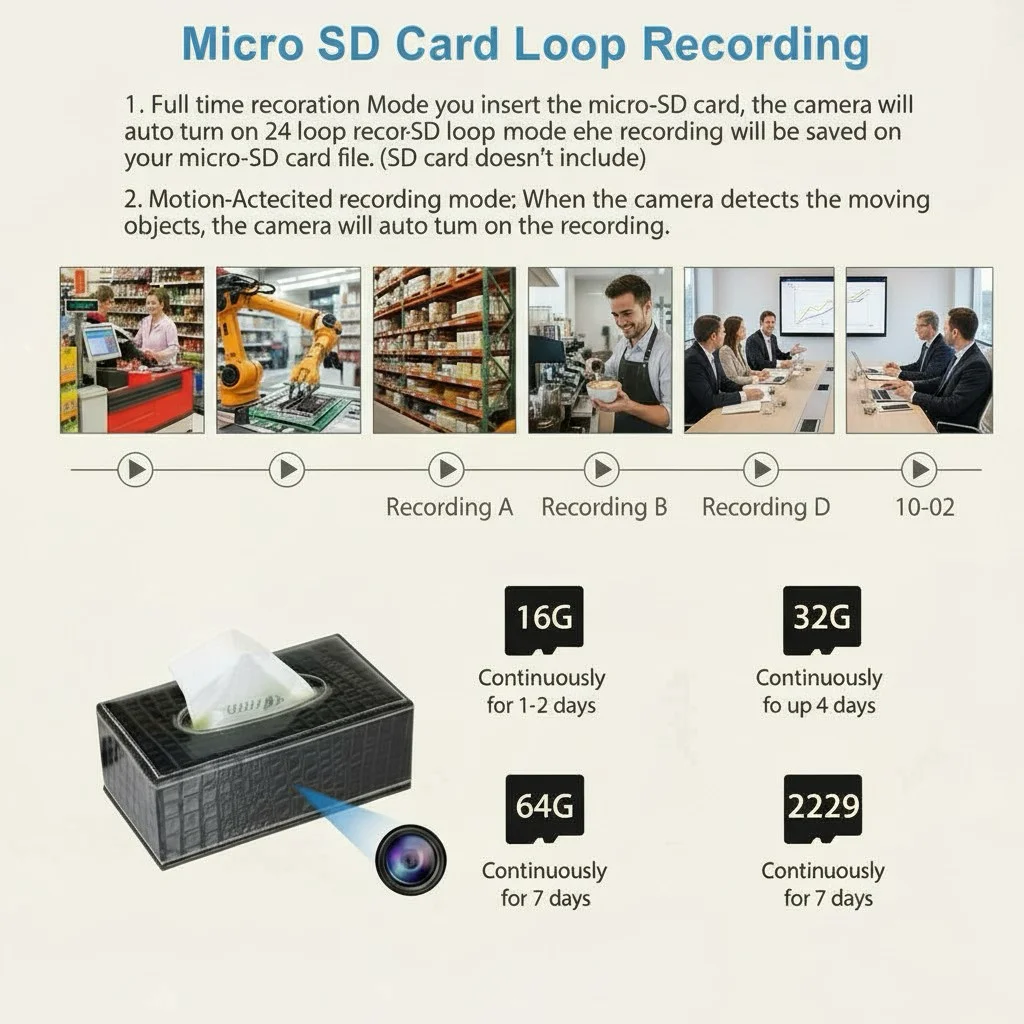
What SD Card Specs Work Best for Spy Cameras
Before formatting, ensure you are using a compatible card. Hidden cameras require microSD cards rated for continuous write workloads. Consumer-grade cards designed for burst photography (labeled as “UHS Speed Class 1” or faster, U1 or U3) work well. Avoid no-brand cards or cards sold without clear speed ratings.
| Card Capacity | File System | Camera Compatibility |
|---|---|---|
| 8GB – 32GB | FAT32 | All spy cameras (universal) |
| 64GB – 128GB | exFAT | Most WiFi hidden cameras |
| 256GB+ | exFAT | Check specifications before purchasing |
Recommended: Samsung Endurance, SanDisk High Endurance, or Kingston Canvas series. These are designed for surveillance and dashcam applications that use the same continuous-write loop recording pattern as hidden cameras.
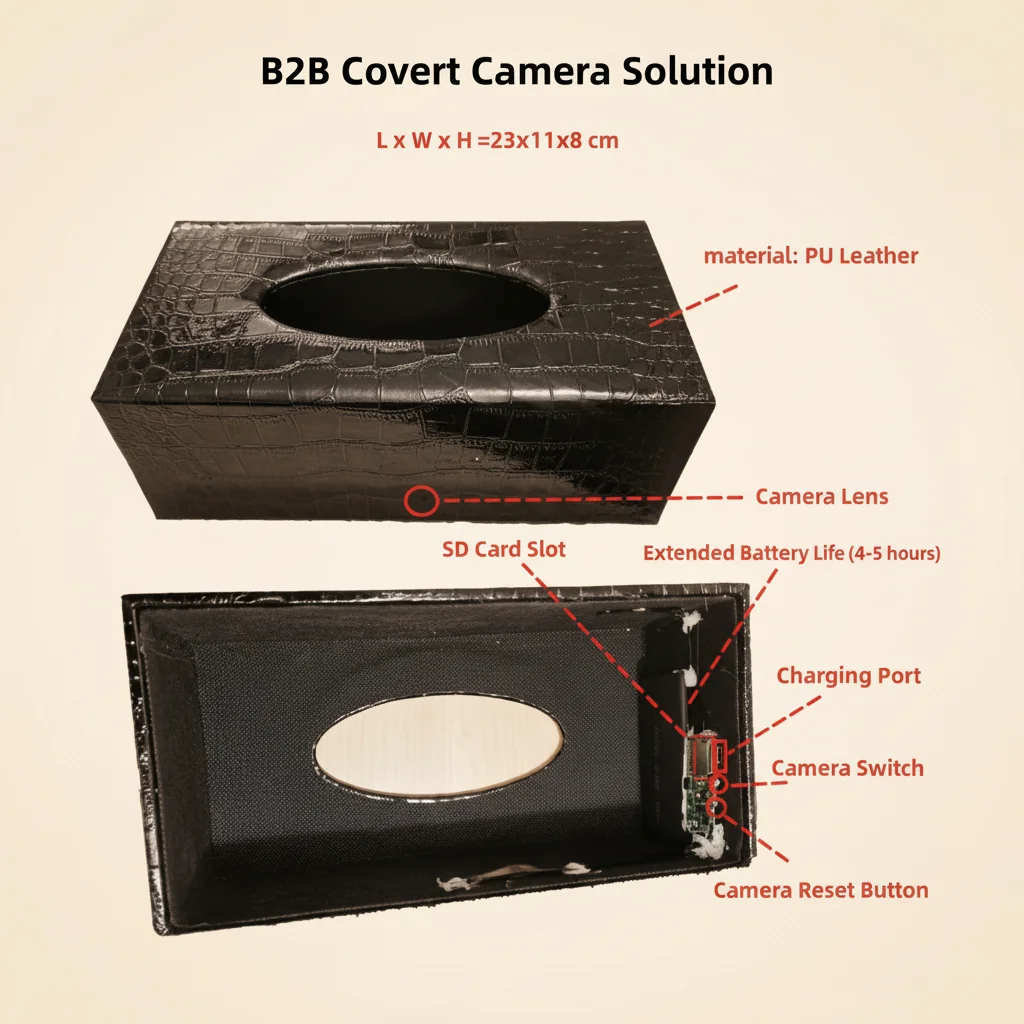
How to Format SD Card Using the Camera App
The simplest and most reliable method is formatting directly through the camera’s companion app. This ensures the correct file system and cluster size are used automatically.
For Tuya-based cameras (clock cameras, USB charger cameras, smoke detector cameras):
1. Open the Tuya Smart app and tap on your camera device
2. Tap the settings icon (gear icon) in the top right corner
3. Scroll to “Storage” or “SD Card Management”
4. Tap “Format” and confirm
5. Wait for the process to complete (30 seconds to 2 minutes depending on card capacity)
For HDLiveCam or other standalone apps:
The formatting option is usually under Settings > Storage > Format SD Card. The exact menu path varies by app version but follows the same general structure.
After formatting through the app, the camera will immediately recognize the card as empty and begin recording. The format process erases all stored footage, so back up any important recordings first.

How to Format SD Card on a Computer (for FAT32)
If the camera app does not have a built-in format option, or if the card is not being recognized by the camera at all, format it on your computer first.
On Windows:
1. Insert the microSD card using a card reader
2. Open File Explorer and right-click the SD card drive
3. Select “Format”
4. Set File System to FAT32 (for cards 32GB or smaller) or exFAT (for 64GB+)
5. Set Allocation Unit Size to 32768 (32KB) — this is the optimal cluster size for video recording
6. Check “Quick Format” and click Start
On macOS:
1. Insert the microSD card
2. Open Disk Utility (Applications > Utilities > Disk Utility)
3. Select the SD card in the left panel
4. Click “Erase”
5. Set Format to MS-DOS (FAT) for cards under 32GB, or ExFAT for larger cards
6. Set the name to something simple like “SDCARD”
7. Click Erase
Important note for Windows users: Windows 10 and 11 do not offer FAT32 as a format option for cards larger than 32GB through the standard GUI. If you need to format a 64GB card as FAT32 (for an older camera that does not support exFAT), use a third-party tool like guiformat.exe or format via the command line.
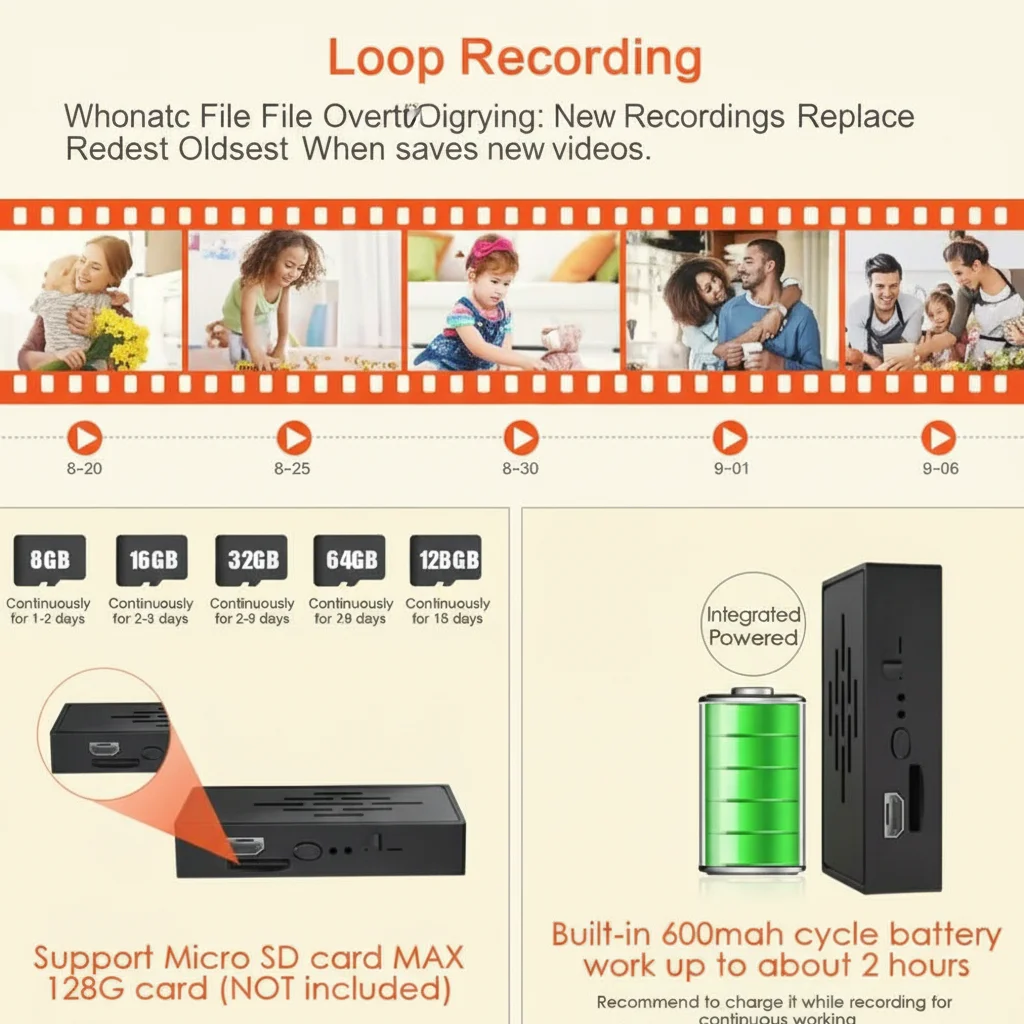
How to Fix SD Card Not Recognized by Camera
If your camera shows “No SD Card,” “Memory Error,” or similar after inserting a card, work through these steps:
Step 1: Check physical insertion. Remove the card and reinsert it firmly. MicroSD card slots require a definitive click to make proper electrical contact. On some spy cameras the card slot is tight and the card may appear inserted but not fully seated.
Step 2: Try the card in another device. Insert the microSD card into a different camera, phone, or card reader. If no device recognizes it, the card itself is faulty.
Step 3: Check card capacity limit. Some older or budget hidden cameras have a maximum supported capacity of 32GB or 64GB. A 128GB or 256GB card will not be recognized if it exceeds the device’s maximum. Check your product specification sheet.
Step 4: Reformat on computer. Even if the card worked previously, reformatting it on a computer with the correct file system often resolves recognition failures caused by file system corruption.
Step 5: Try a different card. If the slot and the card’s file system check out but the camera still does not recognize it, try a known-good card from a reputable brand. Counterfeit SD cards (common in online marketplaces) often fail unexpectedly. If your camera also has WiFi connectivity problems, check our guide on how to fix WiFi hidden camera connection issues as network issues can sometimes interfere with app-level storage detection.
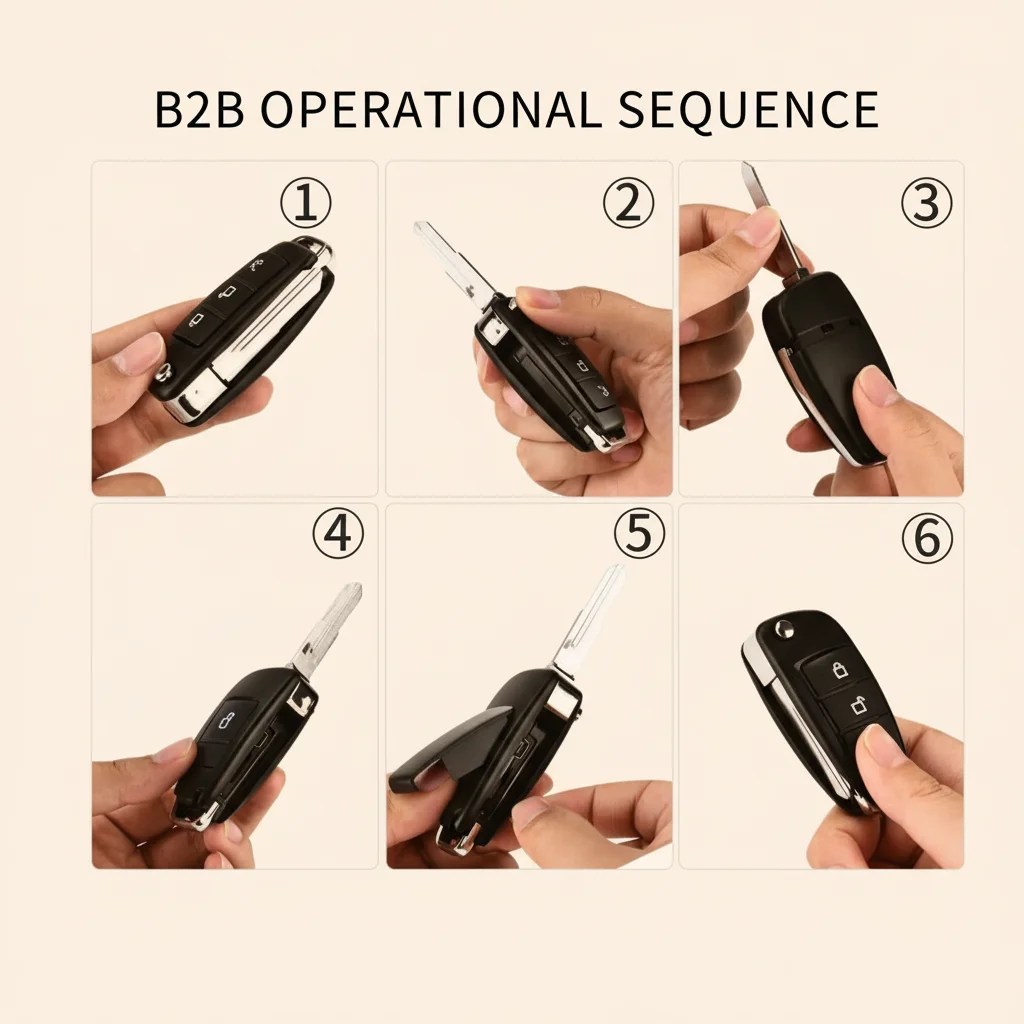
How Often Should You Format the SD Card
For cameras running continuous loop recording 24 hours a day, format the SD card every 4 weeks. For cameras set to motion-triggered recording only, a monthly format is still recommended if the camera is positioned in a high-traffic area. For low-use cameras (one or two motion events per day), formatting every 8–12 weeks is sufficient.
Never remove the SD card while the camera is recording. Always power off the camera first, or enter the settings menu and select “Safely Remove SD Card” if your app provides that option. Removing the card while writing is in progress causes sector-level corruption that cannot always be repaired.
How to Recover Footage from a Corrupted SD Card
If you urgently need footage from a corrupted card, do not format it yet. Instead, try recovery software before overwriting the data.
On Windows: Recuva (free) or Disk Drill can scan the card and recover video files even from a corrupted file allocation table. Connect the card via a card reader, run a deep scan, and filter for .mp4, .avi, or .mov files.
On macOS: Disk Drill for Mac provides the same recovery capability. PhotoRec (free, command-line) is a powerful alternative that works on both platforms.
Recovery success depends on how much new data has been written to the card after corruption occurred. The sooner you attempt recovery, the better.
After recovering any salvageable footage, format the card using the steps above and return it to service. Cards that have experienced multiple corruption events should be replaced rather than continued in use.
Conclusion
Formatting your spy camera’s SD card with the correct file system — FAT32 for cards up to 32GB, exFAT for 64GB and above — is the foundation of reliable long-term recording. Use the camera’s built-in app format feature whenever possible for the simplest and safest process. If the card is not recognized or recording stops working, format it on a computer with the correct settings before assuming a hardware problem. Regular formatting every 4–8 weeks keeps your hidden camera running without storage-related failures.
FAQ
Can I use a 128GB SD card in my spy camera?
It depends on the camera model. Most modern WiFi hidden cameras support up to 128GB. Some older or budget models have a maximum of 32GB or 64GB. Check the product specifications before purchasing a high-capacity card.
My camera shows “SD card full” but deletes old footage automatically. Is this normal?
Yes. When loop recording is enabled, the camera automatically overwrites the oldest footage when the card is full. If the card still shows as full without overwriting, the loop recording setting may be disabled. Enable it in the camera app’s storage settings. For a complete guide to loop recording and SD card management, see our SD card formatting guide.
Should I format the SD card before using it for the first time?
Yes, always. SD cards purchased from manufacturers are formatted for general-purpose use. Reformatting in the camera or with the correct settings ensures the cluster size and file system are optimized for continuous video recording. For step-by-step formatting instructions, visit our guide on how to update spy camera firmware which also covers SD card preparation.
Why does my SD card work in the camera but footage is corrupted or unplayable?
Corrupted footage usually means the card is too slow for the camera’s write speed requirements. Use a card rated U1 or U3 (UHS Speed Class 1 or 3). Cards without speed rating markings often have inconsistent write speeds that cause frame corruption in recorded video.
How do I access footage from the SD card on my computer?
Remove the microSD card from the camera, insert it into a card reader, and connect it to your computer. The camera stores video as standard .mp4 files in folders organized by date. You can play these files directly with VLC Media Player or any standard video player.

 English
  Italiano
  Deutsch
  Français
  Español
  Polski