
How to Set Up and Format SD Cards for Your Hidden Camera
Die korrekte Einrichtung Ihrer SD-Karte ist einer der wichtigsten ersten Schritte nach dem Auspacken einer neuen Spionagekamera. Eine ordnungsgemäß formatierte Karte gewährleistet eine reibungslose Schleifenaufzeichnung, zuverlässige Bewegungserkennung und eine unterbrechungsfreie Videoaufzeichnung. Dieser Leitfaden führt Distributoren und Endanwender durch jeden Schritt – von der Auswahl der richtigen Karte bis zur Fehlerbehebung bei häufigen Formatierungsproblemen.
So richten Sie SD-Karten für Ihre versteckte Kamera ein und formatieren sie - QZT | Großhandel für verdeckte und Miniaturkameras
Hidden cameras store footage locally on micro SD cards, and the card’s format, capacity, and speed class directly affect performance. An unformatted or incompatible card can cause recording failures, choppy footage, or the camera to stop capturing video entirely. For distributors stocking multiple product lines—USB charger cameras, pen cameras, clock cameras, and smoke detector cameras—knowing how to guide customers through this setup prevents a large volume of unnecessary returns.
Most hidden cameras sold in 2026 support micro SD cards up to 128GB or 256GB. Using a card that exceeds the camera’s maximum supported capacity will result in the card being unreadable. Speed class matters too: a Class 4 card may drop frames during 1080p recording, while a U1 or U3 card ensures stable write speeds for high-definition video.
Choosing the Right SD Card
Before inserting any card, confirm it meets the camera’s specifications. Check the product manual or the listing on qztsecurity.com for the recommended capacity range and speed class. For most 1080p hidden cameras, a Class 10 or U1 micro SD card from a reputable brand is the minimum. For 4K-capable models like the Tuya DIY module, a U3 card is strongly recommended.
Avoid generic or unbranded SD cards. These frequently fail prematurely and are a leading cause of reported camera malfunctions. Kingston, Samsung, and SanDisk are reliable choices widely available at wholesale quantities.
Step-by-Step SD Card Setup
Step 1: Power Off the Camera
Always turn off the hidden camera before inserting or removing the SD card. Removing the card while the camera is powered on risks corrupting existing recordings and can damage the card’s file system.
Step 2: Insert the Card Correctly

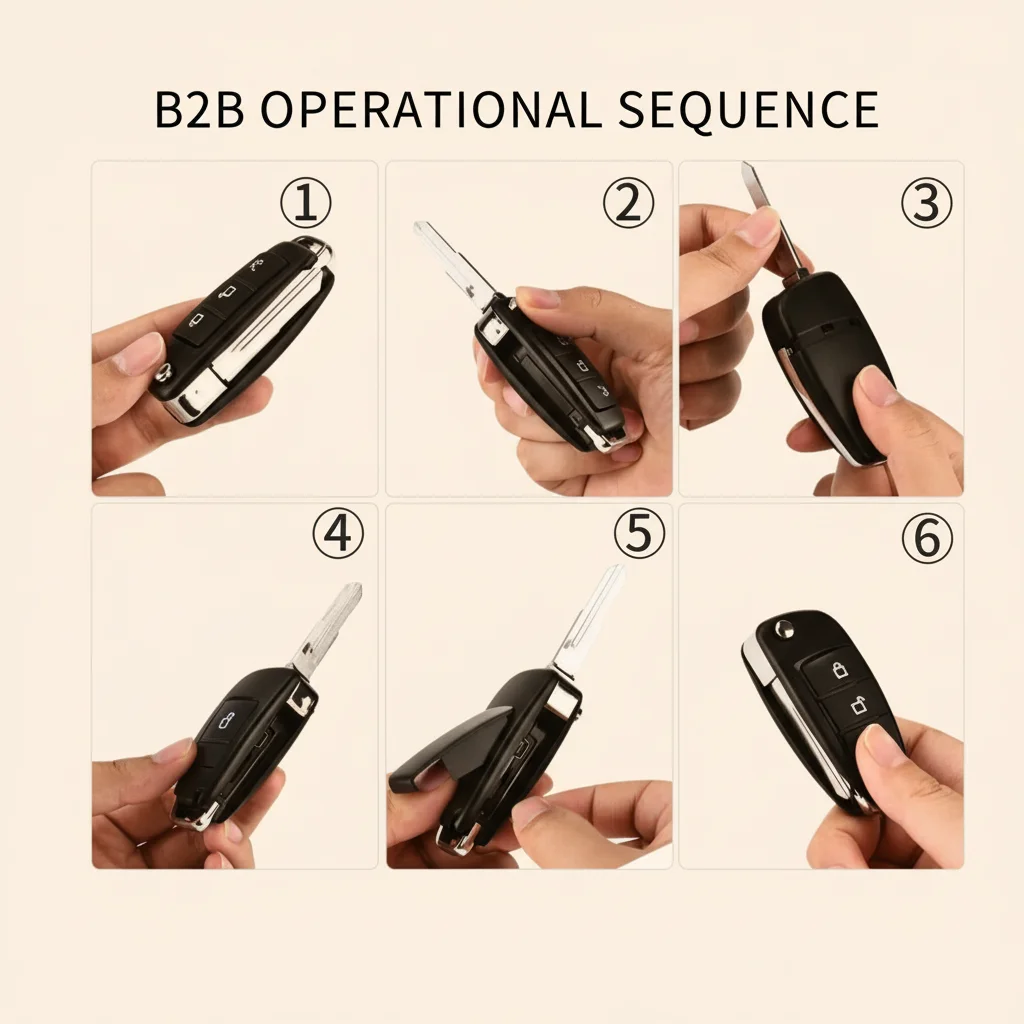
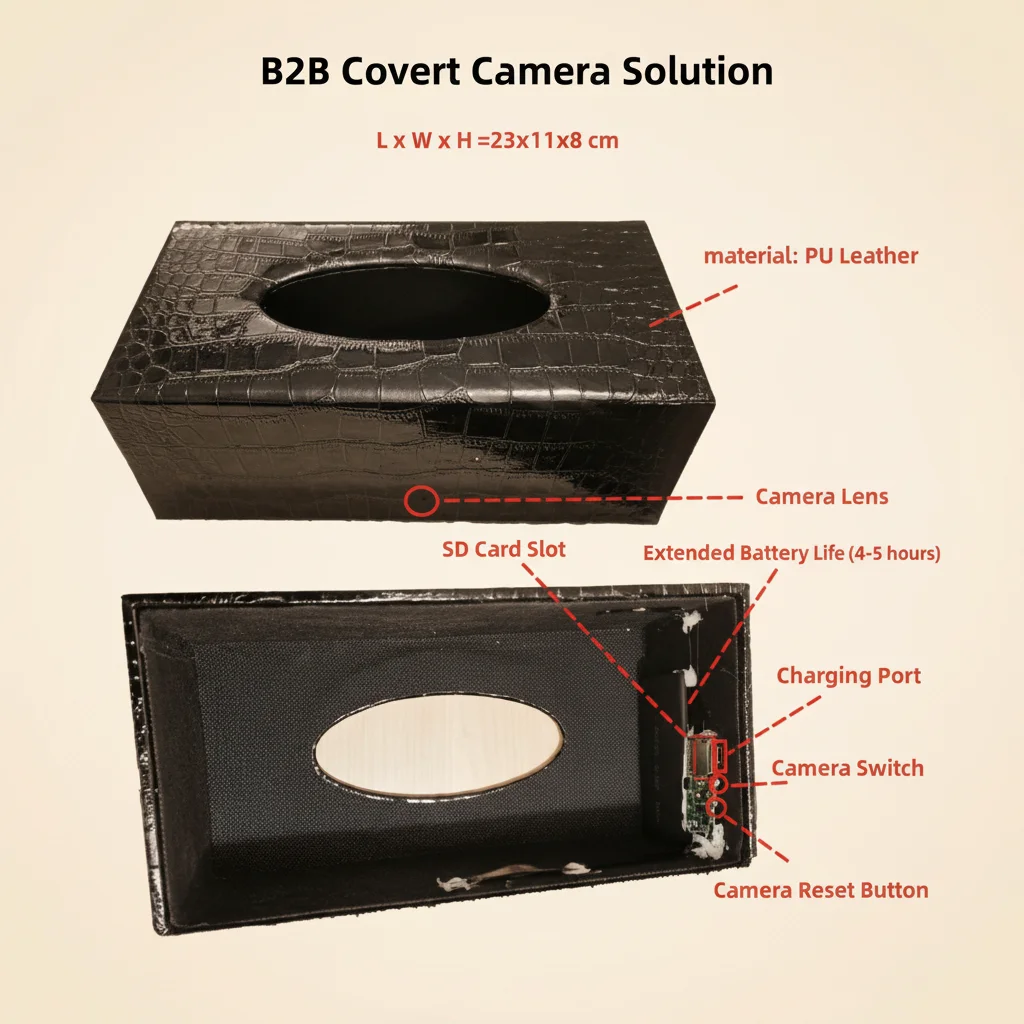
Locate the SD card slot on the device. For pen cameras and USB charger cameras, the slot is typically inside the body and may require a pin or fingernail to open. For clock cameras and smoke detector cameras, the slot is usually behind the battery cover or in a discreet compartment. Insert the card with the gold contacts facing down and the notch aligned with the slot.
Step 3: Power On and Initialize
Power on the camera. On first use, most cameras will automatically prompt to format the card. If no prompt appears, navigate to the camera’s settings menu via the companion app or the on-device interface.
Step 4: Format Through the Camera’s App or Menu
Using the app connected to your camera—HDMiniCam, Tuya Smart, or the relevant app for your model—go to Settings and select Format SD Card. This command writes the card in the exact file system the camera requires, which is typically FAT32 for most models. Do not format the card using a computer, as this may create a file system the camera cannot read.
Step 5: Set Recording Preferences
After formatting, configure recording mode. Common options include:
– Schleifenaufzeichnung: Overwrites the oldest footage when the card is full. Recommended for continuous monitoring.
– Bewegungserkennung: Records only when movement is detected, saving storage space and making review faster.
– Geplante Aufnahme: For clock cameras and smoke detector cameras, allows recording during specific hours.
Common SD Card Problems and Solutions
**
Camera Says “No SD Card” or “Card Error”**
First, remove and reinsert the card, ensuring it clicks into place. If the error persists, the card may be incompatible or damaged. Try a different card that meets the camera’s specifications. If a known-good card still fails, the card reader in the camera may be damaged—this is a hardware issue requiring a warranty claim.
Footage Plays Back as Corrupted Files
Corrupted files usually result from removing the SD card while recording is active, or from using a card with insufficient write speed. Always stop recording or power off the camera before ejecting the card. If corruption occurs repeatedly, switch to a higher-speed card and always use the camera’s built-in format function rather than formatting on a computer.
Card Shows Full Despite Deleting Files
This is a common issue with FAT32 file systems. When files are deleted, the FAT32 file system marks the space as available but may not fully reclaim it if files were interrupted mid-write. Re-format the card through the camera’s menu to fully reset the file system.
Card Wears Out Over Time
SD-Karten haben eine begrenzte Anzahl von Schreibzyklen. Kameras, die rund um die Uhr mit Schleifenaufzeichnung laufen, nutzen eine 64GB-Karte schneller ab als bei gelegentlicher bewegungsausgelöster Aufzeichnung. Für Szenarien mit hoher Nutzung empfehlen Sie Ihren Kunden Karten, die für kontinuierliche Aufzeichnung ausgelegt sind, und tauschen Sie Karten in Always-on-Installationen alle 12–18 Monate aus.
Maintenance Tips for Distributors and End Users
For distributors handling bulk orders, include a quick-start card in each package explaining the SD card setup process. This small addition dramatically reduces support tickets related to “camera not recording.”

For end users: check the SD card monthly by reviewing a sample of recorded footage. If playback is choppy or files are missing, reformat the card. Keep a spare card on hand for uninterrupted monitoring during card replacements.
Häufig gestellte Fragen
Can I use a 256GB SD card in my hidden camera?
It depends on the model. Many 1080p cameras support up to 128GB. Some Tuya-based and 4K models support 256GB. Always check the product specifications on qztsecurity.com before purchasing.
Should I format the SD card on my computer?
No. Always format the card through the camera’s settings menu or companion app. Computer formatting may create an incompatible file system that the camera cannot read.
How often should I format my SD card?
Formatting once every 4–6 weeks is a good practice for cameras in active use. This prevents file system fragmentation and ensures reliable recording.
Was ist der Unterschied zwischen Schleifenaufzeichnung und Bewegungserkennung?
Die Schleifenaufzeichnung zeichnet kontinuierlich Video auf und überschreibt die ältesten Dateien, wenn der Speicher voll ist. Die Bewegungserkennung zeichnet nur bei erkannter Bewegung auf, was Speicherplatz spart und die Überprüfung des Materials vereinfacht.
Why does my camera stop recording after a few minutes?
This is usually caused by an unformatted card, a card that is full, or a card with insufficient write speed. Check the card status in the app and reformat if needed.

 English
  Italiano
  Deutsch
  Français
  Español
  Polski