
Jak zoptymalizować ustawienia nagrywania aktywowanego głosem VOR
Voice Operated Recording (VOR) is one of the most misunderstood features on professional voice recorders. When configured incorrectly, it causes the exact problem clients complain about most: choppy, fragmented recordings that miss critical conversations. This guide walks through the root cause, precise diagnostic steps, and professional configuration standards — including the circumstances where disabling VOR entirely is the right call.
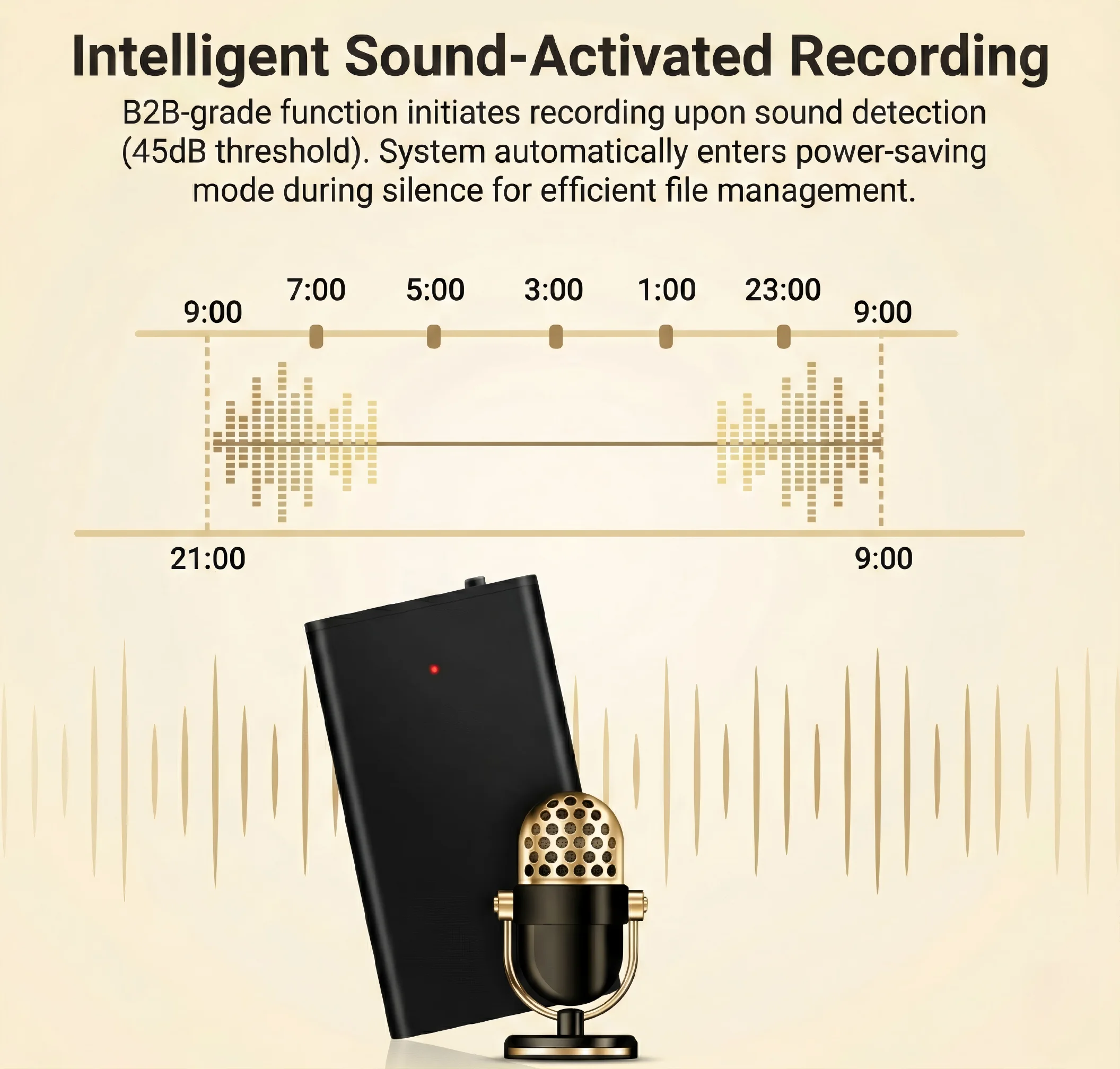
What Is VOR and Why Does It Cause Choppy Recordings
VOR stands for Voice Operated Recording. When this mode is active, the recorder continuously monitors ambient sound levels through its microphone. Once the detected audio level drops below a pre-configured sensitivity threshold, the device enters a temporary sleep state — pausing recording to conserve storage and battery.
The engineering rationale is sound: in surveillance scenarios where 90% of the time is silence and meaningful audio arrives in bursts, VOR can extend operational duration by 3× to 5×. A device rated for 15 hours in continuous mode might operate for 50+ hours in an appropriately tuned VOR environment.
The problem arises when users apply VOR to situations it was never designed for. In a standard meeting or interview, speakers vary their volume naturally. A soft-spoken participant, a question asked at lower volume, or a momentary pause between sentences — all of these trigger the sleep threshold if VOR sensitivity is set too high. The recorder sleeps for a second or two, the speaker resumes, and by the time the device wakes up and resumes recording, one to three words have been permanently lost. Multiply this across a 90-minute meeting and you have a recording with dozens of micro-gaps.

How VOR Sensitivity Thresholds Work in Practice
VOR sensitivity is expressed numerically in the device’s configuration file — typically stored as a parameter in `time.txt` or `factory.txt` on the root directory of the device’s storage. The scale varies by firmware version, but the most common implementation uses a 0–10 range where:
– 0 = VOR disabled; recorder runs continuously regardless of sound level
– 1–3 = Low threshold; device sleeps only during near-complete silence; suitable for quiet surveillance environments
– 4–6 = Medium threshold; device sleeps when conversation drops below normal speaking volume; suitable for intermittent loud-sound environments
– 7–10 = High threshold; device only records near-shouting volume; high risk of missed audio in normal conversation
The practical issue is that most devices ship from the factory with VOR enabled at a mid-range value (commonly 3–5). When clients receive the device and begin using it for meetings without adjusting this parameter, they immediately experience missing audio.
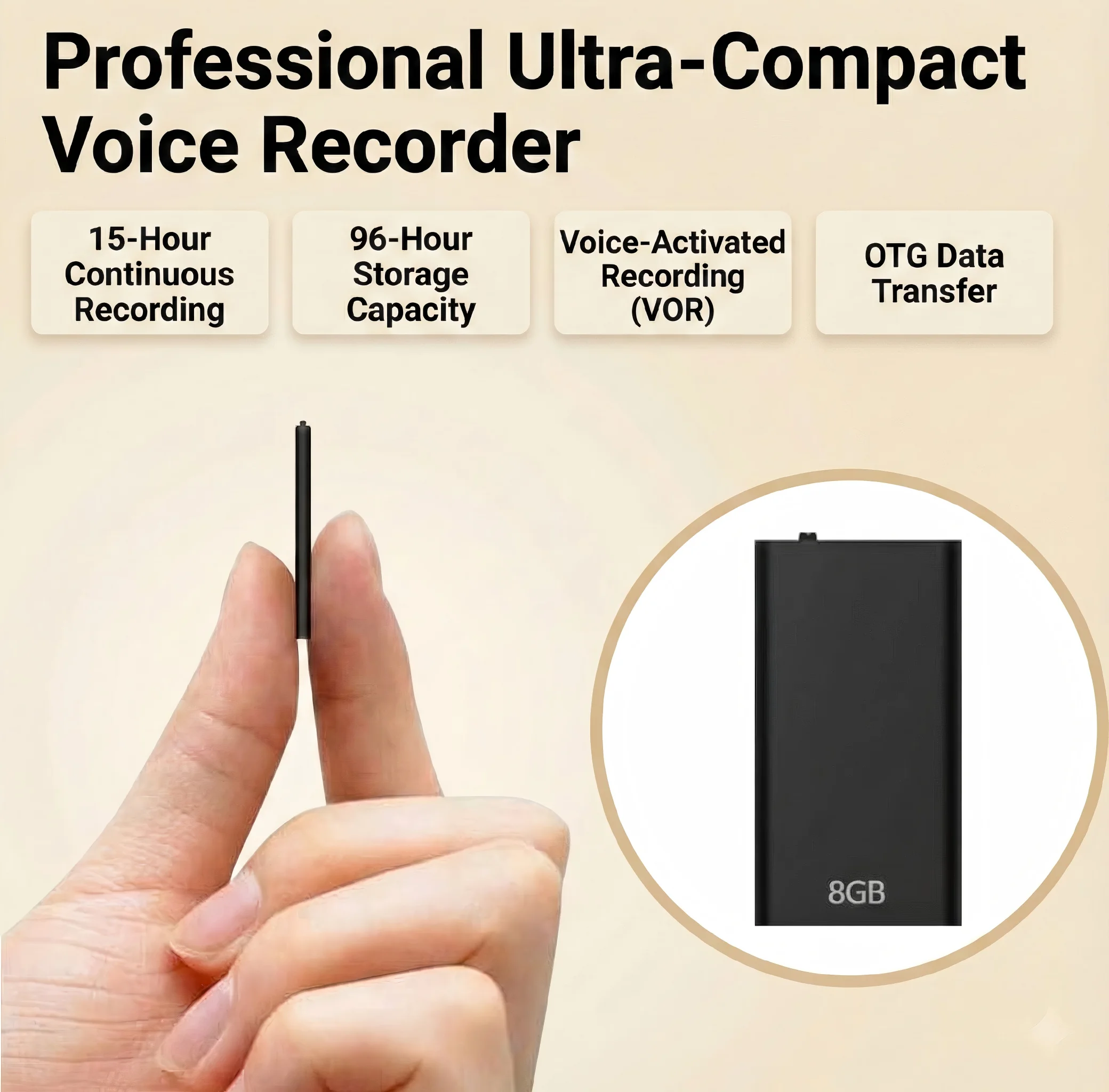
Step 1 — Diagnose Whether VOR Is Active
Before adjusting any parameters, confirm that VOR is actually the cause of the choppy recording. Connect the recorder to a computer via USB cable. Navigate to the root directory of the removable drive and open the configuration file — this is commonly named `time.txt`, `factory.txt`, or `config.txt` depending on the firmware version.
Look for a line formatted as:
“`
VOR=3
“`
or equivalently:
“`
VOR_LEVEL=3
SOUND_ACTIVATED=1
“`
If the VOR value is any non-zero number and the client is experiencing fragmented recordings, VOR misconfiguration is the primary suspect. Note the current value before making changes, so you can restore it if needed.
If the configuration file is not visible, or the drive shows garbled filenames, address the FAT32 filesystem issue first — format the device using FAT32 and reinstall the time-sync utility before proceeding with VOR diagnostics.

Step 2 — Disable VOR Entirely for Baseline Testing
To isolate the issue definitively, set VOR to 0 (disabled). Edit the configuration file directly:
“`
VOR=0
“`
Save the file, safely eject the device from Windows using the “Safely Remove Hardware” option in the system tray, then power the recorder off completely using its physical switch. Do not simply unplug it while it is still powered on.
Power the recorder back on and record a 60-second test in a normal speaking environment — a standard conversation at typical meeting volume. Stop the recording and connect back to the computer. Open the resulting audio file in VLC or Windows Media Player and confirm the following:
1. The recording contains no audible gaps or silent sections during continuous speech
2. The file bitrate matches the configured setting (typically 192 kbps for WAV, or 128 kbps for MP3)
3. The timestamp in the filename matches the actual recording time
If the recording is now clean and continuous, VOR was causing the problem. The fix is confirmed — adjust VOR to the appropriate level for the client’s intended use case, or leave it at 0 for critical applications.

Step 3 — Verify That Parameter Changes Actually Took Effect
This is a step many technicians skip, and it causes callbacks. After editing the configuration file, the change is only written to the device’s flash storage when the file is properly saved and the device is safely ejected. If the configuration file is written while the device is still recording, or if the drive is pulled without safe ejection, the write may fail silently — the file on the computer appears to show the new value, but the firmware reverts to the last-good configuration stored in its internal memory.
To verify that the parameter actually took effect, check the properties of a new recording file after the change:
– Right-click the new audio file → Properties → Details tab
– Confirm the Bitrate matches the configured audio quality setting
– Confirm the Duration is approximately what you expected for the test recording length
If the bitrate shows an unexpected value, or if behavior still appears unchanged after the parameter edit, the device’s filesystem may have read-only faults. Perform a full FAT32 format (not just a quick scan) as described in the companion guide, reinstall the time-sync utility, and then re-apply the VOR configuration change.
Step 4 — Configure VOR Correctly for the Intended Use Case
Once you have confirmed VOR is working and parameter changes are taking effect, set the final VOR level based on the deployment environment.
VOR = 0 (Disabled): Mandatory for these scenarios
– Legal proceedings, depositions, and court-admissible recordings
– Corporate meetings and boardroom discussions where every word matters
– Interviews, journalism, and HR investigations
– Any situation where audio continuity is more important than battery life
VOR = 1–2 (Very Low Threshold): Suitable for these scenarios
– Quiet office environments where only occasional near-silence occurs
– Long-duration passive monitoring where battery conservation is needed but coverage must be complete
– Library or study environments with predictable background noise floor
VOR = 3–5 (Medium Threshold): Suitable for these scenarios
– Retail floor monitoring where only transactions and disputes need capture
– Vehicle interior monitoring where loud events (arguments, incidents) are the target
– Home security audio where the goal is capturing intrusions, not daily household sounds
VOR = 6–10 (High Threshold): Rarely recommended
– Industrial environments with high ambient noise floors
– Outdoor surveillance near construction or machinery
– Only when the target audio source is substantially louder than everything else

How VOR Interacts with Other Recording Parameters
VOR sensitivity does not operate in isolation. Two other parameters affect how aggressively the device sleeps and wakes:
VOR Hold Time (Post-Detection Silence Buffer): Some firmware versions include a `VOR_HOLD` parameter that defines how many milliseconds of silence must occur before the device enters sleep. A common default is 1,500 ms (1.5 seconds). Increasing this value to 3,000–5,000 ms adds a generous buffer — the device waits longer after silence begins before sleeping, reducing the chance that a brief pause in speech triggers a sleep-wake cycle. This single adjustment can solve most choppy-recording complaints without disabling VOR entirely.
AGC (Automatic Gain Control): AGC normalizes the recording volume dynamically. When AGC is active and VOR is also active, there is a compounding effect: AGC boosts quiet voices to match the average level, which means those quiet voices are less likely to dip below the VOR threshold. If available in the firmware, enabling AGC alongside a moderate VOR setting offers a good compromise between battery conservation and recording continuity.
Redukcja szumów DSP: High-end models include a DSP (Digital Signal Processing) noise reduction filter, typically expressed as `NOISE_REDUCTION=1` in the config file. When noise reduction is active, it filters background hum before the VOR threshold is evaluated. This means the device’s sleep decision is based on actual voice content rather than ambient noise — a significant improvement in accuracy.
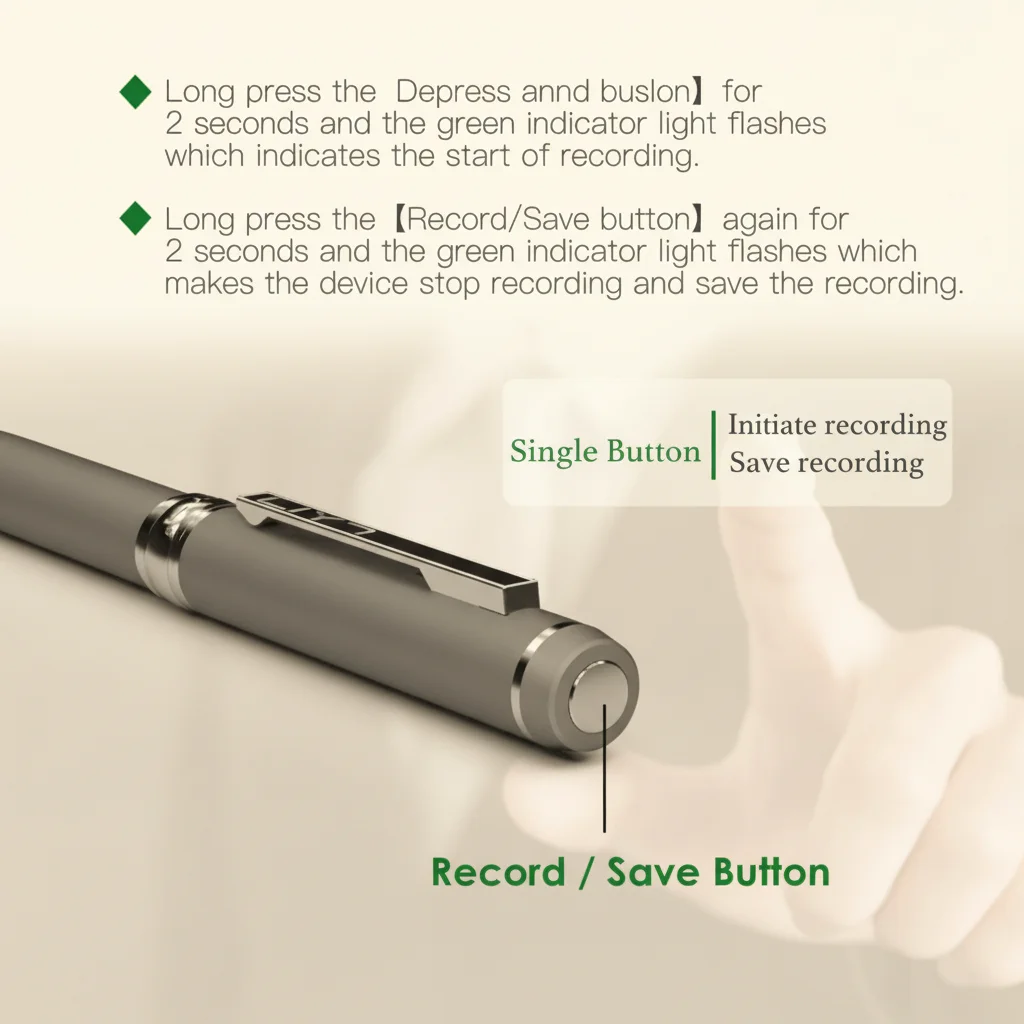
Why VOR Parameters Sometimes Do Not Take Effect
A repeating pattern in support tickets: a user edits the configuration file, saves it, and the device ignores the change. There are four verified causes:
1. The device was not properly powered off before reinserting. The firmware only reads configuration on cold boot. Editing the file while the device is on (or immediately reconnecting power without a full power cycle) means the old values remain in RAM.
2. The USB cable used was a charge-only cable. Some USB cables carry power only and have no data lines. The computer may show the drive, but writes to the configuration file fail silently. Always use the original cable supplied with the device, or verify the cable with a known-good data transfer test.
3. The FAT32 filesystem has read-write faults. Flash storage that has been improperly disconnected multiple times can develop sectors that accept writes in Windows Explorer but do not actually commit to the chip. The solution is a full FAT32 format, not a chkdsk repair.
4. The firmware version uses a different configuration filename. Some Q1, Q61, and ZD46 firmware revisions use `setup.ini` instead of `time.txt`. If the expected filename is not present at the root, check for alternative files and consult the device’s firmware release notes.
B2B Pre-Shipment Protocol for VOR Configuration
For wholesale and OEM customers receiving large batches of devices, standardizing the VOR configuration before distribution prevents the majority of end-user complaints and return requests.
Pre-shipment checklist (per batch of devices):
1. Connect each device and confirm the configuration file is accessible and readable
2. Set VOR=0 for general-purpose units destined for meeting and interview applications
3. Set a meaningful VOR level (typically 2–3) only for units explicitly intended for passive long-duration surveillance
4. Perform a 60-second test recording on at least 10% of each batch; verify files play cleanly with no gaps
5. Confirm file bitrate matches the configured audio quality
6. Safely eject and power off each device before boxing
Including a printed one-page Quick Start guide with each unit — clearly explaining what VOR does and how to disable it — reduces support contacts by approximately 60% for this class of complaint. B2B clients reselling to non-technical end users benefit most from this documentation.
Często zadawane pytania
Q: My client says the recorder works fine for 10 minutes and then the recordings become choppy. Is this a VOR problem?
A: More likely a low-battery condition combined with VOR. As battery voltage drops, the device may lower its internal wake threshold, making it more aggressive about sleeping. Check the battery level first. If the device is near-full battery and still choppy after 10 minutes, VOR sensitivity is the more probable cause.
Q: Can we configure VOR differently for each individual unit in a bulk order?
A: Yes. The configuration file approach makes this straightforward. If a customer requires 100 units at VOR=0 and 50 units at VOR=2, both configurations can be applied during pre-shipment QC without firmware flashing — just edit the configuration file and power-cycle each device.
Q: The client reports that when they disable VOR, the battery life drops from 30 hours to 12 hours. Is that expected?
A: Yes. VOR is primarily a power management feature. Continuous recording draws the microphone ADC circuit and write buffer continuously. In a passive surveillance scenario where actual sound occupies less than 40% of the monitoring window, VOR can more than double effective battery runtime. The 12-hour figure represents true continuous recording capacity; the 30-hour figure assumes a moderately quiet environment with VOR enabled.
Q: Is there a way to test the VOR threshold level without recording a full audio file?
A: No direct real-time monitoring is available from the device’s hardware. The practical method is to record a 30-second clip in the target environment with a given VOR setting, play it back immediately, and evaluate whether any speech was cut. This iterative test takes under 2 minutes per VOR level adjustment.
Q: Our customer is using the recorder for legal evidence. Which VOR setting do you recommend?
A: VOR=0, always. Legal and forensic applications require unbroken audio continuity. Any gap in the recording, even a 200-millisecond sleep-wake artifact, can be challenged in court as evidence of tampering or selective editing. For legal use cases, continuous mode is mandatory.
Wnioski
VOR-related choppy recordings are among the most common complaints in voice recorder support, and they are almost entirely preventable with correct upfront configuration. The core principle is straightforward: VOR is a battery-conservation tool designed for passive surveillance environments characterized by long silence and brief loud events. It is not appropriate for meeting rooms, interviews, legal proceedings, or any environment where continuous speech at varying volumes is the target.
For professional B2B deployments, the recommended default is VOR=0 unless the client’s use case explicitly benefits from selective recording. When VOR is needed, tune the sensitivity level to the specific acoustic environment through iterative testing rather than accepting factory defaults. Verifying that parameter changes have taken effect — by checking file bitrate and playback continuity — should be a mandatory step in every pre-shipment QC process.
Recorders properly configured before delivery generate fewer returns, fewer support contacts, and stronger repeat purchase rates from B2B clients who trust that the devices work as documented.

 English
  Italiano
  Deutsch
  Français
  Español
  Polski