
How to Optimize VOR Voice Activated Recording Settings
Voice Operated Recording (VOR) es una de las funciones más malinterpretadas en los grabadores de voz profesionales. Cuando se configura incorrectamente, causa exactamente el problema que los clientes más denuncian: grabaciones fragmentadas, interrumpidas que pierden conversaciones críticas. Esta guía explica la causa raíz, los pasos de diagnóstico precisos y los estándares de configuración profesional — incluyendo las circunstancias donde desactivar VOR completamente es la decisión correcta.
¿Qué es VOR y por qué causa grabaciones fragmentadas
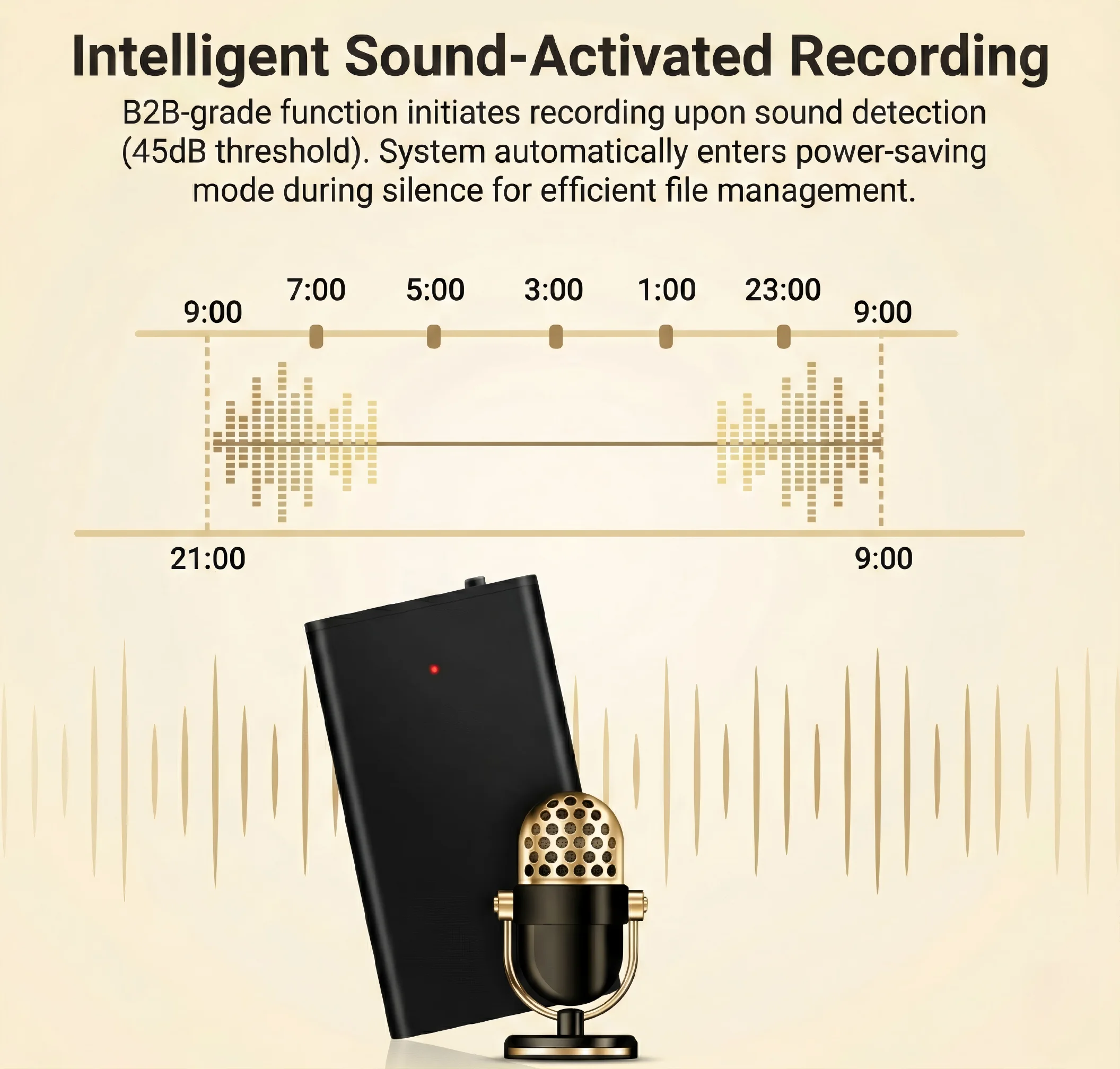
VOR significa Grabación Operada por Voz. Cuando este modo está activo, el grabador monitorea continuamente los niveles de sonido ambiente mediante su micrófono. Cuando el nivel de audio detectado cae bajo un umbral de sensibilidad preconfigurado, el dispositivo entra en un estado de suspensión temporal — pausando la grabación para conservar almacenamiento y batería.
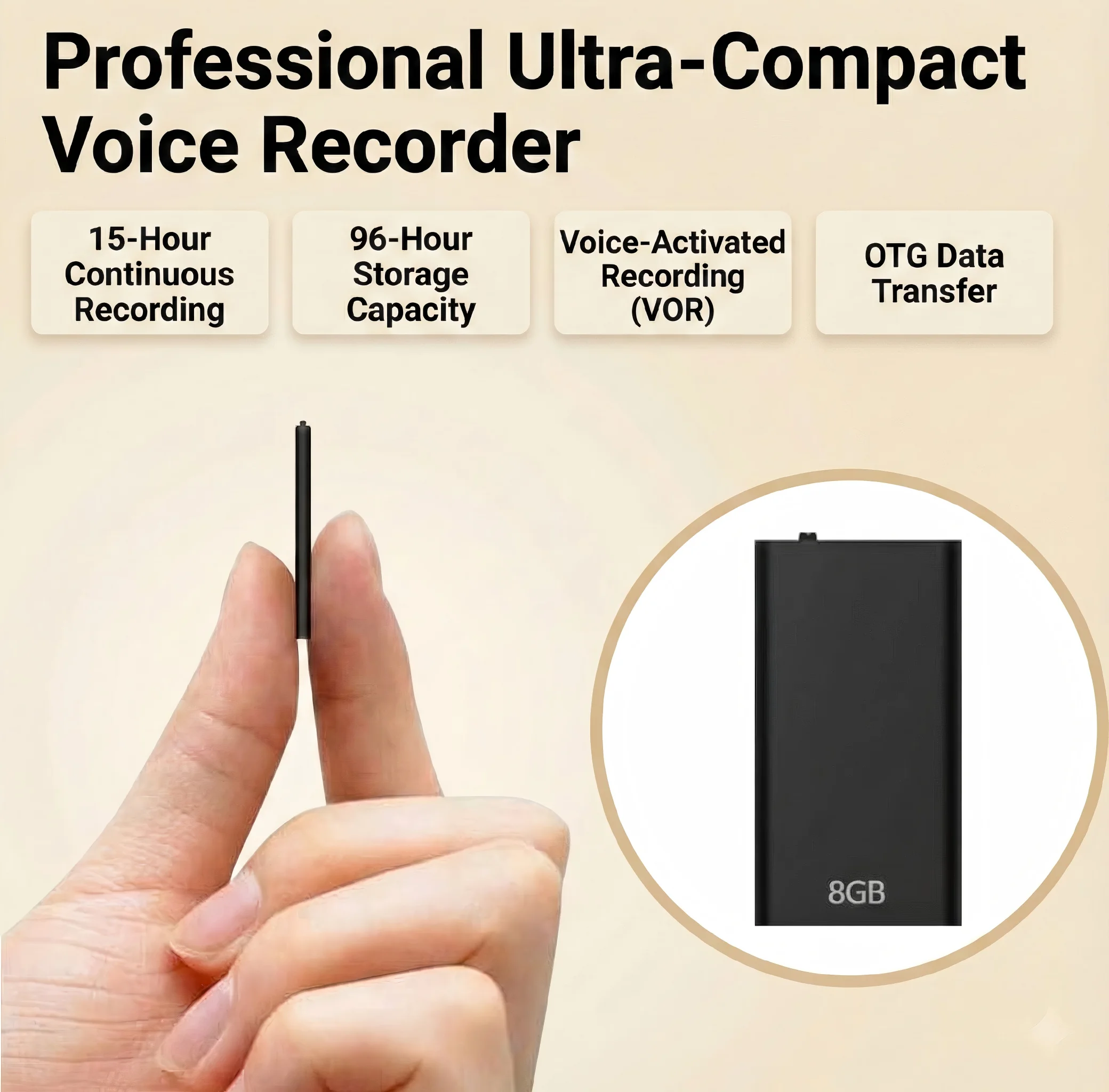
La justificación técnica es sólida: en escenarios de vigilancia donde el 90% del tiempo es silencio y el audio significativo llega en ráfagas, VOR puede extender la duración operativa de 3× a 5×. Un dispositivo con capacidad de 15 horas en modo continuo podría operar durante 50+ horas en un entorno de VOR configurado apropiadamente.
El problema surge cuando los usuarios aplican VOR a situaciones para las que nunca fue diseñado. En una reunión o entrevista estándar, los interlocutors varían su volumen de forma natural. Un participante que habla suave, una pregunta formulada con un volumen más bajo o una pausa momentánea entre frases — todo esto activa el umbral de suspensión si la sensibilidad del VOR está configurada demasiado alta. El grabador se suspende durante uno o dos segundos, el interlocutor continúa, y cuando el dispositivo se reactiva y reanuda la grabación, se han perdido permanentemente entre una y tres palabras. Multiplica esto en una reunión de 90 minutos y tendrás una grabación con decenas de micro-interrupciones.

Cómo funcionan en la práctica los umbrales de sensibilidad de VOR
La sensibilidad de VOR se expresa numéricamente en el archivo de configuración del dispositivo — normalmente almacenada como un parámetro en `time.txt` o `factory.txt` en el directorio raíz del almacenamiento del dispositivo. La escala varía según la versión del firmware, pero la implementación más común usa un rango de 0–10 donde:
– 0 = VOR desactivado; el grabador funciona continuamente independientemente del nivel de sonido
– 1–3 = Umbral bajo; el dispositivo se suspende solo durante silencio casi completo; adecuado para entornos de vigilancia silenciosos
– 4–6 = Umbral medio; el dispositivo se suspende cuando la conversación cae por debajo del volumen normal de habla; adecuado para entornos con sonidos fuertes intermitentes
– 7–10 = Umbral alto; el dispositivo solo graba volumen cercano a gritos; alto riesgo de perder audio en conversación normal
El problema práctico es que la mayoría de los dispositivos se distribuyen desde la fábrica con VOR activado en un valor medio (comúnmente 3–5). Cuando los clientes reciben el dispositivo y comienzan a usarlo para reuniones sin ajustar este parámetro, experimentan inmediatamente pérdida de audio.
Paso 1 — Diagnosticar si VOR está activo
Antes de ajustar cualquier parámetro, confirma que VOR es realmente la causa de la grabación fragmentada. Conecta el grabador a un computador mediante cable USB. Navega al directorio raíz de la unidad removible y abre el archivo de configuración — este comúnmente se llama `time.txt`, `factory.txt` o `config.txt` según la versión del firmware.
Busca una línea con el formato:
“`
VOR=3
“`
o equivalentemente:
“`
VOR_LEVEL=3
SOUND_ACTIVATED=1
“`
Si el valor de VOR es cualquier número no cero y el cliente está experimentando grabaciones fragmentadas, la mala configuración de VOR es la principal sospecha. Anote el valor actual antes de realizar cambios, para poder restaurarlo si es necesario.
Si el archivo de configuración no es visible, o la unidad muestra nombres de archivo corruptos, aborda primero el problema del sistema de archivos FAT32 — formatea el dispositivo usando FAT32 y reinstala la utilidad de sincronización de tiempo antes de proceder con el diagnóstico de VOR.

Paso 2 — Desactivar VOR completamente para pruebas de referencia
Para aislar el problema definitivamente, establezca VOR a 0 (desactivado). Edite el archivo de configuración directamente:
“`
VOR=0
“`
Guarde el archivo, expulse el dispositivo de Windows de forma segura usando la opción “Retirar hardware con seguridad” en la bandeja del sistema, luego apague completamente el grabador usando su interruptor físico. No lo desenchufe simplemente mientras aún está encendido.
Enciende nuevamente el grabador y registra una prueba de 60 segundos en un entorno de habla normal — una conversación estándar con volumen típico de reunión. Detén la grabación y conecta nuevamente al computador. Abre el archivo de audio resultante en VLC o Windows Media Player y confirma lo siguiente:
1. La grabación no contiene espacios audibles o secciones silenciosas durante el habla continua
2. La tasa de bits del archivo coincide con la configuración establecida (normalmente 192 kbps para WAV, o 128 kbps para MP3)
3. La marca de tiempo en el nombre del archivo coincide con el tiempo real de grabación
Si la grabación ahora está limpia y continua, el VOR estaba causando el problema. La solución está confirmada — ajuste el VOR al nivel apropiado para el caso de uso previsto del cliente, o dejarlo en 0 para aplicaciones críticas.

Paso 3 — Verificar que los cambios de parámetros realmente hayan surtido efecto
Este es un paso que muchos técnicos omiten, y provoca devoluciones. Después de editar el archivo de configuración, el cambio solo se guarda en la memoria flash del dispositivo cuando el archivo se guarda correctamente y el dispositivo se expulsa de forma segura. Si el archivo de configuración se guarda mientras el dispositivo aún está grabando, o si se extrae la unidad sin expulsarla de forma segura, la escritura puede fallar silenciosamente — el archivo en el computador parece mostrar el nuevo valor, pero el firmware vuelve a la última configuración válida almacenada en su memoria interna.
Para verificar que el parámetro realmente haya surtido efecto, revisa las propiedades de un nuevo archivo de grabación después del cambio:
– Haga clic derecho en el nuevo archivo de audio → Propiedades → Detalles
– Confirme que la tasa de bits coincide con la configuración de calidad de audio establecida
– Confirme que la Duración es aproximadamente lo que esperaba para la longitud de la grabación de prueba
Si la tasa de bits muestra un valor inesperado, o si el comportamiento aún parece sin cambios después de la edición del parámetro, el sistema de archivos del dispositivo puede tener fallos de solo lectura. Realice un formato FAT32 completo (no solo un escaneo rápido) como se describe en la guía complementaria, reinstale la utilidad de sincronización de tiempo y luego reaplique el cambio de configuración de VOR.
Paso 4 — Configurar VOR correctamente para el caso de uso previsto
Una vez que haya confirmado que VOR funciona y que los cambios de parámetros surten efecto, establezca el nivel final de VOR según el entorno de implementación.
VOR = 0 (Desactivado): Obligatorio para estos escenarios
– Procedimientos legales, deposiciones y grabaciones admisibles en tribunales
– Reuniones corporativas y discusiones en sala de juntas donde cada palabra importa
– Entrevistas, periodismo e investigaciones de RRHH
– Cualquier situación donde la continuidad del audio es más importante que la vida de la batería
VOR = 1–2 (Very Low Threshold): Suitable for these scenarios
– Quiet office environments where only occasional near-silence occurs
– Long-duration passive monitoring where battery conservation is needed but coverage must be complete
– Library or study environments with predictable background noise floor
VOR = 3–5 (Medium Threshold): Suitable for these scenarios
– Retail floor monitoring where only transactions and disputes need capture
– Vehicle interior monitoring where loud events (arguments, incidents) are the target
– Home security audio where the goal is capturing intrusions, not daily household sounds
VOR = 6–10 (High Threshold): Rarely recommended
– Industrial environments with high ambient noise floors
– Outdoor surveillance near construction or machinery
– Only when the target audio source is substantially louder than everything else

Cómo interactúa VOR con otros parámetros de grabación
VOR sensitivity does not operate in isolation. Two other parameters affect how aggressively the device sleeps and wakes:
VOR Hold Time (Post-Detection Silence Buffer): Some firmware versions include a `VOR_HOLD` parameter that defines how many milliseconds of silence must occur before the device enters sleep. A common default is 1,500 ms (1.5 seconds). Increasing this value to 3,000–5,000 ms adds a generous buffer — the device waits longer after silence begins before sleeping, reducing the chance that a brief pause in speech triggers a sleep-wake cycle. This single adjustment can solve most choppy-recording complaints without disabling VOR entirely.
AGC (Automatic Gain Control): AGC normalizes the recording volume dynamically. When AGC is active and VOR is also active, there is a compounding effect: AGC boosts quiet voices to match the average level, which means those quiet voices are less likely to dip below the VOR threshold. If available in the firmware, enabling AGC alongside a moderate VOR setting offers a good compromise between battery conservation and recording continuity.
Reducción de ruido DSP: High-end models include a DSP (Digital Signal Processing) noise reduction filter, typically expressed as `NOISE_REDUCTION=1` in the config file. When noise reduction is active, it filters background hum before the VOR threshold is evaluated. This means the device’s sleep decision is based on actual voice content rather than ambient noise — a significant improvement in accuracy.
Por qué los parámetros de VOR a veces no surten efecto
A repeating pattern in support tickets: a user edits the configuration file, saves it, and the device ignores the change. There are four verified causes:
1. The device was not properly powered off before reinserting. The firmware only reads configuration on cold boot. Editing the file while the device is on (or immediately reconnecting power without a full power cycle) means the old values remain in RAM.
2. The USB cable used was a charge-only cable. Some USB cables carry power only and have no data lines. The computer may show the drive, but writes to the configuration file fail silently. Always use the original cable supplied with the device, or verify the cable with a known-good data transfer test.
3. The FAT32 filesystem has read-write faults. Flash storage that has been improperly disconnected multiple times can develop sectors that accept writes in Windows Explorer but do not actually commit to the chip. The solution is a full FAT32 format, not a chkdsk repair.
4. The firmware version uses a different configuration filename. Some Q1, Q61, and ZD46 firmware revisions use `setup.ini` instead of `time.txt`. If the expected filename is not present at the root, check for alternative files and consult the device’s firmware release notes.
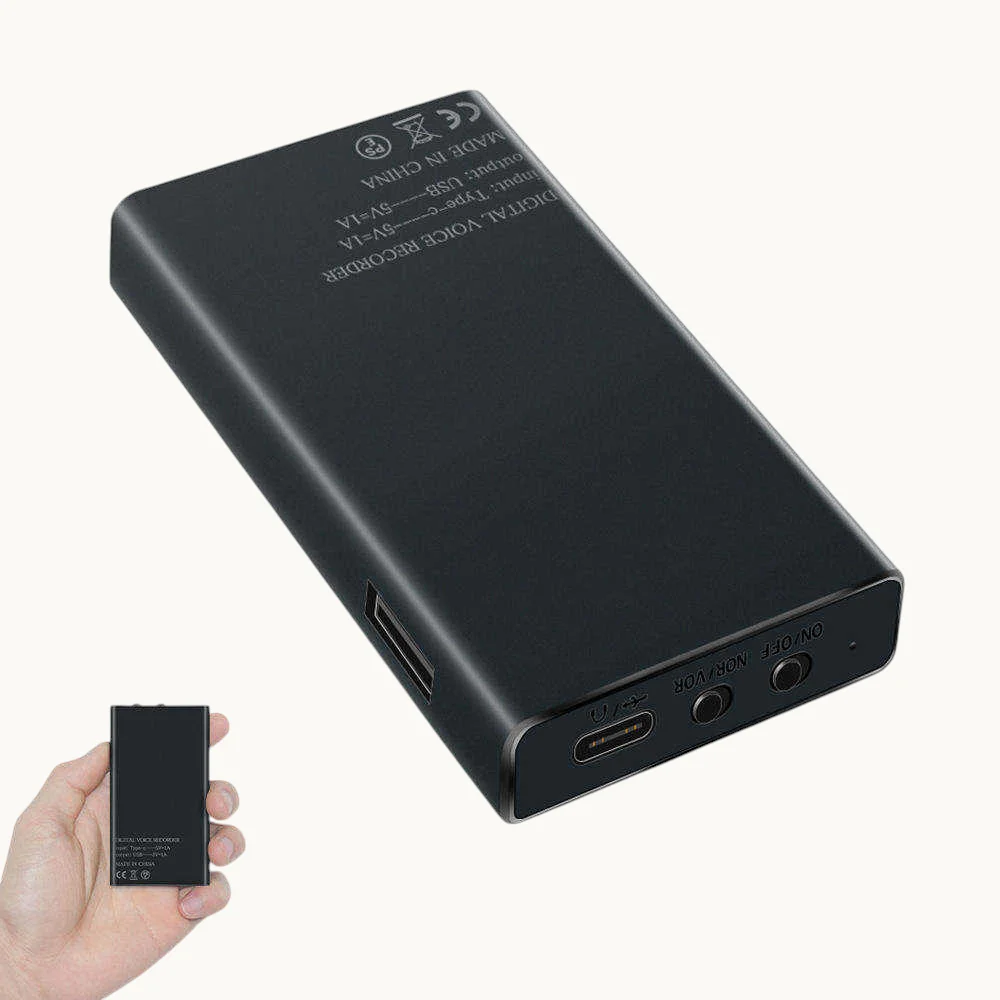
Protocolo B2B Pre-embarque para Configuración de VOR
For wholesale and OEM customers receiving large batches of devices, standardizing the VOR configuration before distribution prevents the majority of end-user complaints and return requests.
Pre-shipment checklist (per batch of devices):
1. Connect each device and confirm the configuration file is accessible and readable
2. Set VOR=0 for general-purpose units destined for meeting and interview applications
3. Set a meaningful VOR level (typically 2–3) only for units explicitly intended for passive long-duration surveillance
4. Perform a 60-second test recording on at least 10% of each batch; verify files play cleanly with no gaps
5. Confirm file bitrate matches the configured audio quality
6. Safely eject and power off each device before boxing
Including a printed one-page Quick Start guide with each unit — clearly explaining what VOR does and how to disable it — reduces support contacts by approximately 60% for this class of complaint. B2B clients reselling to non-technical end users benefit most from this documentation.
Preguntas frecuentes
Q: My client says the recorder works fine for 10 minutes and then the recordings become choppy. Is this a VOR problem?
A: More likely a low-battery condition combined with VOR. As battery voltage drops, the device may lower its internal wake threshold, making it more aggressive about sleeping. Check the battery level first. If the device is near-full battery and still choppy after 10 minutes, VOR sensitivity is the more probable cause.
Q: Can we configure VOR differently for each individual unit in a bulk order?
A: Yes. The configuration file approach makes this straightforward. If a customer requires 100 units at VOR=0 and 50 units at VOR=2, both configurations can be applied during pre-shipment QC without firmware flashing — just edit the configuration file and power-cycle each device.
Q: The client reports that when they disable VOR, the battery life drops from 30 hours to 12 hours. Is that expected?
A: Yes. VOR is primarily a power management feature. Continuous recording draws the microphone ADC circuit and write buffer continuously. In a passive surveillance scenario where actual sound occupies less than 40% of the monitoring window, VOR can more than double effective battery runtime. The 12-hour figure represents true continuous recording capacity; the 30-hour figure assumes a moderately quiet environment with VOR enabled.
Q: Is there a way to test the VOR threshold level without recording a full audio file?
A: No direct real-time monitoring is available from the device’s hardware. The practical method is to record a 30-second clip in the target environment with a given VOR setting, play it back immediately, and evaluate whether any speech was cut. This iterative test takes under 2 minutes per VOR level adjustment.
Q: Our customer is using the recorder for legal evidence. Which VOR setting do you recommend?
A: VOR=0, always. Legal and forensic applications require unbroken audio continuity. Any gap in the recording, even a 200-millisecond sleep-wake artifact, can be challenged in court as evidence of tampering or selective editing. For legal use cases, continuous mode is mandatory.
Conclusión
VOR-related choppy recordings are among the most common complaints in voice recorder support, and they are almost entirely preventable with correct upfront configuration. The core principle is straightforward: VOR is a battery-conservation tool designed for passive surveillance environments characterized by long silence and brief loud events. It is not appropriate for meeting rooms, interviews, legal proceedings, or any environment where continuous speech at varying volumes is the target.
For professional B2B deployments, the recommended default is VOR=0 unless the client’s use case explicitly benefits from selective recording. When VOR is needed, tune the sensitivity level to the specific acoustic environment through iterative testing rather than accepting factory defaults. Verifying that parameter changes have taken effect — by checking file bitrate and playback continuity — should be a mandatory step in every pre-shipment QC process.
Recorders properly configured before delivery generate fewer returns, fewer support contacts, and stronger repeat purchase rates from B2B clients who trust that the devices work as documented.

 English
  Italiano
  Deutsch
  Français
  Español
  Polski