
Jak podłączyć mini kamerę szpiegowską: Przewodnik konfiguracji WiFi
Miniaturowa kamera szpiegowska WiFi rejestruje światło przez kompaktowy obiektyw na matrycy CMOS, a następnie jej wbudowany chipset kompresuje surowy sygnał do strumienia wideo H.264 lub H.265. Strumień ten jest przesyłany przez WiFi 2,4 GHz (lub dwuzakresowe) do aplikacji na smartfonie lub serwera w chmurze w celu oglądania na żywo i odtwarzania; gdy sieć jest niedostępna, ten sam strumień jest zapisywany bezpośrednio na karcie microSD, dzięki czemu żaden materiał nie zostaje utracony. Ten przewodnik obejmuje pełną ścieżkę konfiguracji dla unijnych sprzedawców i dystrybutorów: podstawy sprzętowe, trzy tryby połączenia, z którymi spotkają się Twoi klienci, parowanie z aplikacją, rozwiązywanie problemów z siecią oraz progi specyfikacji, które zmniejszają wskaźnik zwrotów. Wszystkie wymienione modele są wysyłane z naszego magazynu we Włoszech z dokumentacją zgodną z UE i dostawą w ciągu 24–72 godzin na terenie całego jednolitego rynku.
Jak działa miniaturowa kamera szpiegowska z WiFi?
Kluczowe komponenty
Każda miniaturowa kamera WiFi jest zbudowana wokół czterech bloków funkcjonalnych. Czujnik CMOS (zazwyczaj 1/3″ do 1/2.7″ w tym formacie) przetwarza padające światło na sygnał elektryczny; rozmiar matrycy, a nie liczba megapikseli, jest głównym czynnikiem decydującym o wydajności przy słabym oświetleniu. obiektyw określa pole widzenia, zwykle 90°–150° w zastosowaniach do monitoringu, przy czym szersze kąty wprowadzają dystorsję beczkową. Moduł SoC i WiFi obsługują kompresję i transmisję — większość urządzeń wykorzystuje 2,4 GHz do penetracji ścian, a modele premium z podwójnym pasmem dodają 5 GHz dla wyższej przepustowości. Wreszcie, Pamięć lokalna za pośrednictwem microSD (zwykle obsługiwane 32–256 GB) zapewnia nadmiarowość offline. Pojemność baterii i czujniki ruchu PIR uzupełniają typową specyfikację materiałową.
Ścieżka sygnału wideo
Łańcuch przetwarzania jest prosty: czujnik rejestruje klatki, a SoC koduje je przy użyciu H.264 dla bardziej wydajnego H.265/HEVC, a zakodowany strumień jest pakietowany i przesyłany przez WiFi. H.265 zapewnia około 40–50% oszczędności przepływności przy równoważnej jakości, co ma bezpośrednie znaczenie dla kosztów przechowywania w chmurze i zużycia danych mobilnych — to decydujący argument, gdy sprzedajesz instalatorom zarządzającym wieloma lokalizacjami. Nagrywanie wyzwalane ruchem dodatkowo redukuje przepustowość, przesyłając wyłącznie klipy zdarzeń zamiast ciągłego strumienia.
Trzy tryby połączenia
Tryb AP (hotspot): kamera emituje własną sieć WiFi, a telefon łączy się bezpośrednio. Router nie jest wymagany, zasięg ograniczony do około 10–15 metrów, idealny do tymczasowego lub pozasieciowego wdrożenia. Tryb stacji (routera): kamera dołącza do istniejącej sieci WiFi, umożliwiając zdalny dostęp z dowolnego miejsca przez przekaźnik chmurowy lub P2P. Tryb AP+Client: oba działają jednocześnie, umożliwiając lokalną konfigurację, podczas gdy urządzenie pozostaje podłączone do internetu — najbardziej niezawodna opcja dla instalacji komercyjnych i ta, którą należy priorytetowo traktować w swoim katalogu.
Opóźnienie, rozdzielczość i przepustowość
1080p przy 15–25 kl./s pozostaje praktycznym standardem, zużywając około 1,5–2 Mb/s w górnym strumieniu z opóźnieniem 0,5–2 sekund przy stabilnym połączeniu. Warianty 4K zwiększają zapotrzebowanie na pasmo czterokrotnie, do 8–12 Mb/s, czego większość domowych łączy wysyłających w Europie Południowej i Wschodniej nie jest w stanie niezawodnie utrzymać — częste źródło skarg użytkowników końcowych błędnie przypisywanych awariom sprzętu.
Różnica w porównaniu z kamerami przewodowymi
Przewodowe kamery IP lub analogowe przesyłają wideo za pomocą kabli koncentrycznych lub Ethernet z deterministyczną przepustowością i prawie zerową utratą pakietów, zwykle zasilane z tego samego kabla przez PoE. Miniaturowe kamery WiFi rezygnują z tej stabilności na rzecz ukrycia i instalacji bezprzewodowej, akceptując zmienne opóźnienia, zakłócenia radiowe i zarządzanie baterią jako koszt. Są to komplementarne linie produktów, a nie konkurencyjne.
Wniosek dotyczący pozyskiwania: w swojej ofercie hurtowej priorytetowo traktuj kodowanie H.265, dwuzakresowe WiFi i obsługę AP+Client — te trzy specyfikacje rozwiązują większość zgłoszeń wsparcia od użytkowników końcowych i chronią Twoją marżę przed zwrotami.
Jak po raz pierwszy połączyć mini kamerę szpiegowską z telefonem?
Pierwsza konfiguracja wykorzystuje wbudowany hotspot WiFi kamery. Kamera uruchamia się, tworzy własną nazwę SSID (zwykle „CAM_XXXX” lub „IPCAM_XXXX”), a Twój telefon łączy się z nią bezpośrednio.
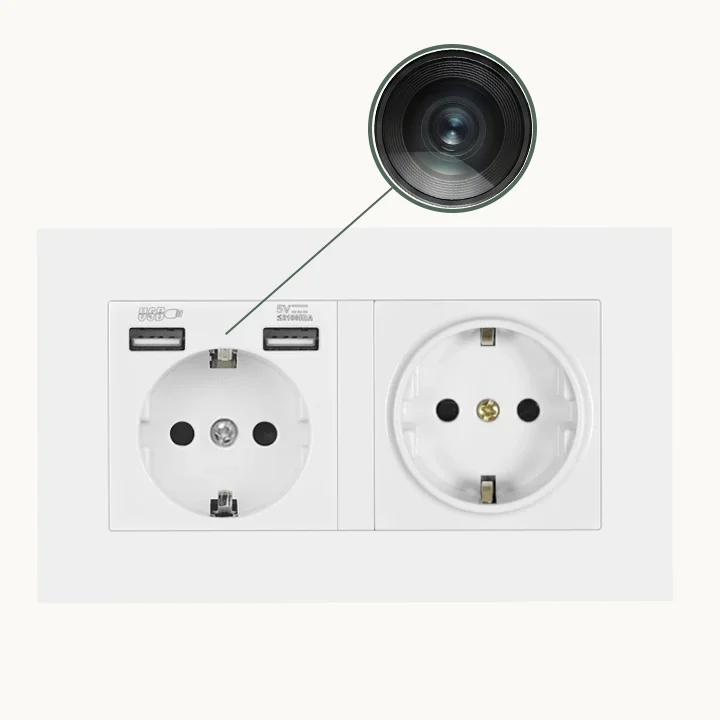
Wymagania wstępne przed rozpoczęciem:
– Włożona karta SD (niektóre kamery wymagają tego do aktywacji WiFi)
– Kamera w pełni naładowana lub podłączona do zasilania
– WiFi telefonu wskazujące na pasmo 2.4GHz — to najczęstsza przyczyna problemów z konfiguracją. Większość nowoczesnych routerów obsługuje zarówno 2.4GHz, jak i 5GHz pod tą samą nazwą sieci (SSID); Twój telefon domyślnie łączy się z 5GHz, którego minikamery nie widzą.
Krok po kroku:
1. Włącz kamerę. Odczekaj 30–60 sekund, aż w pełni się zainicjalizuje — niebieska dioda LED będzie świecić ciągłym światłem, czerwona dioda będzie migać.
2. Otwórz ustawienia WiFi w telefonie. Poszukaj nazwy SSID kamery na liście dostępnych sieci.
3. Połącz się z WiFi kamery. Domyślne hasło to zazwyczaj „1234567890”, „88888888” lub jest wydrukowane na obudowie/opakowaniu kamery.
4. Pobierz aplikację producenta przed jej otwarciem — wyszukiwanie „ICSEE” w sklepie z aplikacjami zwraca dziesiątki niepowiązanych aplikacji. Użyj kodu QR z instrukcji lub urządzenia.
5. Otwórz aplikację, dotknij „Dodaj urządzenie” lub przycisku „+”. Aplikacja automatycznie wykryje kamerę poprzez lokalne połączenie hotspot.
6. Postępuj zgodnie z instrukcjami w aplikacji, aby ustawić hasło i nazwę urządzenia.
W tym momencie masz podgląd na żywo — ale tylko w zasięgu WiFi kamery. Aby oglądać zdalnie, musisz podłączyć kamerę do routera domowego (patrz następna sekcja).
Jak podłączyć mini kamerę szpiegowską do domowego routera WiFi?
Zdalny podgląd — oglądanie kamery z dowolnego miejsca, nie tylko w zasięgu WiFi — wymaga podłączenia kamery do routera domowego.
Dlaczego 2.4GHz ma tu znaczenie: Każda miniaturowa kamera szpiegowska na rynku korzysta z WiFi 2,4 GHz. Jeśli Twój router emituje pasma 2,4 GHz i 5 GHz pod tym samym SSID, kamera połączy się tylko z radiem 2,4 GHz. Sprawdź ustawienia routera — wiele routerów dostarczanych przez dostawców internetu ma domyślnie wyłączone pasmo 2,4 GHz lub ustawione na innym paśmie.
Kroki konfiguracji w aplikacji:
1. Gdy kamera jest podłączona do telefonu (przez jej hotspot), otwórz ustawienia kamery w aplikacji.
2. Znajdź „Ustawienia WiFi” lub „Konfiguracja sieci”.
3. Wybierz SSID 2.4GHz swojego routera domowego i wprowadź hasło.
4. Kamera uruchamia się ponownie, rozłącza się z własnym hotspotem i łączy się z Twoim routerem.
5. Twój telefon powinien ponownie połączyć się z normalnym domowym WiFi.
6. Otwórz aplikację — kamera pojawi się teraz jako urządzenie online z ikoną routera, a nie ikoną hotspotu.
Jak potwierdzić, że kamera jest w Twojej sieci:
– Strona administracyjna routera: Poszukaj urządzenia z nazwą producenta (np. „Shenzhen” lub firmy dewelopera aplikacji) na liście podłączonych urządzeń.
– Status aplikacji: Ikona kamery w aplikacji powinna pokazywać zielony wskaźnik „Online”.
– Test ping: Jeśli znasz adres IP kamery (z routera), wpisz go w przeglądarce — wiele kamer udostępnia interfejs webowy pod swoim lokalnym adresem IP.
Jakie są trzy tryby WiFi i kiedy każdy z nich stosować?
Minikamery szpiegowskie obsługują trzy różne konfiguracje sieciowe. Użycie niewłaściwego trybu dla Twojej sytuacji jest drugą najczęstszą przyczyną problemów z konfiguracją, zaraz po problemie z pasmem 5GHz.
Tryb 1 — stacja AP (tylko hotspot): Kamera tworzy własną sieć WiFi. Twój telefon łączy się bezpośrednio z kamerą. Zasięg jest ograniczony do około 15–20 metrów. Brak zdalnego dostępu. Najlepsza do tymczasowych konfiguracji, testów lub lokalizacji bez WiFi.
Tryb 2 — STA Station (tryb routera): Kamera łączy się z Twoją istniejącą siecią WiFi. Twój telefon łączy się z tą samą siecią (lub korzysta z danych mobilnych). Zdalny dostęp działa z dowolnego miejsca. Najlepsza do stałych instalacji, gdzie kamera znajduje się w zasięgu WiFi routera.
Tryb 3 — AP+STA (tryb podwójny): Kamera utrzymuje własny hotspot, będąc jednocześnie podłączona do routera. Umożliwia to bezpośrednie połączenie z bliskiej odległości i zdalny dostęp przez router jednocześnie. Niektóre kamery wymagają ręcznego przełączania między trybami; inne działają równolegle w obu. Najlepsza do kamer umieszczonych w miejscach, gdzie sygnał WiFi jest słaby — hotspot zapewnia niezawodną lokalną rezerwę.
| Tryb | Kamera tworzy hotspot | Łączy się z routerem | Dostęp zdalny | Najlepszy przypadek użycia |
|---|---|---|---|---|
| AP (tylko hotspot) | Tak | NIE | NIE | Tymczasowe, testowe |
| STA (tylko router) | NIE | Tak | Tak | Instalacja stała, dobry sygnał |
| AP+STA (podwójny) | Tak | Tak | Tak | Lokalizacje o słabym sygnale WiFi |
Dlaczego Twoja minikamera szpiegowska nie łączy się z WiFi?
Trzy najczęstsze przyczyny — i sposoby ich rozwiązania.

Przyczyna 1 — Twój telefon jest w sieci WiFi 5GHz. Kamera nie widzi sieci 5 GHz. Rozwiązanie: przejdź do ustawień routera i albo zmień nazwę pasma 2,4 GHz na inne SSID, albo wymuś na telefonie korzystanie z 2,4 GHz podczas konfiguracji. Alternatywnie użyj osobnego urządzenia obsługującego tylko 2,4 GHz do wstępnej konfiguracji.
Przyczyna 2 — Hasło WiFi zawiera znaki specjalne. Spacje, symbole takie jak @#$% i znaki spoza ASCII dezorientują wiele oprogramowania układowego miniaturowych kamer. Rozwiązanie: podczas konfiguracji zmień hasło routera 2,4 GHz na składające się wyłącznie z liter i cyfr, a następnie przywróć oryginalne hasło.
Przyczyna 3 — Sygnał WiFi jest zbyt słaby w miejscu instalacji kamery. Większość miniaturowych kamer ma małe anteny o ograniczonym zasięgu. Rozwiązanie: użyj wzmacniacza WiFi w paśmie 2,4 GHz lub przestaw kamerę bliżej routera. Alternatywnie poprowadź kabel Ethernet do zasilacza PoE i użyj kamery z łącznością Ethernet.
Przyczyna 4 — Oprogramowanie układowe kamery jest nieaktualne. Niektóre kamery są dostarczane z oprogramowaniem układowym, które ma znane problemy ze zgodnością WiFi z określonymi chipsetami routerów (w szczególności z chipami WiFi MediaTek i Realtek). Rozwiązanie: po wstępnej konfiguracji sprawdź w aplikacji producenta dostępność aktualizacji oprogramowania. Jeśli aktualizacja nie jest dostępna, problem może być nieodłączny dla tej rewizji sprzętu.
Jak podłączyć wiele miniaturowych kamer szpiegowskich do jednej aplikacji?
Większość aplikacji obsługuje jednocześnie 4–16 kamer. Dodawanie kolejnych kamer przebiega tak samo jak dodawanie pierwszej — ale z jednym dodatkowym punktem decyzyjnym.
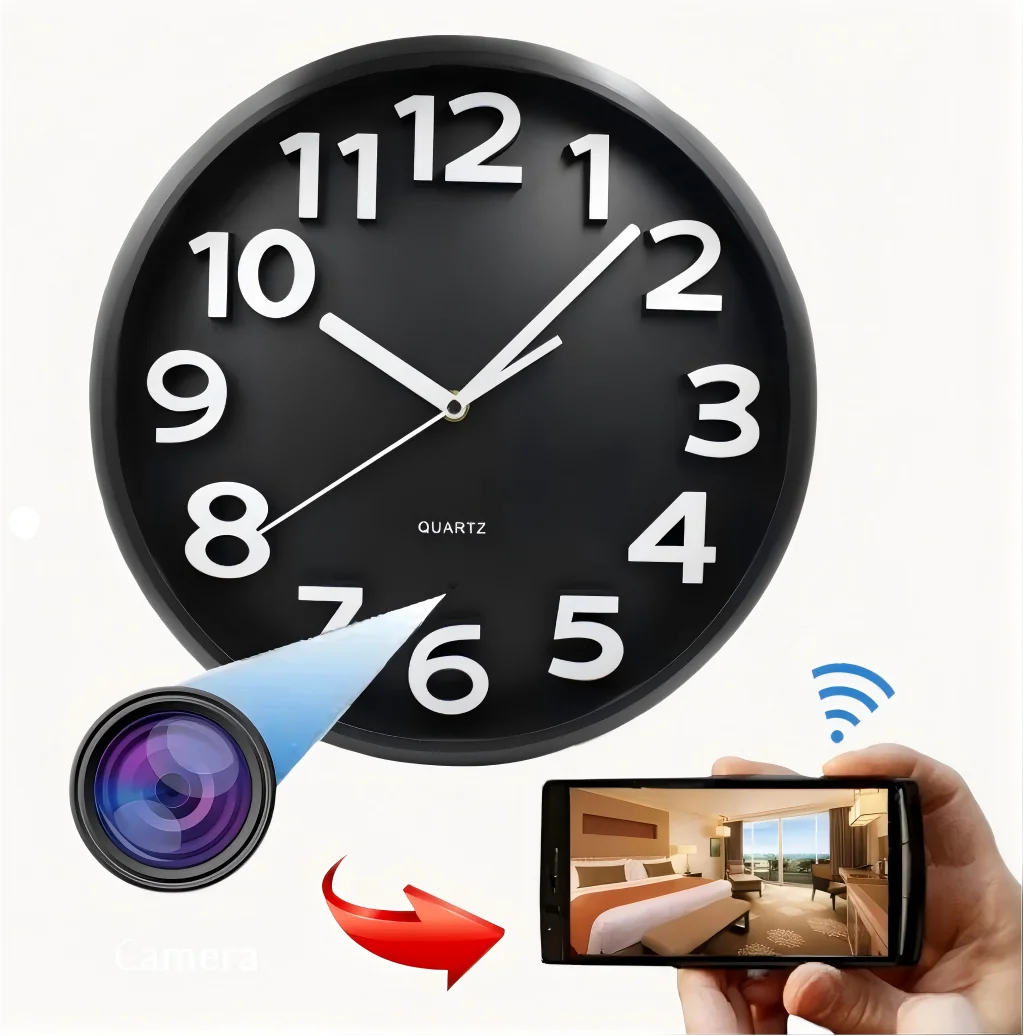
Metoda 1 — Dodawanie pojedynczego urządzenia: Dodaj każdą kamerę przez funkcję „Dodaj urządzenie” w aplikacji. Każda kamera otrzymuje własny kafelek podglądu na żywo. To standardowe podejście i działa dla wszystkich kamer.
Metoda 2 — Organizacja grup/stref: W aplikacjach, które to obsługują, twórz grupy (np. „Parter”, „Biuro”) i przypisuj kamery do grup. Aplikacja wyświetla widok siatki wszystkich kamer w grupie jednocześnie — przydatne do monitorowania na żywo.
Metoda 3 — centralizacja NVR/oprogramowanie: Dla 8+ kamer, rejestrator sieciowy (NVR) lub oprogramowanie takie jak Blue Iris, Shinobi lub Home Assistant przechwytuje wszystkie strumienie centralnie. Każda kamera łączy się z NVR/oprogramowaniem przez swój lokalny adres IP — aplikacja nie jest wymagana dla samych kamer. QZT Security oferuje kompatybilne modele gotowe do NVR z obsługą protokołu ONVIF.
| Metoda | Maksymalna liczba kamer | Zdalny podgląd | Pamięć lokalna | Złożoność konfiguracji |
|---|---|---|---|---|
| Aplikacja (indywidualna) | 4–16 | Przez aplikację | Karta SD per kamera | Niski |
| Oprogramowanie NVR | 8–64 | Przez interfejs webowy NVR | Centralny NAS/dysk twardy | Średni |
| Home Assistant | Nieograniczony | Przez interfejs HA | Na integrację | Wysoki |
Jak bezpieczna jest miniaturowa kamera szpiegowska z WiFi?
Łączność WiFi wprowadza dwa specyficzne zagrożenia, których nie mają kamery przewodowe: włamanie do sieci i przechwycenie wideo.
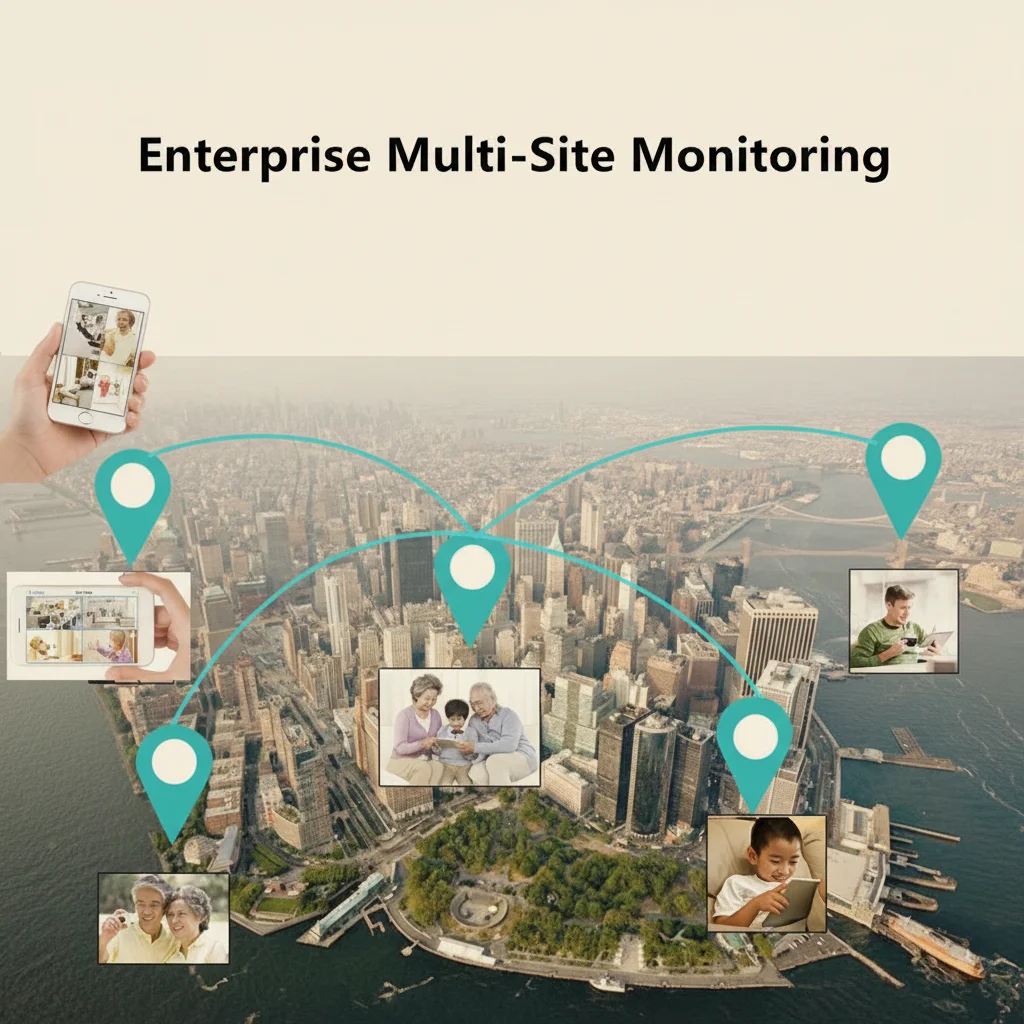
Bezpieczeństwo sieci: Większość miniaturowych kamer używa podstawowego szyfrowania WPA2-AES do łączności WiFi. Jednak własny interfejs internetowy kamery (jeśli dostępny) często nie ma hasła lub używa słabego hasła domyślnego. Rozwiązanie: natychmiast po konfiguracji zmień hasło administratora kamery, wyłącz UPnP na routerze (zapobiega automatycznemu otwieraniu portów przez kamerę) i upewnij się, że oprogramowanie routera jest aktualne.
Przechwytywanie strumienia wideo: Bez szyfrowania strumienie wideo w tej samej sieci WiFi mogą być potencjalnie przechwytywane. Wiele kamer obsługuje obecnie RTSPS (strumień szyfrowany) zamiast nieszyfrowanego RTSP. Sprawdź, czy Twoja kamera obsługuje RTSPS — jeśli tak, włącz to w ustawieniach. Kamery QZT Security z integracją TUYA domyślnie obsługują szyfrowane strumieniowanie.
Bezpieczeństwo chmury vs. P2P: Kamery korzystające z technologii P2P (peer-to-peer), takiej jak Tuya lub Akamai IoT, łączą się przez serwer przekaźnikowy strony trzeciej. Strumień wideo może przechodzić przez serwery w wielu jurysdykcjach, co ma implikacje RODO dla firm w UE. Kamery z bezpośrednim P2P lub w pełni lokalnym przechowywaniem unikają tego problemu.
Jak rozwiązać problem z kamerą, która ciągle się rozłącza?
Przerywane rozłączenia zwykle wynikają z problemów z zasilaniem, degradacją sygnału WiFi lub uszkodzeniem karty SD — a nie z problemów z oprogramowaniem układowym.
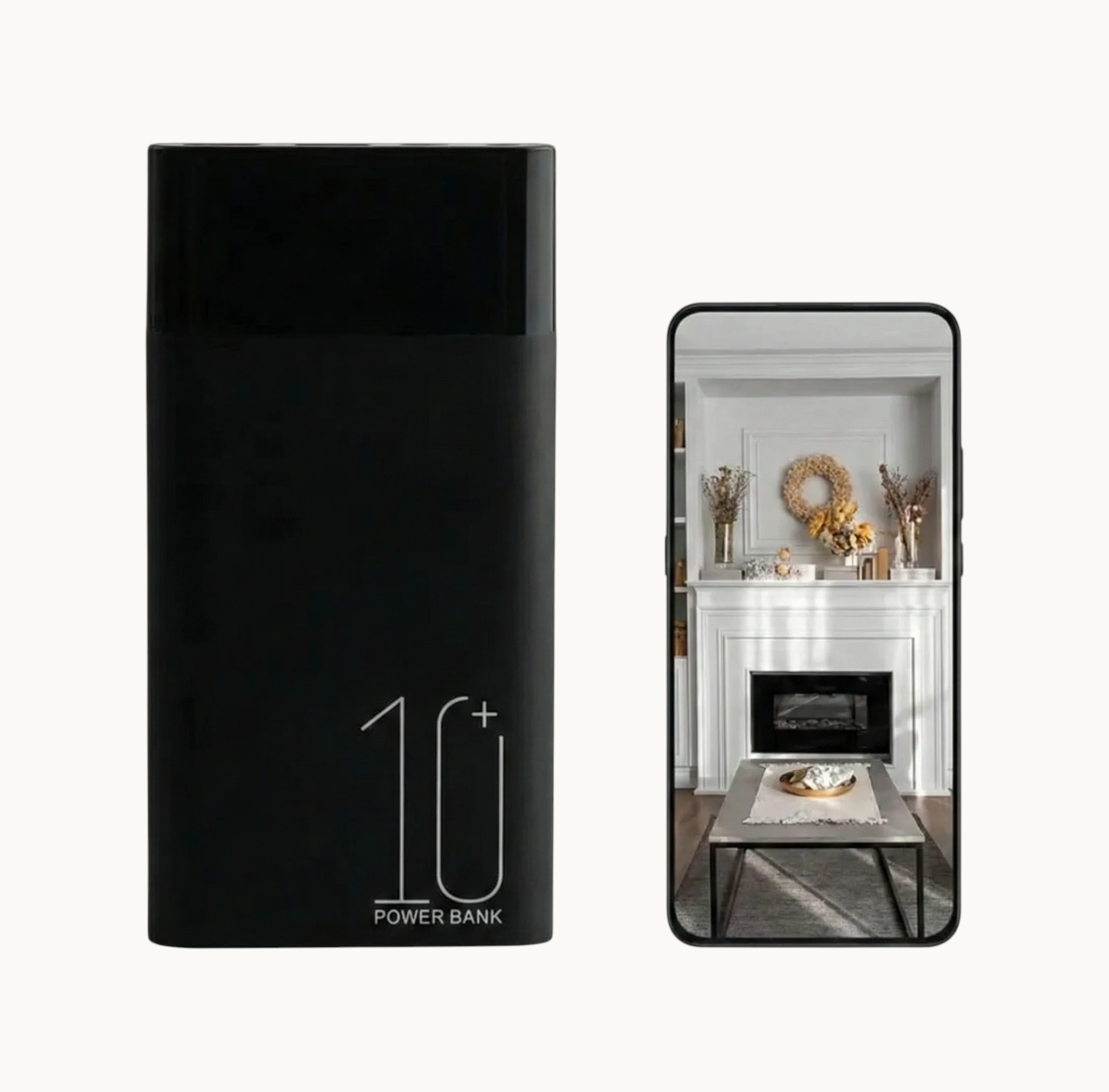
Najpierw sprawdź zasilanie. Miniaturowe kamery pobierają 300–500 mA podczas nagrywania. Jeśli zasilacz jest zbyt słaby (np. ładowarka 5 V/500 mA używana z kamerą, która osiąga szczyt 600 mA), kamera zanika podczas aktywacji IR (gdy włączają się diody LED, pobór prądu gwałtownie wzrasta). Rozwiązanie: użyj zasilacza 5 V/2 A i kabla z grubszymi przewodami miedzianymi — cienkie kable tracą napięcie pod obciążeniem.
Monitorowanie sygnału WiFi. Umieść telefon obok kamery i monitoruj siłę sygnału WiFi. Jeśli waha się poniżej -75dBm, sygnał jest słaby. Użyj aplikacji do pomiaru sygnału WiFi (bezpłatnej), aby zmierzyć rzeczywisty sygnał w miejscu instalacji kamery. Odczyt poniżej -80dBm spowoduje sporadyczne rozłączenia.
Diagnostyka karty SD. Uszkodzona lub niekompatybilna karta SD powoduje błędy nagrywania, które w aplikacji wyglądają jak „rozłączenie”. Przetestuj z kartą Class 10 znanej, sprawdzonej marki (Sandisk, Samsung). Sformatuj kartę w menu samej kamery — nie w komputerze.
Przeładowanie oprogramowania układowego. W ostateczności pobierz najnowsze oprogramowanie sprzętowe ze strony producenta i przeładuj je metodą karty SD (większość kamer obsługuje aktualizację oprogramowania poprzez plik firmware.bin na karcie SD).
Często zadawane pytania
Dlaczego mój telefon nie widzi sygnału WiFi kamery?
Najczęstszą przyczyną jest to, że Twój telefon jest podłączony do pasma WiFi 5 GHz — mini kamery nadają tylko na 2,4 GHz. Przejdź do Ustawienia → WiFi i ręcznie wybierz SSID kamery 2,4 GHz. Jeśli sieć kamery w ogóle się nie pojawia, kamera może być już podłączona do Twojego routera z poprzedniej konfiguracji — zrestartuj kamerę, aby zresetować jej stan sieciowy.
Jak mogę zdalnie podglądać moją mini kamerę szpiegowską z dowolnego miejsca?
W trybie routera (kamera podłączona do domowej sieci WiFi) aplikacja łączy się przez przekaźnik P2P lub serwer chmurowy — nie musisz konfigurować przekierowania portów. Pobierz aplikację, zaloguj się na swoje konto (utwórz je w aplikacji), a kamera automatycznie pojawi się na liście urządzeń. Dla większości kamer konsumenckich nie jest potrzebna konfiguracja routera.
Jaki jest maksymalny zasięg WiFi dla mini kamery szpiegowskiej?
Na otwartej przestrzeni oczekuj niezawodnego połączenia na odległość 15–30 metrów. W pomieszczeniach z murami efektywny zasięg spada do 10–15 metrów przez jedną ścianę wewnętrzną lub 5–10 metrów przez dwie. Powierzchnie metalowe i ściany betonowe znacząco blokują sygnał WiFi. W przypadku instalacji na duże odległości użyj wzmacniacza WiFi w paśmie 2.4 GHz umieszczonego między routerem a kamerą.
Czy dwie kamery szpiegowskie mogą korzystać z tej samej sieci WiFi?
Tak — większość sieci obsługuje jednocześnie 4–10 kamer bez problemu. Przepustowość na kamerę jest umiarkowana (1–4 Mbps dla 1080p). Wąskim gardłem jest zazwyczaj prędkość łącza w górę: 4 kamery przesyłające jednocześnie po 2 Mbps każda wymagają 8 Mbps przepustowości wysyłania w domowym łączu. Sprawdź limit połączeń urządzeń w routerze — niektóre routery od ISP ograniczają do 10–16 urządzeń łącznie.
Dlaczego kamera rozłącza się, gdy włączam noktowizję?
Diody IR noktowizji pobierają znacznie większy prąd dodatkowy (200–400mA w szczycie). Jeśli zasilacz ma zbyt niski zapas mocy, napięcie spada, gdy diody IR się włączają, powodując reset kamery lub utratę połączenia WiFi. Wymień zasilacz na jednostkę 5V/2A i użyj krótkiego, grubego kabla USB, aby zminimalizować spadek napięcia.
Potrzebujesz pomocy w wyborze odpowiedniej ukrytej kamery z WiFi?
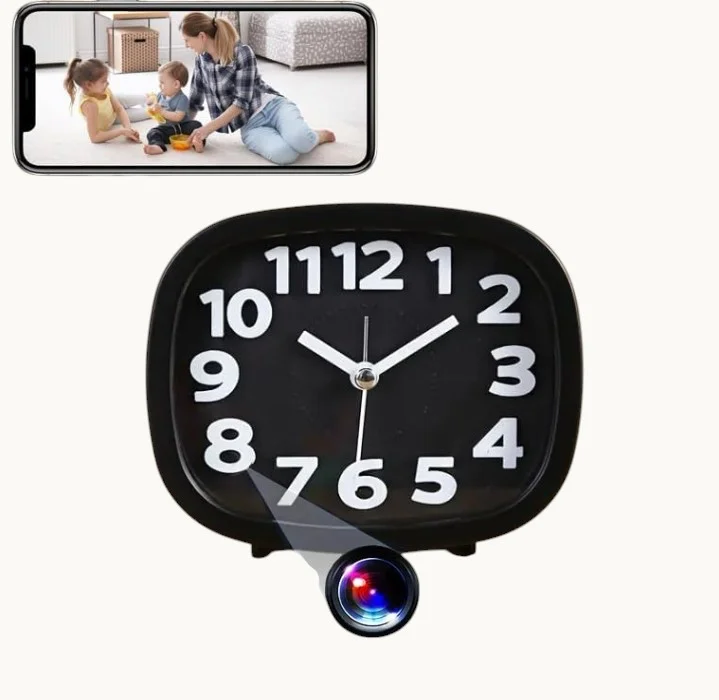
Asortyment QZT Security obejmuje kamery w zegarach, kamery w ładowarkach USB, kamery w czujkach dymu oraz kamery w brelokach do kluczyków samochodowych — wszystkie z konfiguracją WiFi przez aplikację. Przeglądaj pełny katalog or skontaktuj się z naszym zespołem technicznym w celu uzyskania wsparcia przy konfiguracji.

 English
  Italiano
  Deutsch
  Français
  Español
  Polski